Introduction
This manual provides essential information for setting up, operating, maintaining, and troubleshooting your ASUS BR1102FGA 11.6-inch HD Touchscreen 2-in-1 Educational Laptop. Designed for versatility, this device functions as both a traditional laptop and a tablet, featuring an Intel Celeron N100 processor, 4GB RAM, and a 128GB SSD, running on Windows 11 Pro. Its spill-resistant design and anti-glare coating enhance durability and usability in various environments.
Кутуда эмне бар
Carefully unpack all items from the box. Ensure all components are present before proceeding with setup.
- ASUS BR1102FGA 11.6-inch 2-in-1 Educational Laptop
- Кубаттуу адаптер жана кабель
- 9H HDMI Cable (Accessory)
- Документтер (Ыкчам баштоо колдонмосу, Кепилдик карта)
Жайгашуу
1. Алгачкы заряддоо жана күйгүзүү
Before first use, connect the power adapter to the laptop's charging port and a power outlet. Allow the battery to charge for at least 30 minutes. Press the power button located on the right side of the device to turn it on.

Сүрөт: оң жак view of the ASUS BR1102FGA laptop, highlighting the power button and various ports.
2. Windows 11 Pro орнотуулары
Follow the on-screen instructions to complete the initial Windows 11 Pro setup. This includes selecting your region, language, connecting to a Wi-Fi network, and creating a user account.
3. Wi-Fiга туташуу
During the Windows setup, you will be prompted to connect to a wireless network. Select your network from the list and enter the password. If you skip this step, you can connect later via the Windows Settings menu (Start > Settings > Network & internet > Wi-Fi).
4. Портту аныктоо
Familiarize yourself with the available ports for connecting peripherals.
- Сол жагы: 1 x USB 2.0 Type-C, 1 x USB 3.2 Gen 2 Type-C, 1 x USB 3.2 Gen 2 Type-A, NETWORK (RJ-45), HDMI.
- Оң жагы: Power Button, Audio Jack, USB-A, USB-C, Volume Buttons.

Сүрөт: сол жагы view of the ASUS BR1102FGA laptop, displaying the Ethernet, HDMI, USB-C, and USB-A ports.
Иштеп жатат
1. 2-бирде функционалдуулук
Your ASUS BR1102FGA is a versatile 2-in-1 device, allowing you to switch between laptop and tablet modes. The hinge allows for a full 360-degree rotation of the screen.
- Ноутбук режими: Traditional clamshell configuration for typing and productivity.
- Планшет режими: Fold the screen back completely to use as a tablet. The keyboard and touchpad will automatically disable.
- Tent/Stand Mode: Position the laptop in a tent or stand configuration for media consumption or presentations.

Image: The ASUS BR1102FGA laptop in its traditional laptop configuration.

Image: The ASUS BR1102FGA laptop converted into tablet mode.

Image: The ASUS BR1102FGA laptop configured in a tent or stand mode.
2. Сенсордук экрандын иштеши
The 11.6-inch HD display supports multi-touch gestures. Use your fingers to navigate, tap, swipe, pinch-to-zoom, and interact with applications. The anti-glare coating helps reduce reflections for better visibility.
3. Баскычтоп жана сенсордук такта
The integrated keyboard and touchpad provide standard input functionality. The keyboard is designed to be spill-resistant, offering protection against minor liquid spills.
4. Камераларды колдонуу
The laptop features two cameras for various uses, including video conferencing and capturing images.

Image: The ASUS BR1102FGA laptop highlighting the locations of both the front-facing and keyboard-facing cameras.
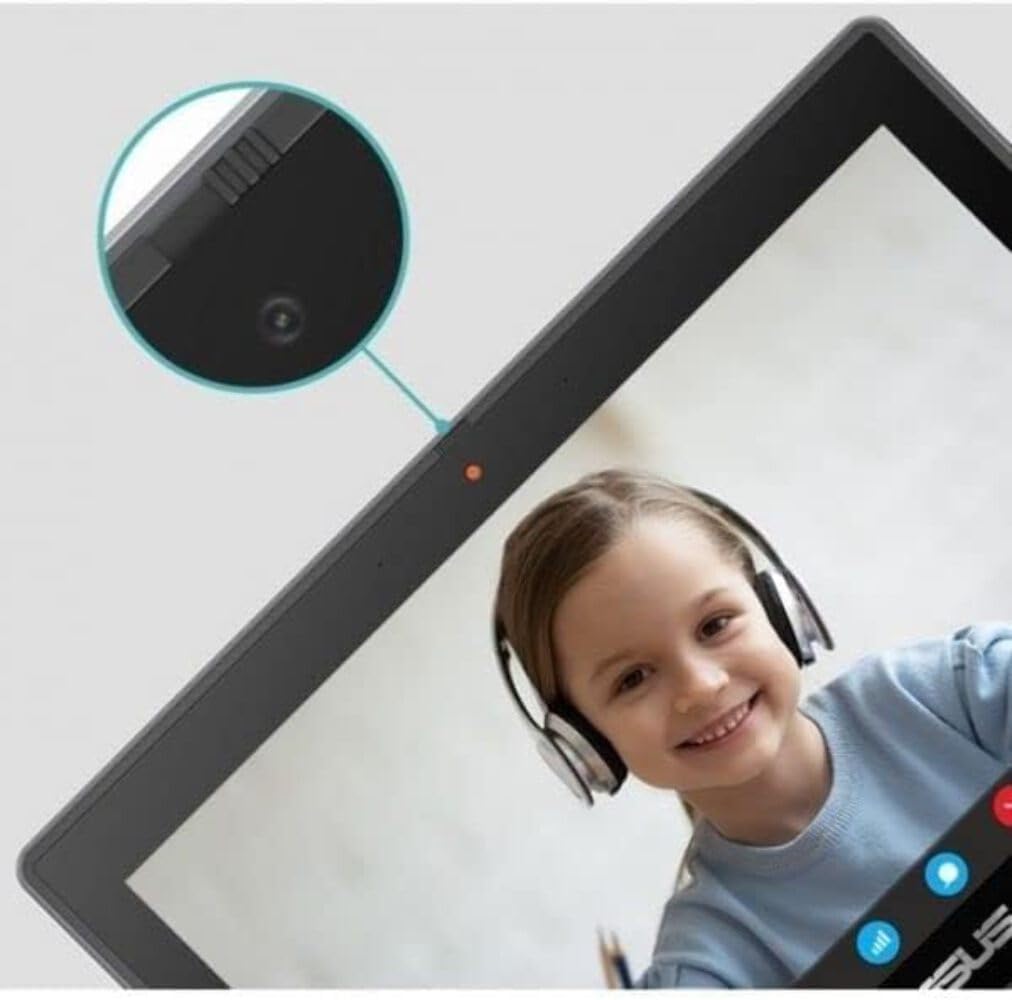
Сүрөт: жакын план view of the front-facing webcam on the ASUS BR1102FGA laptop.
Техникалык тейлөө
1. Тазалоо нускамалары
- Экран: Бир аз жумшак, түксүз кездемени колдонуңуз dampсуу же экран тазалоочу менен бүттү. Катуу химиялык заттардан алыс болуңуз.
- Баскычтоп жана шасси: Жумшак, кургак чүпүрөктү колдонуңуз. өжөр кир үчүн, бир аз гamp кездемени колдонсо болот. Тешиктерге суюктук кирбегенин текшериңиз.
2. Батареяга кам көрүү
To prolong battery life, avoid extreme temperatures. Do not fully discharge the battery frequently. For long-term storage, charge the battery to about 50-60% and store in a cool, dry place.
3. Программалык камсыздоону жаңыртуу
Regularly check for and install Windows updates to ensure optimal performance, security, and compatibility. Go to Start > Settings > Windows Update.
4. Сактагычты башкаруу
Мезгил-мезгили менен кайраview жана керексиз жок кылуу files to maintain sufficient free space on the 128GB SSD. Utilize cloud storage or external drives for large files.
Проблемаларды чечүү
1. Ноутбук күйбөй жатат
- Кубат адаптери ноутбукка да, иштеген электр розеткасына да бекем туташып турганын текшериңиз.
- Башка аспапка туташтыруу менен электр розеткасынын иштешин текшериңиз.
- Allow the laptop to charge for a period before attempting to power on again.
2. Жай аткаруу
- Фондо иштеп жаткан керексиз тиркемелерди жабыңыз.
- Күтүүдөгү Windows жаңыртууларынын бардыгын текшерип, орнотуңуз.
- SSDде жетиштүү бош орун камсыз кылыңыз.
- Ноутбукту кайра иштетиңиз.
3. Wi-Fi туташуу маселелери
- Verify that Wi-Fi is enabled in Windows Settings.
- Роутериңизди жана модемиңизди өчүрүп күйгүзүңүз.
- Wi-Fi тармагын унутуп, кайра туташыңыз.
- Ноутбуктун Wi-Fi сигналынын диапазонунда экенин текшериңиз.
4. Touchscreen Not Responding
- Ноутбукту кайра иштетиңиз.
- Экран таза жана таштандылардан таза экенин текшериңиз.
- Check for updated display drivers via Windows Update or the ASUS support webсайт.
Техникалык шарттар
| Өзгөчөлүк | Спецификация |
|---|---|
| Модель аты | ASUS BR1102FGA |
| Дисплей | 11.6-inch HD (1366 x 768) Touchscreen, Anti-Glare |
| Процессор | Intel Celeron N100 (up to 3.4GHz, 4-Cores) |
| Графика | Intel UHD графикасы |
| RAM | 4 ГБ DDR4 |
| Сактагыч | 128 ГБ SSD |
| Операция системасы | Windows 11 Pro |
| Зымсыз байланыш | Wi-Fi 6 (802.11ax), Bluetooth 5.1 |
| Порттар | 1x USB 2.0 Type-C, 1x USB 3.2 Gen 2 Type-C, 2x USB 3.2 Gen 2 Type-A, 1x HDMI, 1x RJ-45 (Ethernet), 1x Audio Jack |
| Батарея | 3-cell Li-ion |
| Өлчөмдөрү (LxWxH) | 11.7 x 8.2 x 0.83 дюйм |
| Салмагы | 3.24 фунт |
| Түс | Минералдык боз |
Кепилдик жана колдоо
1. Продукцияга кепилдик
Your ASUS BR1102FGA laptop is covered by a manufacturer's warranty. Please refer to the warranty card included in your product packaging for specific terms, conditions, and duration of coverage. Keep your proof of purchase for warranty claims.
2. Техникалык колдоо
Техникалык жардам, драйверлерди жүктөп алуу же андан аркы колдоо алуу үчүн, сураныч, расмий ASUS колдоо кызматына кайрылыңыз website. You can typically find support resources by searching for your model number (BR1102FGA) on their webсайт.
ASUS колдоо Webсайт: https://www.asus.com/support/
ASUS дүкөнү: Visit the ASUS Store on Amazon


