Introduction
This manual provides essential information for setting up, operating, maintaining, and troubleshooting your Alienware X16 Gaming Laptop. Designed for high-performance gaming, this laptop features cutting-edge components and advanced cooling solutions to deliver an immersive experience.

Figure 1: Alienware X16 Gaming Laptop, showcasing its high-refresh-rate display and powerful graphics capabilities.
Кутуда эмне бар
Upon unboxing your Alienware X16 Gaming Laptop, verify that all components are present:
- Alienware X16 R2 ноутбук
- Power Adapter (330W Small Form Factor)
- Электр кабели
- Документтер (анын ичинде бул колдонмо)
Жайгашуу
Баштапкы күйгүзүү
- Кубат адаптерин туташтыруу: Plug the power adapter into the Power/DC-in Port on the rear of the laptop. Connect the power cord to the adapter and then to a wall outlet.
- Open the Laptop: Дисплейдин капкагын этияттык менен көтөрүңүз.
- Күйгүзүү: Адатта клавиатуранын панелинде жайгашкан кубат баскычын басыңыз.
- Экрандагы нускамаларды аткарыңыз: The laptop will guide you through the initial Windows 11 Pro setup process, including language selection, network connection, and user account creation.
Перифериялык түзүлүштөрдү туташтыруу
The Alienware X16 offers a variety of ports for connecting external devices:
- USB 3.2 Gen 1 порттору (x2): Чычкандар, баскычтоптор же тышкы дисктер сыяктуу стандарттуу USB түзмөктөрү үчүн.
- USB-C 3.2 Gen 2 Port with DisplayPort: For modern USB-C devices and external displays.
- Thunderbolt 4 Port with Power Delivery and DisplayPort: High-speed connectivity for advanced peripherals, external GPUs, and charging.
- HDMI 2.1 порту: Тышкы мониторлорго же сыналгыларга туташуу үчүн.
- Headset (Headphone and Microphone Combo) Port: Аудио киргизүү/чыгаруу үчүн.
- microSD карта слоту: Сактагычты кеңейтүү же өткөрүп берүү үчүн fileэстутум карталарынан.

Figure 2: Rear port configuration of the Alienware X16, detailing connectivity options.
Ноутбукту иштетүү
Дисплей жана Визуалдар
The Alienware X16 features a 16.0" QHD+ (2560 x 1600) display with a 240Hz refresh rate and 3ms response time, ensuring smooth and vibrant visuals. It supports 100% DCI-P3 color gamut, ComfortView Plus for reduced blue light, and NVIDIA G-SYNC + Advanced Optimus for tear-free gaming.

Figure 3: The integrated FHD HDR IR Camera supports facial recognition and provides clear video quality.
Клавиатура жана киргизүү
The English US AlienFX RGB backlit (per-key) Alienware X Series keyboard offers a responsive typing and gaming experience. The AlienFX lighting zones are programmable with up to 16.8 million distinct colors, allowing for extensive customization.
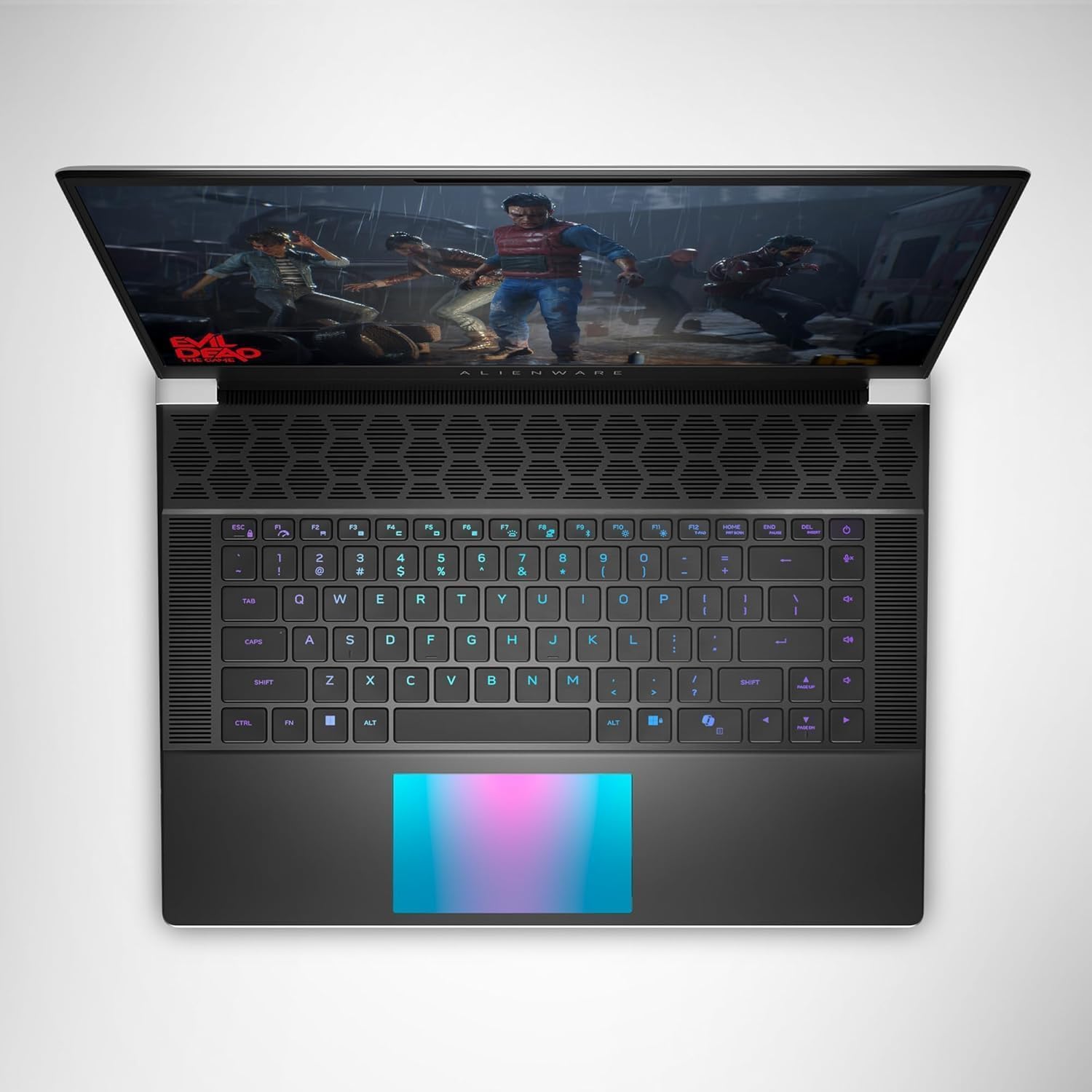
4-сүрөт: Жогорку view of the Alienware X16, highlighting the customizable RGB keyboard and touchpad.
Alienware башкаруу борбору
Utilize the Alienware Command Center software to customize your gaming experience. This application allows you to manage performance presets, monitor system vitals, and configure AlienFX lighting effects and combinations for a personalized setup.

Figure 5: Alienware Command Center interface for system control and customization.
Техникалык тейлөө
Муздатуу системасы
The Alienware X16 incorporates advanced Alienware Cryo-tech™ cooling technology, featuring six laser-welded flat end heat pipes. To ensure optimal performance and longevity, regularly check and clean the ventilation grilles to prevent dust accumulation, which can impede airflow.
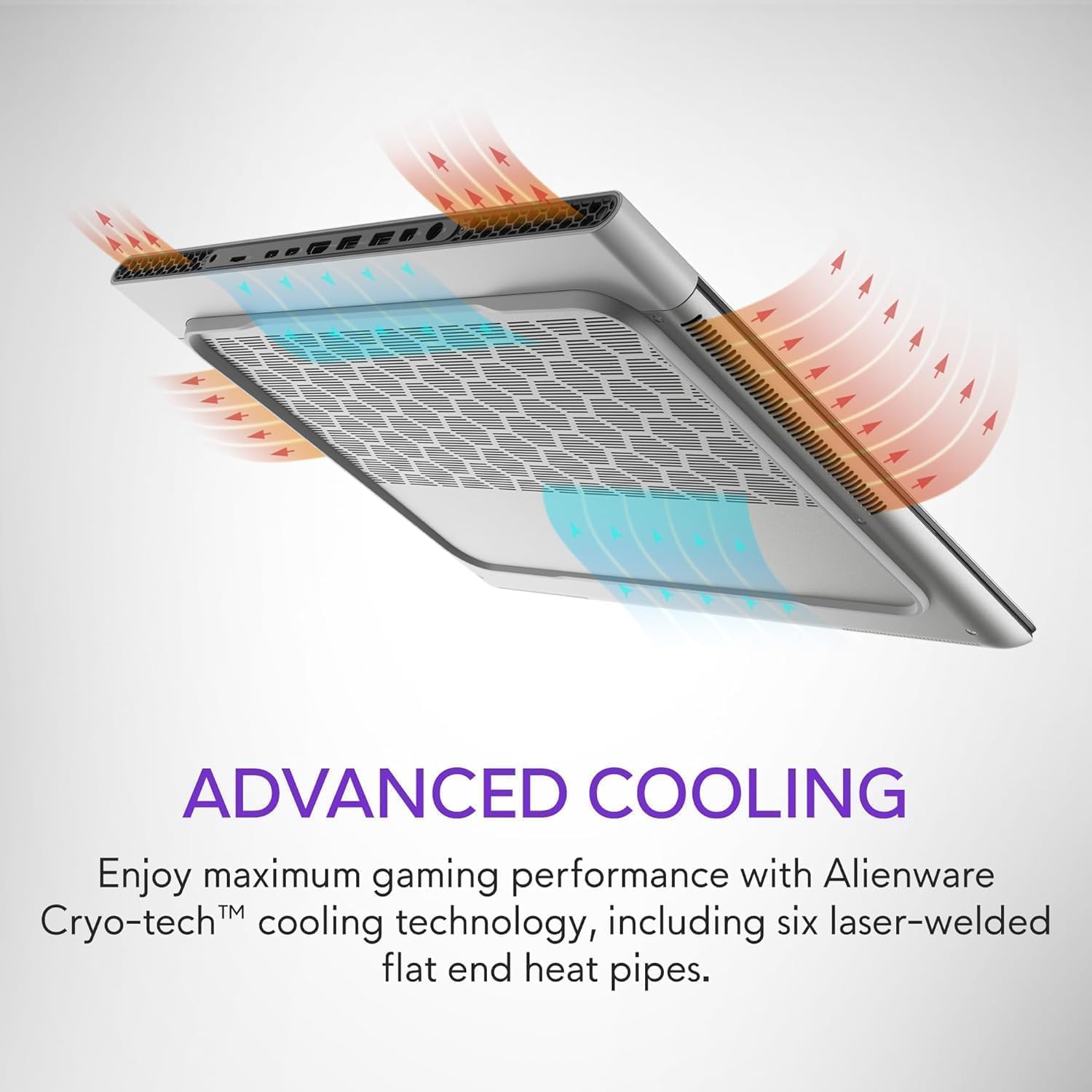
Figure 6: Illustration of the Alienware Cryo-tech™ advanced cooling system.
Жалпы кам көрүү
- Keep the laptop on a flat, stable surface to ensure proper ventilation.
- Ноутбукка экстремалдык температуранын, тике күндүн нурунун же жогорку нымдуулуктун таасиринен алыс болуңуз.
- Экранды электроника үчүн атайын жасалган жумшак, түксүз чүпүрөк менен тазалаңыз.
- Use compressed air to clear dust from keyboard keys and ports.
Проблемаларды чечүү
Жалпы маселелер жана чечимдер
| Көйгөй | Мүмкүн себеп | Чечим |
|---|---|---|
| Ноутбук күйбөйт. | Электр кубаты жок, адаптер иштебейт же батарейкада көйгөй бар. | Ensure power adapter is securely connected to laptop and wall outlet. Check wall outlet with another device. Try a different power outlet. |
| Дисплей бош же бүлбүлдөп турат. | Туура эмес дисплей жөндөөлөрү, драйвер көйгөйү же жабдык көйгөйү. | Ноутбукту өчүрүп-күйгүзүңүз. Графикалык драйверлерди жаңыртыңыз. Эгер тышкы мониторду колдонсоңуз, кабелдердин туташууларын текшериңиз. |
| Poor performance during gaming. | Overheating, outdated drivers, or background applications. | Ensure proper ventilation. Update graphics and chipset drivers. Close unnecessary background applications. Adjust power settings to high performance. |
| Wi-Fi туташуу маселелери. | Driver issue, router problem, or interference. | Restart the laptop and router. Update wireless drivers. Check router settings. |
For more complex issues, refer to the official Alienware support webсайтка же кардарларды тейлөөгө кайрылыңыз.
Техникалык шарттар
| Компонент | Деталь |
|---|---|
| Процессор | Intel® Core™ Ultra 9 processor 185H (24MB cache, 16 cores, 2.30 to 5.10 GHz P-Core) |
| Операция системасы | Windows 11 Pro |
| Графикалык карта | NVIDIA GeForce RTX 4090 16 ГБ GDDR6 |
| Дисплей | 16.0" QHD+ (2560 x 1600) 240Hz 3ms, 100% DCI-P3, ComfortView Plus, NVIDIA G-SYNC + Advanced Optimus |
| Эс | 32GB, 2x16GB, LPDDR5X, 7467MT/s |
| Сактагыч | 2 TB, M.2, PCIe NVMe, SSD |
| Баскычтоп | English US AlienFX RGB backlit (per-key) Alienware X Series keyboard |
| Зымсыз | Intel Killer™ 1750 2x2 and Bluetooth 5.4 Wireless Card with Wifi 7 Ready |
| Камера | 1080p at 30fps, FHD HDR RGB+IR camera; Dual-array microphones |
| Аудио | Tweeter speaker: 2W x 2; Woofer speaker: 3W x 4 |
| Порттар | 2 USB 3.2 Gen 1, 1 USB-C 3.2 Gen 2 (DP), 1 Thunderbolt 4 (PD, DP), 1 Headset, 1 HDMI 2.1, 1 microSD-card slot |
| Батарея | 6 Cell, 90 Wh |
| Өлчөмдөрү (HxWxD) | 18.57 мм (0.73 дюйм) x 364.81 мм (14.36 дюйм) x 289.98 мм (11.41 дюйм) |
| Салмагы (минималдуу) | 2.66 кг (5.86 фунт) |
Кепилдик жана колдоо
Your Alienware X16 Gaming Laptop comes with a standard manufacturer's warranty. For detailed warranty terms and conditions, please refer to the documentation included in the box or visit the official Alienware support webсайт.
Техникалык жардам, драйверлерди жүктөп алуу же кошумча колдоо алуу үчүн, сураныч, бул жерге кириңиз Alienware Official Store or their dedicated support portal.


