1. Киришүү
Thank you for choosing the Hangrui Kids Instant Print Digital Camera. This camera is designed to provide children with a fun and creative way to explore photography, offering instant printing, 1080P video recording, and various creative features. Please read this manual carefully to ensure proper use and to maximize your child's enjoyment of the camera.
2. Кутуда эмне бар
Таңгактан чыгаргандан кийин, төмөнкү нерселердин бардыгы камтылганын текшериңиз:
- Hangrui Kids Instant Print Digital Camera Body
- 32 ГБ SD карта
- Lanyard
- Printing Paper Rolls (Quantity may vary, typically 3 rolls)
- USB Type-C кубаттоочу кабель
- Color Pens (for DIY coloring)
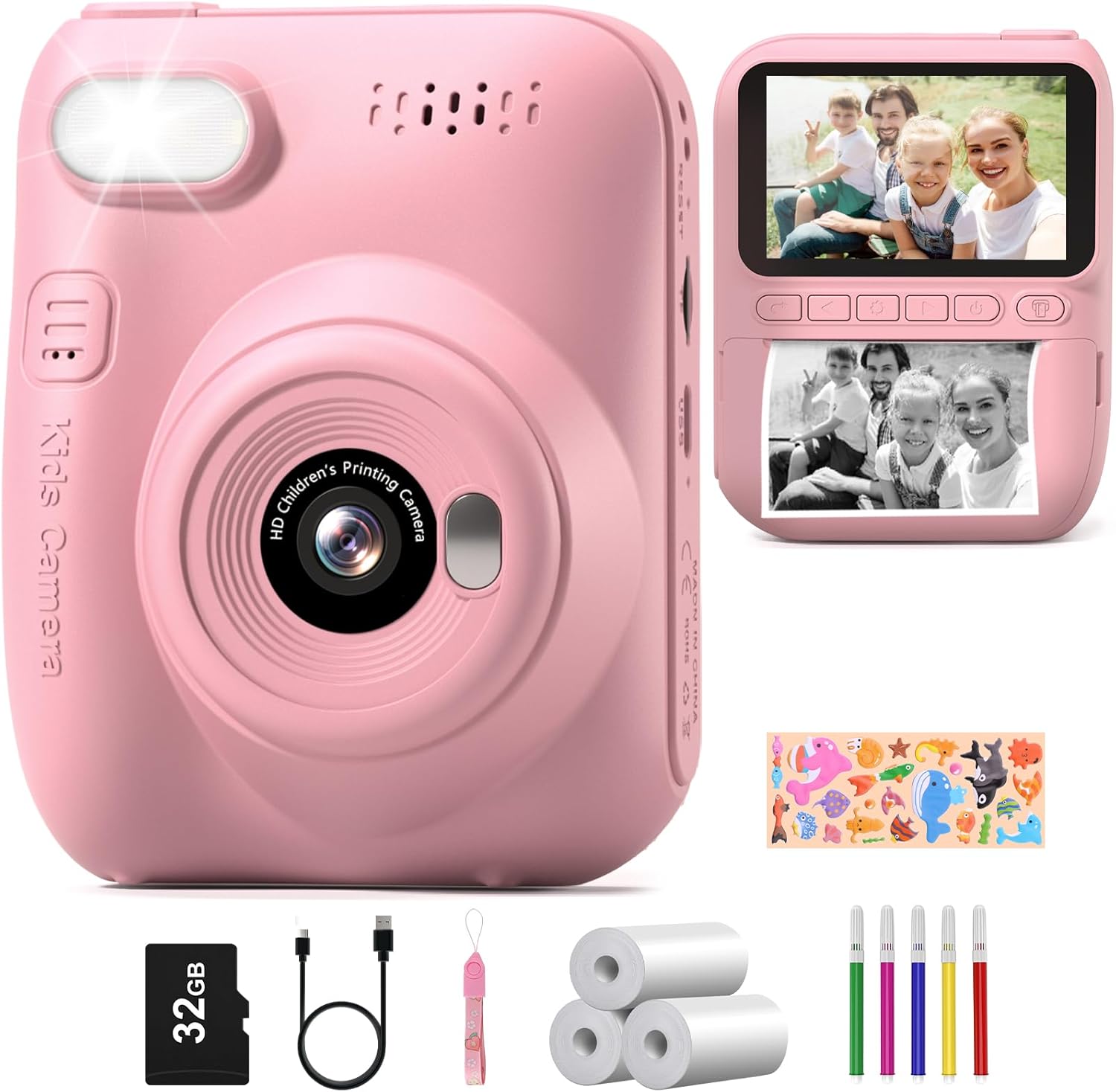
Image: All components included in the Hangrui Kids Instant Print Digital Camera package.
3. Продукт бүтүп калдыview
The Hangrui Kids Instant Print Digital Camera features a compact design with a 3.0-inch HD screen and intuitive controls suitable for children. Key components include the lens, flash, power button, navigation buttons, shutter button, and paper output slot.
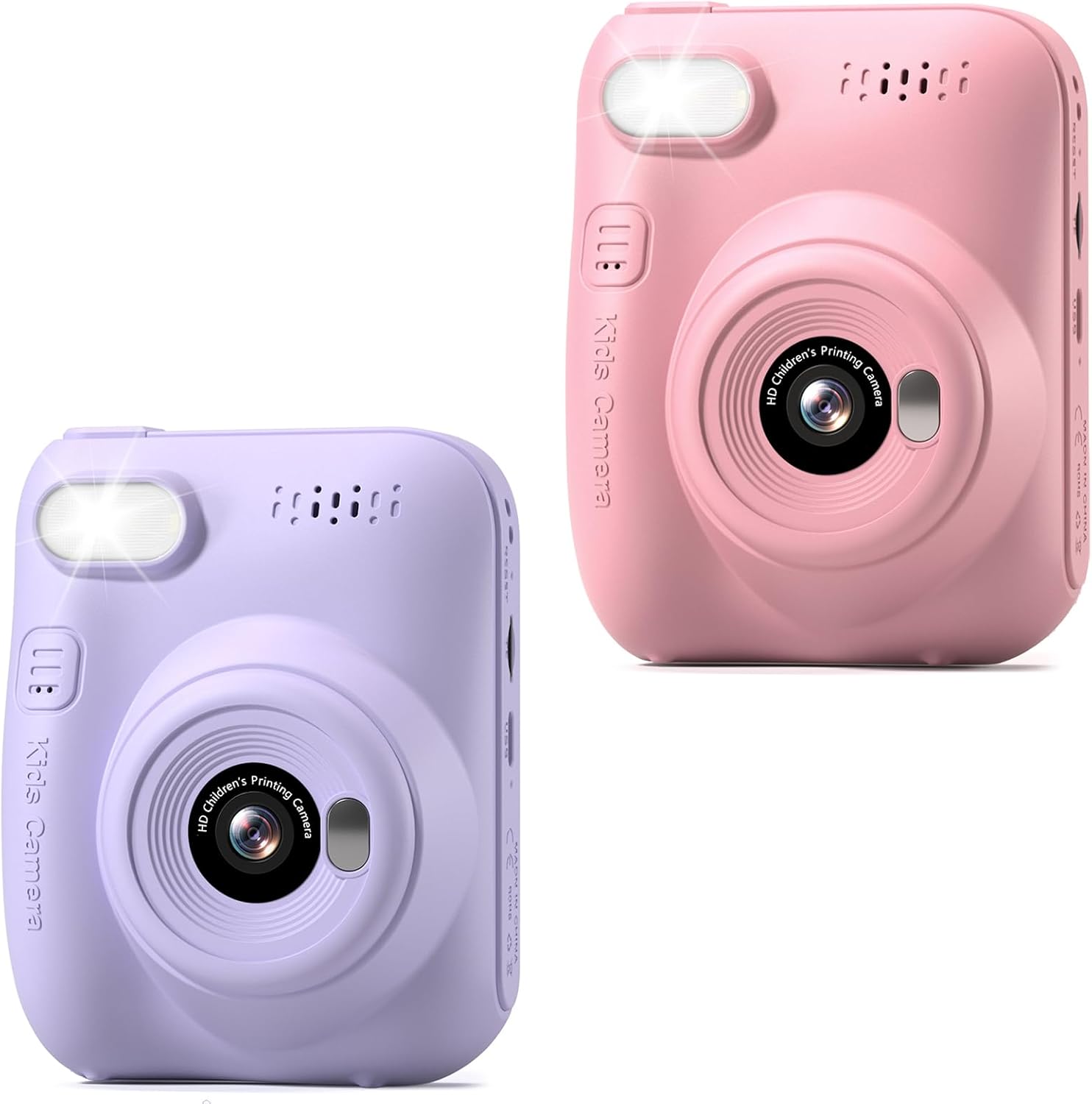
Сүрөт: алдыңкы view of the Hangrui Kids Instant Print Digital Camera.

Сүрөт: бүттүview of camera features and functions.
4. Орнотуу
4.1 Камераны заряддоо
- Locate the Type-C USB charging port on the camera.
- Connect the provided USB Type-C cable to the camera and a compatible USB power adapter (not included) or computer USB port.
- Заряддоо индикаторунун жарыгы күйөт. Толук заряддалгандан кийин жарыктын түсү өзгөрүшү же өчүшү мүмкүн.
- A full charge typically provides up to 3 hours of continuous use.
4.2 SD картаны салуу
- Камера өчүк экенин текшериңиз.
- Locate the SD card slot, usually on the side of the camera.
- Insert the provided 32GB SD card into the slot with the metal contacts facing the correct direction (refer to the diagram on the camera if available).
- Картаны ордуна чыкылдаган үн чыкканча акырын басыңыз. Алып салуу үчүн, ал секирип чыкканча кайра басыңыз.
4.3 Басып чыгаруу кагазын жүктөө
The camera uses ink-free thermal printing paper.
- Locate the paper compartment door, typically on the back or bottom of the camera.
- Бөлүмдүн эшигин ачыңыз.
- Insert a roll of printing paper into the compartment, ensuring the paper feeds out from the top of the roll and is aligned correctly.
- Pull a small length of paper out of the compartment and close the door, making sure the paper protrudes slightly from the output slot.
5. Иштөө нускамалары
5.1 Күйгүзүү/өчүрүү
- Күйгүзүү үчүн: Экран жарыктанганга чейин Кубат баскычын бир нече секунд басып туруңуз.
- Өчүрүү үчүн: Экран өчкөнгө чейин Кубат баскычын кайра басып, кармап туруңуз.
5.2 Сүрөт тартуу
- Ensure the camera is in photo mode (indicated by an icon on the screen). Use navigation buttons to switch modes if necessary.
- Frame your shot using the 3.0-inch HD screen.
- Press the Shutter button to capture a 12MP photo. The photo will be saved to the SD card.
5.3 Видеолорду жаздыруу
- Камераны видео жазуу режимине которуңуз.
- Press the Shutter button once to start recording 1080P video. A recording indicator will appear on the screen.
- Press the Shutter button again to stop recording. The video will be saved to the SD card.
5.4 Ыкчам басып чыгаруу
After taking a photo, you can instantly print it in black and white.
- In photo review mode, select the image you wish to print.
- Press the dedicated Print button (if available) or navigate through the menu to find the print option.
- The camera will print a black and white version of the photo from the loaded paper roll.
5.5 Using Digital Frames and Stickers
The camera offers 16 photo frame effects to add creativity to your pictures.
- Before taking a photo, navigate to the frames/stickers menu.
- Select your desired frame or sticker using the navigation buttons.
- Take the photo as usual; the selected effect will be applied.

Сүрөт: Мисamples of digital frames available on the camera.
5.6 DIY Coloring
After printing black and white photos, children can use the included color pens to personalize their prints.
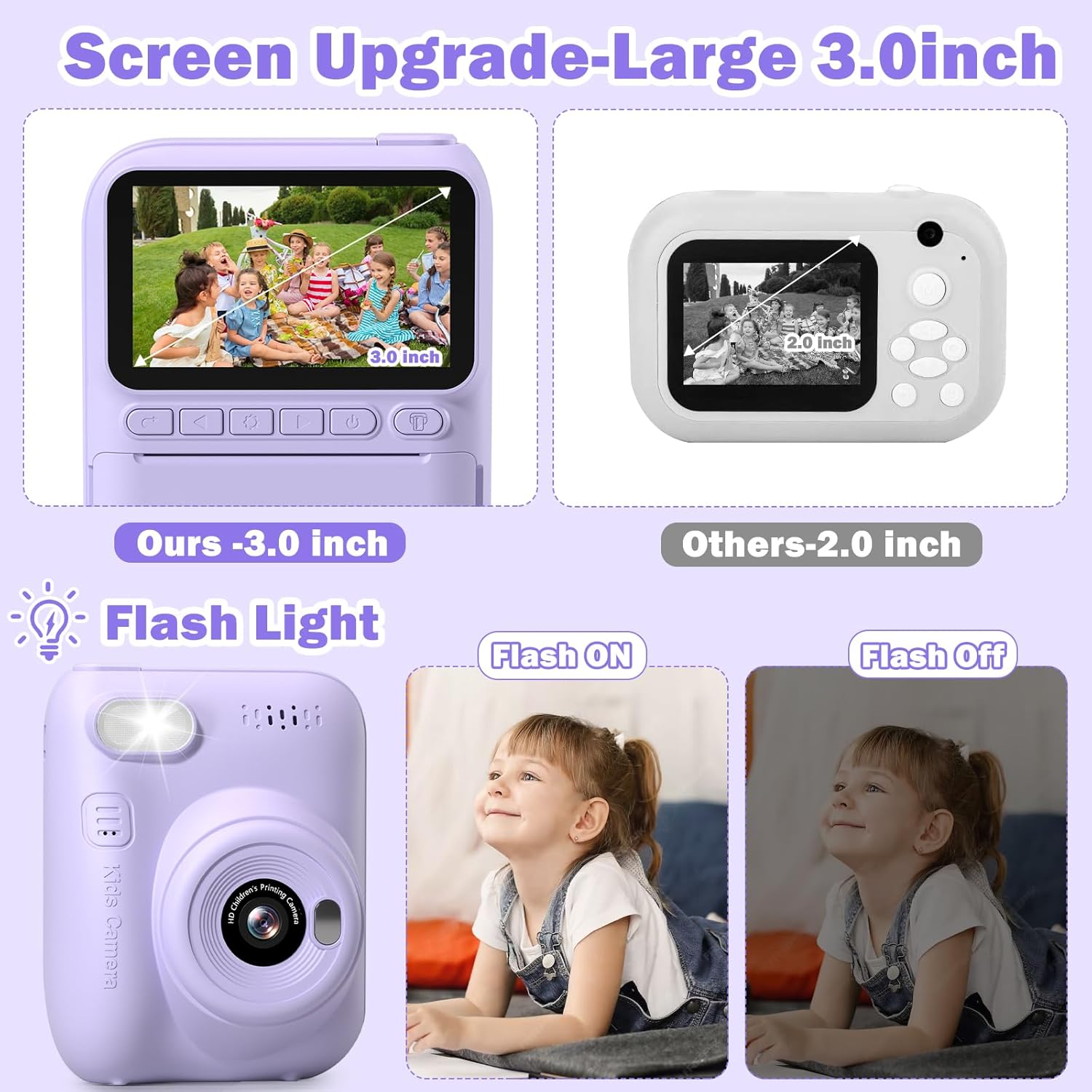
Image: A child engaging in DIY coloring of an instant print photo.
5.7 MP3 Function
The camera supports MP3 playback. To use this feature, ensure MP3 files are loaded onto the SD card in a designated folder (refer to on-screen menu for folder structure). Navigate to the MP3 player mode to select and play music.
5.8 Time-Lapse Photography
The time-lapse function allows the camera to take photos at set intervals over a period, creating a sequence of images.
- Navigate to the time-lapse setting in the camera menu.
- Select the desired interval (e.g., 5 seconds).
- Start the time-lapse sequence. The camera will automatically capture photos.
5.9 Continuous Shooting (Burst Mode)
Capture a rapid sequence of photos with the continuous shooting mode.
- Activate continuous shooting mode in the camera settings.
- Press and hold the Shutter button to take multiple photos in quick succession.
5.10 Жарык жарык
Орнотулган жаркылдак аз жарык шарттарында кошумча жарыктандырууну камсыз кылат.
- Access the flash settings in the camera menu.
- Choose between On, Off, or Auto modes as needed.
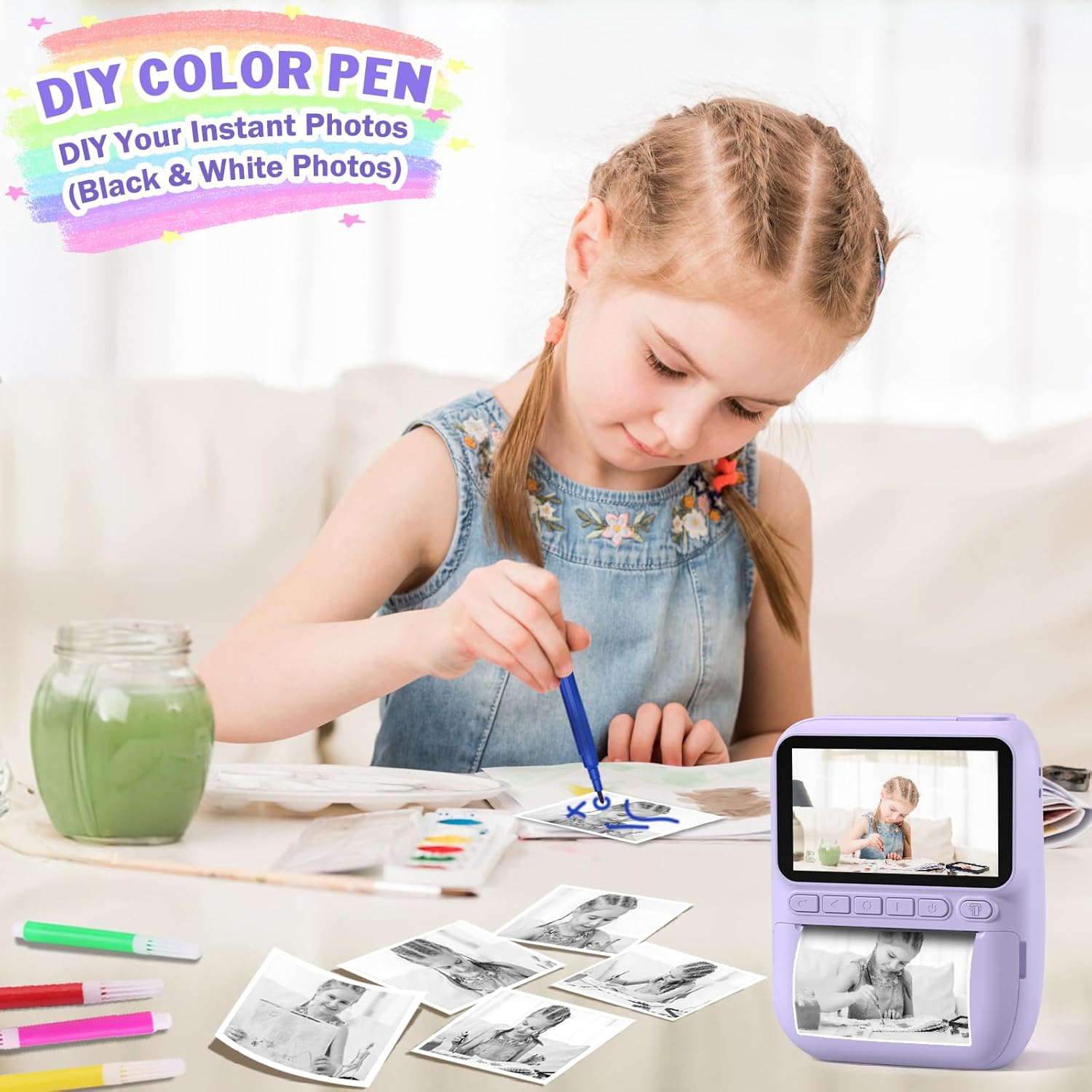
Image: Demonstration of the camera's flash light function.
6. Техникалык тейлөө
6.1 Тазалоо
- Камеранын корпусун тазалоо үчүн жумшак, кургак чүпүрөктү колдонуңуз.
- Линза жана экран үчүн чийилип калбашы үчүн атайын линза тазалоочу чүпүрөктү колдонуңуз.
- Суюк тазалагычтарды же эриткичтерди колдонбоңуз.
6.2 Батареяга кам көрүү
- Charge the camera regularly, even if not in frequent use, to maintain battery health.
- Avoid exposing the camera to extreme temperatures.
6.3 Сактоо
- Камераны салкын, кургак жерде, күндүн нуру түз тийбеген жерде сактаңыз.
- When storing for extended periods, ensure the battery is partially charged (around 50%).
7. Кыйынчылыктарды
- Камера күйбөй жатат: Батарея заряддалганын текшериңиз. Кубат булагына туташып, кайра аракет кылыңыз.
- Сүрөткө/видеого тартууга болбойт: SD карта туура салынганын жана анда жетиштүү бош орун бар экенин текшериңиз.
- Printing issues: Verify that printing paper is loaded correctly and that there is enough paper. Ensure the paper is not jammed.
- Сүрөттүн сапаты начар: Ensure the lens is clean. Check lighting conditions.
- Камера тоңуп калды: Кайра иштетүү үчүн кубат баскычын 10-15 секунд басып туруңуз.
8. Техникалык шарттар
| Өзгөчөлүк | Description |
|---|---|
| Бренд | Хангруи |
| Модел | Instant Print Digital Camera B0DB2CJZ4G |
| Screen Size | 3.0 дюймдук HD |
| Video Resolution | 1080P |
| Digital Zoom | 16X |
| Батарея сыйымдуулугу | 1000mAh (кайра заряддалуучу) |
| Заряддоо түрү | C түрүндөгү USB |
| Эстутум картасы | 32 ГБ SD карта (кошулган) |
| Басып чыгаруу түрү | Ink-free Thermal Printing (Black and White) |
| Өзгөчөлүктөр | Instant Print, Flash, Time-Lapse, Continuous Shooting, Fun Stickers, MP3, Auto Exposure |
| Камтылган компоненттер | Camera Body, 32GB SD Card, Lanyard, Printing Paper, Color Pens |
9. Кепилдик жана колдоо
Hangrui products are designed for quality and reliability. For specific warranty information, please refer to the product packaging or contact the retailer where the product was purchased. For technical support or inquiries, please visit the official Hangrui webсайтка же кардарларды тейлөө бөлүмүнө кайрылыңыз.


