1. Киришүү
Thank you for choosing the LIZRROT Ergonomic Wireless Keyboard and Mouse Combo. This product is designed to enhance your productivity and comfort with its ergonomic features, silent operation, and convenient wireless connectivity. This manual provides detailed instructions for setup, operation, maintenance, and troubleshooting to ensure optimal performance.
2. Пакеттин мазмуну
- 1 x LIZRROT Ergonomic Wireless Keyboard
- 1 x LIZRROT Wireless Mouse
- 1 x 2.4 ГГц USB кабыл алгыч
- 1 x User Manual
Note: AAA battery for the keyboard and AA battery for the mouse are not included and must be purchased separately.
3. Орнотуу колдонмосу
3.1 Батареяны орнотуу
- Баскычтоп үчүн: Locate the battery compartment on the underside of the keyboard. Open the cover and insert one AAA battery, ensuring correct polarity (+/-). Close the cover securely.
- Чычкан үчүн: Locate the battery compartment on the underside of the mouse. Open the cover and insert one AA battery, ensuring correct polarity (+/-). Close the cover securely.

Figure 3.1: Battery compartments for the keyboard (requires 1 AAA battery) and mouse (requires 1 AA battery). The keyboard also features an independent power switch.
3.2 USB кабылдагычты туташтыруу
- Locate the 2.4GHz USB receiver. For the keyboard, it is often stored in a small compartment on the underside.
- Plug the USB receiver into an available USB port on your computer (PC, laptop, Chromebook, etc.).
- Turn on the keyboard using the power switch located on the top right side.
- Төмөн жагындагы кубат которгучу менен чычканды күйгүзүңүз.
- The keyboard and mouse should automatically connect to your computer. No additional software installation is required for most operating systems.

Figure 3.2: The LIZRROT wireless keyboard and mouse, showing the compact 2.4GHz USB receiver for easy plug-and-play connectivity.
Video 3.1: Demonstrates the unboxing process, battery installation for both keyboard and mouse, and highlights the integrated phone holder and adjustable tilt legs. This video also shows the keyboard's indicator lights and silent typing.
4. Өзгөчөлүктөрү
4.1 Ergonomic Design and Wrist Rest
The keyboard features a unique wave design and an integrated palm rest to naturally align your fingers and wrists, promoting a comfortable typing posture and reducing strain during extended use.

Figure 4.1: Visual comparison highlighting the ergonomic benefits of the LIZRROT keyboard's design and integrated wrist rest for enhanced comfort.
Video 4.1: Showcases the ergonomic design of the keyboard, including the integrated wrist rest and adjustable tilt legs, demonstrating how it promotes a comfortable typing experience.
4.2 Integrated Phone/Tablet Holder
The keyboard includes a built-in slot designed to hold your smartphone or tablet, allowing you to view messages or information without needing to pick up your device, thereby boosting efficiency.
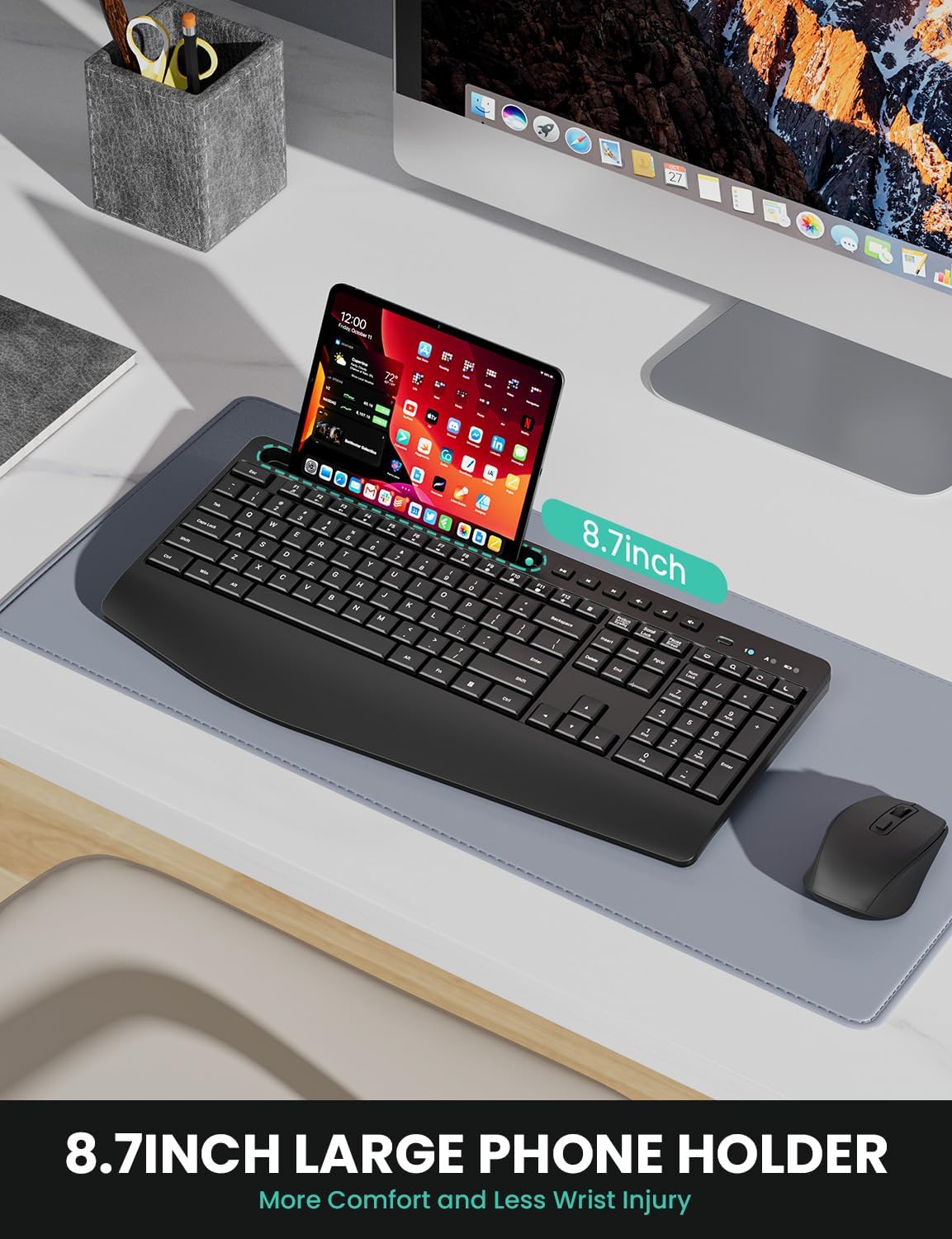
Figure 4.2: The integrated phone/tablet holder on the LIZRROT keyboard, capable of accommodating various devices up to 8.7 inches in length.
4.3 Multimedia Shortcut Keys
Access common functions quickly with 6 dedicated media keys for play/pause, previous track, next track, volume down, mute, and volume up. Additionally, 12 F-keys provide quick access to email, internet, and other functions.

Figure 4.3: The dedicated multimedia keys located above the function keys, providing quick control over media playback and volume.
4.4 Үнсүз иштөө
Both the keyboard and mouse feature low-profile keys and silent clicks, significantly reducing operational noise by over 95%. The mouse's rubber scroll wheel also glides silently, contributing to a quieter work environment.

Figure 4.4: The LIZRROT keyboard and mouse are designed for quiet operation, minimizing noise to help maintain focus and avoid disturbing others.
4.5 Adjustable Mouse DPI
The wireless mouse offers three adjustable DPI settings (800/1200/1600) to customize cursor speed according to your preference. A dedicated DPI button allows for easy switching between sensitivity levels.

Figure 4.5: The LIZRROT mouse features a DPI adjustment button, allowing users to select between 800, 1200, and 1600 DPI for personalized cursor control.
4.6 Smart Sleep Mode and Power Switches
To conserve battery life, the keyboard enters smart sleep mode after 15 minutes of inactivity, and the mouse after 10 minutes. Pressing any button will wake them up. Independent power switches on both devices allow for manual power off when not in use for extended periods.

Figure 4.6: The Smart Sleep Mode feature automatically conserves battery power after periods of inactivity, extending the lifespan of the batteries.
4.7 Жөнгө салынуучу эңкейиш буттар
The keyboard is equipped with sturdy tilt legs on its underside, allowing you to adjust the typing angle for personalized comfort and ergonomic support.
Video 4.2: Demonstrates the adjustable tilt legs on the keyboard, allowing users to set a preferred typing angle for improved ergonomics.
5. Иштөө нускамалары
5.1 Баскычтопту колдонуу
Simply begin typing. The ergonomic design and full-size layout ensure a familiar and comfortable experience. Indicator lights for Num Lock, Caps Lock, and Power are located above the numeric keypad.

Figure 5.1: The keyboard features clear indicator lights for Num Lock, Caps Lock, and Power status.
5.2 Чычканды колдонуу
Move the mouse to control the cursor on your screen. Use the left and right click buttons for selection and context menus. The scroll wheel allows for vertical scrolling. Adjust DPI sensitivity using the dedicated DPI button located near the scroll wheel.
5.3 Using Multimedia Keys
Press the dedicated multimedia keys (located above the function keys) to control media playback, adjust volume, or mute audio directly from your keyboard.
6. Техникалык тейлөө
- Тазалоо: Баскычтоптун жана чычкандын беттерин тазалоо үчүн жумшак, кургак чүпүрөктү колдонуңуз. өжөр кир үчүн, бир аз гamp жумшак самын менен кездеме колдонсо болот, бул аппараттарга суюктук кирбесин.
- Батареяны алмаштыруу: Replace batteries when performance degrades or the power indicator light signals low battery. Always use fresh, high-quality AAA batteries for the keyboard and AA batteries for the mouse.
- Сактагыч: When not in use for extended periods, turn off both devices using their power switches and store them in a cool, dry place.
7. Кыйынчылыктарды
- Байланыш жок/кечиктирүү жок:
- Баскычтоп менен чычкан күйгүзүлгөнүн текшериңиз.
- USB кабыл алгыч иштеп жаткан USB портуна бекем сайылып турганын текшериңиз. Башка USB портун колдонуп көрүңүз.
- Replace the batteries in both devices.
- Move the devices closer to the USB receiver to rule out interference or range issues (maximum range is 33 feet/10m).
- Баскычтар жооп бербей жатат/Чычкан көзөмөлдөбөй жатат:
- Батареянын деңгээлин текшерип, керек болсо алмаштырыңыз.
- Ensure the devices are powered on and connected (refer to 'No Connection/Lag' above).
- For the mouse, ensure the optical sensor on the bottom is clean and unobstructed.
- Unexpected Sleep Mode:
- This is a normal power-saving feature. Press any key or move the mouse to wake the device.
If issues persist, please contact LIZRROT customer support for assistance.
8. Техникалык шарттар
| Өзгөчөлүк | Деталь |
|---|---|
| Модель номери | 411-1 |
| Байланыш | 2.4 ГГц зымсыз (USB кабыл алуучу) |
| Зымсыз диапазон | 33 фут (10 м) чейин |
| Баскычтоптун батареясы | 1 x AAA (киргизилген эмес) |
| Чычкан батареясы | 1 x AA (киргизилген эмес) |
| Чычкандын DPI жөндөөлөрү | 800/1200/1600 DPI |
| Шайкештик | Windows XP/Vista/7/8/10/X, PCs, Laptops, Chromebooks |
| Өзгөчөлүктөр | Ergonomic design, Wrist Rest, Phone Holder, Multimedia Keys, Silent Operation, Smart Sleep Mode, Adjustable Tilt Legs |
| Элемент Салмагы | 1.94 фунт |
| Өлчөмдөрү (пакет) | 17.44 x 10.87 x 1.81 дюйм |
9. Кепилдик жана колдоо
LIZRROT is committed to providing high-quality products and customer satisfaction. Your LIZRROT Ergonomic Wireless Keyboard and Mouse Combo comes with:
- 18-Month Return Policy: Enjoy an 18-month return period for your product.
- Өмүр бою сатуудан кийинки тейлөө: LIZRROT provides lifetime after-sales support for your product.
For any issues, questions, or support needs, please contact LIZRROT customer service via email. Your feedback is valuable and helps us improve our products and services.


