Introduction
The Toybox 3D Printer Alpha2 is designed to provide an easy and engaging 3D printing experience, particularly for children. This manual provides essential information for setting up, operating, maintaining, and troubleshooting your Toybox 3D Printer.
Key features include one-touch functions, a user-friendly app, and access to a large catalog of printable toys. The printer is compact and connects via Wi-Fi for standalone operation.

Image: The Toybox 3D Printer Alpha2, showcasing its compact design, a printed gnome, and a spool of filament.
Орнотуу колдонмосу
1. Кутудан чыгаруу жана жайгаштыруу
Carefully remove the Toybox 3D Printer from its packaging. Place the printer on a stable, level surface in a well-ventilated area, away from direct sunlight and heat sources. Ensure there is enough space around the printer for proper operation and access.
2. Power Connection
Connect the provided power adapter to the printer's power input port and then plug it into a standard electrical outlet. The printer will power on automatically or can be turned on using the power button, if available.
3. Initial Filament Loading
The Toybox 3D Printer uses PLA non-toxic plastic filament. Locate the filament loading slot, typically at the top or side of the printer. Insert the end of the filament into the slot. The printer's interface or app will guide you through the automatic loading process, heating the nozzle and feeding the filament until it extrudes smoothly.

Image: The Toybox 3D Printer set up, ready for filament loading and printing.
Иштөө нускамалары
1. Колдонмого туташуу
Download the official Toybox app from your device's app store (available on iOS and Android). Open the app and follow the on-screen instructions to connect your printer to your home Wi-Fi network. The printer connects to the cloud, allowing for standalone operation via the app.
2. Browsing and Selecting Toys
The Toybox app features an extensive catalog of toys. Browse through the available designs. New toys are added weekly and seasonally. Select the toy you wish to print.

Image: A visual representation of the Toybox app's user interface, demonstrating the process of exploring, choosing, and initiating a print.
3. Using the Creator Space
For personalized creations, utilize the 'Creator Space' within the app. You can upload your own designs or draw them directly within the app. Your custom creations are stored on the cloud for easy access and future printing.

Image: A child using a tablet to design a character in the Toybox app's Creator Space, highlighting the intuitive interface for custom creations.
4. Initiating a Print
Once a design is selected or created, confirm the filament color you wish to use. With a single touch, the printer will begin the printing process. The printer is designed for ease of use, requiring no manual adjustment of the removable print bed.

Image: The Toybox 3D Printer in operation, with a smartphone displaying the print progress, demonstrating the seamless app integration.
5. Removing Printed Objects
After printing is complete, the novel print bed design allows for easy removal of printed objects without the need for a knife or other tools.
Техникалык тейлөө
1. Print Bed Cleaning
Regularly clean the print bed to ensure optimal adhesion for new prints. Use a soft, damp cloth to gently wipe the surface. Avoid abrasive cleaners that could damage the print bed.
2. Nozzle Care
To prevent clogging, ensure you are using high-quality PLA filament. If a clog occurs, refer to the troubleshooting section or the Toybox app for specific instructions on clearing the nozzle. Always exercise caution as the nozzle can be hot during operation.
3. Filament Storage
Store unused filament in a cool, dry place, ideally in an airtight container, to prevent moisture absorption which can affect print quality and lead to clogs.
Проблемаларды чечүү
| Көйгөй | Мүмкүн себеп | Чечим |
|---|---|---|
| Принтер күйбөй жатат | Электр кабели ажыратылган; электр розеткасынын маселеси. | Электр кабелинин туташуусун текшерүү; башка розеткага аракет кылып көрүңүз. |
| Filament not extruding / Nozzle clogged | Filament tangled or jammed; nozzle obstruction. | Ensure filament is properly spooled and fed. For clogs, follow the in-app instructions for nozzle cleaning or contact support. |
| Басма төшөккө жабышпайт | Dirty print bed; incorrect bed temperature (less common for Toybox). | Clean the print bed thoroughly. Ensure the print bed is free of dust or debris. |
| Принтер Wi-Fi'га туташпай жатат | Туура эмес Wi-Fi сырсөзү; принтер роутерден өтө алыс жайгашкан; тармак көйгөйлөрү. | Double-check Wi-Fi password. Move printer closer to router. Restart router and printer. |
Техникалык шарттар
| Өзгөчөлүк | Деталь |
|---|---|
| Модел | Alpha2 |
| Продукциянын өлчөмдөрү | 7.48 x 7.48 x 9.25 дюйм (болжол менен 19 x 19 x 23.5 см) |
| Элемент Салмагы | 9 фунт (болжол менен 4.1 кг) |
| Шайкеш түзмөктөр | iPhone, Laptop, Personal Computer, Tablet, Smartphone |
| Материалды басып чыгаруу | PLA уулуу эмес пластик |
| Байланыш | Wi-Fi (2.4GHz band) |
| Басма керебет | Easy-Peel bed |
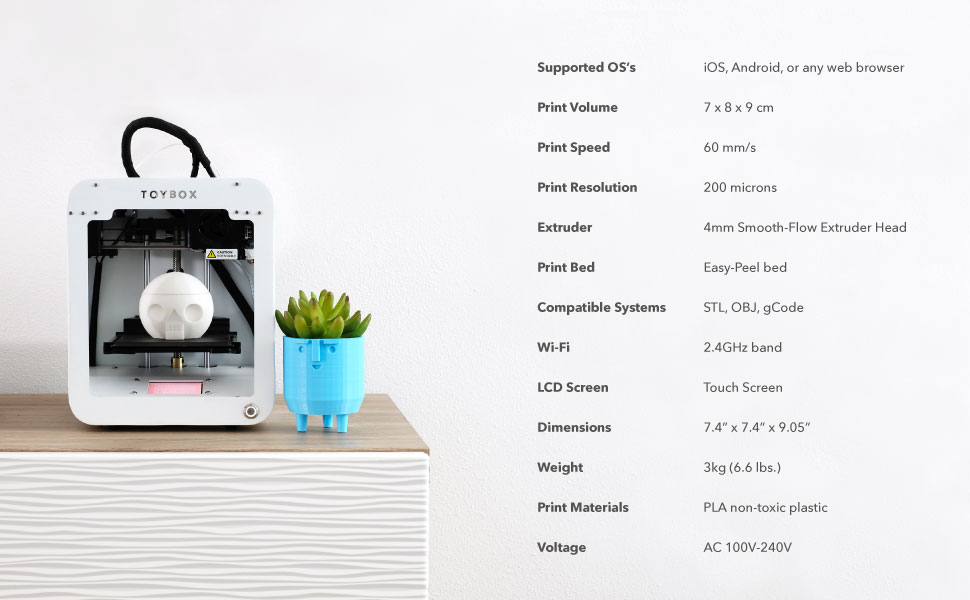
Image: The Toybox 3D Printer alongside a detailed list of its technical specifications.
Кепилдик жана колдоо
For warranty information and customer support, please refer to the official Toybox website or contact their customer service directly. Details regarding protection plans, such as the 4-Year Protection Plan, can be found where the product was purchased.
Кошумча жардам алуу үчүн, баш багыңыз Toybox Store on Amazon.


