1. Продукт бүтүп калдыview
This manual provides detailed instructions for the installation, operation, and maintenance of your Leadfan Car Stereo, designed specifically for 2008-2012 Subaru Forester, Impreza, and WRX models. This unit integrates advanced features such as wireless CarPlay, Android Auto, GPS navigation, and a backup camera to enhance your driving experience.
Негизги өзгөчөлүктөрү
- Шайкештик: Designed for Subaru Forester Impreza WRX 2008-2012.
- Операция системасы: Android 12 with 2G RAM + 32G ROM storage.
- Зымсыз туташуу: Supports Wireless Apple CarPlay and Android Auto via Bluetooth & WIFI.
- Дисплей: 9-inch 2.5D IPS HD Touchscreen with Split Screen function.
- Навигация: Built-in GPS navigation system with support for offline and online maps.
- Мультимедиа: Bluetooth 5.1 for hands-free calls and audio streaming, FM Radio.
- Коопсуздук өзгөчөлүктөрү: Supports backup camera input with 170° wide-angle, IP68 waterproof, and night vision.
- Контролдоо: Рулду башкаруу (SWC) шайкештиги.
Пакеттин мазмуну
Пакетте бардык буюмдар бар экенин текшериңиз:
- 1x Leadfan Car Touch Screen Radio Unit
- 1x Камдык камера
- 1x Арткы View Кирүү кабели
- 1x RCA кабели
- 2x USB кабели
- 1x Кубат кабели
- 1x Түпнуска USB кабели
- 1x GPS антеннасы
- 1x Колдонуучунун колдонмосу
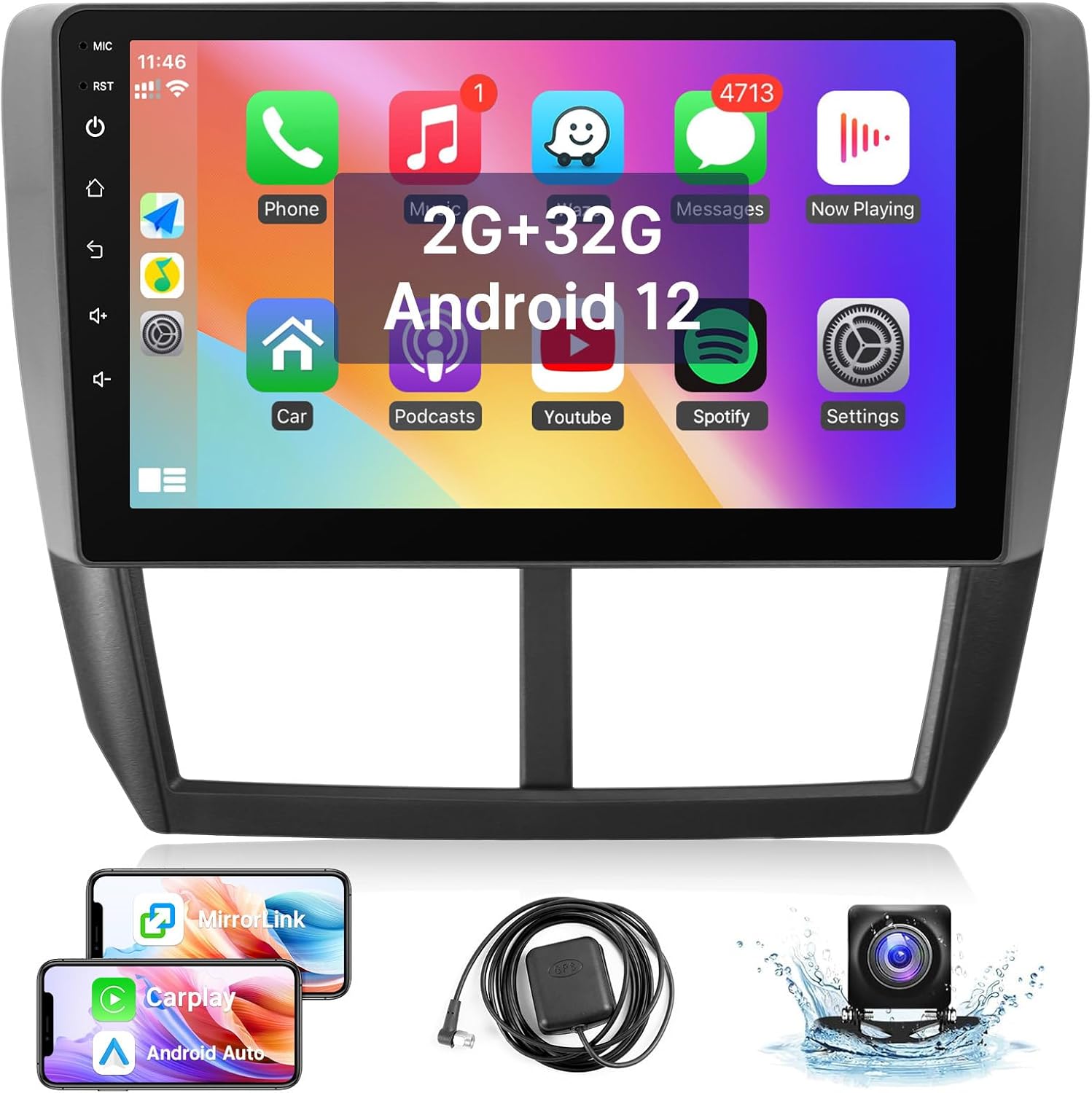
Image: Leadfan Car Stereo unit and its accessories, including the main display, backup camera, GPS antenna, and various connection cables.

Сүрөт: деталдуу view of the car stereo's dimensions and a visual representation of all included cables and components, such as the power cable, USB cables, RCA cable, GPS antenna, and user manual.
2. Орнотуу жана орнотуу
Proper installation is crucial for the optimal performance of your new car stereo. It is recommended that installation be performed by a qualified professional.
2.1 Шайкештикти текшерүү
This car stereo is designed for a perfect fit in Subaru Forester, Impreza, and WRX models from 2008 to 2012. Before installation, please verify your car's model, year, and the shape/size of your center console to ensure compatibility.

Image: Visual guide demonstrating the fit of the stereo in compatible Subaru Forester (2008-2012) and Impreza (2008-2011) dashboards, and examples of dashboards that are not compatible due to large screens or different radio configurations.
2.2 Зымдардын схемасы жана туташуулары
Refer to the provided wiring harness and the diagram below for correct connections. The system is designed for plug-and-play installation with the included harness.
- Кубат кабели: Негизги кубат булагын унааңыздын зымдарына туташтырыңыз.
- USB кабелдери: Connect the two USB cables for external device connectivity.
- RCA кабели: Аудио/видео киргизүү/чыгыш байланыштары үчүн.
- GPS антеннасы: GPS антеннасын туташтырып, сигналды оптималдуу кабыл алуу үчүн аны жайгаштырыңыз.
- Камдык камера киргизүү: Connect the backup camera cable to the designated input. Ensure the pink wire from the power cable is connected to the reversing trigger cable for automatic display.

Image: Comprehensive diagram illustrating the connection points for the backup camera, including power, video input, and the trigger wire for reverse activation. It also shows two choices for camera wiring: roof wiring and under-seat wiring.
2.3 Физикалык орнотуу
- Учурдагы унааңыздын радио бирдигин кылдаттык менен алып салыңыз.
- Connect all necessary cables (power, speaker, antenna, USB, GPS, camera) to the new Leadfan unit.
- Жаңы унаа стереосун аспаптар тактасынын тешигине бекем орнотуңуз.
- Куралдар тактасын кайра чогултуңуз.
2.4 Баштапкы күйгүзүү
After installation, turn on your vehicle's ignition. The car stereo should power on automatically. Follow any on-screen prompts for initial setup, such as language selection or time zone settings.
3. Иштетүү үчүн колдонмо
This section details the various functions and features of your Leadfan Car Stereo.
3.1 Сенсордук экран интерфейси
The unit features a responsive 9-inch 2.5D IPS HD touchscreen. Navigate through menus and applications by tapping, swiping, and pinching. The intuitive Android 12 interface provides easy access to all functions.

Image: The 9-inch IPS HD touchscreen demonstrating its split-screen capability, allowing two applications, such as a music player and a navigation map, to be viewed and operated independently on the same screen.
3.2 Wireless CarPlay & Android Auto
Connect your smartphone wirelessly to access Apple CarPlay or Android Auto. This allows you to use phone functions like navigation, music, messages, and calls directly from the stereo's display.
- Байланыш: Enable Bluetooth and Wi-Fi on your phone and connect to the car stereo.
- Үн менен башкаруу: Use voice commands (e.g., "Hey Siri" or "Hey Google") for hands-free operation.

Image: The car stereo screen displaying both Apple CarPlay and Android Auto environments, illustrating how smartphones connect wirelessly via Bluetooth and Wi-Fi, and showcasing мисamples of voice commands for navigation and communication.
3.3 Mirror Link функциясы
Mirror Link allows you to display your smartphone's screen directly onto the car stereo. iOS devices support wireless connection, while Android devices support both wireless and wired connections.

Image: A visual representation of the Mirror Link feature, where a smartphone's display is mirrored onto the car stereo screen. This image also highlights the GPS navigation, WIFI connectivity, and steering wheel control functionalities.
3.4 GPS навигациясы
The built-in GPS system supports both offline and online maps, providing real-time navigation. You can download maps for offline use or connect to Wi-Fi for live traffic updates and online mapping services.

Image: The car stereo screen displaying a GPS navigation map, indicating support for both online and offline mapping. The image also includes a section illustrating the WIFI connection feature, showing various apps that can be downloaded.
3.5 WIFI Connectivity
Connect the car stereo to a Wi-Fi network or mobile hotspot to access online content, download applications, and receive software updates. This allows for a fully connected in-car experience.
3.6 Bluetooth 5.1
Utilize Bluetooth 5.1 for stable and high-quality wireless connections. You can make/receive hands-free calls and stream audio from your smartphone or other Bluetooth-enabled devices.

Image: A composite image highlighting the Bluetooth 5.1 capability with a chip graphic, the FM radio tuning interface, an illustration of steering wheel controls, and a clear view from the 1080P backup camera.

Image: A small icon representing Bluetooth connectivity.
3.7 FM радиосу
Tune into your favorite FM radio stations. The intuitive interface allows for easy station scanning and saving presets.

Image: A small icon representing FM Radio functionality.
3.8 Рулдун башкаруу каражаттары (SWC)
After correct wiring, you can program your vehicle's steering wheel buttons to control the car stereo, allowing for safer and more convenient operation while driving.
3.9 Камера
Камтылган арткы камера так жана кең бурчтуу сүрөт тартууну камсыз кылат view (170°) of the area behind your vehicle. The display automatically switches to the camera view when reversing. It features IP68 waterproofing and night vision for optimal visibility in various conditions.

Image: A small icon representing Backup Camera functionality.
3.10 Эквалайзер орнотуулары
Adjust the audio equalizer settings to customize your sound experience. Fine-tune bass, treble, and other audio parameters to match your preferences.

Image: A small icon representing EQ (Equalizer) settings.
4. Кароо жана тейлөө
To ensure the longevity and optimal performance of your Leadfan Car Stereo, follow these maintenance guidelines:
- Тазалоо: Экранды жана сыртын тазалоо үчүн жумшак, кургак чүпүрөктү колдонуңуз. өжөр тактар үчүн, бир аз гampкездемени суу менен сүртүңүз. Абразивдүү тазалоочу каражаттардан же эриткичтерден алыс болуңуз.
- Температура: Аппаратты экстремалдык температурага, түз күн нуруна узак убакытка же жогорку нымдуулукка дуушар кылуудан алыс болуңуз.
- Вентиляция: Ашыкча ысып кетүүнүн алдын алуу үчүн желдетүү тешиктери жабылбагандыгын текшериңиз.
- Байланыштары: Бардык кабелдик туташуулардын бекемдигин текшерүү үчүн мезгил-мезгили менен текшерип туруңуз.
5. Кыйынчылыктарды
If you encounter issues with your car stereo, refer to the following table for common problems and their solutions. If the problem persists, please contact technical support.
| Көйгөй | Мүмкүн себеп | Чечим |
|---|---|---|
| Түзмөк күйбөйт. | Электр туташуусу бошоп калган; сактагыч күйүп кеткен. | Check all power cable connections. Inspect and replace any blown fuses in the vehicle or stereo wiring. |
| Screen is glitching or unit turns off unexpectedly. | Unstable power supply; Software issue; Loose wiring. | Ensure power connections are secure. Try a soft reset (power cycle the vehicle). If issues persist, consider a factory reset (refer to settings menu) or contact support for software updates. |
| Display has dim or broken pixels. | Hardware defect. | This indicates a potential hardware issue. Please contact technical support for assistance. |
| Үн жок же бурмаланган аудио. | Incorrect speaker wiring; Volume too low; Mute activated; Audio settings. | Check speaker connections. Increase volume. Ensure unit is not muted. Verify EQ and sound settings. |
| Bluetooth/CarPlay/Android Auto туташпай жатат. | Bluetooth/Wi-Fi off on phone/unit; Pairing issue; Software glitch. | Ensure Bluetooth and Wi-Fi are enabled on both devices. Delete previous pairings and re-pair. Restart both phone and stereo. |
| Рулдун башкаруу элементтери иштебейт. | Incorrect wiring; Not programmed. | Verify SWC wiring connections. Follow the instructions in the unit's settings menu to program the steering wheel buttons. |
6. Техникалык шарттар
| Спецификация | Деталь |
|---|---|
| Модель номери | B0DCBX65J7 |
| Операция системасы | Android 12 |
| Эстутум сактоо сыйымдуулугу | 32 GB (ROM) |
| RAM | 2 ГБ |
| Дисплей өлчөмү | 9 дюйм |
| Дисплей түрү | 2.5D IPS HD Touchscreen |
| Байланыш технологиясы | Bluetooth 5.1, Wi-Fi, USB |
| Өзгөчөлүктөр | Touchscreen, Android Auto, Bluetooth, CarPlay, GPS Navigation, MirrorLink, SWC, Backup Camera Support |
| Аудио чыгаруу режими | Стерео |
| Элемент Салмагы | 2.92 фунт |
| Пакеттин өлчөмдөрү | 11.85 x 11.06 x 3.9 дюйм |
7. Кепилдик жана колдоо
Leadfan is committed to providing high-quality products and customer service. For any questions or technical assistance, please refer to the following support options:
- 30 күндүк акысыз кайтаруу: Эгерде сиз сатып алган буюмуңузга канааттанбасаңыз, аны 30 күндүн ичинде кайтарып бере аласыз.
- 12 айлык алмаштыруу: The product is eligible for a 12-month replacement for quality issues.
- Өмүр бою техникалык колдоо: Receive ongoing technical support for the lifetime of the product.
- 24 сааттык жооп: Technical support inquiries will be answered within 24 hours.
Техникалык колдоону кантип алса болот
If you require technical assistance, please follow these steps:
- Amazon'догу продукт баракчасына өтүңүз.
- Click on "Sold by Nideo" (or the current seller name).
- Click on "Ask a question" to send a message to the seller's technical support team.
- Provide photos or videos of the problem you are experiencing to help expedite the resolution.

Image: A visual guide demonstrating the process of contacting technical support through the Amazon platform, by navigating to the seller's page and using the "Ask a question" feature.


