1. Продукт бүтүп калдыview
The AUSDOM Full Size Multi-Device Wireless Keyboard offers versatile connectivity and a comfortable typing experience. It supports connection to up to three devices simultaneously via Bluetooth 5.0 or a 2.4Ghz USB receiver. Its low-profile keys feature a scissor-switch mechanism for quiet and precise input. The keyboard includes a full numeric keypad and dedicated shortcut keys, powered by a built-in rechargeable battery.

Сүрөт 1.1: Толук view of the AUSDOM Full Size Multi-Device Wireless Keyboard.
Пакеттин мазмуну:
- AUSDOM Full Size Wireless Keyboard
- 2.4GHz USB Receiver (stored in the keyboard's battery compartment)
- USB-C заряддоо кабели
- User Manual
2. Орнотуу жана туташуу
2.1 Баскычтопту заряддоо
Before first use, fully charge the keyboard. Connect the provided USB-C charging cable to the keyboard's charging port and the other end to a USB power source (e.g., computer USB port, USB wall adapter). The charging indicator light will illuminate during charging and turn off when fully charged. A full charge typically takes approximately 1.5 hours and provides up to 200 hours of working time.
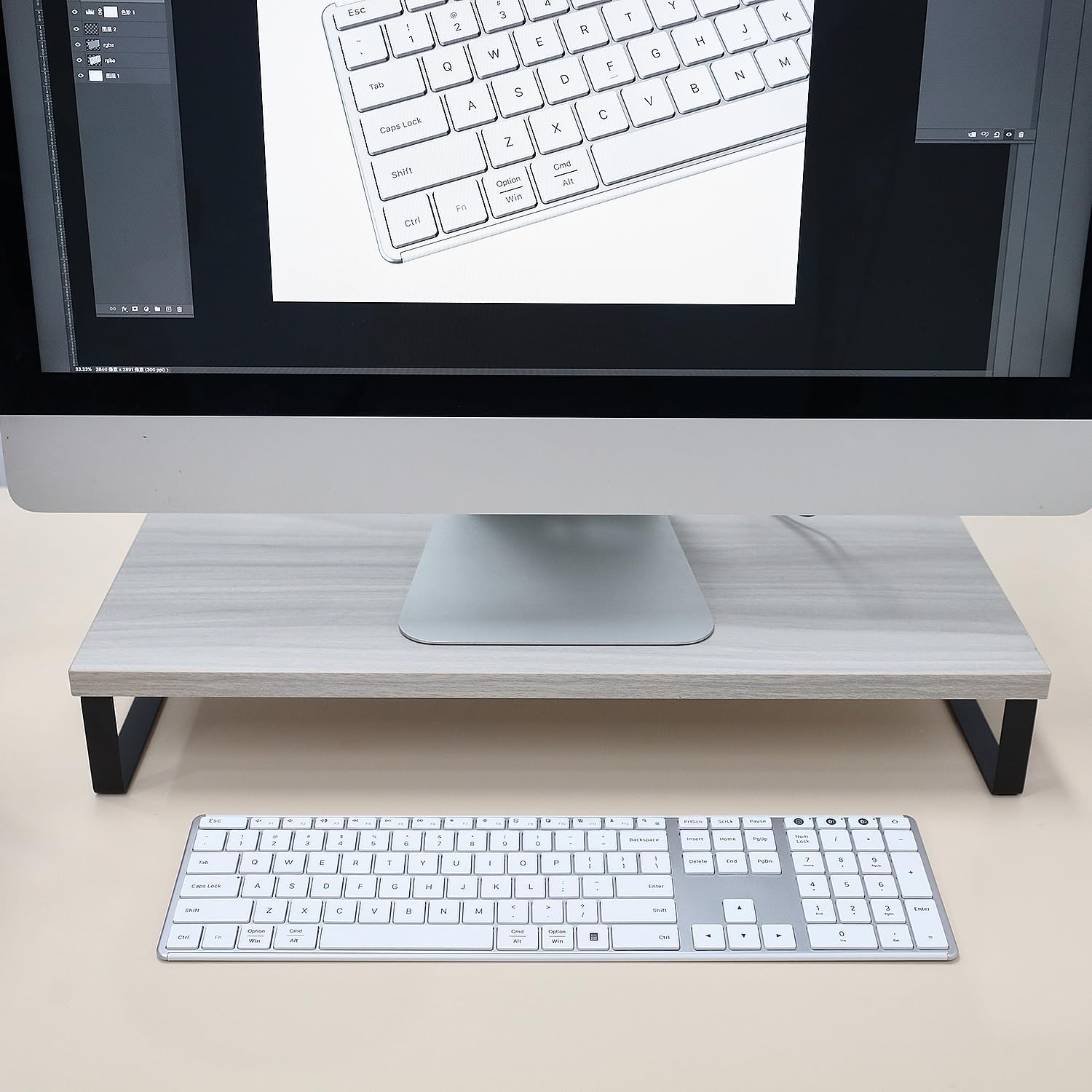
Image 2.1: The keyboard connected via USB-C cable, illustrating the charging process and battery features.
2.2 Connecting via 2.4G Wireless (Device 0)
- Locate the 2.4GHz USB receiver, typically stored in the battery compartment on the underside of the keyboard.
- USB ресиверди компьютериңиздеги жеткиликтүү USB портуна салыңыз.
- Turn on the keyboard using the power switch located on the top edge.
- басыңыз 2.4G button (often labeled with a USB icon or '0') on the keyboard. The indicator light for the 2.4G connection will blink, then become solid when connected.
- Your keyboard is now ready for use with the 2.4G wireless connection.
2.3 Connecting via Bluetooth (Device 1 & 2)
The keyboard supports two separate Bluetooth connections (BT1 and BT2).
- Кубат которгучу менен клавиатураны күйгүзүңүз.
- Же баскычын басып туруңуз BT1 or BT2 button for 3-5 seconds until its indicator light starts blinking rapidly. This indicates the keyboard is in pairing mode.
- Түзмөгүңүздө (компьютер, планшет, смартфон) Bluetooth жөндөөлөрүнө өтүп, Bluetooth'ду иштетиңиз.
- Издөө new devices. The keyboard should appear as "AUSDOM Keyboard" or similar.
- Select the keyboard from the list to pair. The indicator light on the keyboard will become solid when successfully paired.
- Repeat these steps for the second Bluetooth connection (BT2) with another device, if desired.

Image 2.2: The keyboard demonstrating its ability to connect to a laptop, monitor, and tablet simultaneously.
2.4 Туташкан түзмөктөрдүн ортосунда которулуу
To switch between your connected devices, simply press the corresponding connection button:
- Басыңыз 2.4G (or '0') for the 2.4GHz wireless connection.
- Басыңыз BT1 for the first Bluetooth connection.
- Басыңыз BT2 for the second Bluetooth connection.
The keyboard will automatically connect to the selected device.
3. Иштөө нускамалары
3.1 Негизги терүү
The keyboard features a standard QWERTY layout with low-profile keys designed for a quiet and comfortable typing experience. The scissor-switch mechanism ensures consistent key travel and responsiveness.

Image 3.1: Close-up of keyboard keys with an illustration of the scissor switch mechanism, highlighting low-profile дизайн.
3.2 Function Keys and Shortcut Keys
The top row of keys (F1-F12) serves dual functions. By default, they may perform multimedia or system control actions. To access the standard F1-F12 functions, press the Fn каалаган F баскычы менен бир убакта басыңыз.
Жалпы жарлык функцияларына төмөнкүлөр кирет:
- Fn + F1-F3: Үндү башкаруу (Үнсүз, Үндү азайтуу, Үндү катуулатуу)
- Fn + F4-F6: Media playback control (Previous Track, Play/Pause, Next Track)
- Fn + F7-F8: Brightness adjustment (if supported by your device)
- Fn + F9-F12: Other system functions (e.g., Search, Share, Settings)

Image 3.2: The full keyboard layout, including the numeric keypad and dedicated shortcut keys.
3.3 Сандык баскычтоп
The dedicated numeric keypad on the right side of the keyboard allows for efficient data entry. Ensure the Num Lock key is activated for the numeric keys to function as numbers. When Num Lock is off, these keys may function as navigation keys (Home, End, PgUp, PgDn).
3.4 Кубатты үнөмдөө режими
To conserve battery life, the keyboard will automatically enter sleep mode after 30 minutes of inactivity. To wake the keyboard, press any key. There may be a slight delay (approximately 1-2 seconds) for the connection to re-establish.
4. Техникалык тейлөө
4.1 Тазалоо
To clean your keyboard, first turn it off. Use a soft, lint-free cloth slightly dampened with water or a mild cleaning solution. Avoid using harsh chemicals, abrasive cleaners, or excessive moisture, as these can damage the keyboard. For cleaning between keys, a can of compressed air can be used to remove dust and debris.
4.2 Батареяга кам көрүү
The keyboard contains a built-in rechargeable lithium battery. To prolong battery life:
- Батареяны бат-баттан толук кубаттап калуудан алыс болуңуз.
- Charge the keyboard when the low battery indicator appears.
- If storing the keyboard for an extended period, charge it to approximately 50% and store it in a cool, dry place.
4.3 Сактоо
When not in use for a long period, turn off the keyboard to prevent battery drain. Store it in a clean, dry environment away from extreme temperatures and direct sunlight.
5. Кыйынчылыктарды
If you encounter issues with your AUSDOM keyboard, please refer to the following common solutions:
5.1 Keyboard Not Responding / Connection Issues
- Күчтү текшерүү: Ensure the keyboard is turned on and has sufficient battery charge. Recharge if necessary.
- Байланышты кайра орнотуу: For 2.4G, unplug and re-insert the USB receiver. For Bluetooth, go to your device's Bluetooth settings, "forget" or "remove" the keyboard, and then re-pair it following the instructions in Section 2.3.
- Каналдарды алмаштыруу: Ensure you have selected the correct channel (2.4G, BT1, or BT2) for your active device.
- Интерференция: Баскычтопту түзмөгүңүзгө жакыныраак жана тоскоолдук жаратышы мүмкүн болгон башка зымсыз түзмөктөрдөн алысыраак жылдырыңыз.
- Түзмөктүн шайкештиги: Verify that your device's operating system and Bluetooth version are compatible with the keyboard.
5.2 Keys Not Registering or Delayed Input
- Батарея деңгээли: Low battery can cause intermittent key presses. Charge the keyboard fully.
- Уйкудан ойгонуу: If the keyboard was in sleep mode, press any key and wait a moment for it to reconnect.
- Таза ачкычтар: Ensure no debris is lodged under the keys. Refer to Section 4.1 for cleaning instructions.
5.3 Numeric Keypad Not Working
- Num Lock: басыңыз Num Lock key to activate the numeric keypad. The Num Lock indicator light should be on.
If these steps do not resolve your issue, please contact AUSDOM customer support for further assistance.
6. Техникалык шарттар
| Модел | AUSDOM Full Size Multi-Device Wireless Keyboard (B0DGL7ZJS8) |
| Байланыш технологиясы | 2.4GHz Wireless, Bluetooth 5.0 |
| Шайкеш түзмөктөр | Laptop, PC, Smart TV, Smartphone, Tablet (Windows, Mac, iOS, Android) |
| Keyboard Description | Full Size, Low-Profile Keys, Numeric Keypad, Shortcut Keys |
| Өзгөчөлүктөр | Жеңил, аз кесипкөйfile Key, Rechargeable, Silent, Quiet |
| Батарея | 1 Lithium Ion battery (included), 280 mAh |
| Заряддоо убактысы | Болжол менен 1.5 саат |
| Жумуш убактысы | 200 саатка чейин (бир кубаттоодо) |
| Автоматтык уйку режими | 30 мүнөт аракетсиздиктен кийин |
| Продукциянын өлчөмдөрү | 16.73 x 4.49 x 0.5 дюйм (42.42 x 11.43 x 1.27 см) |
| Элемент Салмагы | 1.72 фунт (0.78 кг) |
| Материал | Алюминий, Пластик |
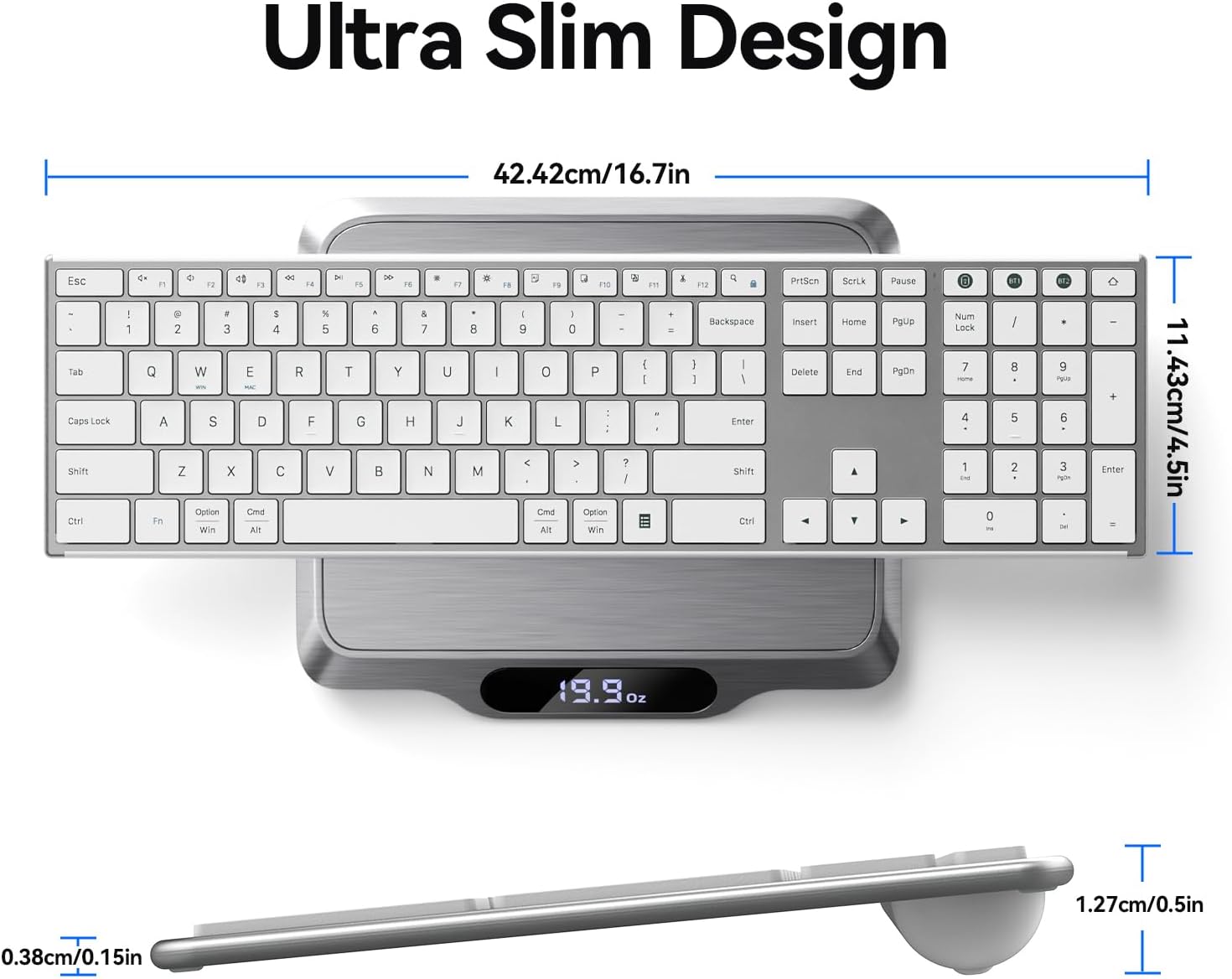
Сүрөт 6.1: жогорудан ылдыйга view of the keyboard on a scale, showing its dimensions and weight.
7. Кепилдик жана колдоо
This AUSDOM keyboard comes with a one-year warranty from the date of purchase. This warranty covers manufacturing defects and issues arising from normal use.
For warranty claims, technical support, or any questions regarding your product, please contact AUSDOM customer service. Contact information can typically be found on the AUSDOM official webсайт же сатып алуу платформасы аркылуу.
Кепилдикти текшерүү үчүн сатып алганыңыздын далилин сактап коюңуз.


