1. Киришүү
Welcome to the Apple iPhone 16 Pro Max User Guide. This manual provides detailed, step-by-step instructions to help you understand and utilize all the features of your new iPhone. Whether you are a new iPhone user or an experienced one, this guide will assist you in mastering your device and the latest iOS 18 operating system.
For optimal experience, please read through the relevant sections before attempting new features. This guide aims to make your iPhone experience seamless and enjoyable.
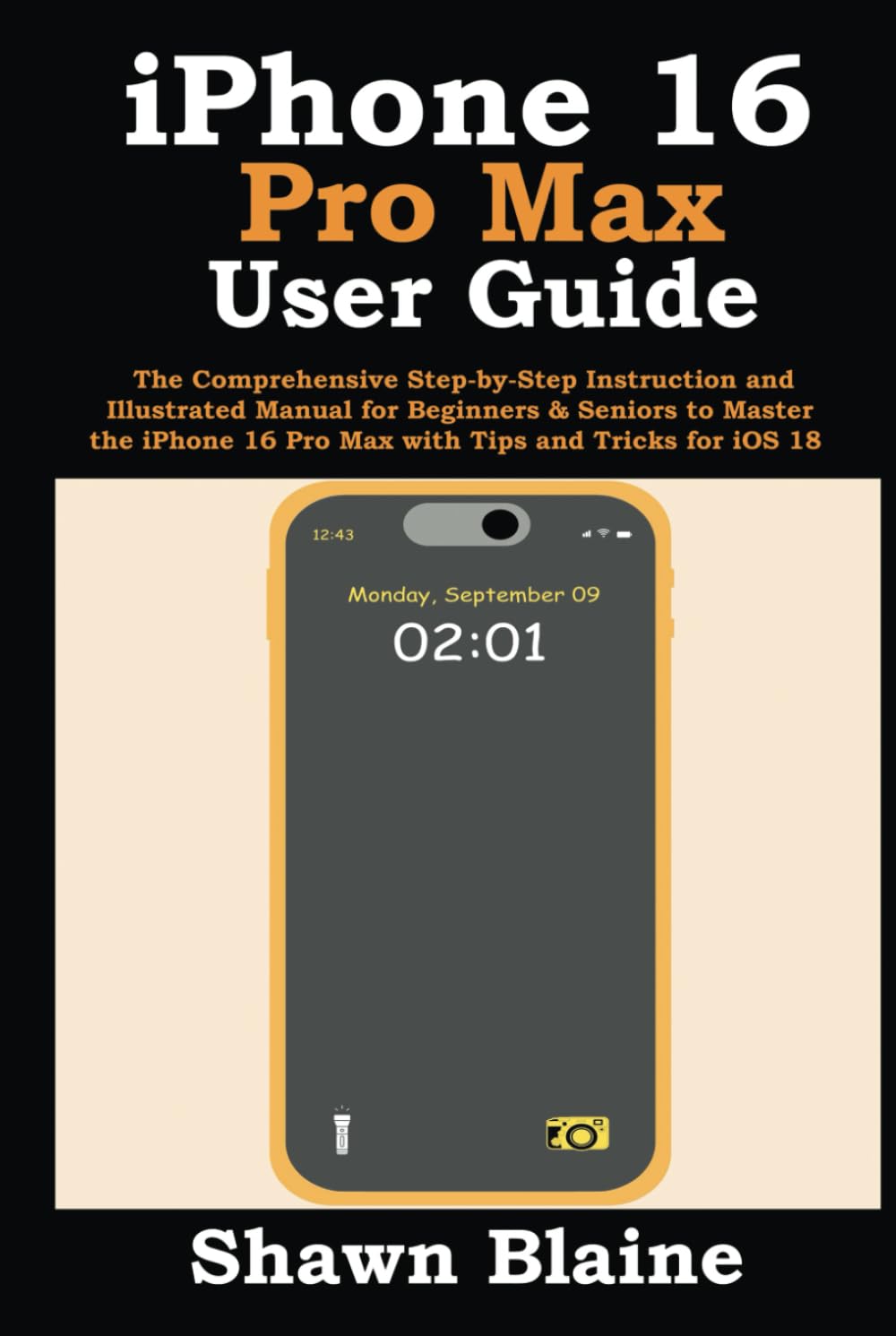
Image 1.1: Front cover of the iPhone 16 Pro Max User Guide, illustrating the device's lock screen with time and date.
2. Баштапкы орнотуу
This section guides you through the initial setup process of your iPhone 16 Pro Max.
2.1 Күйгүзүү жана негизги конфигурация
- Күйгүзүү: Apple логотиби пайда болгонго чейин каптал баскычын басып, кармап туруңуз.
- Hello Screen: Экранды ылдый жагынан өйдө сүрүңүз.
- Тил жана аймак: Каалаган тилди жана аймакты тандаңыз.
- Тез баштоо: If you have another iPhone or iPad, you can use Quick Start to set up your new device automatically. Place your current device near your new iPhone and follow the on-screen instructions.
- Set Up Manually: If not using Quick Start, tap "Set Up Manually."
2.2 Интернетке туташыңыз
Your iPhone requires an internet connection for activation and setup.
- Wi-Fi: Select a Wi-Fi network from the list and enter the password if prompted.
- Мобилдик дайындар: If you have an active eSIM, your iPhone may use cellular data automatically.
2.3 Set up an eSIM
The iPhone 16 Pro Max supports eSIM technology for cellular service.
- During setup, you may be prompted to transfer an eSIM from your previous iPhone or activate a new one provided by your carrier.
- Follow the on-screen instructions or contact your carrier for assistance with eSIM activation.
2.4 Set up Passcode and Face ID
Secure your iPhone with a passcode and Face ID for biometric authentication.
- Өткөрүүчү код: Create a six-digit passcode. You can choose other passcode options like a custom alphanumeric code or a four-digit numeric code.
- Face ID: Follow the on-screen prompts to set up Face ID by rotating your head to capture your facial features.
2.5 Set up Apple ID and iCloud+
Your Apple ID is essential for accessing Apple services like the App Store, iCloud, and FaceTime.
- Sign in with an existing Apple ID or create a new one.
- iCloud+: Consider subscribing to iCloud+ for additional storage and premium features like Private Relay and Hide My Email.
2.6 Restore All Content from a Backup
If you are upgrading from a previous device, you can restore your data.
- iCloud Backup: Select "Restore from iCloud Backup" and sign in with your Apple ID. Choose the most recent backup.
- Computer Backup: Connect your iPhone to a computer with iTunes or Finder and select "Restore from Mac or PC Backup."
3. iPhone'уңузду иштетүү
This section covers the daily operation and key features of your iPhone 16 Pro Max.
3.1 Негизги навигация жана интерфейс
- Күтүү режими: When your iPhone is charging horizontally, StandBy Mode displays useful information like time, widgets, or photos.
- Аракет баскычы: The customizable Action Button on the side can be assigned to various functions like Camera, Flashlight, Voice Memos, Focus, Translate, or Accessibility features.
- Динамикалык арал: This area at the top of your screen dynamically adapts to show alerts, notifications, and ongoing activities like calls, music playback, or Face ID authentication.
- Search with Spotlight: Swipe down from the middle of the Home Screen to access Spotlight Издөө apps, contacts, fileс, жана web натыйжалар.
3.2 Дисплей орнотуулары
- Personalize Text Size & Zoom: барыңыз Орнотуулар > Дисплей жана жарыктык > Тексттин өлчөмү or Дисплей Zoom to adjust readability.
- Automatically Change Screen Brightness: Иштетүү Auto-Brightness in Settings > Accessibility > Display & Text Size for automatic adjustment based on ambient light.
- Schedule Dark Mode: Activate Dark Mode in Орнотуулар > Дисплей жана жарыктык and set a schedule for it to turn on/off automatically.
- Schedule Night Shift: Reduce blue light for better sleep by scheduling Night Shift in Орнотуулар > Дисплей жана жарыктык.
- Change iPhone Wallpaper: Customize your Home Screen and Lock Screen wallpaper via Орнотуулар > Тушкагаз.
3.3 Sounds & Vibrations
Manage your iPhone's audio and haptic feedback settings.
- Adjust ringtones, text tones, and system sounds in Орнотуулар > Үндөр жана сенсорлор.
- Control vibration patterns for alerts and notifications.
3.4 Lock Screen & Focus Mode
- Manage the Lock Screen: Customize widgets, fonts, and photo shuffles directly from the Lock Screen by pressing and holding it.
- Use Focus Mode: Create custom Focus modes (e.g., Work, Personal, Sleep) to filter notifications and app access, helping you concentrate. Manage in Орнотуулар > Фокус.
3.5 Башкаруу борбору
Access frequently used controls and apps by swiping down from the top-right corner of the screen.
- Customize which controls appear in Control Center via Орнотуулар > Башкаруу борбору.
3.6 Mail, Calendar & Contacts Accounts
Add and manage your email, calendar, and contact accounts.
- барыңыз Settings > Mail > Accounts, Settings > Calendar > Accounts, же Settings > Contacts > Accounts to add or modify accounts.
- Hide My Email: For iCloud+ subscribers, use Hide My Email to create unique, random email addresses that forward to your personal inbox, protecting your privacy.
3.7 The Passwords App
The new Passwords app securely stores and manages your login credentials, passkeys, and Wi-Fi passwords.
- Access it from your Home Screen or via Settings > Passwords.
3.8 Siri & Apple Intelligence
Interact with your iPhone using voice commands.
- Set up Siri: Enable Siri in Settings > Siri & Search. You can activate it by saying "Hey Siri" or by pressing and holding the Side button.
- Make Siri Announce Alerts: Configure Siri to announce notifications and calls in Settings > Siri & Search > Announce Notifications.
- Apple Intelligence: Leverage advanced AI features for personalized experiences, enhanced writing tools, and more intuitive interactions across apps.
3.9 Text & Input Features
- Fill Out Forms & Insert Signatures: Use Markup to fill out PDFs and sign documents directly on your iPhone.
- Live Text: Interact with text in photos and videos. Tap on text to copy, look up, or translate it.
- Visual Look Up: Identify objects, plants, animals, and landmarks in your photos and videos.
- Replace Text: Create text shortcuts for frequently used phrases in Settings > General > Keyboard > Text Replacement.
- Көчүрүү жана чаптоо: Select text or images, tap "Copy," then tap and hold where you want to place it and tap "Paste."
3.10 Multitasking & Accessibility
- Multitask with Picture in Picture: Watch videos or make FaceTime calls while using other apps.
- Set up & Edit Live Captions: Enable real-time captions for audio content in Settings > Accessibility > Live Captions.
- Enable Sound Recognition: Your iPhone can listen for certain sounds (e.g., fire alarm, doorbell) and notify you. Configure in Settings > Accessibility > Sound Recognition.
- Lock Down Mode: For extreme security, enable Lockdown Mode in Settings > Privacy & Security to restrict certain functionalities and protect against sophisticated cyberattacks.
4. Camera & Photos
The iPhone 16 Pro Max features an advanced camera system for high-quality photography and videography.
4.1 Capturing Photos
- Capture a Photo: Open the Camera app and tap the Shutter button.
- Change Camera's Focus & Exposure: Tap on the screen to set focus. Tap and hold to lock focus/exposure. Swipe up or down next to the focus box to adjust exposure.
- Select a Photographic Style: Choose from various Photographic Styles (e.g., Rich Contrast, Vibrant) to apply a consistent look to your photos. Access in Camera settings.
- Take Panoramic Photos: Select Pano mode in the Camera app and slowly pan your iPhone across the scene.
- Capture an Apple ProRAW Photo: For professional editing flexibility, enable ProRAW in Settings > Camera > Formats.
- Capture a Macro Photo: The Ultra Wide camera automatically focuses on subjects as close as 2 cm.
- Capture in Portrait Mode: Create photos with a depth-of-field effect. Select Portrait mode and adjust the depth and lighting effects.
- Enable Lens Correction: Automatically correct distortions for photos taken with the Ultra Wide camera in Орнотуулар > Камера.
4.2 Видеолорду жаздыруу
- Enable Enhanced Stabilization: Record smoother videos by enabling enhanced stabilization in Camera settings.
- Record Cinematic Videos: Capture videos with a shallow depth of field and automatic focus transitions. Select Cinematic mode in the Camera app.
- Record a ProRes Video: For high-fidelity video recording, enable ProRes in Settings > Camera > Formats.
- Recording a Spatial Video for Apple Vision Pro: Capture immersive 3D videos for playback on Apple Vision Pro. Select Spatial Video mode in the Camera app.
- Capture a Slow-Motion Video: Record videos in slow motion by selecting Slo-mo mode in the Camera app.
4.3 Managing Photos
- Watch Memories in Photos: The Photos app automatically creates curated collections of your photos and videos called Memories.
- Capture a Full-Page Screenshot: When taking a screenshot of a webpage or document, tap the thumbnail, then select "Full Page" to save the entire content.
5. Essential Apps & Features
Explore the core applications and functionalities of your iPhone.
5.1 Байланыш
- Manage the Contacts App: Store and organize contact information.
- Телефон чалуу: Use the Phone app to dial numbers or select contacts.
- Set up your Voicemail: Follow carrier instructions to set up and access your voicemail.
- Make a FaceTime Call: Initiate video or audio calls with other Apple users via the FaceTime app.
5.2 Productivity & Organization
- Use the Reminders App: Create and manage to-do lists and reminders.
- Use the Notes App: Jot down ideas, create checklists, and scan documents.
5.3 Internet & Navigation
- Browse the Internet with Safari: Use Apple's web browser for secure and private browsing.
- Apple Maps: Get directions, explore places, and view detailed maps.
5.4 Family & Security
- Set up Family Sharing: Share purchases, subscriptions, and iCloud storage with up to five other family members.
- Менин колдонмомду табуу: Locate your Apple devices, share your location with family, and track lost items.
- Apple Pay'ди колдонуңуз: Make secure payments in stores, within apps, and on the web.
6. Техникалык тейлөө
Regular maintenance ensures your iPhone 16 Pro Max performs optimally.
6.1 Камдык көчүрмө жана калыбына келтирүү
- Back up iPhone: Маалыматтарыңызды коргоо үчүн iPhone'уңуздун камдык көчүрмөсүн iCloud'га же компьютериңизге үзгүлтүксүз сактап туруңуз. Орнотуулар > [Сиздин атыңыз] > iCloud > iCloud камдык көчүрмөсү to enable or perform a backup.
- Restore All Content from a Backup: In case of data loss or when setting up a new device, you can restore from a previous backup.
6.2 Reset iPhone Settings
If you encounter issues, resetting settings can often resolve them without erasing your data.
- барыңыз Settings > General > Transfer or Reset iPhone > Reset. You can choose to reset all settings, network settings, keyboard dictionary, Home Screen layout, or location & privacy.
6.3 Automatic iOS Updates
Keep your iPhone updated to the latest iOS version for new features and security enhancements.
- Иштетүү Automatic iOS Updates in Settings > General > Software Update > Automatic Updates.
7. Кыйынчылыктарды
This section provides general guidance for common issues.
- Түзмөк жооп бербейт: If your iPhone is unresponsive, perform a force restart. Press and quickly release the Volume Up button, then the Volume Down button, then press and hold the Side button until the Apple logo appears.
- Колдонмо маселелери: If an app is not working correctly, try closing it and reopening it. If the issue persists, restart your iPhone or check for app updates in the App Store.
- Тармакка туташуу: If you have Wi-Fi or cellular issues, try toggling Airplane Mode on and off, restarting your iPhone, or resetting network settings (Орнотуулар > Жалпы > iPhone'ду өткөрүп берүү же баштапкы абалга келтирүү > Кайра калыбына келтирүү > Тармак жөндөөлөрүн баштапкы абалга келтирүү).
- Батареяны төгүү: Текшерүү Орнотуулар > Батарея to identify apps consuming significant power. Adjust settings or restrict background activity for those apps.
- Программалык камсыздоо кемчиликтери: Ensure your iOS is up to date. If problems persist, consider restoring your iPhone from a backup or performing a factory reset (erases all data).
8. Техникалык шарттар
Key technical specifications for the iPhone 16 Pro Max.
| Өзгөчөлүк | Деталь |
|---|---|
| Модел | iPhone 16 Pro Max |
| Операция системасы | iOS 18 |
| Басмакана (колдонмо) | Көз карандысыз басылып чыккан |
| Басылып чыккан күнү (колдонмо) | 10-сентябрь, 2024-жыл |
| Тил (кол менен) | Англисче |
| Кол менен басып чыгаруу узундугу | 262 бет |
| ISBN-13 (Кол менен) | 979-8338812891 |
| Item Weight (Manual) | 1.01 фунт |
| Dimensions (Manual) | 6 x 0.78 x 9 дюйм |
9. Кепилдик жана колдоо
For information regarding your iPhone 16 Pro Max's warranty, please refer to the official Apple website or the documentation included with your device at the time of purchase. Apple provides limited warranty coverage for manufacturing defects.
For technical support, visit the official Apple Support webсайт (support.apple.com/iphone) or contact AppleCare directly. You can also find helpful resources, troubleshooting guides, and community forums on their webсайт.
It is recommended to register your product with Apple to receive timely updates and support information.


