1. Киришүү
This manual provides essential information for setting up, operating, maintaining, and troubleshooting your Khadas Mind 2 Mini PC. Please read this manual thoroughly before using the device to ensure optimal performance and longevity.
2. Пакеттин мазмуну
Пакетиңизде бардык буюмдар бар экенин текшериңиз:
- Mind 2 Mini PC
- Кубаттуу адаптер
- USB-C Cable
- Көрсөтмө (бул документ)
3. Продукт бүтүп калдыview
3.1 Физикалык өзгөчөлүктөр жана порттор
The Khadas Mind 2 Mini PC features a compact design with essential ports for connectivity.

Сүрөт 3.1: Khadas Mind 2 Mini PC with its compact form factor and side ports.
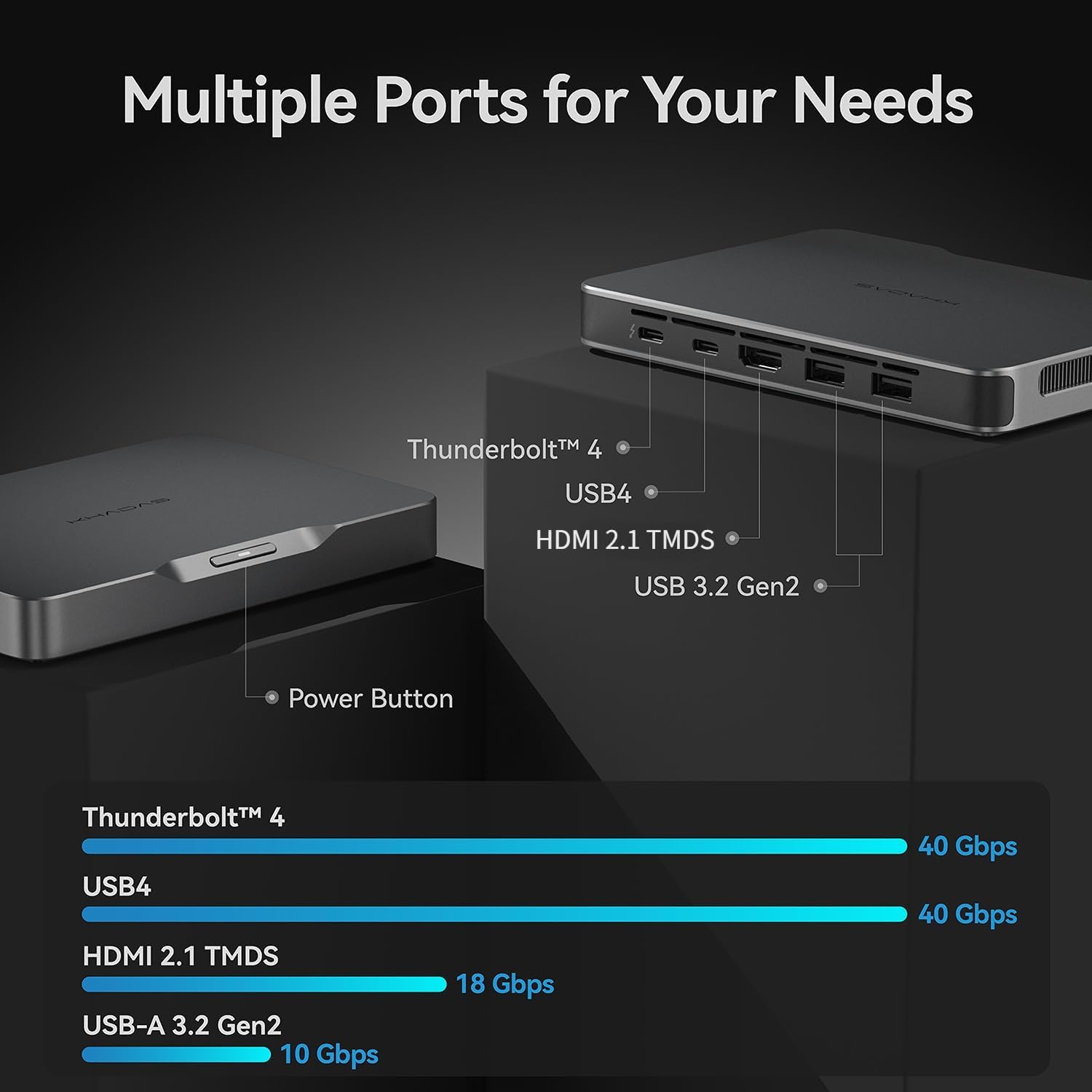
The device includes multiple ports for various peripherals and displays:
- Thunderbolt 4: For high-speed data transfer (up to 40Gbps) and power delivery.
- USB4: Offers data transfer speeds up to 40Gbps.
- HDMI 2.1 TMDS: Supports video output up to 18Gbps.
- USB-A 3.2 Gen2: Two ports for connecting standard USB devices, with speeds up to 10Gbps.
- Кубат баскычы: Located on the device for power control.

Сүрөт 3.2: Port configuration and data transfer speeds.
3.2 Ички компоненттер
The Khadas Mind 2 is equipped with advanced internal hardware for high performance.

Сүрөт 3.3: Internal layout showing key components.
- Процессор: Intel Core Ultra 7 155H (16 Cores, 22 Threads, up to 4.8GHz).
- Эстутум: 32 ГБ LPDDR5 RAM.
- Сактагыч: 1TB PCIe 4.0 SSD.
- Графика: Integrated Arc Graphics with AI Boost NPU.

Сүрөт 3.4: Intel Core Ultra 7 155H Processor details.

Сүрөт 3.5: Arc Integrated Graphics and AI Boost NPU capabilities.
4. Орнотуу
4.1 Перифериялык түзүлүштөрдү туташтыруу
- Дисплейди туташтыруу: Use an HDMI cable to connect your monitor to the HDMI 2.1 TMDS port on the Khadas Mind 2. Alternatively, use a USB-C to DisplayPort/HDMI adapter with the Thunderbolt 4 or USB4 ports.
- Баскычтоп менен чычканды туташтыруу: Plug your USB keyboard and mouse into the USB-A 3.2 Gen2 ports. For wireless devices, ensure their receivers are connected or pair via Bluetooth.
- Туташуу кубаты: Connect the provided USB-C power adapter to the Thunderbolt 4 port on the Khadas Mind 2 and then to a power outlet.
4.2 Күйгүзүү
Press the power button located on the device. The system will boot into Windows 11 Home. Follow the on-screen instructions for initial Windows setup if this is your first use.
5. Иштөө нускамалары
5.1 Негизги операция
The Khadas Mind 2 operates like a standard Windows 11 Home desktop PC. Utilize the connected keyboard, mouse, and display for navigation and interaction.
5.2 Portability and Battery
The Khadas Mind 2 is designed for portability, weighing approximately 435 grams and measuring 2 cm thick. It includes a built-in 5.55Wh battery.
Сүрөт 5.1: Khadas Mind 2 Mini PC size comparison.
Сүрөт 5.2: Built-in battery for uninterrupted mobility.
When unplugged, the device can enter sleep mode without data loss, offering up to 25 hours of standby time. It can resume operation in approximately 2 seconds.
5.3 Байланыш
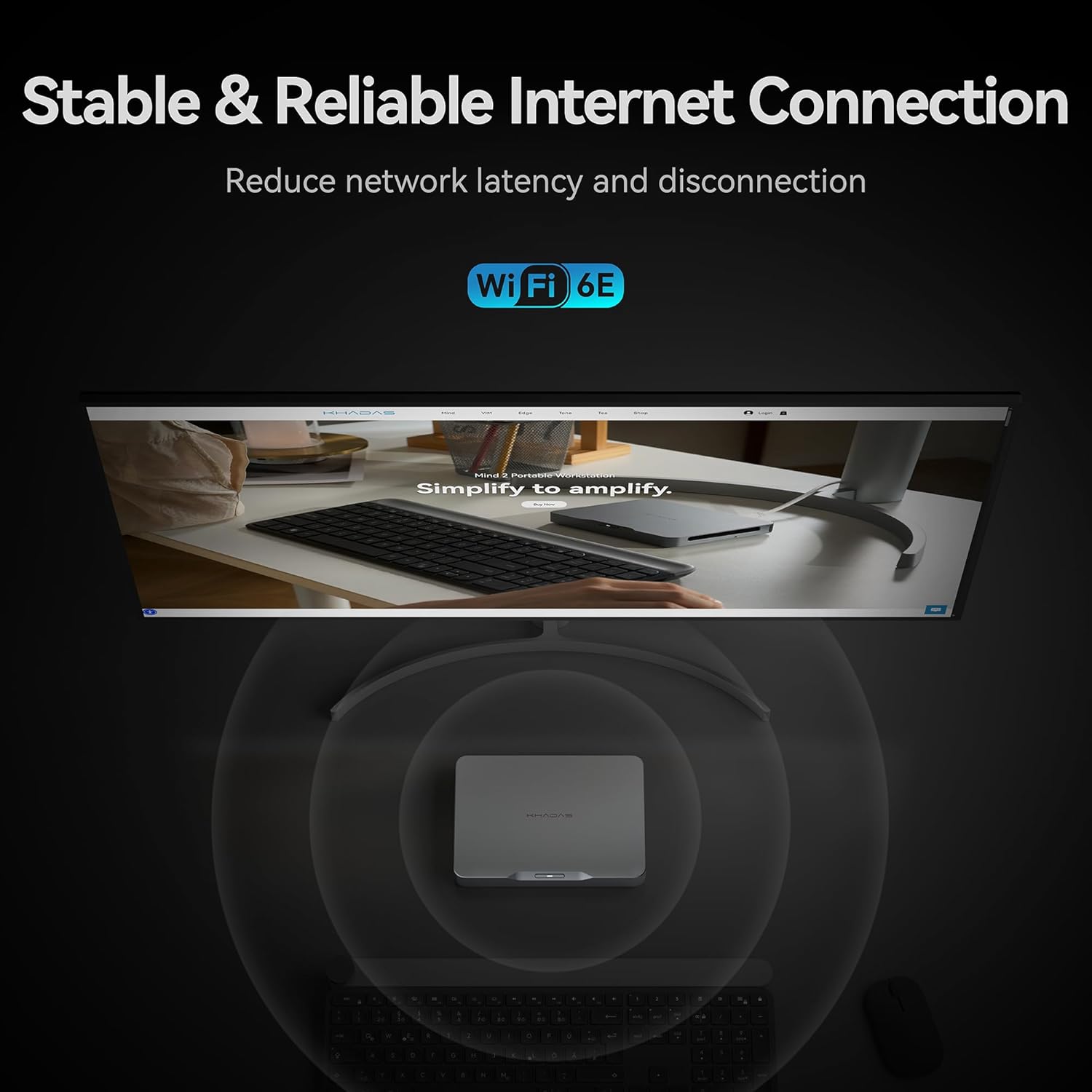
The device supports modern wireless standards for network and peripheral connections.

Сүрөт 5.3: Stable and reliable internet connection via Wi-Fi 6E.
- Wi-Fi 6E: Provides stable and high-speed wireless internet connectivity.
- Bluetooth 5.3: For connecting wireless accessories such as headphones, keyboards, and mice.
5.4 Сактагычты кеңейтүү
The Khadas Mind 2 allows for easy storage expansion via an M.2 2230 SSD slot.

Сүрөт 5.4: Easy SSD expansion via magnetic cover.
To add an M.2 2230 SSD:
- Locate the magnetic cover on the bottom of the device.
- Press to open the cover, revealing the M.2 2230 slot.
- Insert the M.2 2230 SSD into the slot and secure it.
- Close the magnetic cover.
5.5 Mind Link Expansion Interface
The Khadas Mind 2 features a proprietary Mind Link expansion interface for connecting modular accessories, offering ultra-high-speed transmission.

Сүрөт 5.5: Mind Link expansion interface.
This interface provides PCIe 5.0 x8 bandwidth and a maximum transfer speed of 256 GT/s, enabling connection to various Mind ecosystem modules (sold separately).
6. Техникалык тейлөө
6.1 Тазалоо
- Түзмөктүн сыртын тазалоо үчүн жумшак, кургак, мамыксыз чүпүрөктү колдонуңуз.
- Катуу химиялык заттарды, эриткичтерди же абразивдүү материалдарды колдонуудан алыс болуңуз.
- Keep ventilation openings clear of dust and debris using compressed air if necessary.
6.2 Программалык камсыздоо жаңыртуулары
Regularly check for and install operating system and driver updates to ensure system stability and security. Khadas may provide specific software for driver management; refer to official Khadas support channels for guidance.
7. Кыйынчылыктарды
If you encounter issues with your Khadas Mind 2 Mini PC, refer to the following common troubleshooting steps:
- Кубат жок: Ensure the power adapter is securely connected to both the device and a working power outlet. Try a different power outlet or USB-C cable if available.
- Дисплей жок: Verify that your monitor is powered on and correctly connected to the Khadas Mind 2. Try a different display cable or port. Ensure the correct input source is selected on your monitor.
- Перифериялык түзмөк аныкталган жок: Reconnect the peripheral. Try a different USB port. Ensure drivers are up to date for the peripheral. For Bluetooth devices, re-pair them.
- Система жооп бербейт: Күйгүзүү баскычын 10-15 секунд басып, кармап туруп, түзмөктү өчүрүп-күйгүзүңүз.
- Ашыкча ысып кетүү: Ensure the device is placed in a well-ventilated area and that its vents are not obstructed. Reduce heavy workload if sustained high temperatures are observed.
- Программалык камсыздоо маселелери: Perform system updates. If issues persist, consider performing a system restore or reinstalling Windows 11 Home.
For persistent issues, contact Khadas customer support.
8. Техникалык шарттар
| Өзгөчөлүк | Спецификация |
|---|---|
| Процессор | Intel Core Ultra 7 155H (4.8 GHz, 16 Cores, 22 Threads) |
| RAM | 32 ГБ LPDDR5 (6400 МГц) |
| Сактагыч | 1 TB SSD (PCIe x4) |
| Графикалык карта | Dedicated Arc Graphics (8 GB RAM) |
| Операция системасы | Windows 11 Home |
| Зымсыз байланыш | Bluetooth, Wi-Fi 6E |
| Элемент Салмагы | 15.3 унция (болжол менен 435 грамм) |
| Продукциянын өлчөмдөрү (LxWxH) | 5.75 x 4.13 x 0.79 дюйм |
| Батарея | 1 D battery required (included), 5.55Wh built-in |
| Модель аты | Khadas Mind Portable Workstation |
| Элемент моделинин номери | 32GB+1TB, Intel Core Ultra 7 155H |
9. Кепилдик жана колдоо
9.1 Кайтаруу саясаты
This product is eligible for returns within 30 days of purchase, subject to the retailer's return policy.
9.2 Кардарларды колдоо
For technical assistance, warranty claims, or further inquiries, please contact Khadas customer support through their official website or the retailer where the product was purchased. Provide your product model number and purchase details for efficient service.
Khadas is committed to providing support for their products. As noted in customer feedback, their support team is responsive and helpful in addressing product-related issues.


