1. Продукт бүтүп калдыview
The Darmoshark M5PRO is a lightweight, tri-mode wireless gaming mouse designed for precision and versatility. It features a PAW3950 optical sensor, up to 30000 DPI, and 5 programmable buttons. The mouse supports 8K wireless, Bluetooth, and wired connections.

Image 1.1: The Darmoshark M5PRO mouse (red) and its 8K wireless receiver.

Image 1.2: Key features of the M5PRO mouse, including its sensor, polling rate, and microcontroller.
Видео 1.1: Бүттүview of the Darmoshark M5PRO Wireless Gaming Mouse, showcasing its design and various color options.
2. Орнотуу нускамалары
2.1 Чычканды заряддоо
Before initial use, ensure the mouse is fully charged. Connect the provided USB-C cable to the mouse and a power source (e.g., computer USB port, USB wall adapter). The LED indicator will show charging status.

Image 2.1: The M5PRO mouse is equipped with a 300mAh lithium battery for extended use.
2.2 Туташуу режимдери
The M5PRO mouse supports three connection modes: 8K wireless, Bluetooth, and wired USB-C.
2.2.1 8K Wireless Connection
- Connect the 8K wireless receiver to an available USB port on your computer.
- Turn on the mouse and select the 8K wireless mode using the switch on the bottom of the mouse.
- Чычкан автоматтык түрдө ресиверге туташып турушу керек.

Image 2.2: The 8K wireless receiver provides a high-speed connection for the M5PRO mouse.
2.2.2 Bluetooth байланышы
- Turn on the mouse and select the Bluetooth mode using the switch on the bottom of the mouse.
- Компьютериңизде же түзмөгүңүздө Bluetooth жөндөөлөрүнө өтүп, жаңы түзмөктөрдү издеңиз.
- Select "Darmoshark M5PRO" from the list of available devices to pair.
2.2.3 Зымдуу туташуу
- USB-C кабелин чычканга, ал эми экинчи учун компьютериңиздеги USB портуна туташтырыңыз.
- Чычкан автоматтык түрдө зымдуу режимге өтүп, заряддоону баштайт.
3. Иштөө нускамалары
3.1 Баскыч функциялары
The M5PRO mouse features 5 programmable buttons:
- Сол чыкылдатуу баскычы
- Оң баскычты чыкылдатыңыз
- Жылдыруу дөңгөлөгү (Чыкылдатуучу)
- Алга баскычы (каптал)
- Артка баскычы (каптал)
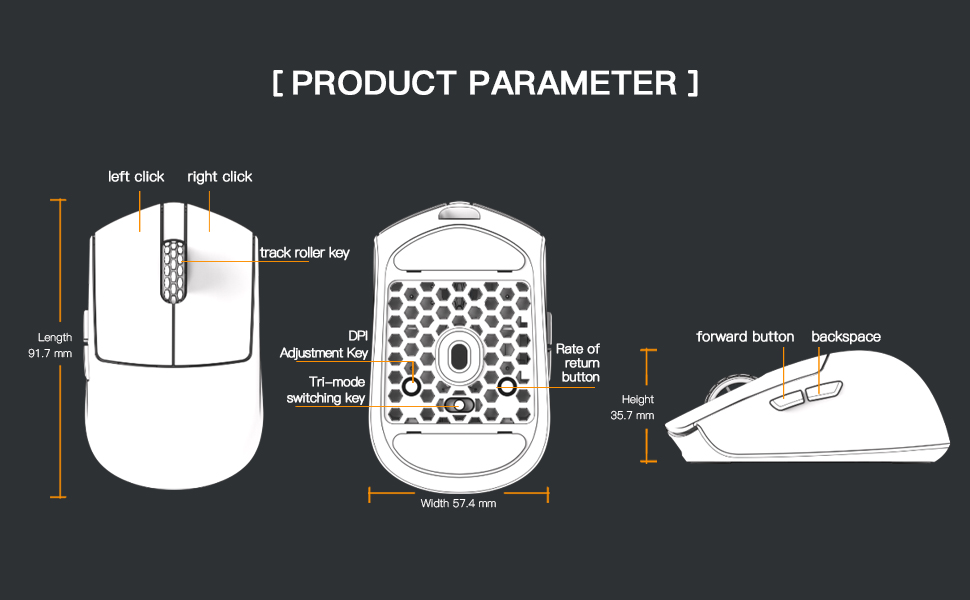
Image 3.1: Diagram illustrating the button layout and dimensions of the M5PRO mouse.
3.2 DPI жөндөө
The DPI (Dots Per Inch) sensitivity can be adjusted using the dedicated DPI adjustment key located on the bottom of the mouse. Press the button to cycle through preset DPI levels. The current DPI level may be indicated by an LED color change (refer to software for specific mappings).
3.3 Режимди алмаштыруу
Use the switch on the bottom of the mouse to select between 8K wireless, Bluetooth, and wired modes.
3.4 Программалык камсыздоону ыңгайлаштыруу
For advanced customization, including button remapping, macro creation, and DPI fine-tuning, download the proprietary drivers from the official Darmoshark website. The software allows for personalized settings to optimize your experience.
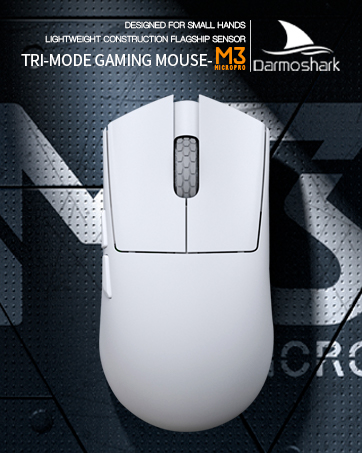
Image 3.2: The proprietary driver software allows for extensive customization of mouse settings.
4. Техникалык тейлөө
4.1 Тазалоо
Чычканды тазалоо үчүн жумшак, кургак чүпүрөктү колдонуңуз. Өжөр кир үчүн бир азamp cloth can be used, but ensure no moisture enters the mouse. Avoid using harsh chemicals or abrasive materials.
4.2 Сактоо
Узак мөөнөткө колдонулбаганда, чычканды күн нурунан жана экстремалдык температурадан алыс салкын, кургак жерде сактаңыз. Батареянын иштөө мөөнөтүн үнөмдөө үчүн чычкан өчүрүлгөнүн текшериңиз.

Сүрөт 4.1: Жарылып кеткен view of the M5PRO mouse, highlighting its internal structure and lightweight components.
5. Кыйынчылыктарды
5.1 Чычкан жооп бербейт
- Батареяны текшерүү: Ensure the mouse is charged. Connect it via USB-C cable to charge.
- Байланышты текшерүү: Verify the correct mode (8K wireless, Bluetooth, or wired) is selected on the mouse.
- Receiver/Cable: For 8K wireless, ensure the receiver is securely plugged into a working USB port. For wired, ensure the cable is properly connected.
- Bluetoothду кайра жупташтыруу: If using Bluetooth, try removing the device from your computer's Bluetooth settings and re-pairing it.
5.2 Cursor Movement Issues
- Таза сенсор: Ensure the optical sensor on the bottom of the mouse is clean and free from debris.
- Бети: Use the mouse on a suitable surface, preferably a mouse pad, for optimal tracking.
- DPI жөндөөлөрү: Adjust the DPI sensitivity to a comfortable level.
5.3 Чычканды аныктабаган программалык камсыздоо
- Зымдуу туташуу: Connect the mouse via USB-C cable to ensure the software can detect it.
- Программалык камсыздоону кайра орнотуу: Try uninstalling and reinstalling the proprietary drivers.
- Орнотулган программаны жаңыртуу: Check the Darmoshark website for any available firmware updates for the mouse.
6. Техникалык шарттар
| Өзгөчөлүк | Спецификация |
|---|---|
| Бренд | Дармошарк |
| Модел | M5PRO |
| Байланыш технологиясы | 8K Wireless, Bluetooth, Wired (USB-C) |
| Кыймылды аныктоо технологиясы | PAW3950 оптикалык сенсор |
| Максималдуу DPI | 30000 DPI |
| Добуш берүү көрсөткүчү | Up to 8KHz (8K wireless mode) |
| баскычтардын саны | 5 (Программалануучу) |
| Салмагы | Болжол менен 38 грамм |
| Батарея | 1 литий-иондук батарейка (кошулган) |
| Шайкештик | Windows, Apple Mac |
Image 6.1: The PAW3950 optical sensor is a core component for precise tracking.
7. Кепилдик жана колдоо
For warranty information and technical support, please refer to the official Darmoshark webсайтка же кардарларды тейлөөгө кайрылыңыз. Кепилдик дооматтар үчүн сатып алганыңыздын далилин сактаңыз.
Расмий Дармошарк Webсайт: Darmoshark Store


