1. Киришүү
This manual provides detailed instructions for the installation, operation, and maintenance of your Rraycom S-C363-P4 2K Dual-Band WiFi Wireless Outdoor Security Camera System. Please read this manual thoroughly before using the product to ensure proper functionality and safety. Keep this manual for future reference.
2. Пакеттин мазмуну
Verify that all items listed below are present in your package. If any items are missing or damaged, please contact Rraycom customer support.
- 4 x Rraycom Wireless Security Cameras Outdoor
- Mounting Kits (screws, wall anchors)
- USB заряддоо кабелдери
- Колдонуучунун Колдонмосу (бул документ)

Image 2.1: Rraycom S-C363-P4 Camera System Components. This image shows four white Rraycom security cameras and a smartphone displaying live camera feed, illustrating the complete system.
3. Продукт бүтүп калдыview
The Rraycom S-C363-P4 camera is a versatile, battery-powered security solution designed for both indoor and outdoor use. It features 2K resolution, dual-band Wi-Fi connectivity, and advanced motion detection capabilities.
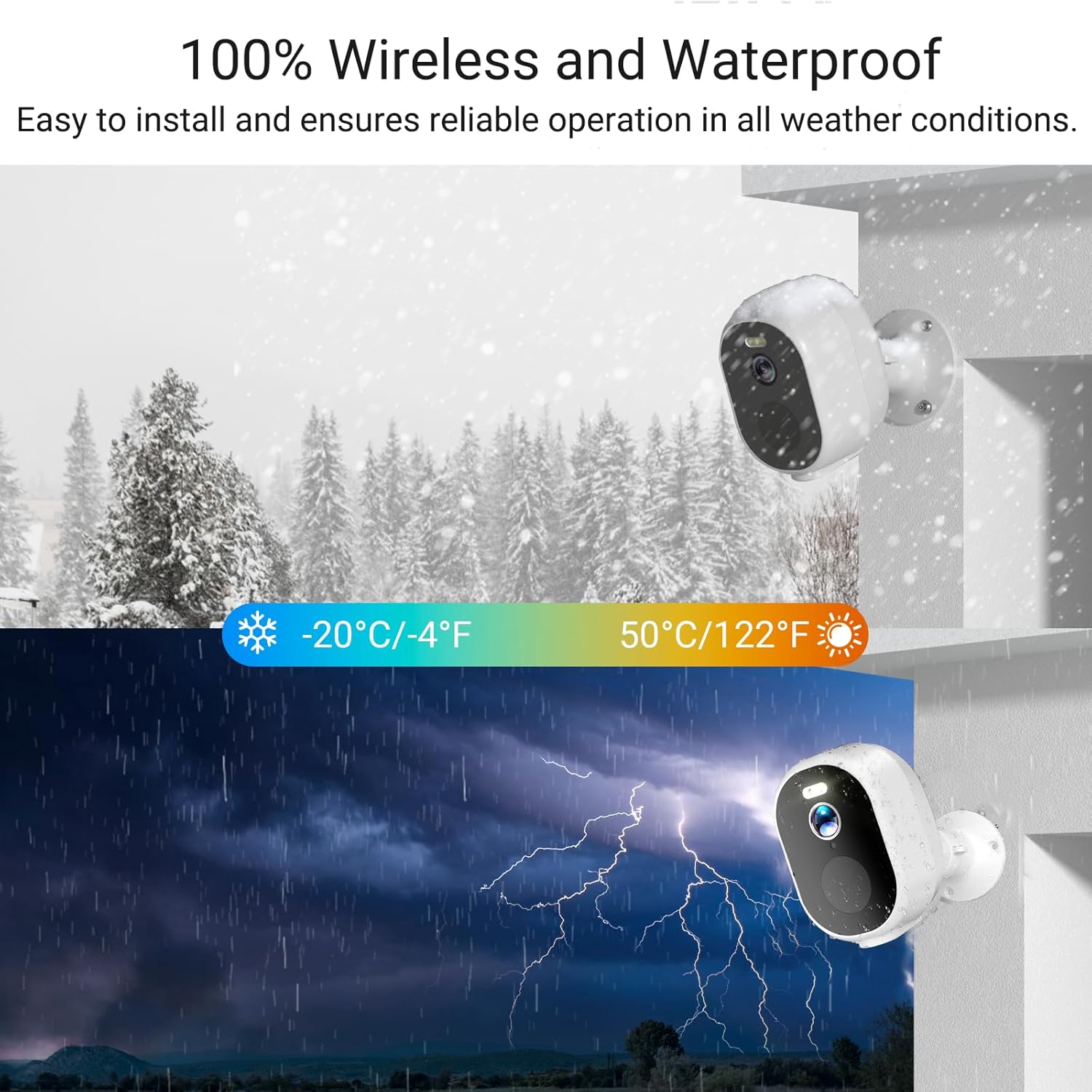
Image 3.1: Weatherproof Design. This image illustrates the camera's IP65 waterproof rating, showing it operating reliably in both snowy and rainy environments.
Негизги өзгөчөлүктөрү:
- 2K QHD Video Resolution: Так жана деталдуу фоону тартатtage.
- Dual-Band WiFi (2.4GHz & 5GHz): Provides flexible and stable wireless connectivity.
- 100% зымсыз жана кайра заряддалуучу батарея: Offers easy installation and long-lasting power.
- Түнкү көрүнүш: Интегралдык прожектордун жардамы менен аз жарык шарттарда көрүнүүнү жакшыртат.
- Кыймылды аныктоо: Жасалма интеллект Differentiates between people, vehicles, and other objects to reduce false alarms.
- Эки тараптуу аудио: Камера аркылуу реалдуу убакыт режиминде байланышууга мүмкүндүк берет.
- IP65 аба ырайы: Ар кандай тышкы аба ырайынын шарттарына туруштук берүү үчүн иштелип чыккан.
- Smart Home интеграциясы: Amazon Alexa жана Google Assistant менен шайкеш келет.
- Ийкемдүү сактагыч: Supports local Micro SD card (up to 128GB) and optional cloud storage.
4. Орнотуу
4.1 Камераны заряддоо
Before initial use, fully charge each camera using the provided USB cable and a standard 5V/2A USB power adapter (not included). The charging indicator light will typically turn solid green when fully charged. A full charge can last 1-3 months depending on usage and settings.
4.2 Колдонмону жүктөп алуу
Download the free "Tuya" app from the App Store (iOS) or Google Play Store (Android). Register for an account or log in if you already have one.
4.3 Wi-Fiга туташуу
- Күйгүзүү: Кубат баскычын басуу менен камераны күйгүзүңүз.
- Bluetooth иштетүү: Смартфонуңуздун Bluetooth иштетилгенин текшериңиз.
- Түзмөк кошуу: Open the Tuya app, tap "Add Device" or the "+" icon. The app should automatically detect the camera via Bluetooth. If not, select "Security & Video Surveillance" > "Smart Camera (Wi-Fi)".
- Wi-Fi тармагын тандоо: Choose your 2.4GHz or 5GHz Wi-Fi network and enter the password. The camera supports both bands for optimal performance.
- Жупташтыруу: Follow the in-app instructions to complete the pairing process. This usually involves scanning a QR code displayed on your phone with the camera lens.
- Ырастоо: Туташкандан кийин, камеранын индикатор жарыгы өзгөрөт жана колдонмо ийгиликтүү жупташууну ырастайт.

Image 4.1: Quick Installation Guide. This image visually outlines the three main steps for setting up the camera: powering it on, connecting it through the app via Bluetooth and Wi-Fi, and initiating live viewing.
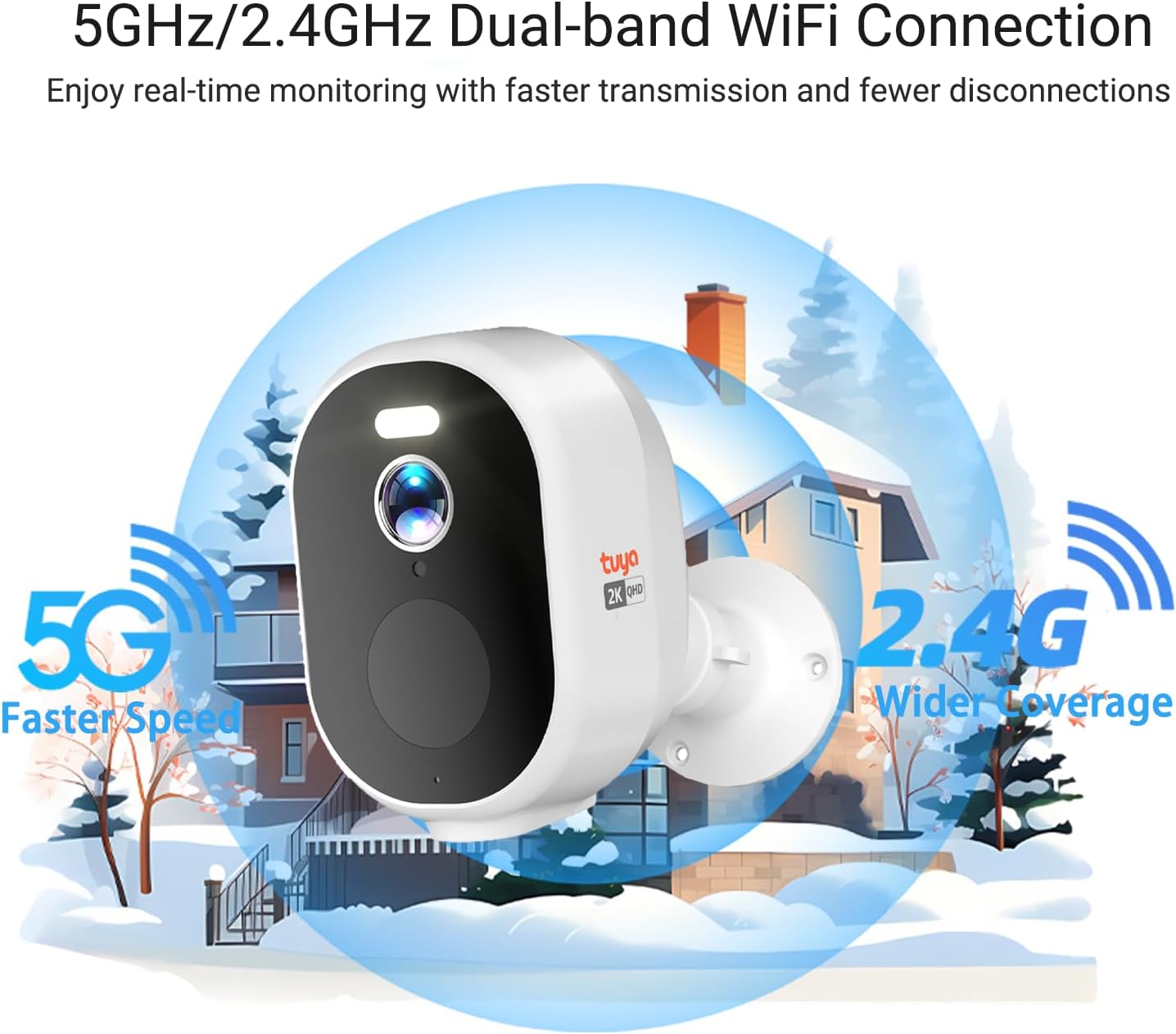
Image 4.2: Dual-Band WiFi Connection. This image highlights the camera's ability to connect to both 5GHz and 2.4GHz Wi-Fi networks, indicating faster speeds for 5GHz and wider coverage for 2.4GHz.
4.4 Камераны орнотуу
The camera can be mounted on a wall, ceiling, or placed on a desktop. Choose a location that provides the desired viewing angle (130 degrees) and strong Wi-Fi signal. Avoid direct sunlight or areas with excessive interference.
- Позицияны белгилөө: Use the mounting bracket to mark the screw holes on the desired surface.
- Бургулоо тешиктери: Drill pilot holes if necessary and insert wall anchors.
- Коопсуз кашаа: Берилген бурамалар менен бекитүүчү кронштейнди бетке бекитиңиз.
- Камераны тиркөө: Securely attach the camera to the mounting bracket and adjust the angle as needed.
5. Иштөө нускамалары
5.1 Live View
Tuya колдонмосун ачып, каалаган камераны тандаңыз view its live feed. You can pinch to zoom (digital zoom up to 5x) and pan within the live view.

Image 5.1: 2K QHD Ultra-Wide Angle. This image demonstrates the superior clarity of 2K QHD resolution and the 130-degree ultra-wide viewing angle compared to 1080P, capturing more details day and night.
5.2 Кыймылды аныктоо орнотуулары
The camera features advanced PIR (Passive Infrared) motion detection and AI recognition to minimize false alarms.
- Иштетүү/Өчүрүү: Navigate to camera settings in the app to enable or disable motion detection.
- Сезимталдуулук: Adjust the PIR sensitivity level to suit your environment.
- AI таануу: Configure AI detection for specific objects like people, vehicles, or packages to receive more relevant alerts.
- Эскертүүлөр: Set up instant push notifications to your smartphone when motion is detected.
- Сирена жана прожектор: Activate the built-in siren and spotlight to deter intruders. These can be triggered automatically upon detection or manually via the app.

Image 5.2: AI Precision Detection. This image illustrates the camera's AI capabilities to accurately identify and categorize various threats such as people, animals, packages, vehicles, and even flames, reducing false alarms.

Image 5.3: Smart PIR Motion Detection & Instant Alert. This image depicts the camera detecting a person, activating a spotlight, sending an app notification, and sounding a siren to deter potential intruders.
5.3 Эки тараптуу аудио
Use the two-way audio feature to communicate with individuals near the camera. Tap the microphone icon in the live view сүйлөө жана камеранын динамиги аркылуу угуу.

Image 5.4: Two-Way Audio. This image illustrates the camera's two-way audio functionality, allowing users to speak and listen to people within the monitoring range.
5.4 Түнкү көрүү режимдери
The camera offers both infrared (traditional) and full-color night vision, with a range of up to 100 feet. The integrated spotlight enables color night vision in dark conditions.

Image 5.5: 2K QHD Color Night Vision. This image compares the clarity and detail of 2K QHD color night vision, enabled by PIR LEDs and white lights, against traditional black and white night vision in a dim outdoor setting.
5.5 Сактоо параметрлери
- Micro SD картасы: Insert a Micro SD card (up to 128GB, not included) into the camera's designated slot for local storage. Recordings can be accessed and managed via the Tuya app without monthly fees.
- Булуттагы сактагыч: An optional cloud storage subscription is available for secure backup of your recordings. Refer to the Tuya app for subscription details and pricing.

Image 5.6: No Monthly Fees. This image clarifies that local SD card storage (up to 128GB, not included) does not incur monthly fees, while cloud storage is an optional subscription service.
5.6 Smart Home интеграциясы
Integrate your Rraycom cameras with Amazon Alexa or Google Assistant for convenient voice control and live viewшайкеш келген акылдуу дисплейлерде иштеп жатат.
- Alexa: Enable the "Tuya Smart" skill in the Alexa app and link your Tuya account. Use commands like "Alexa, show me the [camera name]".
- Google Жардамчысы: Link your Tuya account in the Google Home app. Use commands like "Hey Google, show me the [camera name] on [device name]".

Image 5.7: Compatible with Alexa and Google Assistant. This image demonstrates the camera's compatibility with smart home platforms, showing a live feed on a smart display and indicating voice control capabilities.
5.7 Бөлүшүү мүмкүнчүлүгү
You can share camera access with family members or trusted individuals through the Tuya app. Go to the camera settings, select "Share Device," and follow the prompts to invite others.

Image 5.8: Share the Camera with Your Family. This image shows several individuals viewing the camera's live feed on their smartphones, highlighting the feature that allows sharing access to the security camera.
6. Техникалык тейлөө
- Батареяны заряддоо: Recharge the camera battery when the app indicates a low battery level. Regular charging ensures continuous operation.
- Тазалоо: Мезгил-мезгили менен камеранын линзасын жана корпусун жумшак, гamp чаңды жана калдыктарды тазалоо үчүн кездеме. Катуу химиялык заттарды колдонбоңуз.
- Программалык камсыздоонун жаңыртуулары: Check the Tuya app regularly for firmware updates. Keeping the firmware updated ensures optimal performance and security.
- SD Card башкаруу: Эгер SD картаны колдонсоңуз, мезгил-мезгили менен кайраview жана эски тамак-ашты жок кылыңызtage to free up space, or enable loop recording if supported.
7. Кыйынчылыктарды
| Көйгөй | Мүмкүн чечим |
|---|---|
| Камера Wi-Fi'га туташа албай жатат. |
|
| Тез-тез өчүрүүлөр. |
|
| Кыймылды аныктоо иштебей жатат же жалган сигналдар өтө көп. |
|
| Түнкү көрүү сапаты начар. |
|
| Батарея бат эле түгөнөт. |
|
8. Техникалык шарттар
| Өзгөчөлүк | Деталь |
|---|---|
| Модель номери | S-C363-P4 |
| Video Resolution | 2K (1440p) |
| Байланыш | 2.4GHz / 5GHz Dual-Band Wi-Fi, Bluetooth |
| Power Source | Rechargeable Battery Powered (5V DC) |
| Батареянын иштөө мөөнөтү | 1-3 months (depending on usage) |
| Түнкү көрүнүш | Color Night Vision, 100 Feet Range |
| Motion Detection | PIR Sensor, AI Human/Vehicle/Package Detection |
| Аудио | Эки тараптуу аудио (Киргизилген микрофон жана динамик) |
| Viewбурч | 130 градус |
| Digital Zoom | 5x |
| Сактагыч параметрлери | Micro SD Card (up to 128GB, not included), Cloud Storage (optional subscription) |
| Аба ырайына каршылык | IP65 суу өткөрбөйт |
| Иштөө температурасы | -13°F – 122°F (-20°C – 50°C) |
| Өлчөмдөрү (L x W x Y) | 2.8 x 2.8 x 4.8 дюйм |
| Материал | Акрилонитрил бутадиен стирол (ABS) |
| Шайкештик | Amazon Alexa, Google Assistant, Tuya App (iOS/Android) |
9. Кепилдик жана колдоо
Rraycom products come with a standard manufacturer's warranty. For specific warranty terms and conditions, please refer to the product packaging or contact Rraycom customer support.
If you encounter any issues or have questions regarding your Rraycom S-C363-P4 camera system, please contact our support team:
- Электрондук почта: aftersale@rraycom.com
- Онлайн колдоо: Visit the official Rraycom webКөп берилүүчү суроолор жана кошумча ресурстар үчүн сайт.

Image 9.1: Rraycom Logo.


