1. Киришүү
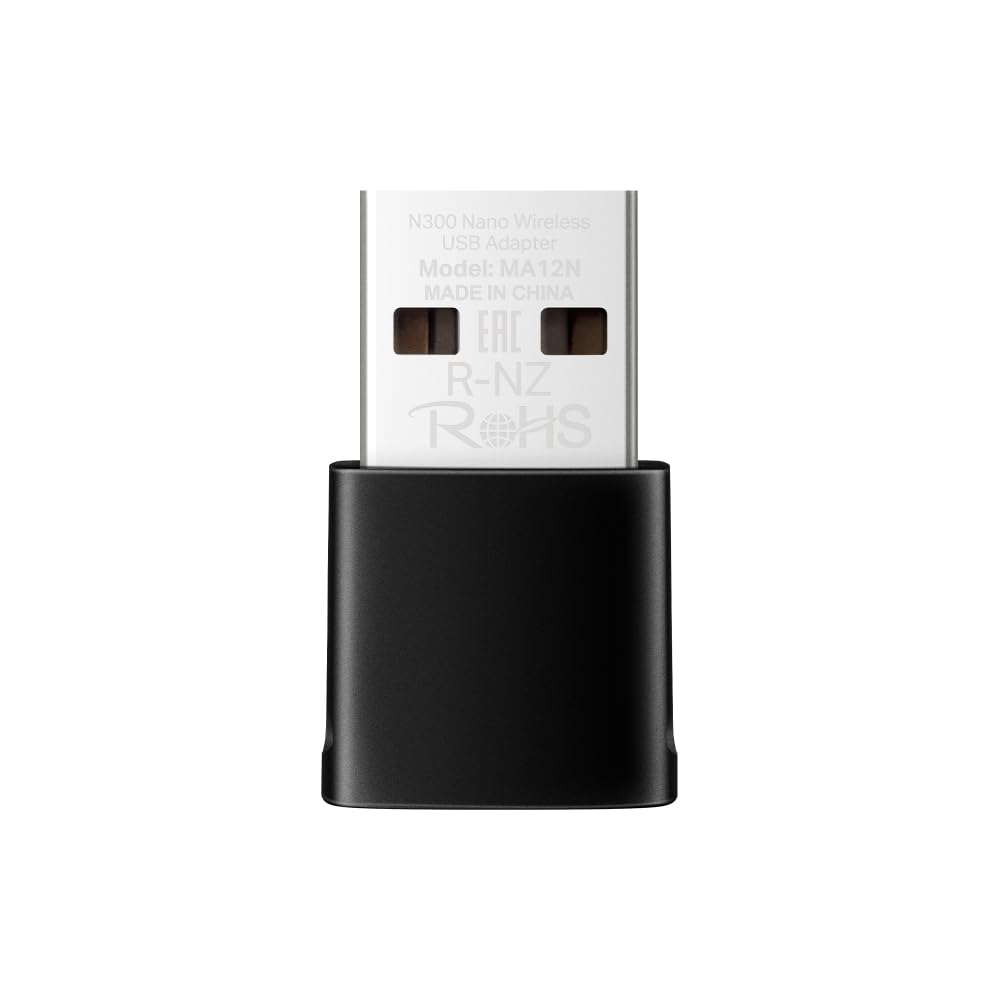
The Mercusys MA12N N300 Nano Wireless USB Adapter is a compact device designed to provide wireless internet connectivity to your laptop or desktop computer. It offers a wireless speed of up to 300 Mbps, suitable for common online activities such as web browsing, video streaming, and online gaming. Its miniature size ensures it does not obstruct adjacent USB ports, making it highly portable. The adapter incorporates WPA3 encryption for enhanced security and stable connections, and it features a built-in driver for Windows operating systems, simplifying the installation process.
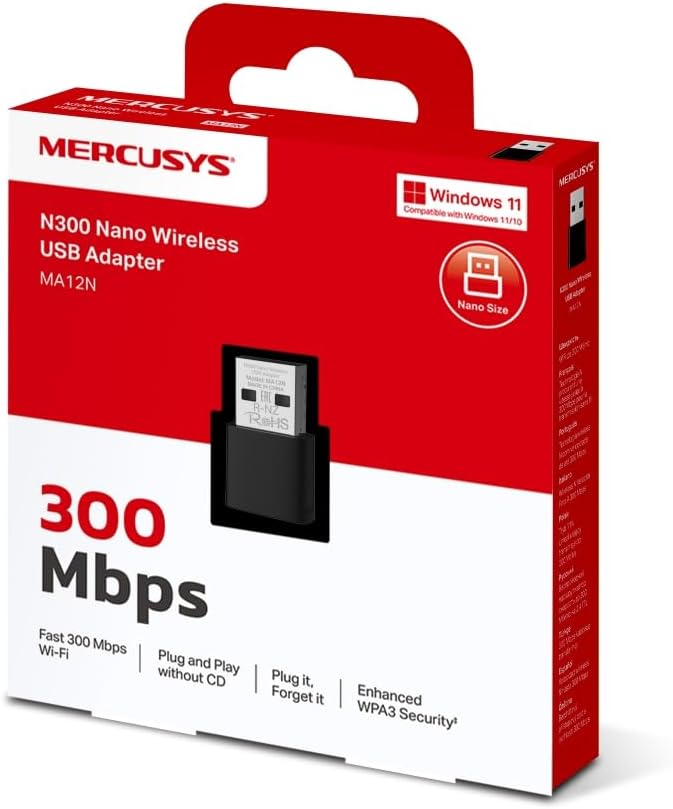
The retail packaging for the Mercusys MA12N N300 Nano Wireless USB Adapter, highlighting its features like 300 Mbps Wi-Fi speed, plug-and-play functionality, and WPA3 security.
2. Пакеттин мазмуну
Пакетиңизде төмөнкү заттар бар экенин текшериңиз:
- Mercusys MA12N N300 Nano Wireless USB Adapter
- Quick Installation Guide (contents may vary by region)
3. Орнотуу
Follow these steps to install and set up your Mercusys MA12N Nano Wireless USB Adapter:
- Адаптерди салыңыз: Plug the MA12N adapter into an available USB port on your desktop or laptop computer.
- Драйверди орнотуу: For Windows operating systems, the adapter features a built-in driver. The system should automatically detect the device and install the necessary drivers. Wait for the installation process to complete.
- Wi-Fi'га туташуу: Once the driver is installed, locate the Wi-Fi icon in your computer's system tray (typically in the bottom-right corner for Windows). Click on it to view a list of available wireless networks.
- Тармакты тандоо: Choose your desired Wi-Fi network from the list and click 'Connect'.
- Сырсөздү киргизиңиз: If prompted, enter the Wi-Fi password (security key) for your chosen network. Passwords are case-sensitive. Click 'Next' or 'OK' to confirm.
- Connection Established: Your computer should now be connected to the wireless network. The Wi-Fi icon will indicate a successful connection.
The Mercusys MA12N N300 Nano Wireless USB Adapter held in a hand, demonstrating its compact and nano size.

Жакын план view of the Mercusys MA12N adapter plugged into a laptop, with its precise dimensions (26.9mm x 16.1mm x 7.6mm) indicated.
4. Иштөө нускамалары
Once the adapter is installed and connected, operating it is straightforward:
Connecting to a Different Wireless Network
- Click the wireless network icon in your computer's system tray.
- A list of available Wi-Fi networks will appear. Select the new network you wish to join.
- If the network is secured, enter the correct Wi-Fi password when prompted.
- The adapter will attempt to connect to the new network.
Туташуу абалы текшерилүүдө
- The wireless network icon in the system tray will display the current connection status, including signal strength.
- Hovering your mouse over the icon or clicking it will provide more details about the connected network.
Disconnecting from a Wireless Network
- Click the wireless network icon in the system tray.
- Select the currently connected network from the list.
- Click the 'Disconnect' button.
5. Техникалык тейлөө
To ensure optimal performance and longevity of your Mercusys MA12N adapter, consider the following maintenance tips:
- Тазалоо: Keep the adapter clean and free from dust. Use a soft, dry cloth for cleaning. Avoid using liquid cleaners or abrasive materials.
- Экологиялык шарттар: Avoid exposing the adapter to extreme temperatures, high humidity, or direct sunlight. Operate it within recommended environmental ranges.
- USB портуна кам көрүү: Ensure the USB port on your computer is clean and free of debris before inserting the adapter to prevent damage to the connectors.
- Коопсуз алып салуу: When removing the adapter, it is recommended to safely eject it through your operating system's device management options to prevent potential data corruption or device issues.
6. Кыйынчылыктарды
If you encounter issues with your Mercusys MA12N adapter, refer to the following troubleshooting guide:
Adapter Not Detected or Not Working
- USB портун текшерүү: Ensure the adapter is fully inserted into a working USB port. Try plugging it into a different USB port on your computer.
- Аппарат менеджери: Open Device Manager (on Windows, right-click 'This PC' or 'My Computer', select 'Manage', then 'Device Manager'). Check if the adapter is listed under 'Network adapters' and if there are any error symbols (e.g., yellow exclamation mark).
- Драйверди кайра орнотуу: If there's an error, try uninstalling the device from Device Manager and then reinserting the adapter to trigger an automatic driver reinstallation. If issues persist, visit the official Mercusys webакыркы айдоочулар үчүн сайт.
Wi-Fi тармагына туташуу мүмкүн эмес
- Маршрутизатордун абалы: Verify that your Wi-Fi router is powered on and broadcasting a wireless signal.
- Wi-Fi сырсөзү: Double-check that you are entering the correct Wi-Fi password. Remember that passwords are case-sensitive.
- Wi-Fi иштетилген: Ensure that your computer's Wi-Fi functionality is enabled.
- Түзмөктөрдү кайра иштетүү: Try restarting both your computer and your Wi-Fi router.
Frequent Disconnections or Slow Speed
- Сигнал күчү: Move your computer closer to your Wi-Fi router to improve signal strength. Obstacles like walls and other electronic devices can weaken the signal.
- Интерференция: Identify and minimize sources of wireless interference, such as microwaves, cordless phones, Bluetooth devices, or other Wi-Fi networks operating on the same channel.
- Драйвер жаңыртуу: If you experience persistent connection drops or slow speeds, visit the official Mercusys website to check for and install the latest driver updates for the MA12N adapter.
- Router Firmware: Ensure your Wi-Fi router's firmware is up to date.

An image illustrating the key features of the adapter, including 300 Mbps Wi-Fi speed, miniature size, plug-and-play capability, Windows 11 compatibility, and enhanced WPA3 security.
7. Техникалык шарттар
| Бренд | Mercusys |
| Модел | MA12N |
| Аппараттык интерфейс | USB 2.0 |
| Зымсыз стандарттар | IEEE 802.11b/g/n |
| Жыштык | 2.4 ГГц |
| Зымсыз ылдамдык | 300 Мбит/сек чейин |
| Зымсыз коопсуздук | WPA3, WPA2-PSK/WPA-PSK, WEP |
| Өлчөмдөрү (W x D x H) | 26.9мм x 16.1мм x 7.6мм |
| Операциялык системалар | Windows 11/10/8.1/8/7 |
| Элемент Салмагы | 20 грамм |
8. Кепилдик жана колдоо
For detailed warranty information, technical support, or to download the latest drivers and firmware, please visit the official Mercusys webсайт. Ар кандай кепилдик дооматтары үчүн сатып алуу дүмүрчөгүн сатып алуунун далили катары сактоо сунушталат.
Mercusys расмий сайты Webсайт: www.mercusys.com


