1. Киришүү
This manual provides detailed instructions for the setup, operation, and maintenance of your ADREAMER Ariebox10 Mini PC. Please read this manual thoroughly before using the device to ensure proper functionality and to maximize your user experience.
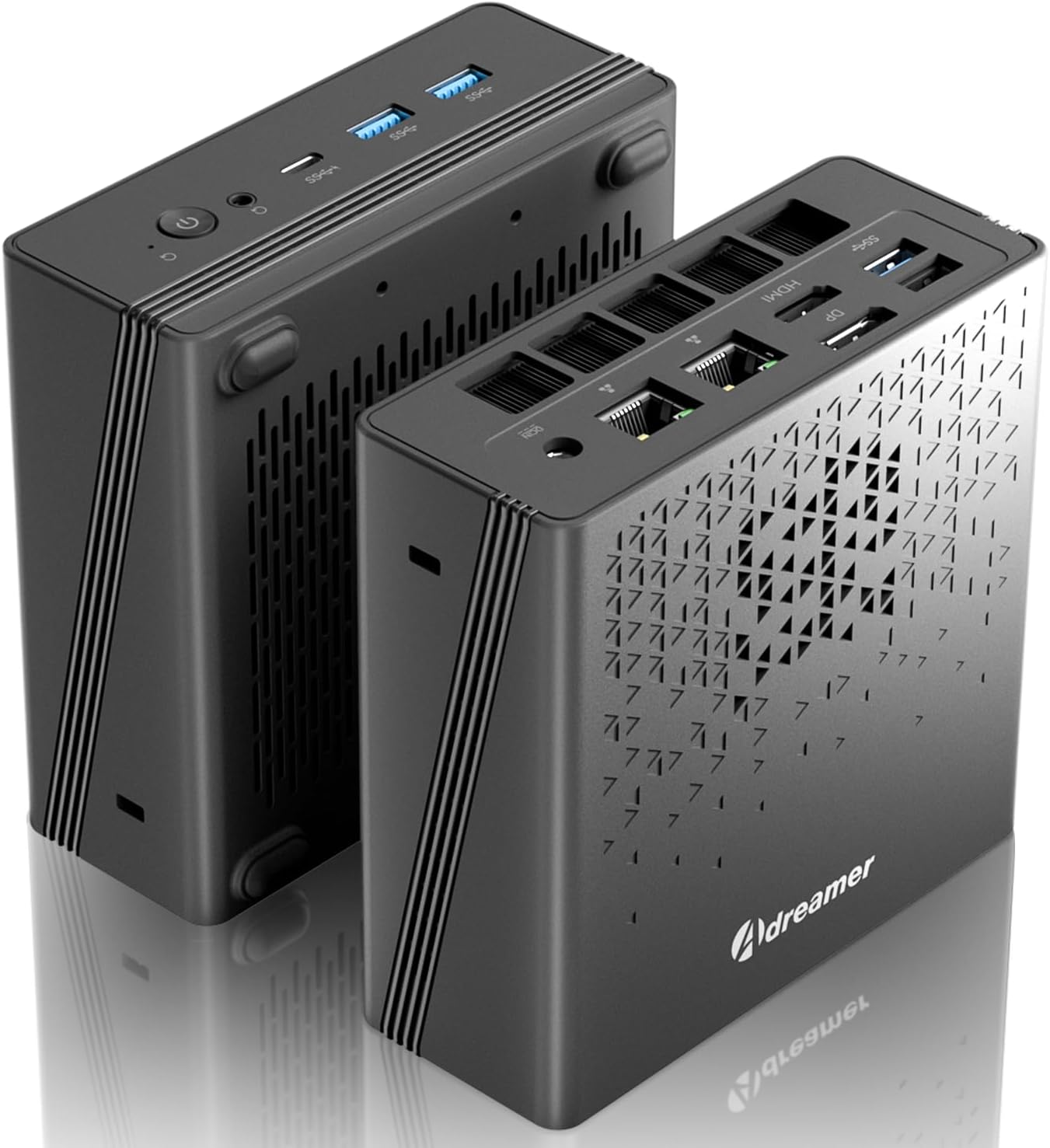
Image 1.1: The ADREAMER Ariebox10 Mini PC, showcasing анын компакттуу конструкциясы жана ар турдуу порттору.
2. Пакеттин мазмуну
Төмөндө тизмеленген нерселердин баары пакетиңизде бар экенин текшериңиз:
- ADREAMER Ariebox10 Mini PC
- Кубаттуу адаптер
- Колдонуучунун Колдонмосу (бул документ)
3. Продукт бүтүп калдыview
3.1 External Components and Ports
The ADREAMER Ariebox10 Mini PC features a compact design with various ports for connectivity. Familiarize yourself with the port layout for optimal setup.

Сүрөт 3.1: Алдыңкы жана арткы view of the ADREAMER Ariebox10 Mini PC, detailing port locations.
- Алдыңкы панели: Power Button, Reprovision Button, 3.5mm Audio Jack, Type-C (USB4), 3x USB 3.2 Gen2 ports.
- Арткы Panel: 1x USB 2.0 port, 1x USB 3.2 port, DisplayPort (DP), HDMI 2.0, 2x RJ45 (2.5G LAN) ports, DC IN (19V/6.32A).
3.2 Ички компоненттер жана муздатуу
The Ariebox10 is designed with efficient internal components and a robust cooling system to ensure stable performance.

Сүрөт 3.2: Жарылып кеткен view showing internal components including the cooling fan, DDR5 RAM, and M.2 SSD slots.
- Процессор: AMD Ryzen 7 7840HS (8 Cores, 16 Threads, up to 5.1GHz).
- Эстутум: Dual-channel DDR5 5600MHz SODIMM (up to 96GB).
- Сактагыч: 2x M.2 2280 PCIe 4.0 SSD slots (up to 2TB).
- Муздатуу системасы: Features a powerful and advanced silent cooling system with dual copper turbine cooling pipes and a high-temperature resistant base.
4. Орнотуу нускамалары
Follow these steps to set up your ADREAMER Ariebox10 Mini PC:
- Дисплейди туташтыруу: Connect your monitor or display to the Mini PC using either the HDMI or DisplayPort. The device supports 4K@60Hz output.
- Перифериялык түзүлүштөрдү туташтыруу: USB клавиатураңызды жана чычканыңызды жеткиликтүү USB портторуна туташтырыңыз.
- Туташуу кубаты: Connect the power adapter to the DC IN port on the rear panel of the Mini PC, then plug the adapter into a power outlet.
- Күйгүзүү: Алдыңкы панелде жайгашкан кубат баскычын басыңыз. Система жүктөлөт.
- Алгачкы Windows орнотуулары: Follow the on-screen instructions to complete the Windows 11 initial setup. This includes setting up your user account and network connection.
5. Иштөө нускамалары
5.1 Тармакка туташуу
- Зымдуу туташуу: Connect an Ethernet cable from your router or modem to one of the 2.5G RJ45 ports on the rear panel.
- Зымсыз туташуу: The Mini PC supports WiFi 6. During Windows setup or via Windows settings, select your Wi-Fi network and enter the password.
5.2 Bluetooth түзмөктөрү
The device includes Bluetooth 5.0 for connecting wireless peripherals such as keyboards, mice, and headphones. Access Bluetooth settings in Windows to pair new devices.
5.3 Кош дисплейди орнотуу
The Ariebox10 supports dual 4K displays simultaneously via its HDMI and DisplayPort outputs. Connect two monitors to these ports, then configure display settings within Windows (Right-click on desktop > Display settings) to extend or duplicate your desktop.

Image 5.1: The Mini PC can be connected to various display types and used for diverse applications.
5.4 Жалпы колдонуу
The Mini PC is suitable for a range of tasks including office work, multimedia consumption, and light gaming, leveraging its AMD Ryzen 7 7840HS processor and Radeon 680M Graphics.

Image 5.2: Summary of key features including processor, GPU, OS, connectivity, cooling, storage, and RAM.
6. Техникалык шарттар
| Өзгөчөлүк | Спецификация |
|---|---|
| Процессор | AMD Ryzen 7 7840HS (8C/16T, 3.8~5.1GHz) |
| Графика | AMD Radeon 680M (интеграцияланган) |
| RAM | 16GB DDR5 5600MHz (Expandable up to 96GB) |
| Сактагыч | 1TB PCIe 4.0 SSD (2x M.2 2280 slots, up to 2TB) |
| Операция системасы | Windows 11 |
| Зымсыз байланыш | WiFi 6, Bluetooth 5.0 |
| Ethernet | 2x 2.5G RJ45 LAN ports |
| Video Output | HDMI 2.0, DisplayPort (DP) (Supports 4K@60Hz Dual Display) |
| USB порттору | 3x USB 3.2 Gen2, 1x USB 2.0, 1x Type-C (USB4) |
| Аудио | 3.5 мм аудио джек |
| Өлчөмдөрү (LxWxH) | 5.1 x 5 x 2 дюйм |
| Салмагы | 1.3 фунт |
7. Кыйынчылыктарды
Бул бөлүмдө сиздин Mini PC менен кездешиши мүмкүн болгон жалпы көйгөйлөр каралат.
- Кубат жок:
- Кубат адаптери Мини компьютерге жана иштеген электр розеткасына бекем туташып турганын текшериңиз.
- Электр розеткасынын иштешин башка аспап менен текшерүү аркылуу текшериңиз.
- Дисплей чыгышы жок:
- HDMI же DisplayPort кабелинин Mini PC жана мониторго бекем туташтырылганын текшериңиз.
- Ensure the monitor is powered on and set to the correct input source (HDMI/DP).
- Башка дисплей кабелин же бар болсо мониторду колдонуп көрүңүз.
- Интернет байланышы жок:
- Зымдуу туташуулар үчүн, Ethernet кабелинин туура туташтырылганын жана роутериңиздин иштеп жатканын текшериңиз.
- For wireless connections, verify that Wi-Fi is enabled in Windows settings and you are connected to the correct network with the correct password.
- Роутериңизди/модемиңизди жана мини-компьютериңизди өчүрүп-күйгүзүңүз.
- Windowsту активдештирүүдөгү көйгөйлөр:
- If Windows 11 is not activated, navigate to Windows Settings > System > Activation. Follow the on-screen prompts. If issues persist, contact ADREAMER support.
8. Техникалык тейлөө
Proper maintenance helps extend the lifespan of your Mini PC.
- Тазалоо: Use a soft, dry cloth to clean the exterior of the Mini PC. For dust accumulation in ventilation areas, use compressed air. Do not use liquid cleaners directly on the device.
- Вентиляция: Ensure the Mini PC is placed in a well-ventilated area. Avoid blocking the ventilation holes to prevent overheating.
- Программалык камсыздоо жаңыртуулары: Оптималдуу иштөө жана коопсуздукту камсыз кылуу үчүн Windows операциялык тутумуңузду жана драйверлериңизди үзгүлтүксүз жаңыртып туруңуз.
9. Кепилдик жана колдоо
ADREAMER offers a 1-year limited warranty for the Ariebox10 Mini PC, covering defects in design and workmanship. For warranty claims or technical assistance, please refer to the contact information provided with your purchase or visit the official ADREAMER webколдоо булактары үчүн сайт.
Our dedicated support team is available to assist you with any product-related inquiries or issues.

