1. Киришүү
Thank you for choosing the AeroCool D502A Mid Tower Case. This manual will guide you through the installation, operation, and maintenance of your new PC chassis. The D502A is designed to provide excellent airflow and component compatibility for a powerful and stylish PC build. Please read this manual carefully before beginning your assembly.
2. Негизги өзгөчөлүктөрү
- Стилдүү тор алдыңкы панели: The front panel features a modern mesh design that not only enhances the aesthetic appeal but also provides superior air ventilation for improved cooling performance.
- Mid Tower Form Factor: Designed as a mid-tower case, it offers ample space for high-performance components, making it suitable for a wide range of PC builds.
- Кеңири муздатуу колдоо: Supports liquid coolers up to 360mm on both the top and front panels, ensuring efficient heat dissipation for demanding systems.
- Компоненттердин жогорку клиренси: Accommodates Graphics Processing Units (GPUs) up to 400mm in length (without a front radiator installed) and CPU coolers up to 171mm in height.
- Магниттик чаң чыпкалары: Equipped with magnetic dust filters on the top and side panels, along with a removable filter on the bottom, simplifying maintenance and keeping your components clean.
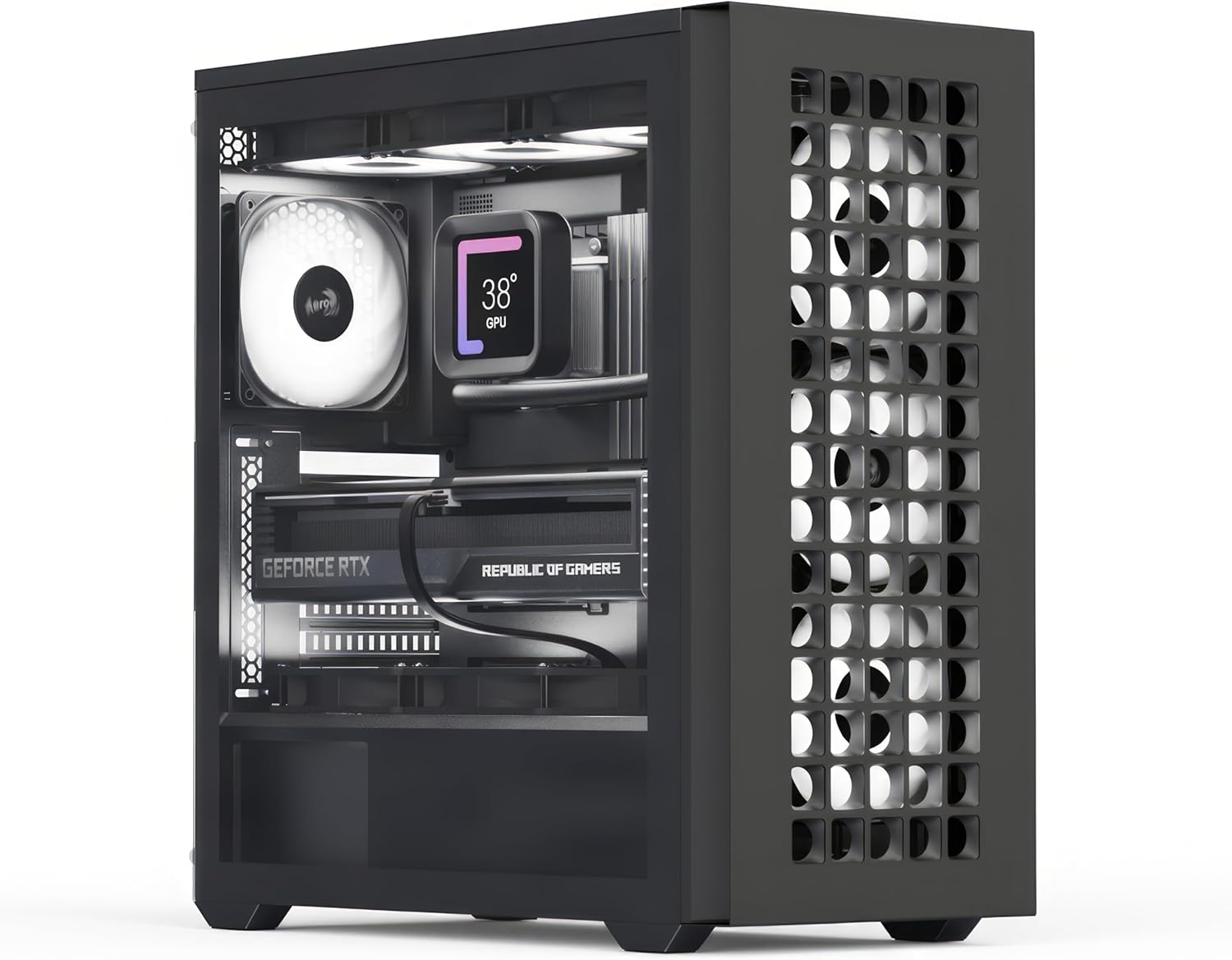
The AeroCool D502A Mid Tower Case, showcasing its spacious interior and mesh front panel.
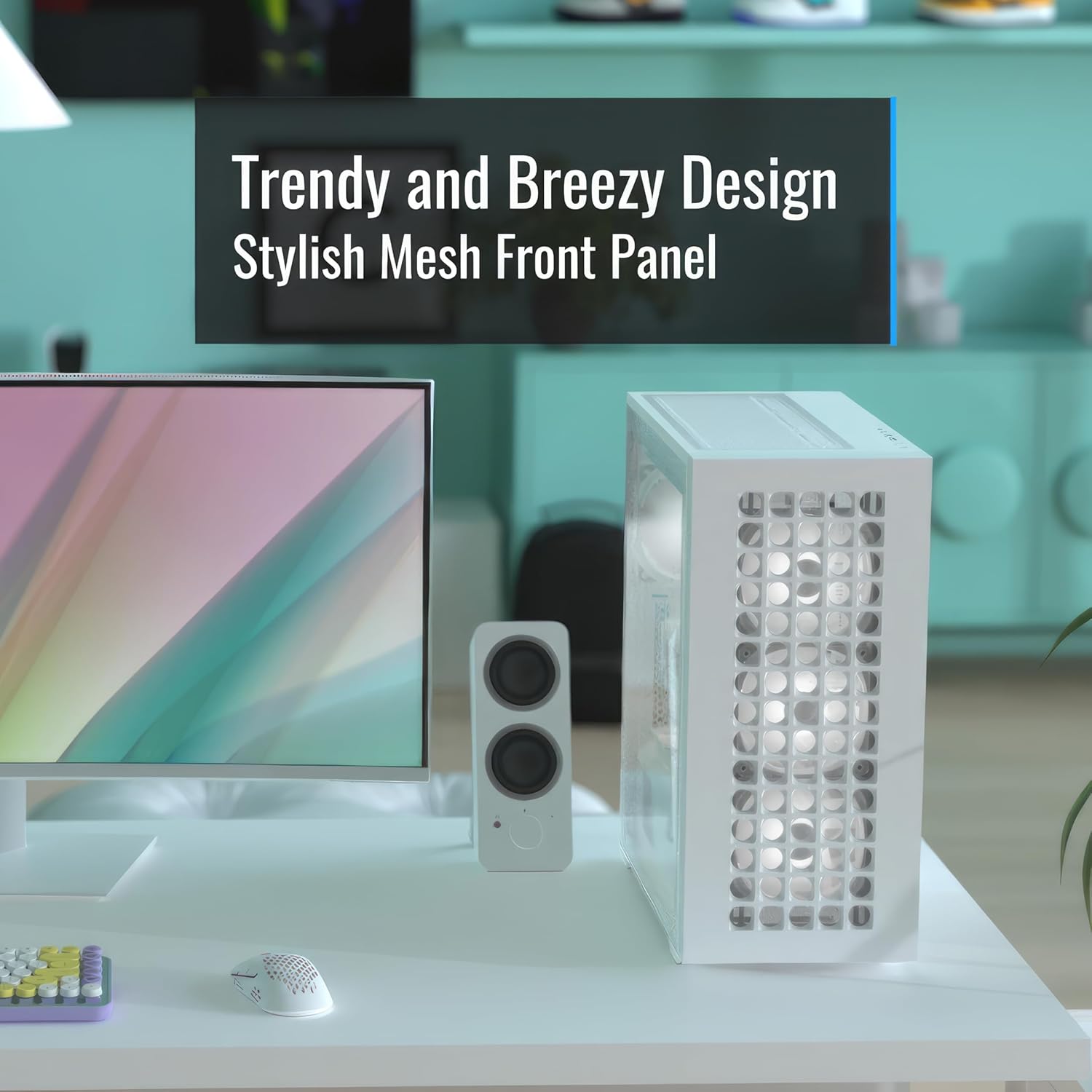
The stylish mesh front panel design of the D502A, providing both aesthetics and optimal airflow.

Illustration of the generous clearance for high-end GPUs (400mm) and CPU coolers (171mm).

Detailed diagram illustrating the various fan mounting locations and sizes for air cooling configurations.

Detailed diagram illustrating the various radiator mounting locations and sizes for liquid cooling configurations.

The convenient magnetic dust filters on the top and side panels, designed for easy removal and cleaning.
3. Пакеттин мазмуну
Пакетте бардык компоненттер бар экенин текшериңиз:
- AeroCool D502A Mid Tower Case
- Кошумча кутуча (бурамаларды, тирөөчтөрдү, кабель байлагычтарды ж.б. камтыйт)
- Колдонуучунун Колдонмосу (бул документ)
If any items are missing or damaged, please contact your retailer or AeroCool customer support.
4. Орнотуу жана орнотуу
Follow these steps for assembling your PC within the AeroCool D502A case. Ensure your system is powered off and unplugged before beginning any installation.
4.1. Ишти даярдоо
- Carefully remove the side panels. The tempered glass side panel is typically secured with thumbscrews.
- Identify the motherboard standoffs. Pre-installed standoffs usually support ATX motherboards. Adjust or add standoffs as needed for Micro ATX or Mini ITX motherboards.
4.2. Motherboard орнотуу
- Install your motherboard's I/O shield into the rear opening of the case.
- Align your motherboard with the standoffs and gently place it into position.
- Энелик платаны берилген бурамалар менен бекитиңиз. Өтө катуу тартпаңыз.
4.3. Электр менен камсыздоо блогун (PSU) орнотуу
- The D502A supports rear-mounted power supplies. Slide your PSU into the designated compartment at the bottom rear of the case.
- Арткы бурамаларды колдонуп, кубат буласын корпуска бекитиңиз.
4.4. Сактоочу дискти орнотуу
- Locate the drive bays for 2.5" SSDs and 3.5" HDDs.
- Install your storage drives into the appropriate trays or mounting points and secure them.
4.5. Графикалык карта (GPU) жана кеңейтүү картасын орнотуу
- Керектүү PCIe уячасынын капкактарын корпустун арткы бөлүгүнөн алып салыңыз.
- Графикалык картаңызды же башка кеңейтүү карталарын энелик платанын PCIe уячаларына салыңыз.
- Карталарды бурамалар менен бекитиңиз.
4.6. Желдеткичти жана Радиаторду орнотуу
- The D502A offers extensive fan and radiator support (refer to Section 2, Key Features).
- Install your chosen fans or liquid cooling radiators to the front, top, rear, or side mounting points as desired.
- Оптималдуу муздатуу үчүн аба агымынын туура багытын камсыз кылыңыз.
4.7. Кабелдик башкаруу
- Utilize the cable routing cutouts and tie-down points behind the motherboard tray to manage cables.
- Connect all necessary power cables from the PSU to your components (motherboard, GPU, drives, fans).
- Connect the front panel connectors (USB, audio, power/reset buttons, LED indicators) to your motherboard according to your motherboard manual.
5. Компьютериңизди иштетүү
Бардык компоненттер орнотулуп, кабелдер туташтырылгандан кийин, сиз тутумуңузду иштете аласыз.
- Бардык тышкы перифериялык түзүлүштөр (монитор, клавиатура, чычкан) туташып турганын текшериңиз.
- Plug the power cord into the PSU and a wall outlet.
- Кубат булагындагы кубат которгучун "ON" абалына коюңуз.
- Press the power button on the front panel of the AeroCool D502A case to start your computer.
6. Техникалык тейлөө
Regular maintenance helps ensure the longevity and optimal performance of your PC components.
6.1. Чаң чыпкасын тазалоо
- The AeroCool D502A features magnetic dust filters on the top and side, and a removable filter on the bottom.
- Periodically remove these filters and clean them with compressed air or by rinsing them with water (ensure they are completely dry before re-installing).
- Cleaning dust filters prevents dust buildup inside the case, which can impede airflow and cause components to overheat.
6.2. Жалпы тазалоо
- жумшак колдонуу, damp Корпустун сыртын сүртүү үчүн чүпүрөк колдонуңуз. Абразивдүү тазалоочу каражаттардан алыс болуңуз.
- Чыңалган айнек панелдер үчүн тактардын пайда болушун болтурбоо үчүн айнек тазалагычты жана микрофибра кездемени колдонуңуз.
- Occasionally, use compressed air to blow out any dust that accumulates inside the case, especially around fans and heatsinks.
7. Кыйынчылыктарды
Бул бөлүм сиз кабылышы мүмкүн болгон жалпы көйгөйлөрдү карайт.
7.1. Система күйбөй жатат
- Электр байланыштарын текшерүү: Ensure the PSU is properly plugged into the wall and the PSU's power switch is ON. Verify all internal power cables (24-pin ATX, 8-pin CPU, PCIe, SATA) are securely connected to the motherboard and components.
- Алдыңкы панелдин туташтыргычтары: Double-check that the front panel power button connector is correctly attached to the motherboard's F_PANEL header. Refer to your motherboard manual for the correct pinout.
- Электр кубатынын функциялары: If possible, test the PSU independently or with another system to confirm it is working.
7.2. Fans Not Spinning / No RGB Lighting
- Күйөрмандардын аталыштары: Ensure all fan cables are securely connected to the appropriate fan headers on the motherboard or a fan controller.
- RGB Connections: If your fans have RGB lighting, verify that the RGB cables are connected to the correct RGB headers on the motherboard or an RGB controller.
- Software/BIOS Settings: Check your motherboard's BIOS/UEFI settings or any fan control software to ensure fans are enabled and configured correctly.
7.3. USB Ports Not Functioning
- Internal USB Headers: Confirm that the internal USB 2.0 and USB 3.0/3.1 cables from the case's front panel are correctly plugged into the corresponding headers on your motherboard.
- Айдоочу маселелери: Ensure you have installed the latest chipset drivers for your motherboard.
8. Техникалык шарттар
| Спецификация | Деталь |
|---|---|
| Бренд | AeroCool |
| Модель аты | D502A |
| Элемент моделинин номери | D502A-G-BK-v1 |
| Иштин түрү | Ара Tower |
| Motherboard шайкештиги | ATX, Микро ATX, Мини ITX |
| Материал | SPCC Steel, Tempered Glass |
| Түс | Кара |
| Элемент Салмагы | 17.2 фунт |
| Продукциянын өлчөмдөрү (LxWxH) | 21.65 x 20.08 x 11.02 дюйм |
| GPU тазалоо | 400 мм чейин (алдыңкы радиаторсуз) |
| CPU муздаткычын тазалоо | 171 мм чейин |
| Liquid Cooling Support (Top) | Up to 360mm radiator |
| Liquid Cooling Support (Front) | Up to 360mm radiator |
| Fan Slots | 11 (various sizes, see cooling diagrams) |
| Чаң чыпкалары | Magnetic (Top & Side), Removable (Bottom) |
| Алдыңкы I / O порттору | Number of USB 2.0 Ports: 4 (specific configuration may vary) |
9. Кепилдик жана колдоо
AeroCool products are manufactured to high standards and come with a manufacturer's warranty. For specific warranty terms and conditions, please refer to the documentation included with your purchase or visit the official AeroCool website. For technical support, product inquiries, or warranty claims, please contact AeroCool customer service or your point of purchase.
You can find more information about AeroCool products and support at the official AeroCool website or through their Amazon brand page: AeroCool on Amazon.


