1. Орнотуу
1.1. Пакеттин мазмуну
Пакетте бардык компоненттер бар экенин текшериңиз:
- AUSDOM 108-Key Wireless Keyboard
- AUSDOM зымсыз чычканы
- USB кабыл алгыч (чычканда сакталган)
- USB-C заряддоо кабели
- User Manual
1.2. Connecting the Combo
- USB кабыл алгычты табыңыз: The 2.4GHz USB receiver is conveniently stored in a compartment on the underside of the wireless mouse. Gently slide open the battery cover to access it.
- Кабыл алгычты орнотуңуз: Plug the USB receiver into an available USB port on your computer (PC, laptop, or tablet). The system will automatically detect and install the necessary drivers.
- Түзмөктөрдү күйгүзүү: Ensure both the keyboard and mouse are switched to the 'ON' position. The power switch for the keyboard is located on its top edge, and for the mouse, it is on the underside.

1.3. Charging the Combo
Both the keyboard and mouse are equipped with built-in rechargeable Lithium Polymer batteries. Use the provided USB-C cable to charge them.
- Connect the USB-C end of the cable to the charging port on the keyboard (located on the top edge) or the mouse (located on the front).
- Connect the USB-A end of the cable to a powered USB port on your computer or a USB wall adapter.
- A full charge takes approximately 2 hours and provides up to 300 hours of standby time.

2. Иштөө нускамалары
2.1. Баскычтоптун өзгөчөлүктөрү
The AUSDOM KAM200X keyboard features a full-size 108-key layout, including a dedicated numeric keypad and various function keys for enhanced productivity.
- Mechanical-Feel Keys: Experience tactile feedback similar to mechanical keyboards, combined with quiet scissor-switch mechanisms and a short 3.8mm key travel for comfortable and precise typing.
- Multimedia and Shortcut Keys: Utilize dedicated media controls (volume, play/pause) and app-switching shortcuts for streamlined workflow. Refer to the user manual for a complete list of function key combinations.
- OS Switching: Easily switch between Windows and macOS layouts using specific function key combinations (e.g., Fn + P for Windows, Fn + O for Mac).


2.2. Чычкандын өзгөчөлүктөрү
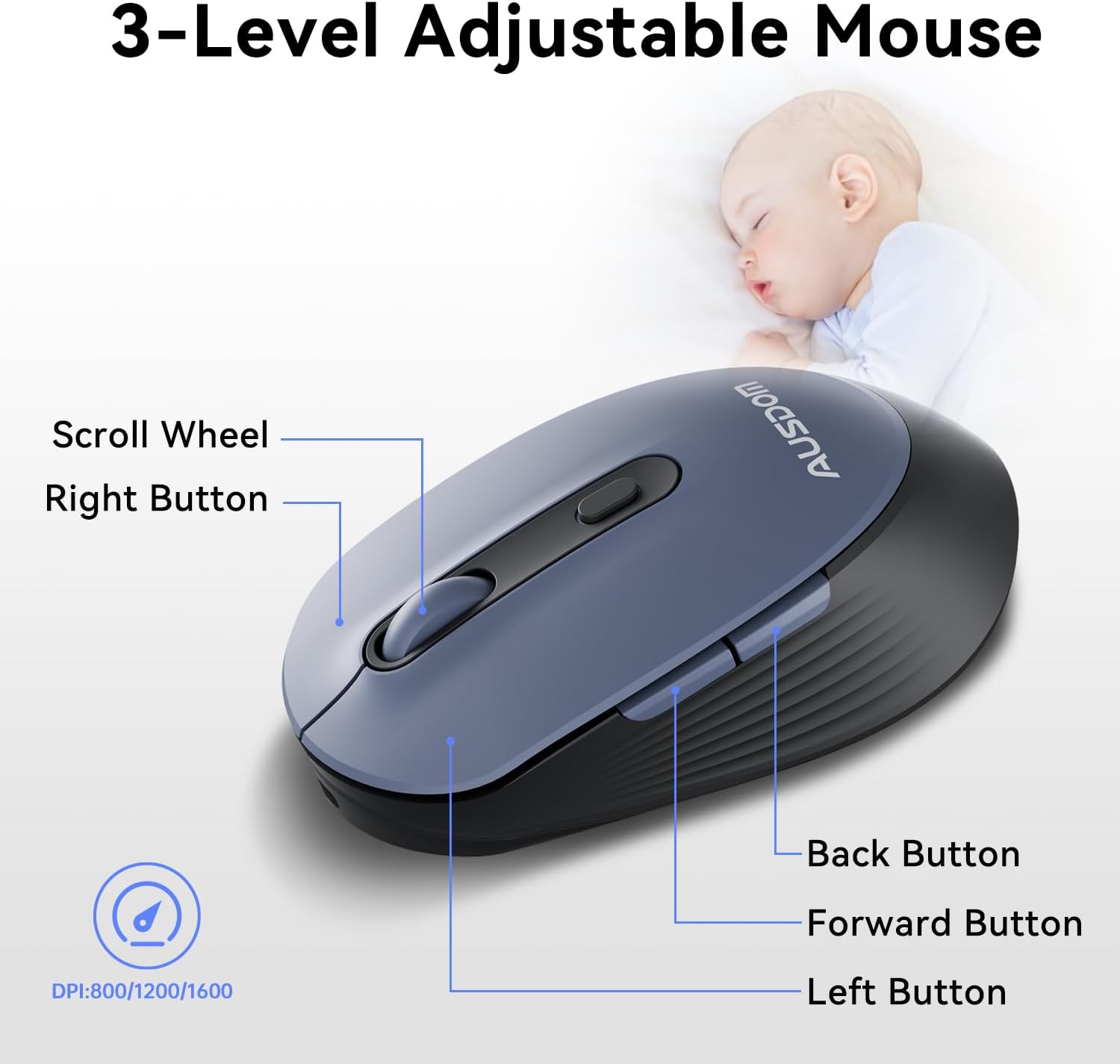
The ergonomic wireless mouse is designed for comfortable use and precise control.
- Жөнгө салынуучу DPI: Cycle through 3 DPI levels (800, 1200, 1600) using the dedicated DPI button to adjust cursor sensitivity for different tasks.
- Алга/Артка баскычтары: Utilize the side buttons for quick navigation in web браузерлер жана тиркемелер.
- Унчукпай чыкылдатуулар: The mouse features silent click buttons to minimize noise in quiet environments.
2.3. Кеңири шайкештик
The AUSDOM wireless combo is compatible with a broad range of operating systems and devices, ensuring seamless integration into your existing setup.
- Операциялык системалар: Compatible with Windows XP/ME/Vista/7/8/10/11 and macOS.
- Түзмөктөр: Works instantly with desktops, laptops, and other computers without requiring additional software or drivers.

3. Техникалык тейлөө
3.1. Тазалоо
To ensure the longevity and optimal performance of your AUSDOM combo, regular cleaning is recommended.
- Use a soft, dry, lint-free cloth to wipe down the surfaces of the keyboard and mouse.
- өжөр кир үчүн, бир аз гampen the cloth with water or a mild cleaning solution, ensuring no liquid enters the device openings.
- Катуу химиялык заттарды, абразивдүү тазалагычтарды же эриткичтерди колдонуудан алыс болуңуз.
3.2. Сактоо
When not in use for extended periods, store the keyboard and mouse in a cool, dry place away from direct sunlight and extreme temperatures. The USB receiver can be stored inside the mouse to prevent loss.
4. Кыйынчылыктарды
4.1. Байланыш маселелери
- Текшерүүчү кабыл алуучу: Ensure the USB receiver is firmly plugged into a working USB port on your computer.
- Күйгүзүү: Verify that both the keyboard and mouse are switched to the 'ON' position.
- Батарея деңгээли: Confirm that both devices have sufficient battery charge. Recharge if necessary.
- Башка портту колдонуп көрүңүз: Plug the USB receiver into a different USB port on your computer.
4.2. Lag or Unresponsiveness
- Интерференцияны азайтуу: Move the keyboard and mouse closer to the USB receiver. Avoid placing large metal objects between the devices and the receiver.
- Check for Other Devices: Other 2.4GHz wireless devices might cause interference. Try to minimize their use or move them further away.
- Толуктоо: Ensure both devices are fully charged.
4.3. Keyboard Specific Issues
- Ачкычтар жооп бербейт: Gently clean around the affected keys to remove any debris.
- Туура эмес ачкыч чыгаруу: Check your computer's operating system settings to ensure the correct keyboard layout is selected.
4.4. Mouse Specific Issues
- Erratic Cursor: Clean the optical sensor on the underside of the mouse. Ensure you are using the mouse on a suitable, non-reflective surface.
- DPI жөндөө: Press the DPI button on the top of the mouse to cycle through the 800/1200/1600 DPI settings.
5. Продукттун спецификациялары
| Өзгөчөлүк | Спецификация |
|---|---|
| Бренд | AUSDOM |
| Модель номери | KAM200X |
| Продукциянын өлчөмдөрү | 17.44 x 5.31 x 0.79 дюйм |
| Элемент Салмагы | 1.8 фунт |
| Батареялар | 2 Литий Полимер батарейкалары талап кылынат (кошулган) |
| Байланыш технологиясы | 2.4 ГГц зымсыз |
| Өзгөчөлүктөр | Lightweight, Rechargeable, Scissor Switch, Wireless |
| Шайкеш түзмөктөр | Ноутбук, персоналдык компьютер, планшет |
6. Кепилдик маалыматы
For detailed warranty information regarding your AUSDOM KAM200X Wireless Keyboard and Mouse Combo, please refer to the official documentation included in your product packaging or visit the manufacturer's official webсайт. Кепилдиктин шарттары жана шарттары аймакка жана продуктуга жараша өзгөрүшү мүмкүн.
7. Кардарларды колдоо кызматы
If you encounter any issues or have questions about your AUSDOM KAM200X Wireless Keyboard and Mouse Combo, please contact AUSDOM customer support through their official channels. You can often find support contact information, FAQs, and additional resources on the AUSDOM Store Page же алардын кызмат адамы webсайт.


