1. Киришүү
This manual provides detailed instructions for the setup, operation, and maintenance of your AceGamer Aurora Generation 2.4G Wireless Bluetooth Controller. This controller is designed for multi-platform compatibility, including PC, Android, Nintendo Switch, iOS, and Steam Deck, offering an enhanced gaming experience with its advanced features.
2. Пакеттин мазмуну
Төмөндө тизмеленген нерселердин баары пакетиңизде бар экенин текшериңиз:
- 1x AceGamer Aurora Wireless Controller
- 1x USB Type-C маалымат кабели
- 1x 2.4G зымсыз кабыл алгыч
- 1x Колдонуучунун колдонмосу (бул документ)

Image: Contents of the AceGamer Aurora controller package, showing the controller, USB-C cable, 2.4G wireless receiver, and the user manual.
3. Негизги өзгөчөлүктөрү
3.1 Холл эффектисинин джойстиктери
The controller is equipped with two Hall Effect joysticks, providing precise and reliable input detection. This technology minimizes latency, eliminates dead zones, and prevents drift, ensuring smooth and accurate in-game movement and aiming for an enhanced gaming experience.

Image: Diagram showing the Hall Effect joystick mechanism, emphasizing its benefits such as no latency and anti-drift.
3.2 Customizable Back Keys
Two additional programmable buttons (M1 and M2) are located on the back of the controller. These can be customized to perform trigger combos or other functions, enhancing convenience and gameplay. Dedicated back button switches are also provided for easy access and locking.

Сүрөт: Арткы view of the controller, highlighting the M1 and M2 programmable back keys and their associated lock switches.
3.3 Adjustable Vibration
The controller features dual rotary motors for adjustable vibration feedback. Vibration intensity can be set to four different levels (0%, 50%, 80%, 100%), providing realistic tactile feedback for in-game actions such as collisions, vibrations, and shooting.

Image: Illustration of the controller's adjustable vibration feature with four intensity levels.
3.4 RGB жарык эффекттери
The joysticks feature RGB lighting with 7 color combinations and 5 diverse lighting modes, including Brightness, Breathing, Colorful, Fade-OFF. This allows for personalization of the controller's aesthetic.

Image: Two controllers showcasing different RGB lighting effects around the joysticks.
3.5 Чоң кубаттуулуктагы батарея
Equipped with a 1000mAh upgraded battery, the AceGamer Aurora controller provides extended playtime on a single charge. This ensures longer gaming sessions without frequent interruptions for recharging.
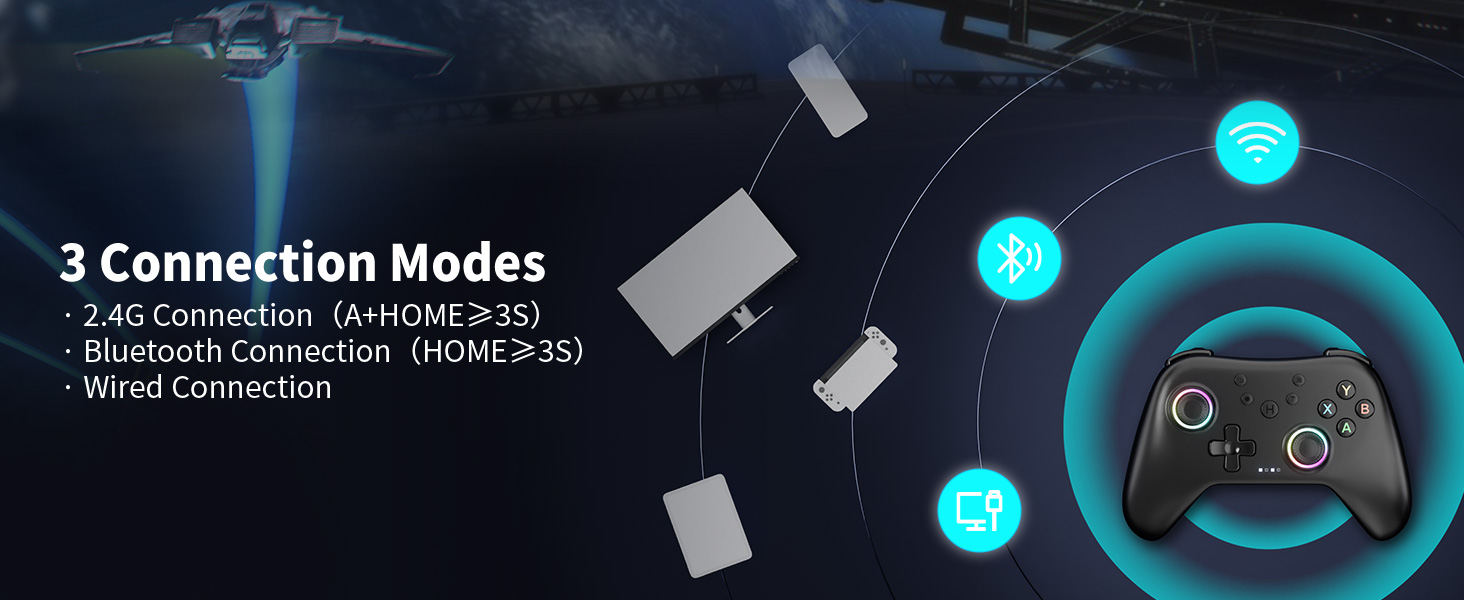
Image: Illustration of the controller's 1000mAh battery, indicating 2-3 hours charging time and 8 hours playing time.
3.6 Көп платформалуу шайкештик
The controller is designed for broad compatibility across various platforms, including PC, Nintendo Switch/Switch 2, iOS, and Android devices. Please note that this controller is жок compatible with Xbox systems.

Image: Visual representation of the controller's multi-platform compatibility, excluding Xbox.
4. Орнотуу жана туташуу
The AceGamer Aurora controller supports three connection modes: 2.4G wireless, Bluetooth, and wired connection.

Сүрөт: бүттүview of the controller's three connection modes.
4.1 2.4G Wireless Connection (with Receiver)
- Ensure the 2.4G wireless receiver is plugged into a USB port on your device (PC, Steam Deck, etc.).
- Контроллерде баскычты басып, кармап туруңуз "A" button.
- While holding "A", press and hold the "БАШКЫ БЕТ" баскычы 3 секундга.
- The controller will enter pairing mode and connect to the receiver. Once connected, the indicator lights on the controller will stabilize.
4.2 Bluetooth байланышы
- Контроллерде баскычты басып, кармап туруңуз "БАШКЫ БЕТ" баскычы for 3 seconds to initiate Bluetooth pairing.
- On your device (PC, Android, Switch, iOS), enable Bluetooth and search for new devices.
- Select "Xbox Wireless Controller" from the list of available devices to connect.
- Once Bluetooth pairing is successful, LED2 on the controller will illuminate, indicating a stable connection.
4.3 Зымдуу туташуу
To use the controller in wired mode, simply connect the controller to your device using the provided USB Type-C data cable. The controller is plug-and-play and does not require additional drivers for basic functionality in wired mode.
5. Иштөө нускамалары
5.1 RGB Color Adjustment
You can adjust the RGB lighting effects on the joysticks:
- One-color Mode: басыңыз "T" button + "Light Bulb" button to cycle through 7 static colors.
- Running Light Mode: басыңыз "T" button + "Menu" button to activate dynamic running light effects.

Image: Instructions for adjusting RGB lighting modes.
5.2 Game Operation Mode Adjustment (ABXY Key Swap)
The controller defaults to Xbox mode for button layout. To switch to Nintendo Switch (N-S) mode for ABXY key mapping:
- басыңыз "T" button + "Screenshot" button бир эле убакта.
- This will swap the ABXY key functions to match the N-S layout.
Note: Functions are not saved after power off. You may need to re-apply this setting upon reconnection.

Image: Visual guide for ABXY key swap between Xbox and Nintendo Switch layouts.
5.3 FPS Mode (Professional Joystick No Dead Zone)
For enhanced precision in First-Person Shooter (FPS) games, activate the professional joystick no dead zone mode:
- басып, кармап туруңуз "T" button + "L3/R3" buttons (press down on both joysticks) for 3 seconds.
- This mode optimizes joystick responsiveness by eliminating any input dead zones.
Note: Functions are not saved after power off. You may need to re-apply this setting upon reconnection.

Image: Instructions for activating FPS mode for precise joystick control.
5.4 8-Way to 4-Way Directional Lock
The D-pad can be switched between 8-way and 4-way directional input modes:
- басыңыз "T" button + "D-pad Up" button simultaneously to toggle between the two modes.
Note: Functions are not saved after power off. You may need to re-apply this setting upon reconnection.

Image: Guide for switching D-pad directional input modes.
6. Техникалык тейлөө
6.1 Тазалоо
Контроллериңизди тазалоо үчүн жумшак, кургак чүпүрөктү колдонуңуз. Өтө кир болсо, бир аз сүртүңүз.amp cloth with mild soap can be used, ensuring no liquid enters the controller's openings. Avoid abrasive cleaners or solvents.
6.2 Батареяны заряддоо
When the battery is low, connect the controller to a USB power source (e.g., a computer USB port or a USB wall adapter) using the provided USB Type-C cable. The indicator lights will show charging status and turn off or change color when fully charged. A full charge typically takes 2-3 hours.
6.3 Сактоо
Башкаргычты салкын, кургак, күндүн түз тийген нурунан жана өтө жогорку температурадан алыс жерде сактаңыз. Эгерде узак убакытка сактасаңыз, батареянын иштөө мөөнөтүн узартуу үчүн анын жарым-жартылай заряддалганын (болжол менен 50%) текшериңиз.
7. Кыйынчылыктарды
| Көйгөй | Мүмкүн себеп | Чечим |
|---|---|---|
| Controller does not connect via 2.4G. | Incorrect pairing procedure; receiver not properly inserted; interference. | Ensure receiver is fully inserted. Re-attempt pairing by holding "A" then "HOME" for 3 seconds. Try a different USB port. Reduce distance to receiver. |
| Контроллер Bluetooth аркылуу туташпайт. | Incorrect pairing procedure; Bluetooth not enabled on device; device not discoverable. | Ensure Bluetooth is enabled on your device. Re-attempt pairing by holding "HOME" for 3 seconds. Ensure your device is discoverable. Forget and re-pair the device on your system's Bluetooth settings. |
| Input delay or unresponsiveness. | Low battery; wireless interference; outdated drivers (PC). | Charge the controller fully. Move closer to the receiver/device. Ensure no other wireless devices are causing interference. For PC, check for updated controller drivers. Try wired connection to diagnose. |
| Joystick drift or erratic movement. | Software calibration issue; minor debris. | While Hall Effect joysticks are designed to prevent drift, if encountered, try recalibrating the controller through your device's settings. Ensure joysticks are clean. |
| Контроллер күйбөйт. | Батарея толугу менен түгөнүп калган. | Connect the controller to a power source using the USB-C cable and allow it to charge for at least 30 minutes before attempting to turn it on. |
8. Техникалык шарттар
| Өзгөчөлүк | Деталь |
|---|---|
| Модель номери | PC контроллери |
| Байланыш | 2.4G Wireless, Bluetooth, Wired (USB Type-C) |
| Шайкештик | PC, Nintendo Switch/Switch 2, iOS, Android (Not compatible with Xbox) |
| Джойстиктер | Hall Effect Sensors (No Latency, Long Life, No Dead Zone, Anti-Drift) |
| Вибрация | Dual Rotary Motors, 4 Adjustable Levels |
| Батарея сыйымдуулугу | 1000mAh литий-ион (кошулган) |
| Заряддоо убактысы | Болжол менен 2-3 саат |
| Оюн убактысы | Болжол менен 8 саат |
| Салмагы | 9.9 унция (280 г) |
| Өлчөмдөр | 6.3 x 5.04 x 3.11 дюйм (16 x 12.8 x 7.9 см) |
9. Кепилдик жана колдоо
Specific warranty details for the AceGamer Aurora Generation 2.4G Wireless Bluetooth Controller are not provided within this manual. For information regarding warranty coverage, technical support, or service inquiries, please refer to the official AceGamer webсайтка же түздөн-түз кардарларды колдоо менен байланышыңыз.
Сиз да зыярат кылсаңыз болот AceGamer Store on Amazon кошумча продукт маалымат жана колдоо ресурстар үчүн.


