Introduction
This manual provides detailed instructions for the TECKNET Wireless Mouse (Model B0DP2DCC6N). It covers setup, operation, maintenance, and troubleshooting to ensure optimal performance and user experience. This mouse offers dual connectivity (2.4G USB A and Bluetooth 5.0/3.0) and adjustable DPI settings for versatile use across various devices and operating systems.

Figure 1: TECKNET Wireless Mouse (Pink)
Пакеттин мазмуну
- TECKNET зымсыз чычканы
- USB A Receiver (stored inside the mouse)
- Колдонуучунун Колдонмосу (бул документ)
Эскертүү: 2 AAA batteries are not included and must be purchased separately.
Продукт өзгөчөлүктөрү
- Dual Device Connection: Bluetooth (5.0/3.0) and 2.4G USB A.
- 6 Adjustable DPI Levels: 800/1200/1600/2400/3200/4800.
- Silent Click Operation: Designed for quiet environments.
- Ergonomic Design: Shaped for comfortable use.
- Automatic Sleep Technology: Extends battery life.
- Wide Compatibility: Supports Windows, macOS, Chrome, Linux. (Side buttons are not compatible with macOS).

Figure 2: Dual Connection Modes (2.4G USB A and Bluetooth)

Figure 3: Adjustable DPI Settings for Precise Control
Орнотуу нускамалары
1. Батареяны орнотуу
- Чычкандын астыңкы жагындагы батарея бөлүкчөсүн табыңыз.
- Батареянын капкагын ачыңыз.
- Туура полярдуулукту (+/-) камсыз кылуу менен эки AAA батарейкасын салыңыз.
- Батареянын капкагын бекем жабыңыз.
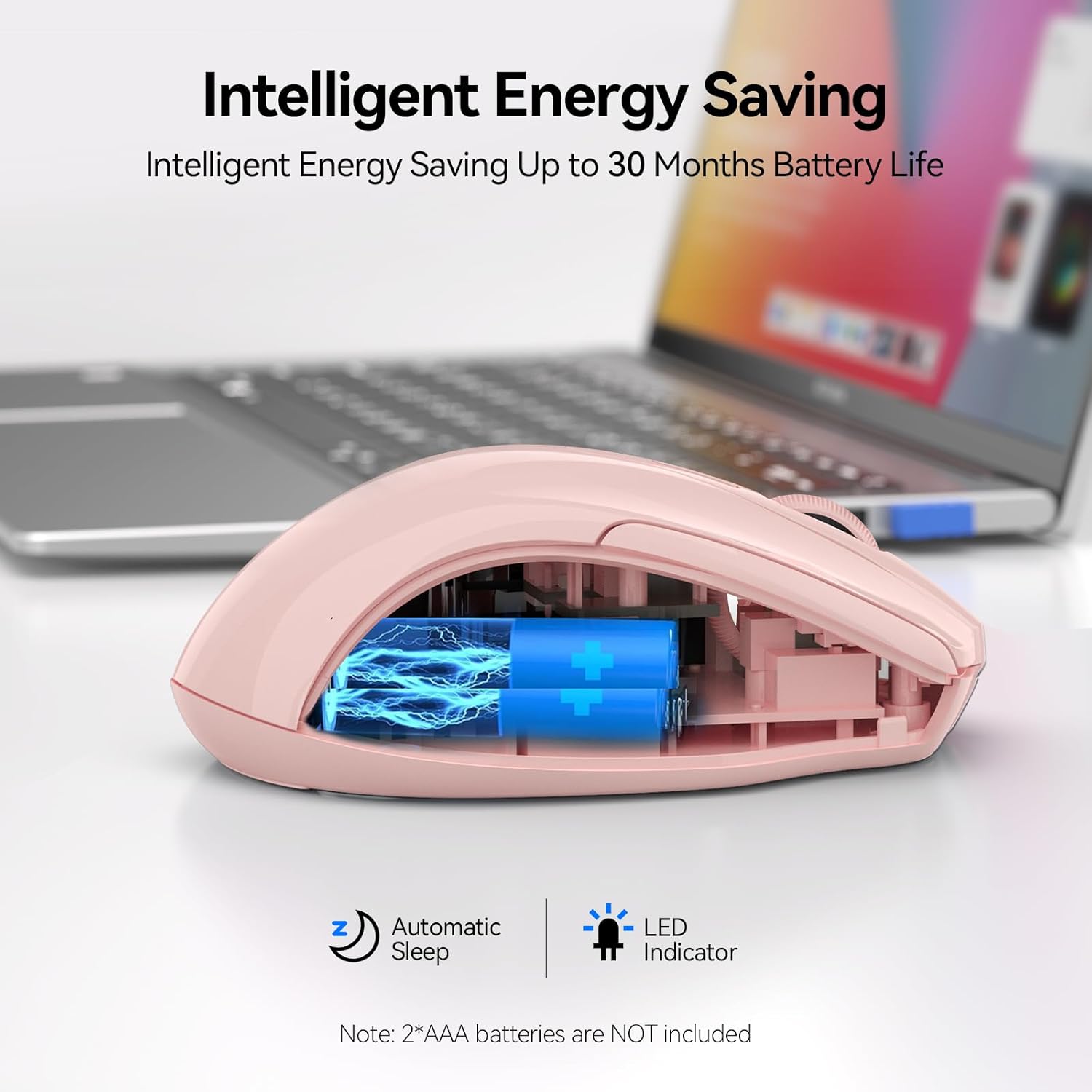
Figure 4: Battery Compartment (2 AAA batteries required)
2. Чычканды туташтыруу
The TECKNET Wireless Mouse offers two connection methods: 2.4G USB A and Bluetooth.
2.1. 2.4G USB A Connection
- Locate the USB A receiver stored in the battery compartment of the mouse.
- Remove the USB A receiver.
- Plug the USB A receiver into an available USB port on your computer.
- Чычкандын астыңкы жагындагы кубат которгучун "2.4G" абалына жылдырыңыз.
- Чычкан автоматтык түрдө туташышы керек.
Figure 5: 2.4G USB A Connection
2.2. Bluetooth туташуусу
- Чычкандын ылдый жагындагы өчүргүчтү "BT" абалына жылдырыңыз.
- Press and hold the Bluetooth pairing button (usually a small button near the power switch) until the LED indicator light starts blinking (blue).
- Компьютериңизде же түзмөгүңүздө Bluetooth жөндөөлөрүн ачыңыз.
- Издөө new devices and select "TECKNET Mouse" (or similar) from the list.
- Жупташтыруу процессин аяктоо үчүн экрандагы көрсөтмөлөрдү аткарыңыз.

6-сүрөт: Bluetooth туташуусу
Video 1: Demonstration and setup of the Bluetooth wireless mouse.
Иштөө нускамалары
1. DPI сезгичтигин тууралоо
The mouse features a DPI switch button, typically located near the scroll wheel. Press this button to cycle through 6 adjustable DPI settings (800/1200/1600/2400/3200/4800) to match your preference for cursor speed and precision.
Figure 7: DPI Switch Button for Sensitivity Adjustment
2. Үнсүз чыкылдатуу функциясы
This mouse is designed with silent click buttons, providing a quiet user experience. This is particularly beneficial in environments where noise reduction is desired, such as libraries or shared offices.

Figure 8: Silent Click Operation
Видео 2: Review highlighting the silent click feature and ease of pairing.
3. Энергияны үнөмдөө режимдери
The mouse incorporates automatic sleep technology to conserve battery life. After a period of inactivity, the mouse will enter a sleep mode. To reactivate, simply click any button.

Figure 9: Automatic Sleep Technology for Power Saving
Техникалык тейлөө
- Тазалоо: Чычканды тазалоо үчүн жумшак, кургак чүпүрөктү колдонуңуз. Катуу химиялык заттардан же абразивдүү материалдардан алыс болуңуз.
- Батареяны алмаштыруу: Replace batteries when the low battery indicator lights up or when performance degrades. Refer to the "Battery Installation" section for instructions.
- Сактагыч: When not in use for extended periods, turn off the mouse to further conserve battery life.
Проблемаларды чечүү
1. Чычкан жооп бербейт
- Чычкан күйгүзүлгөнүн текшериңиз.
- Батареялардын туура орнотулганын жана түгөнүп калбагандыгын текшериңиз. Керек болсо алмаштырыңыз.
- For 2.4G connection, ensure the USB A receiver is securely plugged into a working USB port.
- For Bluetooth connection, verify that Bluetooth is enabled on your device and the mouse is paired. Try re-pairing if connection is lost.
- Try connecting the mouse to a different USB port or another device to rule out port or device issues.
2. Cursor Movement is Erratic or Slow
- Чычкандын түбүндөгү оптикалык сенсорду тазалаңыз.
- Ensure you are using the mouse on a suitable surface. Optical mice perform best on non-reflective, uniform surfaces.
- Чычкандагы DPI которгуч баскычын колдонуп, DPI сезгичтигин тууралаңыз.
3. Side Buttons Not Working on macOS
- As noted in the product features, side buttons are not compatible with macOS. This is expected behavior.
Техникалык шарттар
| Өзгөчөлүк | Деталь |
|---|---|
| Модел | BM307 (Internal Model) / B0DP2DCC6N (ASIN) |
| Байланыш технологиясы | Bluetooth (5.0/3.0), 2.4G зымсыз (USB A) |
| DPI деңгээли | 800, 1200, 1600, 2400, 3200, 4800 |
| Кыймылды аныктоо технологиясы | Оптикалык |
| Өзгөчөлүктөр | Ergonomic Design, Silent Click, Automatic Sleep |
| Power Source | 2 x AAA Батареялар (киргизилген эмес) |
| Элемент Салмагы | 3.52 унция |
| Пакеттин өлчөмдөрү | 4.49 x 3.23 x 1.73 дюйм |
| Шайкештик | Windows, macOS (side buttons not compatible), Chrome, Linux |
Кепилдик жана колдоо
TECKNET сунуштайт 36 айлык кепилдик for registered products. If you encounter any problems using the product, please contact our professional customer service team for assistance.
Байланыш маалыматы: Refer to the product packaging or the official TECKNET webакыркы колдоо байланыш маалыматы үчүн сайт.


