1. Киришүү
Thank you for choosing the NEWFAST 300Mbps WiFi Extender. This device is designed to expand your existing Wi-Fi network coverage, eliminate dead zones, and provide stable, high-speed internet access throughout your home or office. With its versatile operating modes and easy setup, you can enjoy seamless connectivity for all your devices.

Image: The NEWFAST 300Mbps WiFi Extender, a white rectangular device with four adjustable antennas, emitting blue signal waves from its base.
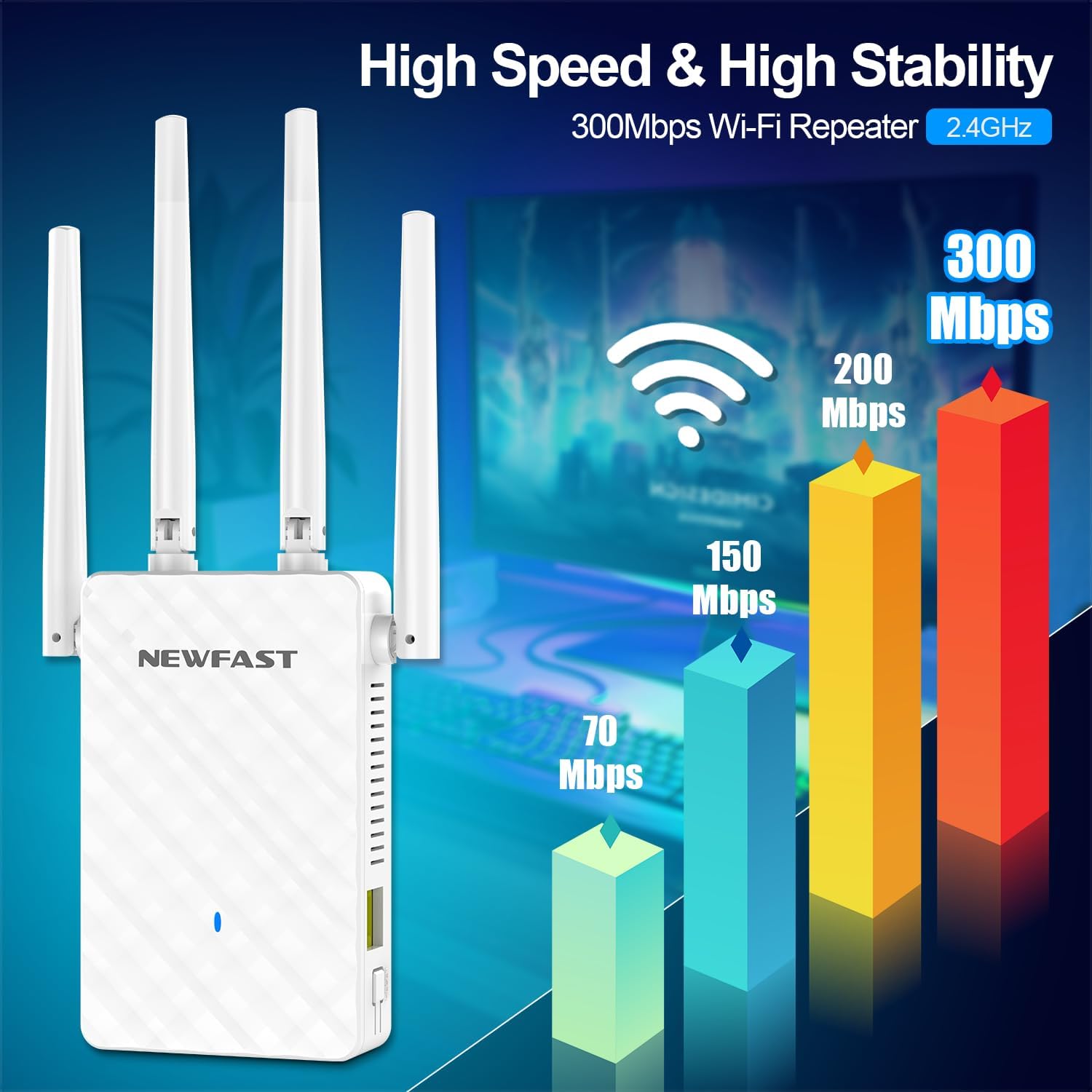
Image: A graphic illustrating the high speed and stability of the 300Mbps Wi-Fi Repeater, showing a bar chart with speeds up to 300 Mbps on 2.4 GHz.
2. Коопсуздук маалыматы
- Аппаратты сууга же ашыкча нымдуулукка дуушар кылбаңыз.
- Аппаратты өз алдынча бөлүүгө же оңдоого аракет кылбаңыз. Тейлөө үчүн квалификациялуу кызматкерлерге кайрылыңыз.
- Ашыкча ысып кетүүнүн алдын алуу үчүн аппараттын айланасында туура желдетүүнү камсыз кылыңыз.
- Эгер бар болсо, түзмөк менен кошо берилген кубат адаптерин гана колдонуңуз.
- Аппаратты түз күн нурунан жана жылуулук булактарынан алыс кармаңыз.
3. Пакеттин мазмуну
Пакетиңизде бардык буюмдар бар экенин текшериңиз:
- 1 x NEWFAST WiFi Extender (NF-RE516)
- 1 x User Manual
- 1 x RJ-45 Ethernet cable
4. Продукт бүтүп калдыview
The NEWFAST NF-RE516 features a compact design with multiple antennas for enhanced signal transmission and reception. Key components include:
- Жөнгө салынуучу антенналар: Four high-gain antennas that can be rotated 180 degrees to optimize signal direction.
- LED көрсөткүчү: Provides visual feedback on power, signal strength, and connection status.
- WPS баскычы: WPS иштетилген роутерлер менен тез жана оңой орнотуу үчүн.
- Ethernet порту: For wired connections in AP or Repeater mode.
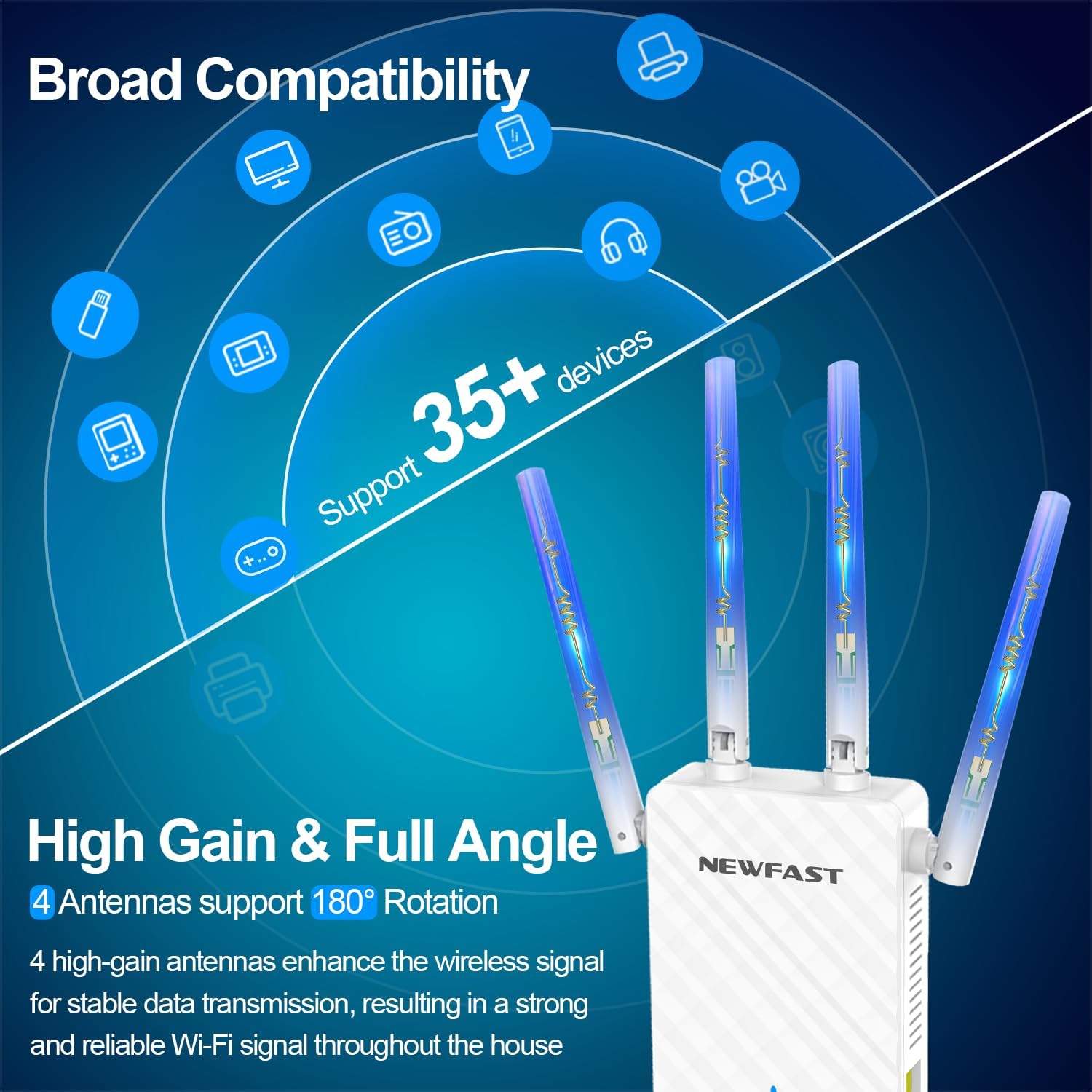
Image: A graphic highlighting the broad compatibility and high-gain, full-angle adjustable antennas of the WiFi extender, supporting over 35 devices.
5. Орнотуу
5.1. Күйгүзүү
Plug the WiFi extender into a standard electrical outlet. The power LED indicator will light up.
5.2. Easy Setup with WPS
- Plug the NEWFAST WiFi Extender into an electrical outlet near your main router.
- Wait for the extender to power on (Power LED will be green).
- Негизги роутериңиздеги WPS баскычын басыңыз.
- Within 2 minutes, press the WPS button on the NEWFAST WiFi Extender for 1-2 seconds.
- The signal indicator light on the extender will change color (e.g., blue for strong signal) once connected.
- Once connected, you can unplug the extender and move it to a location between your router and the Wi-Fi dead zone. Ensure the signal indicator shows a strong signal in the new location.

Image: A diagram showing the easy WPS setup process, with illustrations of pressing the WPS button on both the router and the extender, and signal indicator light colors (Green for Power on, Red for Weak Signal, Blue for Strong Signal).
5.3. Кол менен орнотуу (Web Браузер)
- Тарткычты электр розеткасына сайыңыз.
- On your computer or mobile device, connect to the extender's default Wi-Fi network (e.g., "NEWFAST_EXT"). No password is required initially.
- ачуу а web browser and enter the default IP address or domain name (refer to the included user manual for specific details, typically
192.168.1.1ornewfastwifi.com). - Кирүү үчүн экрандагы нускамаларды аткарыңыз (демейки колдонуучу аты/сырсөз
admin/admin). - Select your desired operating mode (Repeater, AP, or Router) and follow the wizard to configure network settings, including selecting your main Wi-Fi network and entering its password.
- Save the settings and wait for the extender to restart.
6. Иштөө нускамалары
The NEWFAST NF-RE516 supports multiple operating modes to suit various networking needs:

Image: A visual representation of the three operating modes: Repeater/Bridge Mode (extending Wi-Fi signal), AP Mode (switching wired network to wireless), and Router Mode (turning wireless signal to wired network).
6.1. Repeater/Bridge Mode
In this mode, the extender wirelessly connects to your existing router's Wi-Fi network and re-broadcasts it, extending the coverage area. This is ideal for eliminating Wi-Fi dead zones.
- Connect your devices to the extender's new Wi-Fi network (usually your original network name with "_EXT" appended).
- The extender will use the same password as your main router's Wi-Fi.
- You can also connect a wired device (e.g., PC, game console) to the extender's Ethernet port for a stable connection.
6.2. AP (Кирүү чекити) режими
In AP mode, the extender transforms a wired internet connection into a wireless hotspot. This is useful if you have an Ethernet port in a room but no Wi-Fi coverage.
- Connect an Ethernet cable from your router (or a wall Ethernet port) to the extender's Ethernet port.
- The extender will create a new Wi-Fi network. You can configure its name (SSID) and password during manual setup.
6.3. Роутер режими
In Router mode, the device functions as a standalone router, creating a new private network from a modem connection. This is suitable for small homes or as a primary router.
- Connect an Ethernet cable from your modem to the extender's Ethernet port.
- The extender will act as your main router, providing Wi-Fi and managing network traffic.

Image: A graphic detailing the multi-mode functionality, specifically illustrating AP Mode where a wired connection is converted to wireless, and the use of the Ethernet port for connecting devices.
7. Техникалык тейлөө
- Тазалоо: Аппаратты тазалоо үчүн жумшак, кургак чүпүрөктү колдонуңуз. Суюк тазалагычтарды же аэрозолдорду колдонбоңуз.
- Программалык камсыздоонун жаңыртуулары: Мезгил-мезгили менен өндүрүүчүнүн текшерүү webоптималдуу аткарууну жана коопсуздукту камсыз кылуу үчүн микропрограммаларды жаңыртуу үчүн сайт.
- Жайгашкан жери: Ensure the extender is placed in a well-ventilated area, away from obstructions and other electronic devices that may cause interference.
8. Кыйынчылыктарды
| Көйгөй | Мүмкүн чечим |
|---|---|
| No power / LED indicators off. | Кеңейткичтин иштеп жаткан электр розеткасына бекем сайылганын текшериңиз. Башка розетканы колдонуп көрүңүз. |
| Кеңейткичтин Wi-Fi тармагына туташуу мүмкүн эмес. | Ensure the extender is powered on. If setting up manually, verify you are connecting to the correct default network. Try resetting the extender to factory defaults (refer to manual for reset button location). |
| Extender connected but no internet access. | Check if your main router has internet access. Reconfigure the extender, ensuring the correct Wi-Fi network and password of your main router are entered. Ensure the extender is within range of your main router. |
| Slow internet speed after connecting to extender. | Relocate the extender closer to your main router, ensuring the signal indicator shows a strong connection. Reduce interference by moving the extender away from other electronic devices. The actual speed depends on your superior router. |
| WPS setup failed. | Ensure both WPS buttons are pressed within the 2-minute window. Try manual setup via web браузер. |

Image: A graphic illustrating how the WiFi extender provides long-distance and wide coverage, eliminating dead zones within a multi-story house layout.

Сүрөт: Графикалык көргөзмөasing the extender's ability to provide powerful signal and eliminate dead zones in various areas like garage, bathroom, bedroom, and study room.
9. Техникалык шарттар
| Өзгөчөлүк | Деталь |
|---|---|
| Модел | NF-RE516 |
| Зымсыз байланыш стандарты | 802.11bgn |
| Маалыматтарды өткөрүү ылдамдыгы | Up to 300 Megabits Per Second (2.4 GHz) |
| Жыштык тилкесинин классы | Бир тилкелүү (2.4 ГГц) |
| Өзгөчөлүктөр | 360 Degree Coverage, Router Mode, Access Point Mode, LED Indicator, 1-Tap Setup (WPS) |
| Антенналар | 4 high-gain adjustable antennas |
| Камтуу аймагы | Up to 1500 sq.ft (approximate) |
| Продукциянын өлчөмдөрү | 3.46 x 1.08 x 7.73 дюйм |
| Элемент Салмагы | 4.8 унция |
| Коопсуздук протоколдору | WPA/WPA2/WPA-PSK/WPA2-PSK |

Image: A graphic indicating the 300Mbps speed capability of the WiFi extender for 2.4GHz.
10. Кепилдик жана колдоо
NEWFAST products are designed for reliability and performance. For warranty information and technical support, please refer to the contact details provided in your product packaging or visit the official NEWFAST webсайт.
For further assistance, please contact NEWFAST Customer Support.


