1. Киришүү
Thank you for choosing the TECPHILE K936 Wireless Keyboard and Mouse Combo. This product is designed to provide versatile and efficient input for multiple devices, featuring both Bluetooth 5.0 and 2.4GHz USB connectivity. This manual will guide you through the setup, operation, and maintenance of your new keyboard and mouse.
2. Пакеттин мазмуну
- TECPHILE K936 Wireless Keyboard
- TECPHILE Wireless Mouse
- USB Receiver (stored in the mouse battery compartment)
- USB-C заряддоо кабели
- Keyboard Protective Cover
- User Manual
3. Продукт бүтүп калдыview
Familiarize yourself with the components of your TECPHILE K936 Wireless Keyboard and Mouse Combo.

Сүрөт 3.1: The TECPHILE K936 Wireless Keyboard and Mouse Combo in Grey. The keyboard features a full layout with a numeric keypad, and the mouse is a compact, ergonomic design.

Сүрөт 3.2: Diagram showing the dimensions of the keyboard (368mm x 121mm) and mouse (110mm x 63mm x 30mm).
Баскычтоптун өзгөчөлүктөрү:
- Multi-device connectivity: 3 x Bluetooth 5.0, 1 x 2.4GHz USB
- Dedicated function keys (F1-F12) with multimedia controls
- Кайра кубатталуучу 300mAh литий батареясы
- Type-C заряддоо порту
- Automatic sleep mode for power saving
- Scissor-leg key structure for comfortable typing
- Transparent protective cover included
Чычкан өзгөчөлүктөрү:
- Dual-mode connectivity: 1 x Bluetooth, 1 x 2.4GHz USB
- Optical movement detection technology
- Амбидекстрдик дизайн
- Quiet click buttons
4. Орнотуу
4.1 Алгачкы заряддоо
Before first use, fully charge both the keyboard and mouse. Connect the provided USB-C charging cable to the charging port on the keyboard and mouse, and the other end to a 5V/1A power adapter (not included) or a computer USB port. The charging indicator light will show charging status and turn off when fully charged.
Note: Only use a 5V/1 Amp power adapter for charging to ensure optimal battery life.

Сүрөт 4.1: Illustration of the keyboard's battery specifications: 2-4 hours charging time, 300mAh battery capacity, and up to 180 days standby time.
4.2 Баскычтопту туташтыруу
The keyboard supports up to three Bluetooth connections and one 2.4GHz USB connection.

Сүрөт 4.2: Diagram illustrating the keyboard's ability to connect to multiple devices via Bluetooth (3 channels) and 2.4GHz USB.
2.4GHz USB Connection:
- Locate the USB receiver inside the mouse's battery compartment.
- USB кабыл алгычты компьютериңиздеги же түзмөгүңүздөгү жеткиликтүү USB портуна сайыңыз.
- Turn on the keyboard. The keyboard should automatically connect.
Bluetooth Connection (BT1, BT2, BT3):
- Баскычтопту күйгүзүңүз.
- басып, кармап туруңуз Fn баскычы жана Bluetooth баскычтарынын бири (BT1, BT2, же BT3) for 3-5 seconds until the corresponding indicator light flashes rapidly. This indicates pairing mode.
- Түзмөгүңүздө (компьютер, планшет, смартфон) Bluetooth жөндөөлөрүнө өтүп, жаңы түзмөктөрдү издеңиз.
- Select "TECPHILE Keyboard" from the list of available devices to pair.
- Жупташкандан кийин индикатор жарыгы өчүп-өчпөйт жана өчкөнгө чейин бир нече секунда туруктуу бойдон калат.
- Repeat for other Bluetooth channels to connect to additional devices.
4.3 Чычканды туташтыруу
The mouse supports one Bluetooth connection and one 2.4GHz USB connection.
2.4GHz USB Connection:
- Ensure the USB receiver is plugged into your device.
- Switch the mouse to 2.4GHz mode using the switch on the bottom of the mouse.
- Чычкан автоматтык түрдө туташуу керек.
Bluetooth байланыш:
- Switch the mouse to Bluetooth mode using the switch on the bottom of the mouse.
- Press and hold the Bluetooth pairing button on the bottom of the mouse for 3-5 seconds until the indicator light flashes.
- Түзмөгүңүздө Bluetooth жөндөөлөрүнө өтүп, жаңы түзмөктөрдү издеңиз.
- Select "TECPHILE Mouse" from the list to pair.
5. Иштөө нускамалары
5.1 Switching Between Devices (Keyboard)
To switch between connected devices on the keyboard, simply press the Fn key along with the corresponding connection key (BT1, BT2, BT3, же 2.4G for USB). The keyboard will switch to the selected device instantly.
5.2 Switching Between Devices (Mouse)
To switch between 2.4GHz USB and Bluetooth modes on the mouse, use the toggle switch located on the bottom of the mouse.
5.3 Function Keys (Keyboard)
The keyboard features dedicated function keys (F1-F12) that can be used in conjunction with the Fn key for various multimedia and system controls.
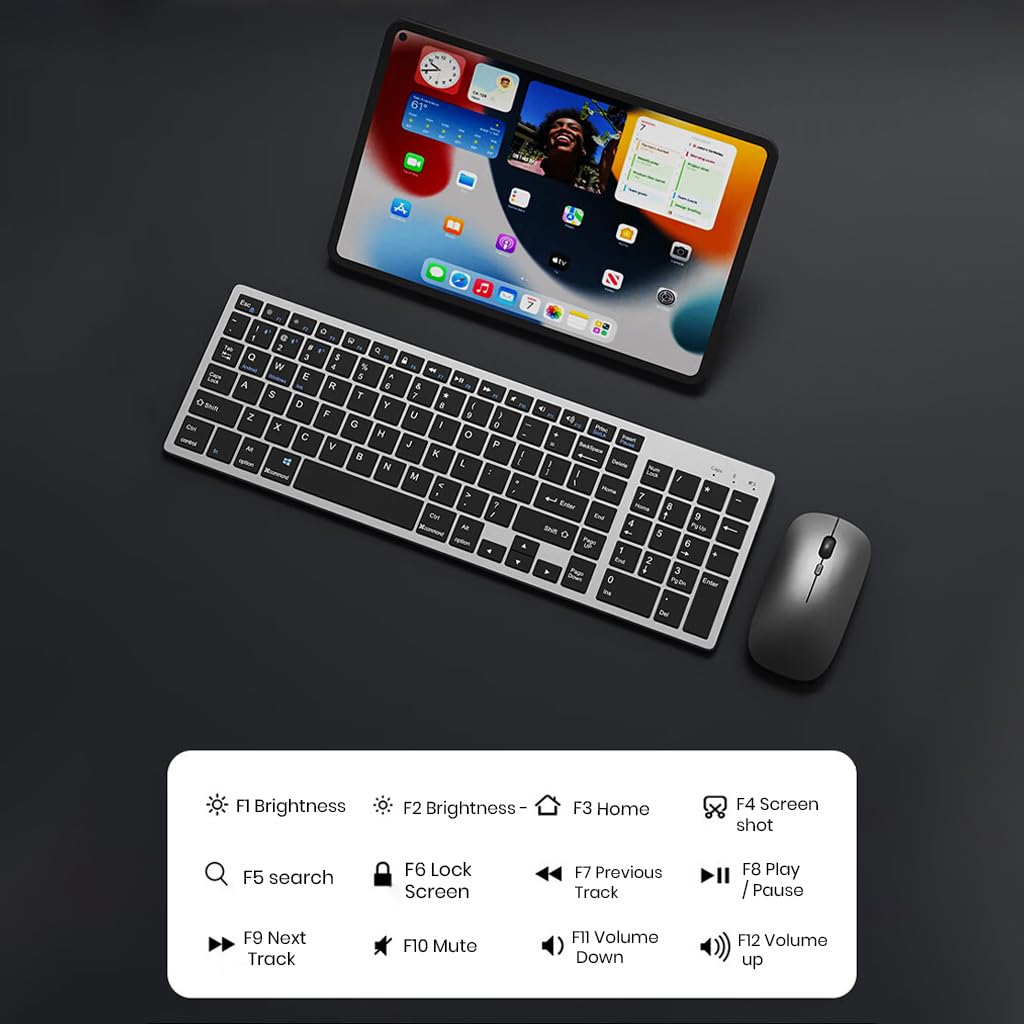
Сүрөт 5.1: The keyboard displaying its function keys and their associated actions, such as brightness control, home, screen shot, search, lock screen, media playback, and volume control.
- Fn+F1: Brightness Down
- Fn+F2: Brightness Up
- Fn+F3: Үй
- Fn+F4: Скриншот
- Fn+F5: издөө
- Fn+F6: Кулпуланган экран
- Fn+F7: Мурунку трек
- Fn+F8: Ойнотуу/Тыныгуу
- Fn+F9: Кийинки трек
- Fn+F10: Үнсүз
- Fn+F11: Үндү төмөндөтүү
- Fn+F12: Үндү көтөрүү
5.4 Кубатты үнөмдөө режими
The keyboard and mouse are equipped with an automatic sleep mode to conserve battery life. If inactive for 10 minutes, the devices will enter sleep mode. To wake them up, simply press any key on the keyboard or move/click the mouse.

Сүрөт 5.2: Diagram illustrating the auto-sleep mode and how to reactivate the keyboard and mouse by pressing any key.
6. Техникалык тейлөө
- Тазалоо: Клавиатураны жана чычканды тазалоо үчүн жумшак, кургак чүпүрөктү колдонуңуз. Өтө кир болсо, бир азamp кездемени колдонсо болот, бул түзмөккө суюктуктун кирбешин камсыз кылат.
- Коргоочу капкак: Utilize the included transparent protective cover for the keyboard to guard against dust and accidental spills.
- Сактагыч: Түзмөктөрдү күн нурунан жана экстремалдык температурадан алыс салкын, кургак жерде сактаңыз.
- Заряддоо: Always use a 5V/1A power adapter for charging to prevent damage and ensure battery longevity.

Сүрөт 6.1: The keyboard shown with its transparent protective keyskin, designed to prevent dust and spills.
7. Кыйынчылыктарды
| Көйгөй | Мүмкүн себеп | Чечим |
|---|---|---|
| Keyboard/Mouse not connecting via 2.4GHz USB. | USB receiver not properly inserted, low battery, incorrect mode selected. |
|
| Баскычтоп/чычкан Bluetooth аркылуу туташпай жатат. | Not in pairing mode, device's Bluetooth is off, already connected to max devices, low battery. |
|
| Кечигип же үзгүлтүктүү байланыш. | Тоскоолдук, кабыл алгычтан/түзмөктөн алыстык, батареянын заряды аз. |
|
| Баскычтоп баскычтары жооп бербей жатат. | Low battery, device in sleep mode, connection issue. |
|
8. Техникалык шарттар
| Өзгөчөлүк | Деталь |
|---|---|
| Бренд | ТЕХНИКАЛЫК |
| Модел | K936 |
| Байланыш технологиясы | Keyboard: 3 x Bluetooth 5.0, 1 x 2.4GHz USB; Mouse: 1 x Bluetooth, 1 x 2.4GHz USB |
| Шайкеш түзмөктөр | Ноутбук, персоналдык компьютер, смартфон, планшет |
| Операция системасы | Android, iOS, Windows, macOS |
| Баскычтоптун батареясы | 300 мАч литий-ион (кайра заряддалуучу) |
| Заряддоо порту | USB Type-C |
| Заряддоо убактысы | 2-4 саат (болжол менен) |
| Күтүү убактысы | 180 күнгө чейин |
| Баскычтоптун өлчөмдөрү (LxWxH) | 36 x 13 x 1.5 см |
| Чычкандын өлчөмдөрү (LxWxH) | 11 x 6.3 x 3 см (болжол менен) |
| Элемент Салмагы | 661 g (combo) |
| Кыймылды аныктоо технологиясы | Оптикалык |
| Колдун багыты | Эки тараптуу |
9. Кепилдик жана колдоо
TECPHILE products come with a standard warranty. For warranty claims, technical support, or any product-related inquiries, please contact TECPHILE customer service through the retailer where the product was purchased or visit the official TECPHILE webбайланыш маалыматы үчүн сайт.
Сураныч, кепилдик максаттары үчүн сатып алганыңыздын далилин сактап коюңуз.
Manufacturer/Importer: TECPHILE, 2nd Floor, A36, Block B, Naraina Industrial Area Phase 2, Naraina, New Delhi, Delhi, 110028


