1. Киришүү
Thank you for choosing the Dopesplay 10.5-inch Portable Monitor, Model RT1051. This lightweight and versatile display is designed to enhance your productivity and entertainment experience across various devices. This manual provides essential information for proper setup, operation, and care of your new monitor.

The Dopesplay 10.5-inch Portable Monitor, showcasing its compact design and vivid display.
2. Орнотуу
2.1 Пакеттин мазмуну
Пакетти ачкандан кийин, төмөнкү нерселердин бардыгы камтылганын текшериңиз:
- Portable Display Unit
- Quick Start Guide
- USB-C - USB-C кабели
- USB-A - USB-C кабели
- HDMI - Mini HDMI кабели
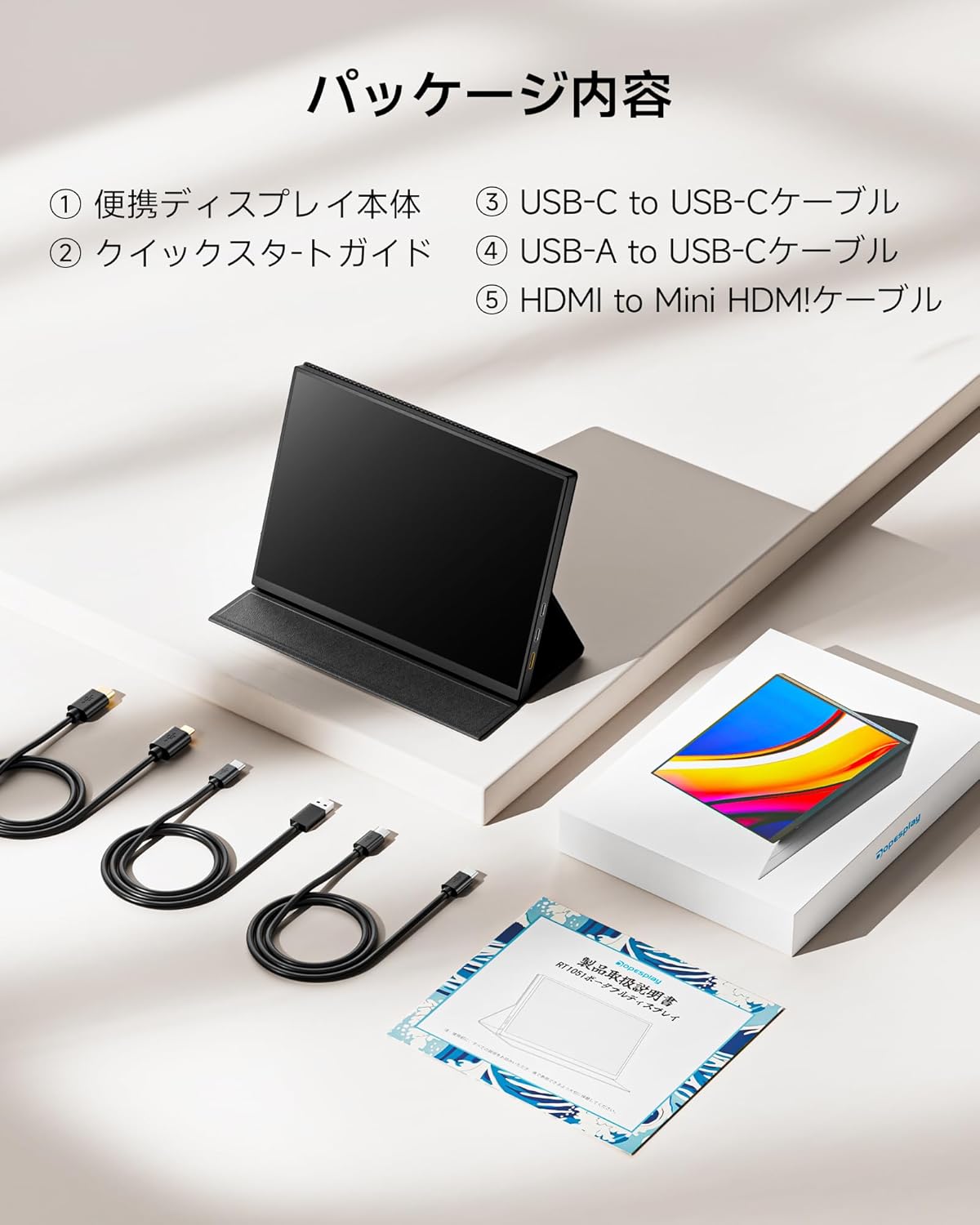
Image showing the Dopesplay portable monitor and its included accessories.
2.2 Removing Protective Films
The display surface is covered with two layers of film: a 'text film' and a 'transparent film'. Please remove both films completely before use. These films are applied during shipping to prevent dirt and fingerprints and are not protective films for long-term use.

Illustration demonstrating the removal of the two protective films from the display surface.
2.3 Стендди орнотуу
The included magnetic protective cover also functions as a multi-angle adjustable stand. Fold the cover to support the monitor at your desired viewing angle. The bottom of the stand features anti-slip rubber for stable placement on a desk.
Video demonstrating how to correctly set up the monitor using its magnetic protective cover as a stand.

The magnetic protective case can be folded to provide stable support for the monitor at various angles.
2.4 Электр энергиясы
The recommended power supply is 5V/2A, with an input voltage range of 5-20V. If you use a power source exceeding 5V/2A, the main unit may become slightly warm, but this is normal within safe operating limits. Please avoid prolonged use under high load.

Recommended power adapter for the Dopesplay portable monitor.
3. Иштөө
3.1 Connecting to a Laptop/PC (USB Type-C)
To connect your monitor to a laptop or PC using a USB Type-C cable, ensure your device's Type-C port supports "DP Alt Mode" (video output). A single USB Type-C cable can transmit video, audio, and power simultaneously.
Video demonstrating how to connect the portable monitor to a laptop using a single USB Type-C cable.

A single USB-C cable provides both video signal and power to the monitor when connected to a compatible laptop.
3.2 Connecting to a Laptop/PC (HDMI)
When connecting via HDMI, the HDMI cable transmits only the video signal. A separate USB-C cable must be connected to the monitor for power supply.
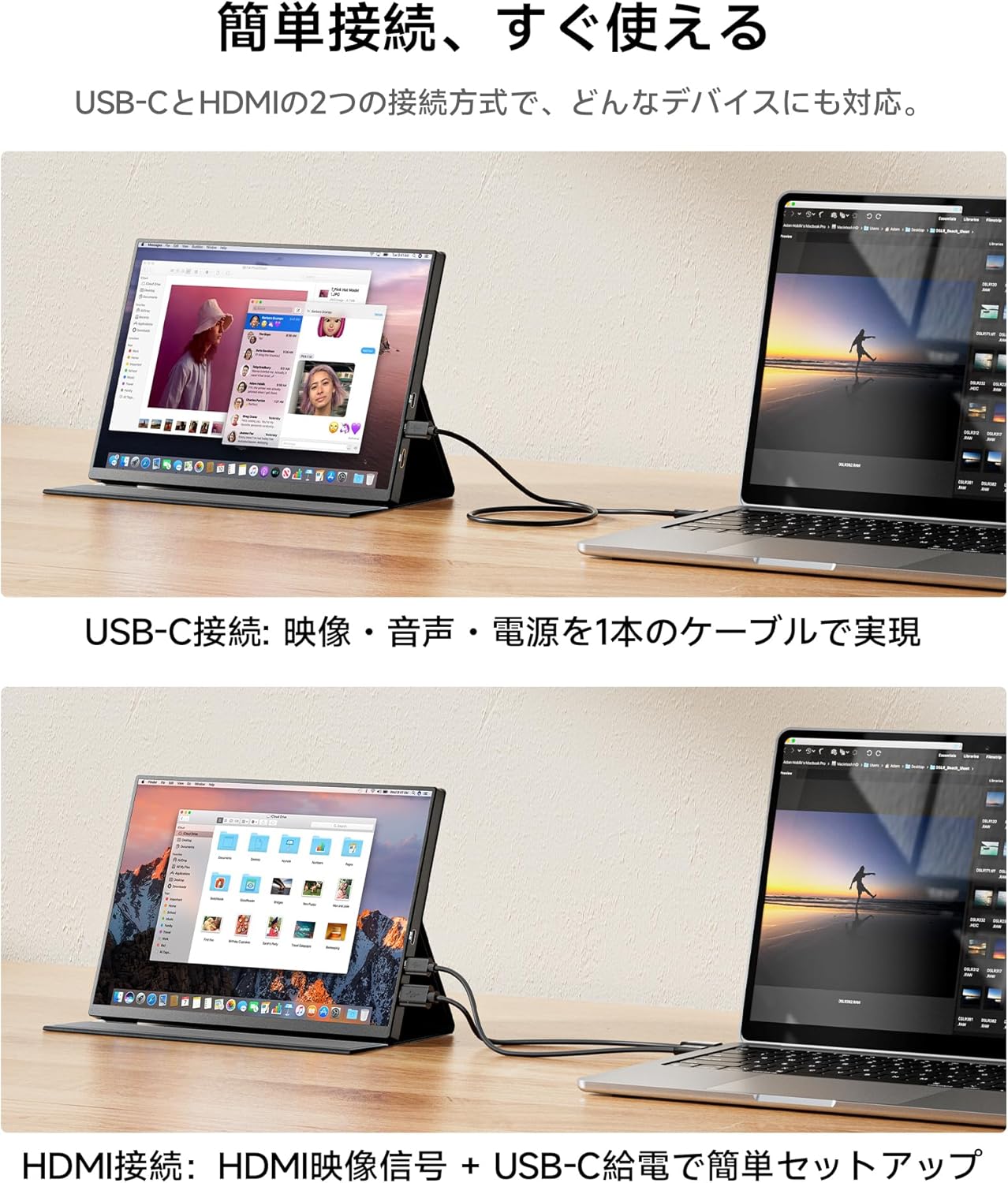
Illustration of connecting the monitor to a laptop using HDMI for video and USB-C for power.
3.3 Смартфонго туташуу
For smartphone connection, ensure your smartphone's Type-C port is a full-function Type-C port. Otherwise, a "No Signal" message may appear. If issues persist, please contact customer support.
Video demonstrating how to connect the portable monitor to a smartphone via USB Type-C.

Connecting an iPhone to the portable monitor for an extended display.
3.4 Оюн консолдоруна туташуу
The monitor supports connection with gaming consoles such as PS4, PS5, Xbox, and Nintendo Switch. For these connections, use the HDMI port for video and a separate USB-C cable for power. Note that for Nintendo Switch 2, Type-C direct connection is not supported; please use HDMI via a dock.

The portable monitor provides an immersive gaming experience when connected to consoles.
3.5 Көрсөтүү режимдери
The monitor supports both extended and duplicate display modes, allowing for versatile use in business multi-tasking, video editing, or gaming. When connected to a PC, you can also use vertical display mode for programming or document creation by adjusting the screen rotation settings on your PC.
3.6 Adjusting Brightness and OSD Menu
To adjust the display's brightness or other settings, use the OSD (On-Screen Display) menu. Press the mode button to access the OSD menu. Navigate using the UP/DOWN buttons and confirm selections. To adjust brightness, select "Brightness Adjustment" and then enable the "DCR" function to "ON".
Video demonstrating how to adjust the display brightness using the OSD menu.
4. Техникалык тейлөө
To ensure the longevity and optimal performance of your Dopesplay portable monitor, please follow these maintenance guidelines:
- Тазалоо: Экранды акырын сүртүү үчүн жумшак, түксүз чүпүрөктү колдонуңуз. өжөр тактар үчүн, бир аз гampчүпүрөккө суу же экранды тазалоочу каражат. Катуу химиялык заттардан же абразивдүү материалдардан алыс болуңуз.
- Сактагыч: When not in use, store the monitor in its protective cover to prevent scratches and dust accumulation.
- Температура: Мониторду узак убакыт бою өтө жогорку температурага же түз күн нуруна дуушар кылбаңыз.
- Жылуулук: It is normal for the back of the unit to become slightly warm during prolonged use. This does not indicate a malfunction.
5. Кыйынчылыктарды
5.1 "No Signal" or Black Screen
- Кабель туташууларын текшерүү: Бардык кабелдердин (USB-C, HDMI, кубат) мониторго да, булак түзмөккө да бекем туташтырылганын текшериңиз.
- Verify Source Device Compatibility: If using a Type-C connection, confirm that your source device's Type-C port supports "DP Alt Mode" (video output).
- Жетиштүү кубаттуулукту камсыз кылуу: For HDMI connections, a separate power supply via USB-C is always required. If connecting via Type-C and experiencing power issues, try connecting an external power adapter to the monitor.
- Change Input Source: Use the OSD menu to manually select the correct input source (USB-C or HDMI).
5.2 Image Stretching or Black Borders
If the image appears stretched or has black borders, the aspect ratio may not be correctly applied. Access your PC's "Display Settings" and manually switch the aspect ratio to 3:2 or 16:9 as needed. This prevents image distortion and black bars.
5.3 Sound Issues with Smartphone Connection
When connecting to a smartphone, open the sound settings on your smartphone and select the portable display as the audio output device.

Common questions and troubleshooting tips for the Dopesplay portable monitor.
6. Техникалык шарттар
| Өзгөчөлүк | Спецификация |
|---|---|
| Бренд | Dopesplay |
| Модель номери | RT1051 |
| Продукциянын өлчөмдөрү | 1.2 x 23.2 x 16.7 см |
| Элемент Салмагы | 253 г |
| Screen Size | 10.5 дюйм |
| Резолюция | 1920 x 1280 (FHD+) |
| Аспект катышы | 3:2 |
| Панел түрү | IPS |
| Жарыктык | 420 нит |
| Түс гаммасы | 100% sRGB |
| HDR колдоо | Ооба |
| Жаңыртуу ылдамдыгы | 60Hz |
| Жооп убактысы | 8ms |
| Байланыш | 2x USB Type-C (Full-function), 1x Mini HDMI |
| VESA тоосу | 75 мм туура келет |
| Power Voltage | 5 вольт |

Бүттүview of the Dopesplay portable monitor's technical specifications.
7. Кепилдик жана колдоо
This product comes with a 12-month quality warranty. In the event of initial defects or issues arising under normal use within the warranty period, we will assess the situation and consider free parts replacement or main unit replacement.
Please note that malfunctions due to misuse or external damage are not covered under warranty. We may request verification or inspection of the condition as necessary.
We also offer an additional 12-month warranty extension service. If you wish to extend your warranty period, please contact us with your order number. For any questions or concerns during use, please feel free to contact us via Amazon's message function or our after-sales service window. We are committed to supporting your comfortable use of our product.
Сатуудан кийинки тейлөө электрондук почта дареги: support@dopesplay.com


