1. Киришүү
This manual provides detailed instructions for the setup, operation, maintenance, and troubleshooting of your Phomemo D520BT Bluetooth Thermal Label Printer. Please read this manual thoroughly before using the device to ensure proper functionality and to extend the product's lifespan.

Figure 1: Phomemo D520BT printer in purple, printing a shipping label, with a smartphone displaying a label design connected via Bluetooth. This image illustrates the printer's compact design and wireless printing capability.
2. Пакеттин мазмуну
Төмөндө тизмеленген нерселердин баары пакетиңизге камтылганын текшериңиз. Эгерде кандайдыр бир нерселер жок болсо же бузулса, кардарларды колдоо менен байланышыңыз.
- Phomemo D520BT Thermal Printer
- Roll Label (sampле)
- Quick Start Guide
- Колдонуучунун колдонмосу (бул документ)
- Электр кабели
- USB кабели
- Type-C адаптери
- Кубаттуу адаптер

Figure 2: All components included in the Phomemo D520BT product package.
3. Орнотуу колдонмосу
3.1 Пакеттен чыгаруу
- Принтерди жана бардык аксессуарларды таңгактан этияттык менен алып чыгыңыз.
- Remove any protective films or packing materials from the printer.
3.2 этикеткаларды жүктөө
The Phomemo D520BT supports both roll paper and folding paper labels.
- Open the printer cover by gently lifting it.
- For Roll Paper: Place the label roll into the internal paper holder, ensuring the labels feed from the bottom and the printing side faces upwards. Guide the first label through the output slot until it is slightly visible.
- For Folding Paper: Place the stack of folding labels behind the printer, ensuring the labels feed smoothly into the rear input slot and the printing side faces upwards. Guide the first label through the output slot until it is slightly visible.
- Принтердин капкагын бекем жабыңыз.

Figure 3: The Phomemo D520BT printer supports both folding paper and roll paper labels.
3.3 Принтерди туташтыруу
The D520BT offers both USB and Bluetooth connectivity.
3.3.1 USB Connection (Windows, Mac, Chrome OS, Linux)
- Connect one end of the USB cable to the printer and the other end to your computer.
- Электр адаптерин принтерге туташтырыңыз жана аны розеткага сайыңыз.
- Принтерди күйгүзүңүз.
- Install the necessary printer drivers for your operating system. Drivers can typically be found on the official Phomemo webсайт.
3.3.2 Bluetooth Connection (Android, iOS, iPad)
- Электр адаптерин принтерге туташтырыңыз жана аны розеткага сайыңыз.
- Принтерди күйгүзүңүз.
- жүктөп алып, орнотуңуз “Labelife” түзмөгүңүздүн колдонмолор дүкөнүнөн колдонмо.
- Open the Labelife app and follow the in-app instructions to pair your device with the D520BT printer via Bluetooth.

Figure 4: The Phomemo D520BT supports both Bluetooth and USB connectivity for various devices and operating systems.
4. Иштөө нускамалары
4.1 Күйгүзүү/өчүрүү
- Күйгүзүү: Press the power button located on the printer. The indicator light will illuminate.
- Өчүрүү: Индикатор жарыгы өчкөнчө кубат баскычын басып, кармап туруңуз.
4.2 этикетканы басып чыгаруу
- Ensure the printer is powered on and connected to your device (computer via USB or mobile device via Bluetooth).
- Басып чыгаргыңыз келген документти же тиркемени ачыңыз.
- Select the Phomemo D520BT as your printer.
- Adjust print settings as needed (e.g., label size, orientation). The printer supports a width range of 1 to 4.6 inches.
- басып чыгаруу буйругун ишке киргизиңиз.
The Labelife app provides various free templates for customizing shipping labels, address labels, barcode labels, and thank-you stickers.
4.3 Негизги өзгөчөлүктөрү
- High Speed Printing: The D520BT can print up to 72 labels per minute (150mm/s), suitable for high-volume printing tasks.
- Жогорку чечим: Prints at 203 DPI, ensuring sharp and precise details on each label.
- Wide Printing Range: Supports label widths from 1 inch to 4.6 inches, accommodating various label types including 4x6 inch shipping labels.
- Сыясыз термикалык технология: Utilizes direct thermal printing, eliminating the need for ink or toner cartridges.
- Мейкиндикти үнөмдөөчү дизайн: Features a built-in paper holder, reducing the need for external label racks and optimizing desktop space.
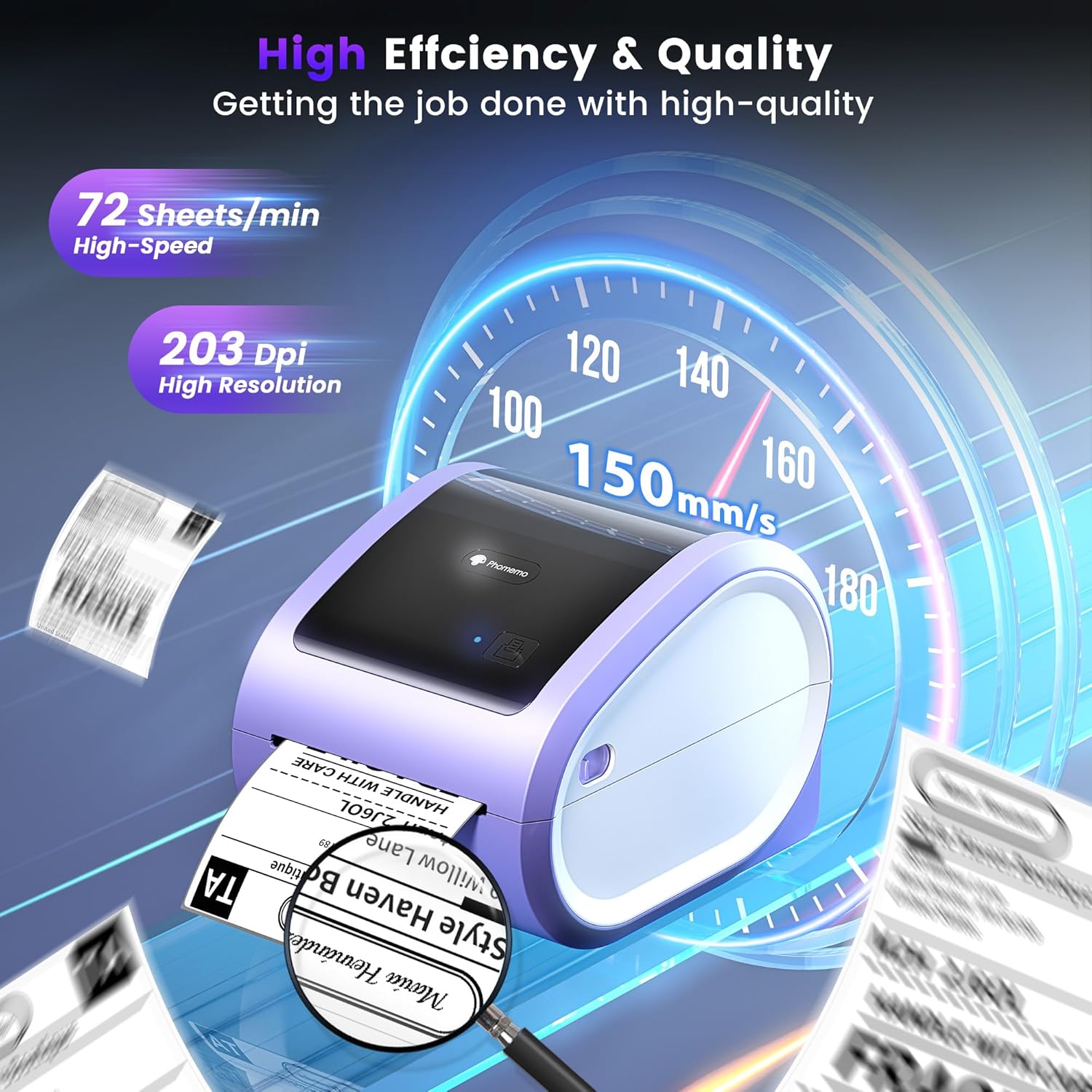
Figure 5: The Phomemo D520BT offers high efficiency and quality with a print speed of 150mm/s and 203 DPI resolution.

Figure 6: The Phomemo D520BT is compatible with various label sizes, from 1 inch to 4.6 inches wide.

Figure 7: The Phomemo D520BT supports multi-scenario applications for various labeling needs.

Figure 8: The Phomemo D520BT is compatible with all major shipping and sales platforms.
5. Техникалык тейлөө
5.1 Басып чыгаруу башын тазалоо
Regular cleaning of the print head ensures optimal print quality and extends the printer's life.
- Принтерди өчүрүп, электр шнурын сууруп алыңыз.
- Принтердин капкагын ачыңыз.
- Gently wipe the print head with an alcohol swab or a soft, lint-free cloth lightly dampизопропил спирти менен жасалган.
- Капкакты жаап, принтерди күйгүзүүдөн мурун басып чыгаруу башынын толук кургашына уруксат бериңиз.
5.2 Сактоо
Store the printer in a cool, dry place away from direct sunlight and extreme temperatures. Avoid exposing the printer to dust or moisture.
6. Кыйынчылыктарды
If you encounter issues with your Phomemo D520BT printer, refer to the following common problems and solutions:
- Принтер күйбөй жатат:
- Кубат адаптери принтерге да, иштеп жаткан розеткага да бекем туташтырылганын текшериңиз.
- Кубат баскычы бекем басылганын текшериңиз.
- Labels not printing or feeding incorrectly:
- Verify that labels are loaded correctly with the printing side facing up.
- Ensure there are no obstructions in the label path.
- Check if the label roll or stack is depleted.
- Poor print quality (faded, streaky, or blank labels):
- Басып чыгаруучу башты 5.1-бөлүмдө сүрөттөлгөндөй тазалаңыз.
- Ensure you are using high-quality thermal labels.
- Check print density settings in your printer preferences.
- Bluetooth байланышы көйгөйлөрү:
- Ensure Bluetooth is enabled on your mobile device and the printer.
- Принтерди да, мобилдик түзмөгүңүздү да өчүрүп-күйгүзүңүз.
- Ensure you are within the Bluetooth range.
- Re-pair the printer through the Labelife app.
- USB туташуу маселелери:
- Verify the USB cable is securely connected to both the printer and the computer.
- Ensure the correct printer drivers are installed.
- Башка USB портун же кабелин колдонуп көрүңүз.
For further assistance, refer to the detailed video tutorials and user manuals available online, or contact Phomemo customer support.
7. Техникалык шарттар
| Өзгөчөлүк | Спецификация |
|---|---|
| Бренд | Phomemo |
| Модель аты | D520BT |
| Байланыш технологиясы | Bluetooth, USB |
| Басма технологиясы | Термикалык |
| Өзгөчө өзгөчөлүк | Portable, Built-in Holder |
| Принтердин чыгышы | Монохромдуу |
| Макс басып чыгаруу ылдамдыгы | 150 mm/s (72 labels/min) |
| Print Resolution | 203 DPI |
| Max Print Width | 4.6 дюйм |
| Элемент Салмагы | 2.4 фунт |
| Продукциянын өлчөмдөрү | 10.31"D x 10.31"W x 7.87"H |
8. Кепилдик жана колдоо
Phomemo provides customer support to assist with any questions or issues you may encounter. For detailed warranty information, please refer to the warranty card included with your product or visit the official Phomemo website. Our customer support team is available via phone, email, or remote support.
For additional resources, including video tutorials and updated user manuals, please visit the Phomemo support page.


