1. Киришүү
Thank you for choosing the ZEBRONICS Groot Wireless Mouse. This manual provides detailed instructions for setting up, operating, and maintaining your new wireless mouse. The Zeb-Groot offers versatile connectivity with both 2.4GHz and Bluetooth modes, silent operation, and an ergonomic design for comfortable use.

Image: The ZEBRONICS Groot Wireless Mouse in blue, shown alongside its compact USB nano receiver.
2. Кутуда эмне бар
Пакеттин мазмунун текшериңиз:
- Mouse - 1 unit
- Nano Receiver - 1 unit
- Quick User Guide - 1 unit
3. Продукт бүтүп калдыview
Familiarize yourself with the components of your ZEBRONICS Groot Wireless Mouse.

Сүрөт: Жогорку view of the mouse highlighting the Left Button, Right Button, and Scroll Wheel.

Image: Underside of the mouse, indicating the AA battery slot, On/Off switch, Bluetooth receiver indicator, Nano receiver indicator, and the storage slot for the USB nano receiver.
- Сол баскыч: Стандарттык сол чыкылдатуу функциясы.
- Оң баскыч: Стандарттык оң баскычты чыкылдатуу функциясы.
- Жылдыруу дөңгөлөгү: Жылдыруу жана ортоңку чыкылдатуу функциясы үчүн.
- Күйгүзүү/өчүрүү: Located on the bottom of the mouse to conserve battery.
- Режимди которуу баскычы: This button, often integrated with the power switch or a separate button on the underside, allows switching between 2.4GHz and Bluetooth modes.
- AA Battery Compartment: For inserting the required AA battery.
- USB Nano Receiver Storage: Slot for storing the 2.4GHz USB receiver when not in use.
4. Орнотуу нускамалары
4.1. Батареяны орнотуу
- Чычкандын астыңкы жагындагы батарея бөлүмүнүн капкагын ачыңыз.
- Туура полярдуулукту (+/-) камсыз кылуу менен бир AA батареясын салыңыз.
- Батарея уясынын капкагын жабыңыз.
4.2. Connecting via 2.4GHz Wireless (USB Nano Receiver)
- USB нано ресиверди чычкандын астындагы сактагычынан алып салыңыз.
- USB нано кабыл алгычты компьютериңиздеги жеткиликтүү USB портуна сайыңыз.
- Turn on the mouse using the On/Off switch on the bottom.
- The mouse should automatically connect. If not, ensure the mouse is in 2.4GHz mode (check indicator light if available).

Image: A user inserting the USB nano receiver into a laptop's USB port for 2.4GHz wireless connection.
4.3. Bluetooth аркылуу туташуу
- Күйгүзүү/Өчүрүү баскычын колдонуп чычканды күйгүзүңүз.
- Switch the mouse to Bluetooth mode. This is typically done by pressing and holding a button on the mouse (often the mode switch button on the bottom or a dedicated button) until the Bluetooth indicator light starts blinking.
- On your computer or device, go to Bluetooth settings.
- Издөө new devices and select "ZEB-Groot" (or similar) from the list.
- Follow any on-screen prompts to complete the pairing process. The indicator light will become solid once connected.
Tip: If you experience issues, ensure your device's Bluetooth is enabled and the mouse is in pairing mode (blinking indicator).
5. Иштөө нускамалары
5.1. Dual Mode Functionality
The ZEBRONICS Groot mouse supports both 2.4GHz wireless and Bluetooth connectivity, allowing you to switch between two devices seamlessly.
- 2.4 ГГц режими: Use with the USB nano receiver for a stable, plug-and-play connection.
- Bluetooth режими: Connect wirelessly to Bluetooth-enabled devices without needing a USB port.
To switch between modes, locate the mode switch button (often on the bottom of the mouse) and press it. An indicator light will typically show the active mode.

Image: The ZEBRONICS Groot mouse positioned next to a laptop, emphasizing its dual mode capability for uninterrupted work via 2.4GHz and Bluetooth connections.
5.2. DPI Adjustment (1600 DPI)
The mouse operates at 1600 DPI (Dots Per Inch), providing smooth and precise cursor movements. This fixed DPI setting is optimized for general use, offering a balance between speed and accuracy.
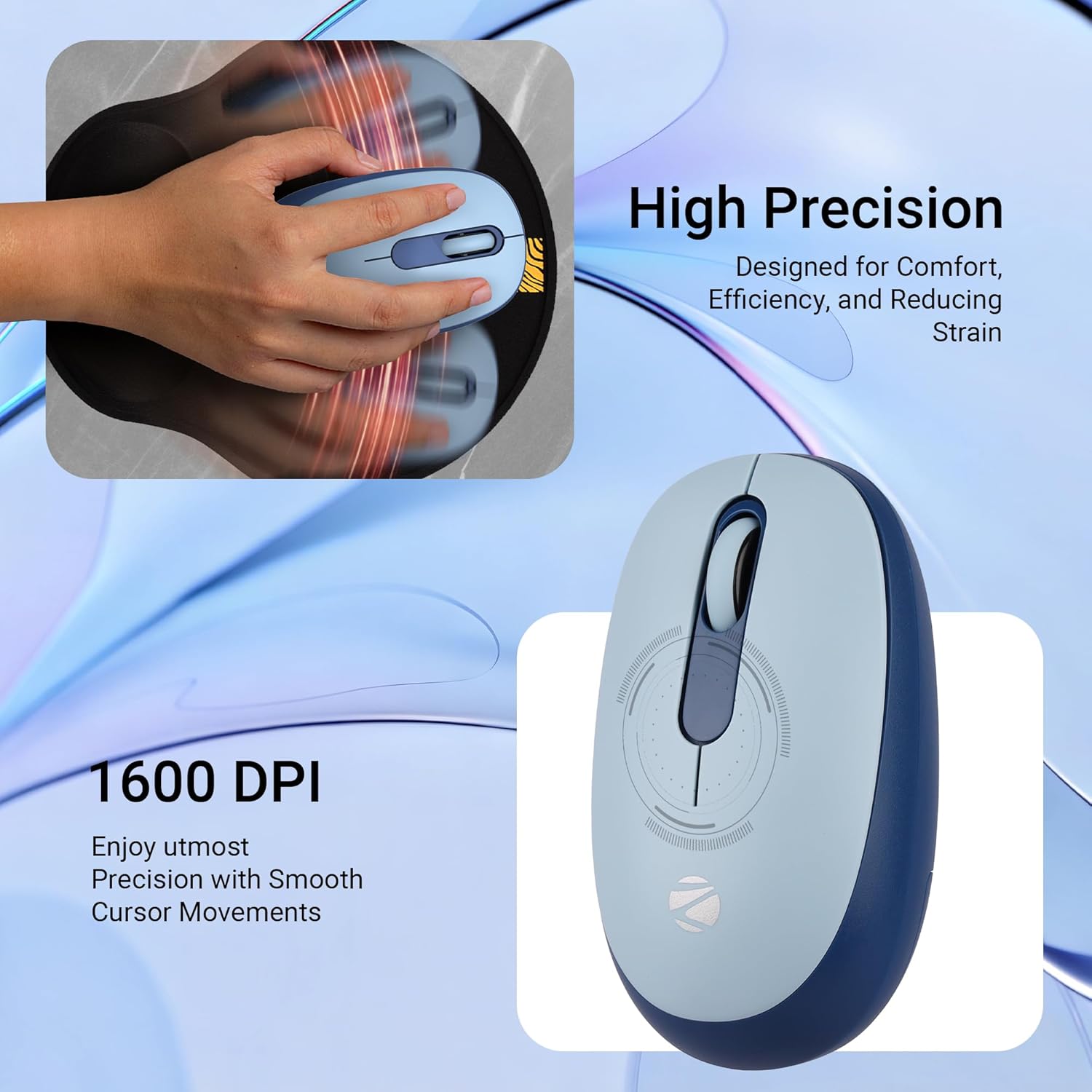
Сүрөт: деталдуу view of the mouse highlighting its 1600 DPI capability for high precision and smooth cursor movements.
5.3. Үнсүз иштөө
The ZEBRONICS Groot mouse features silent click buttons, reducing noise during use. This is ideal for quiet environments such as libraries, offices, or late-night work sessions.
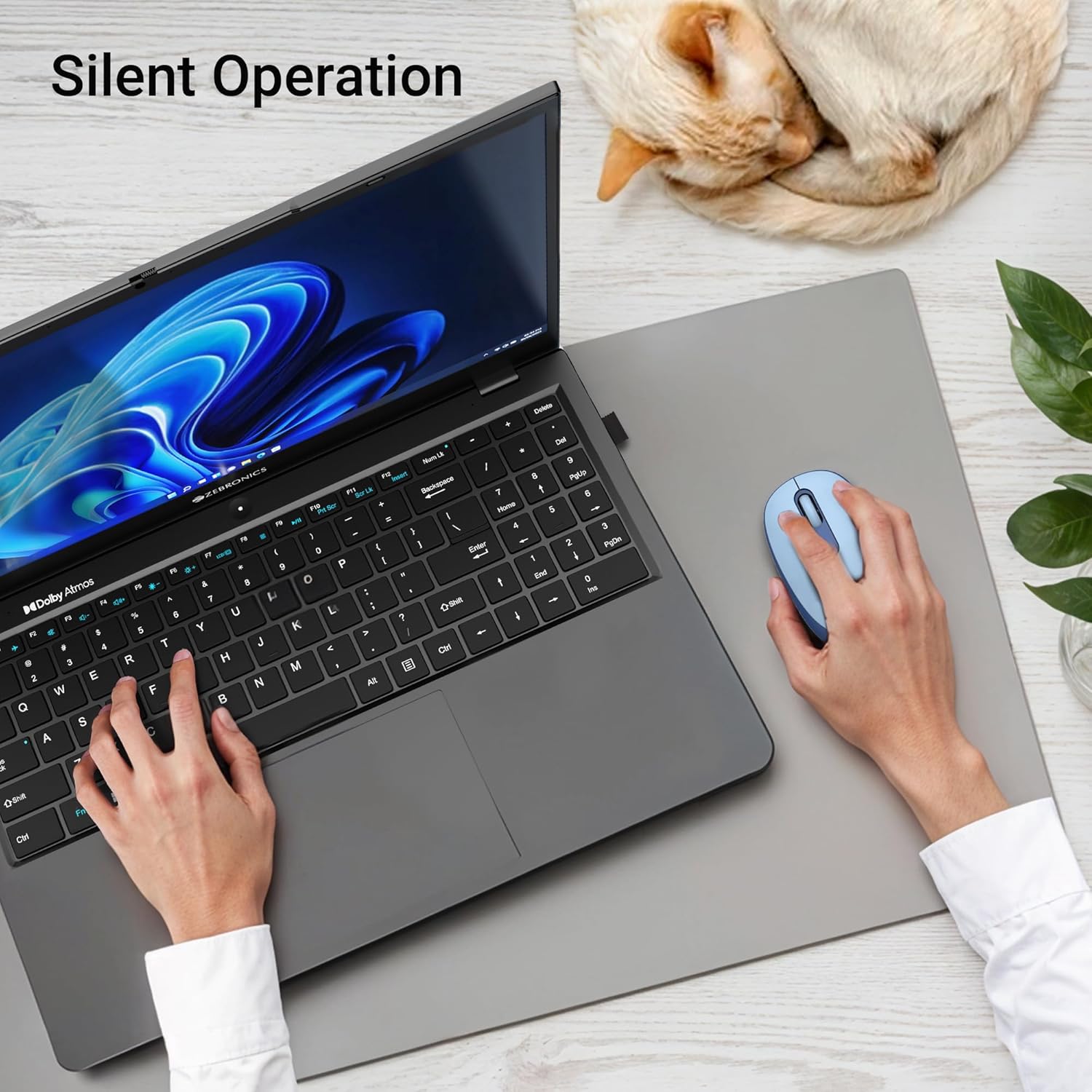
Image: A user operating the mouse silently next to a laptop, with a cat sleeping peacefully in the background, demonstrating the silent click feature.
5.4. Электр энергиясын башкаруу
Use the On/Off switch on the bottom of the mouse to conserve battery life when not in use. The mouse also features an automatic sleep mode to save power during periods of inactivity.
6. Техникалык тейлөө
- Тазалоо: Чычканды тазалоо үчүн жумшак, кургак чүпүрөктү колдонуңуз. Катуу химиялык заттарды же абразивдүү материалдарды колдонуудан алыс болуңуз.
- Батареяны алмаштыруу: Replace the AA battery when the mouse performance degrades or the indicator light (if present) signals low battery.
- Сактагыч: When transporting or storing the mouse, ensure the USB nano receiver is securely placed in its storage slot to prevent loss. Turn off the mouse to save battery.
7. Кыйынчылыктарды
| Көйгөй | Чечим |
|---|---|
| Чычкан жооп бербей жатат (2.4 ГГц) |
|
| Чычкан туташпай жатат (Bluetooth) |
|
| Курсордун кыймылы туура эмес же жай |
|
| Чычкан өтө тез уктап калат |
|
8. Техникалык шарттар
| Өзгөчөлүк | Деталь |
|---|---|
| Бренд | ЗЕБРОНИКА |
| Модел | Zeb-Groot |
| Байланыш технологиясы | Bluetooth, 2.4 ГГц USB |
| Кыймылды аныктоо | Оптикалык |
| DPI | 1600 DPI |
| Buttons | 3 (Сол, Оң, Жылдыруу дөңгөлөгү) |
| Өзгөчөлүктөр | Silent Operation, Ergonomic Design |
| Power Source | Батарея менен иштейт (1x AA) |
| Операциялык системанын шайкештиги | Mac OS (and generally Windows, Linux) |
| Продукциянын өлчөмдөрү | 6.1 x 10.1 x 0.1 см (болжол менен) |
| Элемент Салмагы | 56.6 грамм (болжол менен) |
| Келип чыккан өлкө | Кытай |
9. Кепилдик жана колдоо
9.1. Кепилдик маалыматы
The ZEBRONICS Groot Wireless Mouse comes with a 2 жылдык кепилдик from the date of purchase. This warranty covers manufacturing defects and ensures efficient working of the product. Please retain your purchase receipt for warranty claims.
9.2. Кардарларды колдоо кызматы
For any technical assistance, troubleshooting, or warranty-related queries, please contact ZEBRONICS customer support:
- Өндүрүүчү: Zebronics India Private Limited компаниясы
- Дарек: No.13/7, Smith Road, Royapettah, Chennai - 600 002
- Webсайт: www.zebronics.com (Сураныч, расмий дарекке кайрылыңыз website for the latest contact information and support resources.)
When contacting support, please have your product model (Zeb-Groot) and proof of purchase ready.


