1. Киришүү
The Vretti K2 is a portable thermal label printer designed for various labeling needs in home, office, and business environments. It offers inkless printing, Bluetooth connectivity for mobile devices (Android and iOS), and a compact design for ease of use. This manual provides detailed instructions for setup, operation, maintenance, and troubleshooting to ensure optimal performance of your device.
2. Пакеттин мазмуну
Баштоодон мурун, таңгактагы бардык буюмдардын бар экендигин текшериңиз:
- Vretti K2 Label Maker x1
- Type-C кабели x1
- 50x30mm Paper Rolls x1 (pre-installed inside the machine)
- Колдонуучунун колдонмосу x1
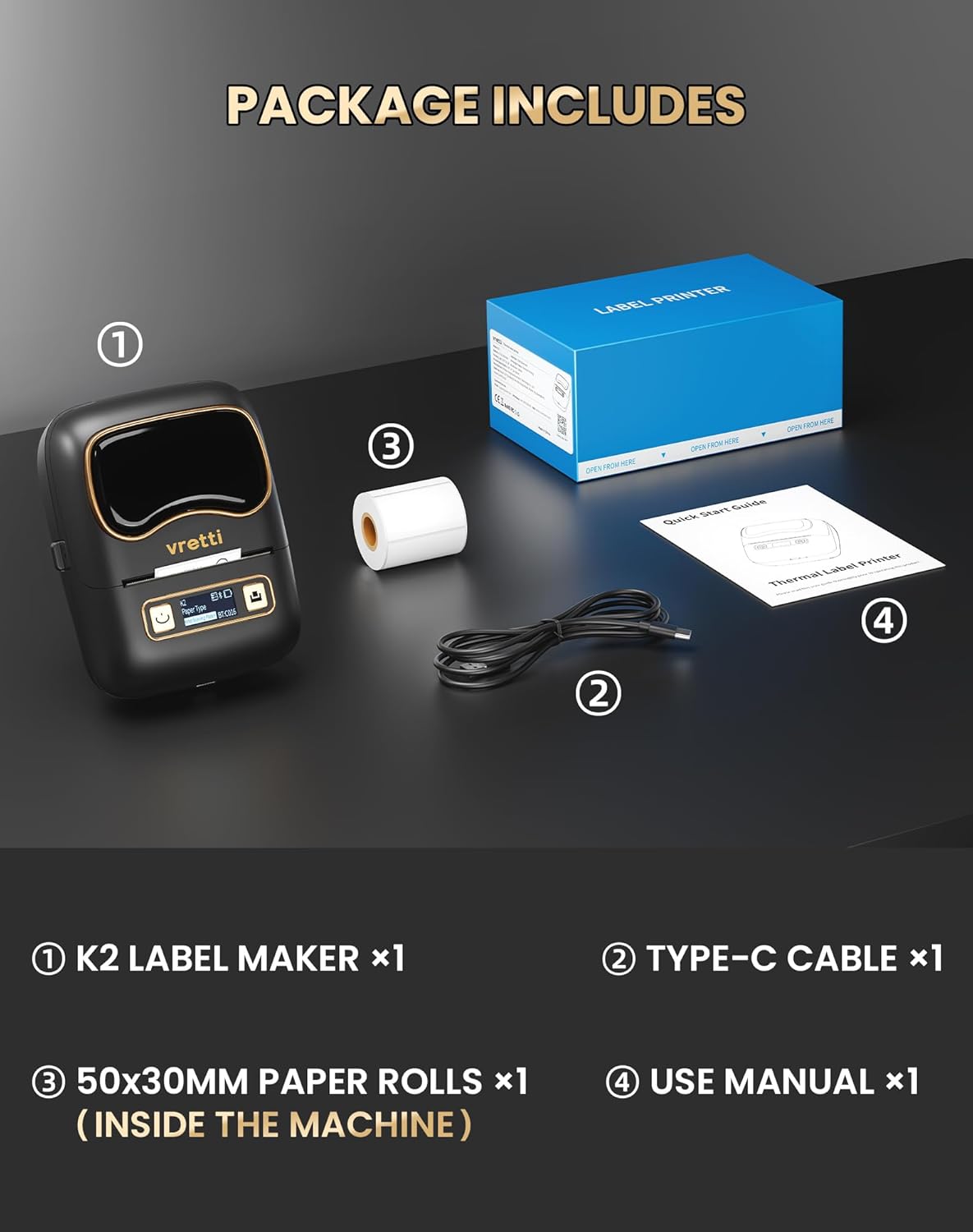
Image: Contents of the Vretti K2 label printer package, including the printer, USB-C cable, a roll of labels, and the user manual.
3. Техникалык шарттар
| Өзгөчөлүк | Спецификация |
|---|---|
| Модель аты | K2 |
| Басма технологиясы | Термикалык |
| Байланыш технологиясы | Bluetooth, USB |
| Шайкеш түзмөктөр | Ноутбук, компьютер, смартфон, планшет |
| Max Print Resolution (DPI) | 203 dpi |
| Басып чыгаруу ылдамдыгы | 9 мм/с |
| Макс барактын сыйымдуулугу | 100 |
| Колдоого алынган энбелгилердин туурасы | 20-50 мм |
| Батарея сыйымдуулугу | 1500mAh |
| Заряддоо интерфейси | USB Type-C |
| Өлчөмдөрү (L x W x Y) | 15.7 x 9.5 x 6.4 см (4.53 x 3.54 x 2.44 дюйм) |
| Салмагы | 0.49 фунт |

Сүрөт: бүттүview of Vretti K2 features including no ink needed, Bluetooth connectivity, lightweight, 1500mAh battery, wireless printing, high resolution, 9mm/s fast printing, and USB Type-C.
4. Орнотуу
4.1 Принтерди заряддоо
Before first use, fully charge the Vretti K2 printer using the provided Type-C cable. Connect the cable to the printer's charging port and a compatible USB power adapter (not included). The charging indicator light will show the charging status.
4.2 этикеткаларды жүктөө
- Open the printer cover by gently pressing the release button or sliding the cover open, depending on the model.
- Insert the label roll into the paper compartment, ensuring the labels face upwards and the roll is properly aligned.
- Pull a small portion of the label paper out past the print head.
- Принтердин капкагын бекем жабыңыз.
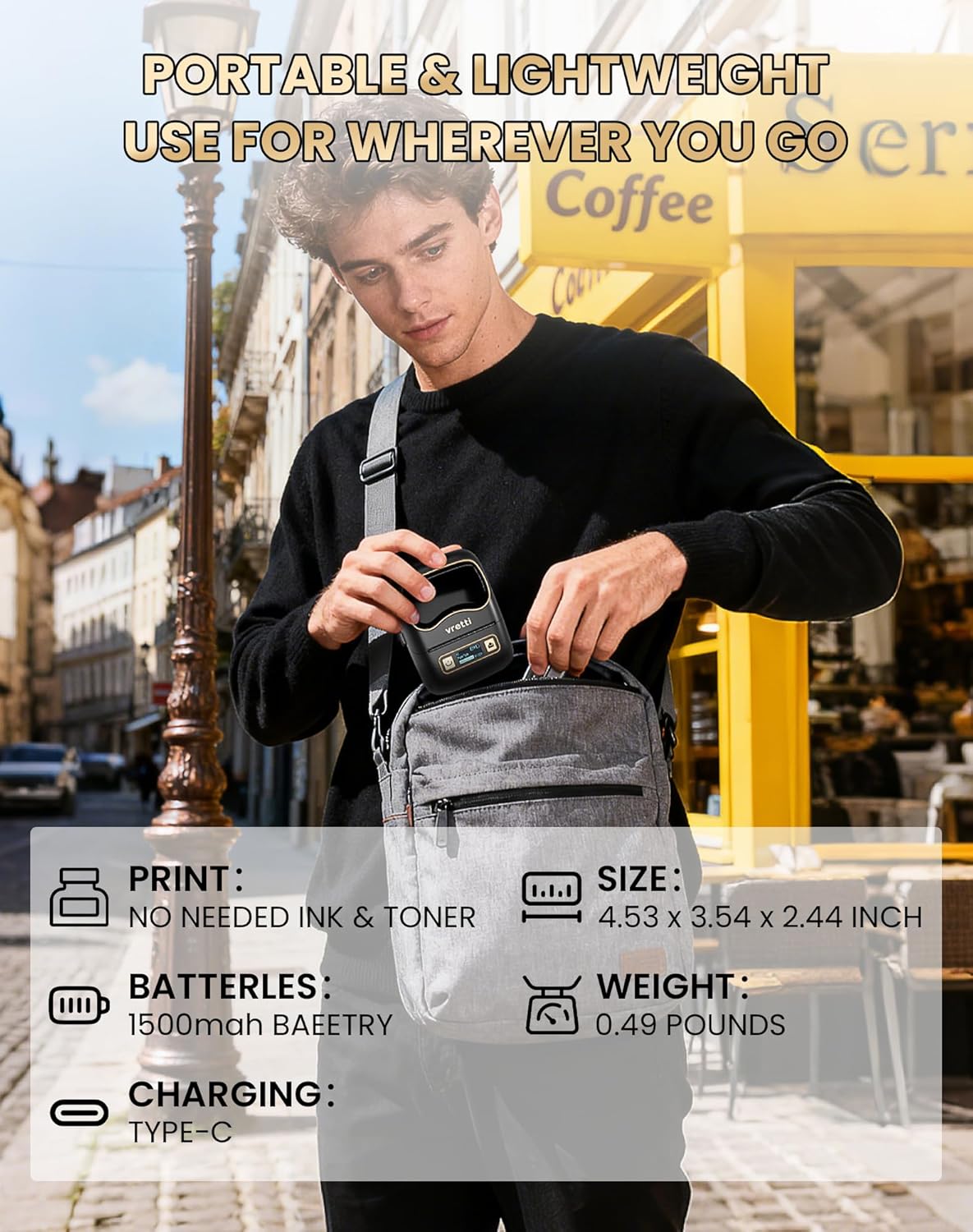
Image: The Vretti K2 printer with various label sizes (20-50mm width) shown, demonstrating how different label rolls fit into the printer.
4.3 Колдонмону жүктөп алуу жана орнотуу
The Vretti K2 printer operates with the XeasyLabel mobile application. Download the app from your device's app store:
- Android түзмөктөрү үчүн: Издөө "XeasyLabel" on the Google Play Store.
- iOS түзмөктөрү үчүн: Издөө "XeasyLabel" on the Apple App Store.
Тиркемени смартфонуңузга же планшетиңизге орнотуңуз.

Image: The Vretti K2 printer next to a smartphone displaying the XEasyLabel app interface, highlighting Bluetooth 5.0 connectivity and app download options for Android and iOS.
4.4 Bluetooth байланышы
- Ensure your Vretti K2 printer is powered on.
- Мобилдик түзмөгүңүздө Bluetooth'ду иштетиңиз.
- Open the XeasyLabel application.
- Within the app, navigate to the device connection section.
- Select your Vretti K2 printer (usually identified as "K2" or a similar name) from the list of available devices to establish a Bluetooth connection.

Image: A three-step guide showing how to connect the Vretti K2 printer via Bluetooth and begin editing and printing labels using the XEasyLabel app on a smartphone.
5. Иштөө нускамалары
5.1 Creating and Printing Labels
- After connecting your printer via Bluetooth, open the XeasyLabel app.
- Select a template or create a new label design. The app offers various fonts, icons, frames, and intelligent features like scanning and image recognition.
- Customize your label with text, images, barcodes, or serial numbers.
- Preview your label to ensure it appears as desired.
- Tap the print button in the app. The printer will automatically detect the label size and print without requiring ink or toner.
5.2 Колдонуу сценарийлери
The Vretti K2 printer is versatile and suitable for a wide range of applications:
- Офис: File labels, lamp labels, memo labels, visitor labels.
- Бизнес: Address labels, product labels, price labels, gift labels.
- Үй: Toy labels, food labels, drug labels, general organization labels.
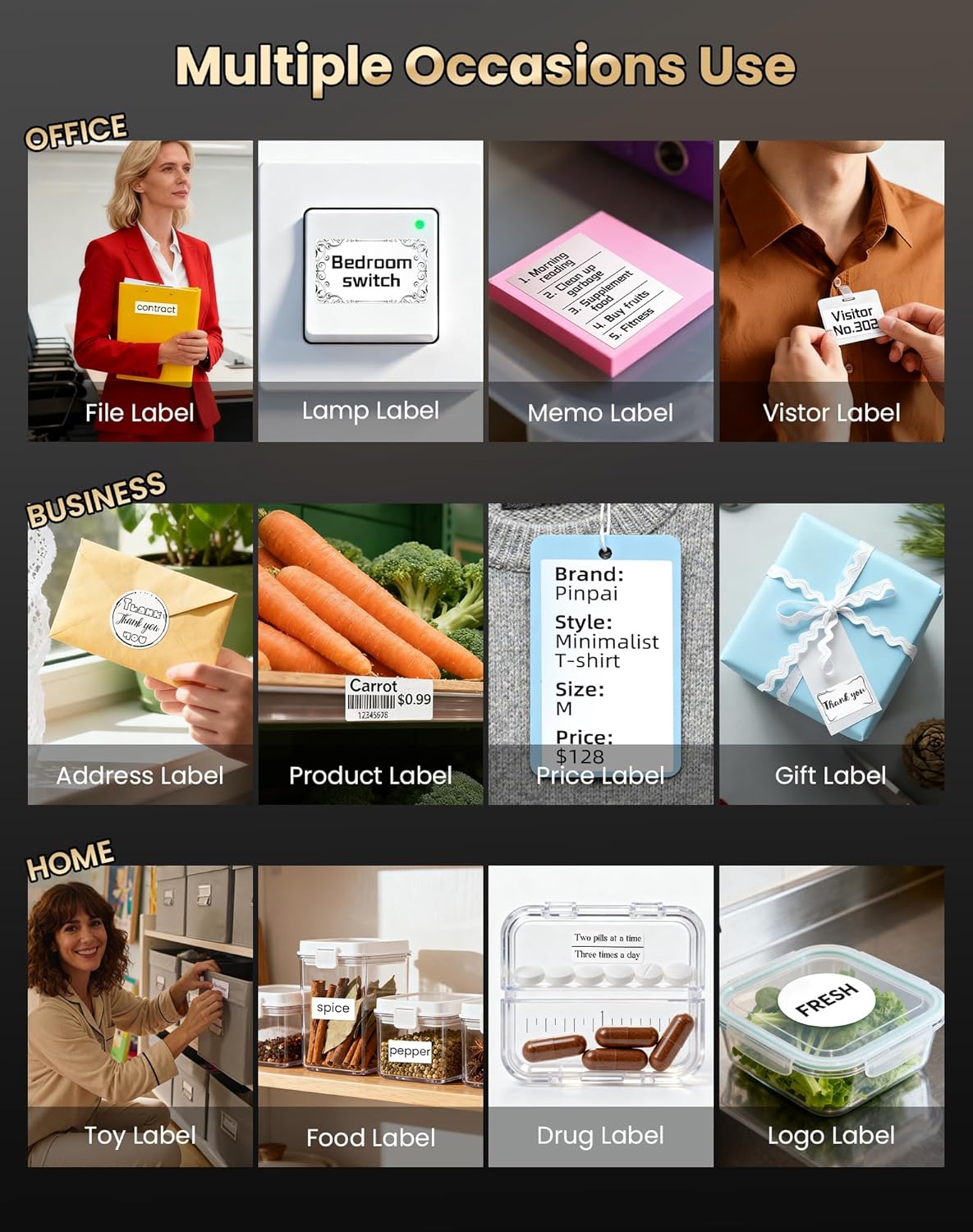
Сүрөт: Мисamples of Vretti K2 label printer use in office, business, and home settings, showing various label types like file, product, and food labels.

Сүрөт: Андан ары эксamples of Vretti K2 label printer applications, including clothing tags, food containers, and cable labeling, demonstrating its versatility.
6. Техникалык тейлөө
6.1 Басып чыгаруу башын тазалоо
Басып чыгаруу сапатын сактоо үчүн, басып чыгаруучу башты үзгүлтүксүз тазалап туруңуз. Пахта таякчасын жеңил сүртүңүзampИзопропил спирти менен эритилген. Басып чыгаруучу баштын бетин акырын сүртүңүз. Колдонуудан мурун принтердин өчүрүлгөндүгүн жана толугу менен кургак экенин текшериңиз.
6.2 Батареяга кам көрүү
- Батареяны бат-баттан толук кубаттап калуудан алыс болуңуз.
- Charge the printer regularly, even if not in use, to prolong battery life.
- Принтерди узак убакытка колдонбогондо салкын, кургак жерде сактаңыз.
7. Кыйынчылыктарды
If you encounter issues with your Vretti K2 printer, refer to the following common problems and solutions:
- Принтер Bluetooth аркылуу туташпай жатат:
- Принтер күйгүзүлүп турганын жана мобилдик түзмөгүңүзгө жетүү мүмкүнчүлүгүнүн аралыгында экенин текшериңиз.
- Түзмөгүңүздө Bluetooth иштетилгенин текшериңиз.
- Принтерди да, мобилдик түзмөгүңүздү да өчүрүп-күйгүзүңүз.
- Check if the XeasyLabel app has Bluetooth permissions enabled.
- Начар басып чыгаруу сапаты:
- Басып чыгаруучу башты "Техникалык тейлөө" бөлүмүндө сүрөттөлгөндөй тазалаңыз.
- Жогорку сапаттагы термо этикеткаларды колдонуп жатканыңызды текшериңиз.
- Check the label roll for proper installation and ensure it is not damaged.
- Энбелгилер туура эмес азыктандырылды:
- Ensure the label roll is inserted correctly and aligned.
- Кагаз жолундагы тоскоолдуктардын бар-жогун текшериңиз.
- Make sure the label type selected in the app matches the physical labels.
- Принтер күйбөй жатат:
- Принтерди кеминде 30 мүнөт кубаттаңыз.
- Башка USB-C кабелин жана кубат адаптерин колдонуп көрүңүз.
For further assistance, consult the XeasyLabel app's help section or contact customer support.
8. Кепилдик жана колдоо
8.1 Кепилдик маалыматы
The Vretti K2 Thermal Label Printer comes with a standard manufacturer's warranty. Please refer to the warranty card included in your package or contact Vretti customer service for specific details regarding warranty duration and coverage.
8.2 Кардарларды колдоо
If you require technical support, have questions about your product, or need assistance with warranty claims, please contact Vretti customer support through their official webсайт же продукт документациясында көрсөтүлгөн байланыш маалыматы.


