Introduction
This user manual provides detailed instructions for setting up and operating your ZMUIPNG 15-in-1 USB C Laptop Docking Station. This versatile hub expands a single USB-C/Thunderbolt 3 port into 14 additional ports, offering comprehensive connectivity for various devices including external displays, USB peripherals, network, and audio.
Пакеттин мазмуну
- ZMUIPNG 15-in-1 USB C Docking Station (Model: MH19)
- User Manual
Продукт диаграммасы
Familiarize yourself with the various ports and features of your docking station.
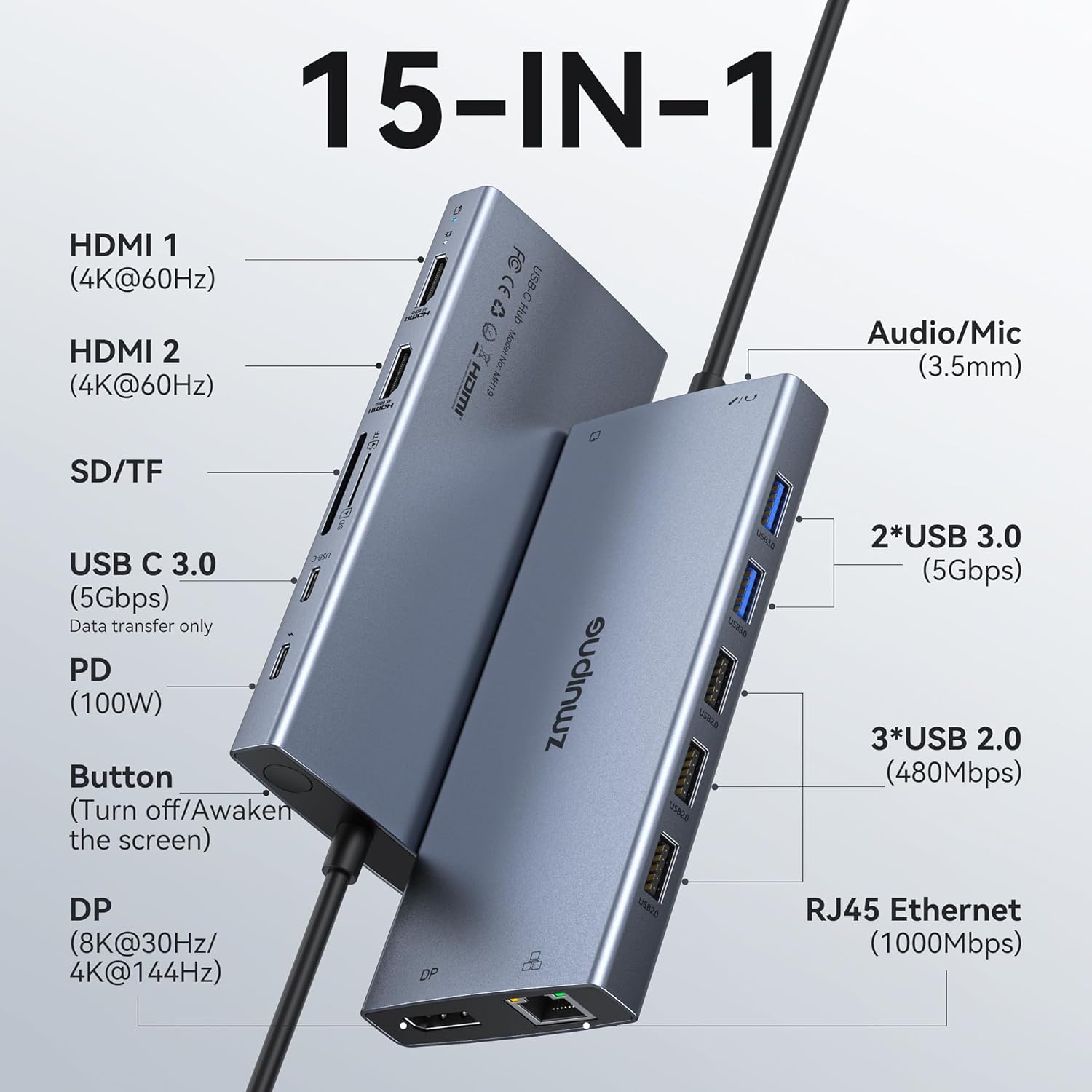
This diagram illustrates the layout of the docking station, highlighting its 15 ports including HDMI, DisplayPort, USB-C, USB-A, SD/TF card slots, Ethernet, and audio jack.

An overview of the ZMUIPNG 15-in-1 USB C Laptop Docking Station, demonstrating its compact design and multiple connectivity options.
Орнотуу колдонмосу
- Ноутбукка туташуу: Plug the integrated USB-C cable from the docking station into a compatible USB-C/Thunderbolt 3 port on your laptop. Ensure your laptop's USB-C port supports Power Delivery and DisplayPort Alternate Mode for full functionality.
- Электр энергиясына туташуу (милдеттүү эмес, бирок сунушталат): For stable operation and laptop charging, connect your laptop's original USB-C power adapter to the 100W USB-C PD port on the docking station. Note that the docking station consumes approximately 13W, leaving up to 87W for laptop charging.
- Перифериялык түзүлүштөрдү туташтыруу: Attach your external monitors, USB devices (keyboard, mouse, flash drives), Ethernet cable, and SD/TF cards to the corresponding ports on the docking station.

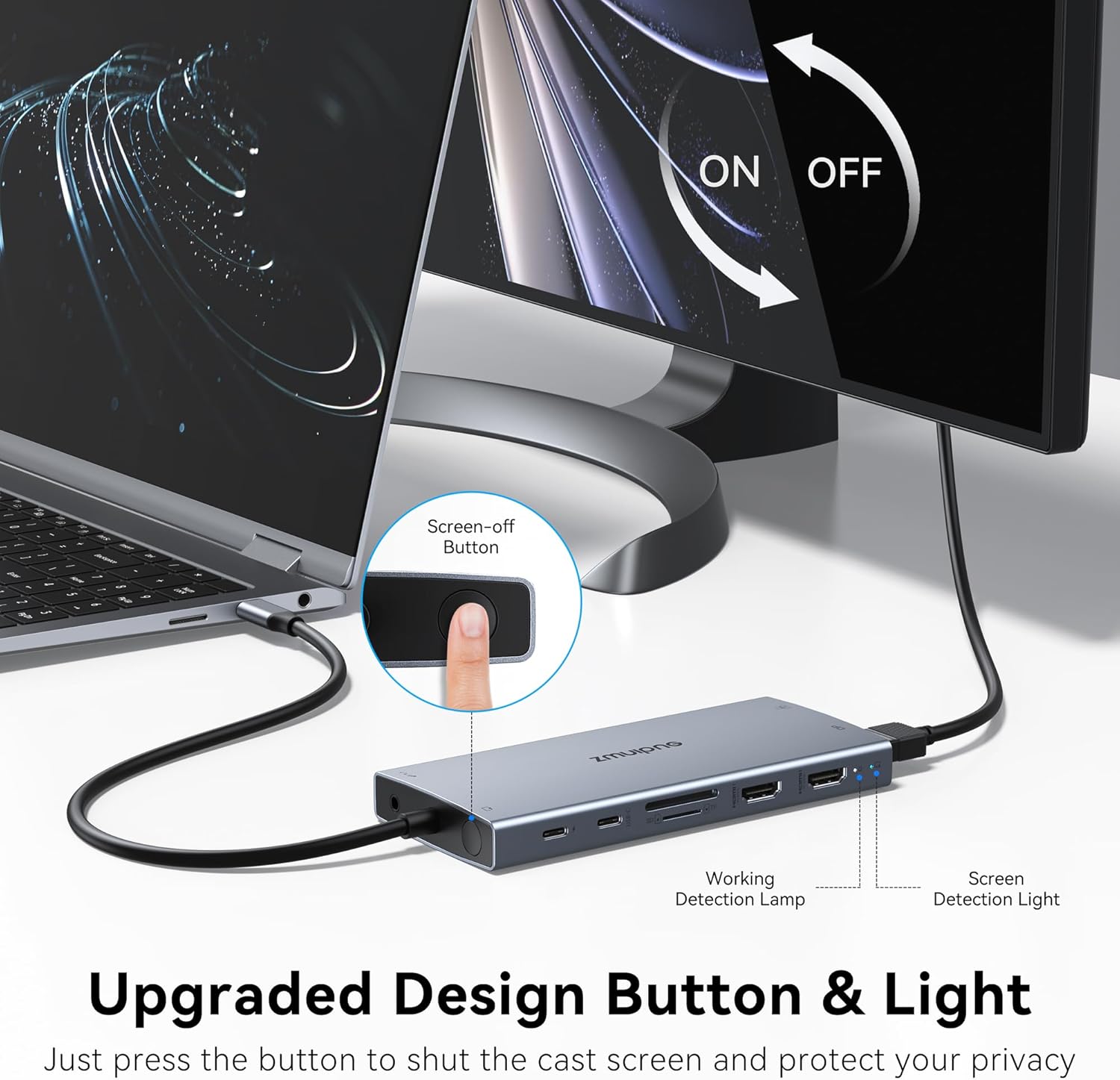
Before connecting, verify your laptop's USB-C port supports full functionality (Data+PD+DisplayPort Alt Mode) for optimal performance. The docking station features indicator lights to confirm compatibility.

The USB-C PD port supports up to 100W power input, providing up to 87W pass-through charging to your laptop after the hub's power consumption.
Иштөө нускамалары
Дисплей конфигурациялары
The docking station supports various display modes depending on your operating system and laptop's DisplayPort version (DP1.2 or DP1.4).
For Windows Laptops (with DP1.4):
- Жалгыз дисплей: Connect one monitor to either HDMI (up to 4K@60Hz) or DisplayPort (up to 8K@30Hz / 4K@144Hz).
- Кош дисплей: Connect two monitors. Resolution will be dual 4K@60Hz.
- Triple Display (Extend Mode): Connect three monitors (2x HDMI, 1x DP). Display output will be dual 4K@60Hz and 4K@30Hz. If only two monitors display, connect DP first, then the two HDMI ports.
Visual guide for configuring dual and triple extended displays on Windows laptops using the docking station's HDMI and DisplayPort outputs.
For macOS Laptops (with DP1.4):
- MirrorMode: All external displays will mirror the laptop's screen.
- Non-Mirror Mode: External displays can show different content from the laptop, but all external displays will mirror each other. macOS does NOT support Extended Mode (MST) where each external monitor shows unique content.

Illustrates the mirror and non-mirror display capabilities for macOS users, emphasizing the limitation of not supporting extended mode across multiple external displays.
Маалыматтарды өткөрүү
- USB 3.0 Ports (3x USB-A, 1x USB-C): Offer super-speed data transfer up to 5Gbps. Ideal for flash drives and external hard drives.
- USB 2.0 Ports (2x USB-A): Provide 480Mbps data transfer, suitable for connecting peripherals like keyboards and mice without lag.
- SD/Micro SD карта окугучтары: Facilitate easy transfer of photos and fileэстутум карталарынан.

This image highlights the high-speed data transfer capabilities of the USB 3.0 ports (5Gbps) and the utility of USB 2.0 ports for peripherals, along with SD/Micro SD card reader functionality.
Network Connectivity
The Gigabit Ethernet port supports 10/100/1000BASE-T LAN networks, providing a stable and fast wired internet connection.

The Gigabit Ethernet port ensures a fast and stable wired network connection, crucial for high-definition video streaming and large file которуулар.
Аудио чыгаруу
The 3.5mm Mic/Audio (2-in-1) port allows you to connect wired headsets for audio output and microphone input.
Техникалык тейлөө жана кам көрүү
- Док станциясын таза жана чаңсыз кармаңыз. Тазалоо үчүн жумшак, кургак чүпүрөк колдонуңуз.
- Аппаратты экстремалдык температуранын же нымдуулуктун таасиринен сактаңыз.
- Аппаратты өз алдынча бөлүүгө же оңдоого аракет кылбаңыз. Жардам алуу үчүн кардарларды колдоо бөлүмүнө кайрылыңыз.
- Ensure proper ventilation around the docking station during prolonged use to prevent overheating.
Проблемаларды чечүү
| Көйгөй | Мүмкүн болгон себеп / Чечим |
|---|---|
| No display output / Incorrect resolution |
|
| USB devices not recognized or unstable |
|
| Тармактын ылдамдыгы жай |
|
| Docking station feels warm |
|
Техникалык шарттар
- Модел: MH19
- Порттор: 2x HDMI (4K@60Hz), 1x DisplayPort (8K@30Hz / 4K@144Hz), 3x USB 3.0 (5Gbps), 1x USB-C 3.0 (5Gbps, data only), 2x USB 2.0 (480Mbps), 1x USB-C PD (100W input), 1x Gigabit Ethernet (10/100/1000Mbps), 1x SD Card Reader, 1x Micro SD Card Reader, 1x 3.5mm Audio/Mic Jack.
- Кубат жеткирүү: Up to 100W input, 87W output to laptop.
- Өлчөмдөрү: 6.57 x 4.02 x 0.75 дюйм
- Салмагы: 5.9 унция
- Материал: Алюминий эритмеси
- Шайкеш түзмөктөр: Laptops with Thunderbolt 3/4, USB-C 3.1 Gen 1/2, and USB-C 3.2 Gen 1/2 with Power Delivery and DisplayPort functions (e.g., Dell XPS, HP Spectre, ThinkPad, Surface).
Кепилдик жана колдоо
For warranty information or technical support, please refer to the product packaging or contact ZMUIPNG customer service directly. You can also visit the official ZMUIPNG store on Amazon for further assistance and product information: ZMUIPNG Store.
Колдонуучунун колдонмосунун PDF версиясы да жүктөп алуу үчүн жеткиликтүү: Колдонуучунун колдонмосу (PDF).


