1. Киришүү
This manual provides detailed instructions for the installation, operation, and maintenance of your Leadfan 9-inch Touch Screen Car Stereo. This unit is specifically designed for Honda CRV models manufactured between 2007 and 2011. Please read this manual thoroughly before installation and use to ensure proper functionality and safety.

Figure 1: Leadfan 9-inch Touch Screen Car Stereo with included accessories (CarPlay/Android Auto dongle, GPS antenna, backup camera).
2. Шайкештик жана маанилүү эскертүүлөр
This car stereo is compatible with Honda CRV models from 2007 to 2011. It is important to confirm your car's center console and connector port before installation. Эскертүү: Бул бирдик ЖОК compatible with original cars that have a factory screen or a Premium Factory Audio System/Premium Ampтиричилик системасы.
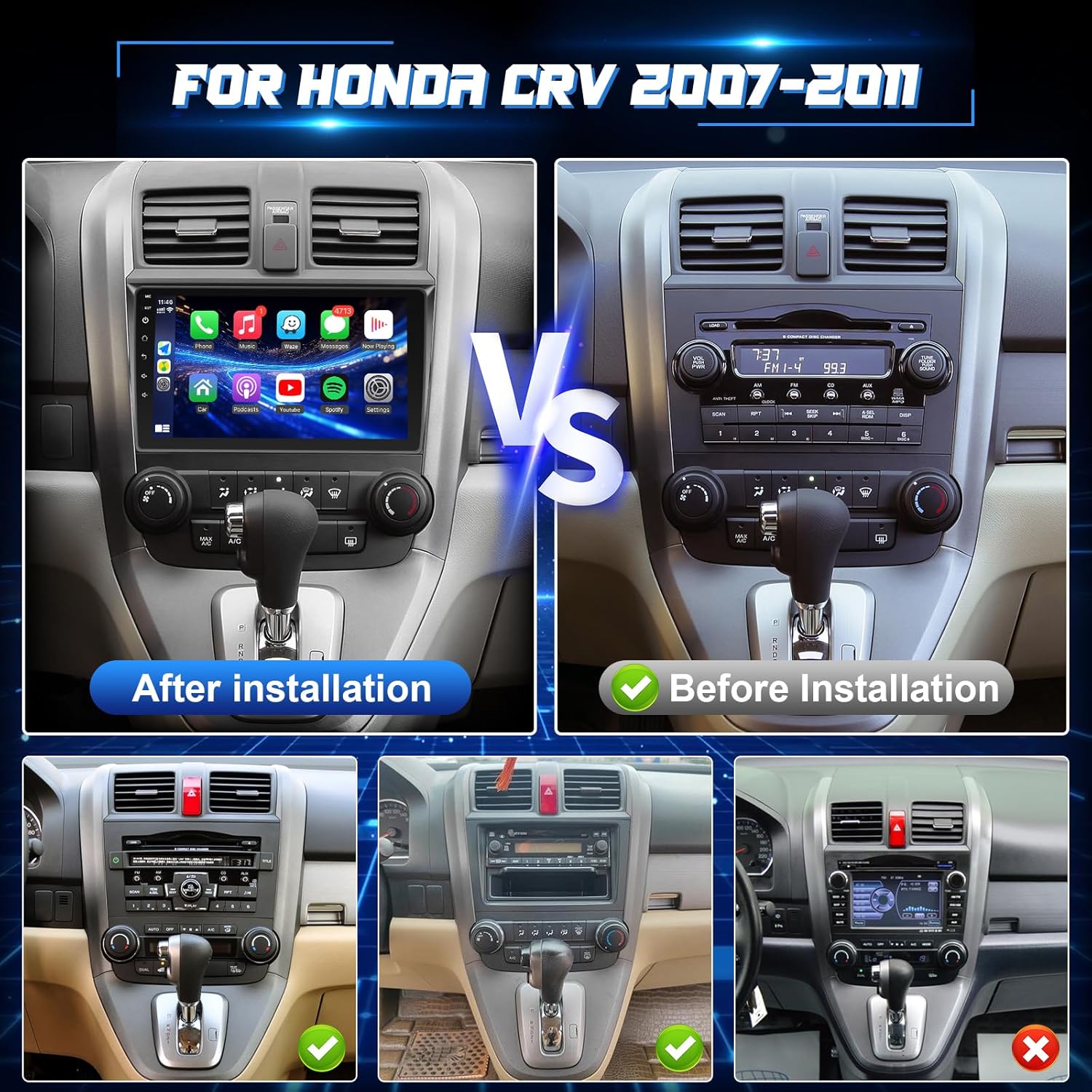
Figure 2: Visual comparison showing the car dashboard before and after the Leadfan stereo installation.
If your original car is equipped with a subwoofer and additional speakers on the front dashboard, as shown in the figure below, you may need to purchase an additional CANBUS wiring harness for full compatibility.

Figure 3: Important note regarding additional CANBUS wiring harness for specific Honda CRV audio systems.
3. Пакеттин мазмуну
Төмөндө тизмеленген нерселердин баары пакетиңизге камтылганын текшериңиз:
- 9-inch IPS Touchscreen Android Radio Headunit
- Radio Kit (Mounting Frame)
- Камера
- Реверсивдүү камеранын киргизүү кабели
- GPS антеннасы
- WiFi & Bluetooth Signal Booster Cable
- Plug and Play Power Harness
- CANBUS (if applicable to your model)
- RCA кабели
- 2 USB кабели
- User Manual

4-сүрөт: Детальдуу view of the product dimensions and included accessories.
4. Орнотуу боюнча колдонмо
The Leadfan car stereo is designed for plug-and-play installation. However, professional installation is recommended if you are unfamiliar with car audio systems.
4.1 Жалпы орнотуу кадамдары
- Carefully remove the original car radio unit and trim.
- Connect the provided power harness to the car's wiring and the new head unit. Ensure all connections are secure.
- Connect the GPS antenna and WiFi/Bluetooth signal booster cable. Position the GPS antenna in a location with clear sky view (мисалы, аспаптар тактасы).
- Арткы камераны орнотуңуз (4.2-бөлүмдү караңыз).
- Connect any additional accessories like USB cables or RCA cables.
- Mount the new head unit into the dashboard opening and secure it.
- Reinstall the trim and test all functions before fully reassembling the dashboard.
4.2 Камдык камераны орнотуу
The included backup camera provides a 170-degree ultra-wide angle view and is waterproof. Follow these steps for installation:
- Mount the backup camera at the rear of your vehicle, typically near the license plate light.
- Route the video cable from the camera to the head unit.
- Connect the red wire (power) of the camera to the car's reversing light positive (+) terminal.
- Connect the black wire (ground) of the camera to the car's chassis ground or reversing light negative (-) terminal.
- Connect the reversing trigger cable (usually a thin pink or brown wire from the head unit's harness) to the car's reversing light positive (+) terminal. This signals the head unit to switch to the camera view арткы тиштүү тиштүү болгондо.

Figure 5: Wiring diagram for the backup camera connection.
5. Иштөө нускамалары
Your Leadfan car stereo runs on Android 11 and offers a wide range of features for an enhanced driving experience.
5.1 Зымсыз Apple CarPlay & Android Auto
Connect your smartphone wirelessly to access navigation, music, calls, and other apps directly on the stereo's screen. This feature supports both Apple CarPlay and Android Auto.
- Байланыш: Enable Bluetooth and Wi-Fi on your phone. On the head unit, go to the CarPlay/Android Auto application and follow the on-screen prompts to pair your device.
- Функционалдык: Once connected, you can use voice commands (Siri/Google Assistant) or the touch screen to control phone functions.

Figure 6: ашыкview of Wireless Apple CarPlay, Android Auto, and MirrorLink capabilities.

Figure 7: Side-by-side comparison of Apple CarPlay and Android Auto interfaces.
5.2 MirrorLink Function
MirrorLink allows you to display your phone's screen directly onto the car stereo. iOS devices support wireless connection, while Android devices support both wireless and wired (USB) connections.

Figure 8: MirrorLink connection methods for different phone operating systems.
5.3 FM Radio & DSP EQ Settings
Enjoy clear radio reception and customize your audio experience with the built-in DSP (Digital Signal Processor) and EQ settings.
- FM радиосу: Tune into your favorite FM stations. The unit supports RDS (Radio Data System) for displaying station information.
- EQ Орнотуулары: Access the equalizer settings to adjust sound frequencies, balance, and fader to match your preferences and vehicle acoustics.

Figure 9: Display of the FM radio interface and customizable DSP equalizer settings.
5.4 In-dash GPS Navigation & WiFi Connection
The stereo comes with a GPS module and supports both online and offline navigation. Connect to Wi-Fi or your phone's hotspot to access online maps and download various applications.
- GPS навигациясы: Download offline maps for navigation without an internet connection, or use online maps for real-time traffic updates.
- WiFi туташуусу: Connect to a Wi-Fi network to browse the internet, stream music/videos, and download apps like Spotify, YouTube, and more from the app store.

Figure 10: Features including GPS navigation, WiFi connectivity, Android 11 operating system, and 4-core processor.
5.5 Bluetooth 5.1
The integrated Bluetooth 5.1 module allows for hands-free calling and wireless audio streaming.
- Hands Free Чалуу: Pair your phone via Bluetooth to make and receive calls directly through the car stereo. Your contacts can be synchronized.
- Bluetooth Музыкасы: Stream audio from your phone to the car speakers for a seamless music experience.

Figure 11: Bluetooth 5.1 capabilities for hands-free communication and audio streaming.
5.6 Рулду башкаруу (SWC)
The unit supports the original car's steering wheel controls. After correct wiring, you can program the buttons to control various functions of the stereo.
- Программалоо: Access the SWC learning menu in the stereo settings. Follow the on-screen instructions to assign functions (e.g., volume up/down, track skip, answer call) to your steering wheel buttons.

Figure 12: Features including reverse camera display and steering wheel control integration.
5.7 Split-Screen Function
Utilize the split-screen feature to run two applications simultaneously on the 9-inch display, such as navigation and music playback.
- Жандандыруу: While an app is open, long-press the recent apps button or drag an app to one side of the screen to activate split-screen mode. Select another app to fill the remaining space.

Figure 13: Illustration of Bluetooth 5.1 connectivity and the split-screen multitasking feature.
6. Техникалык тейлөө
Унааңыздын стерео системасынын узак мөөнөттүү жана оптималдуу иштешин камсыз кылуу үчүн, төмөнкү жалпы техникалык тейлөө көрсөтмөлөрүн аткарыңыз:
- Тазалоо: Экранды жана блокту тазалоо үчүн жумшак, кургак чүпүрөктү колдонуңуз. Бетке зыян келтириши мүмкүн болгон абразивдүү тазалоочу каражаттардан же эриткичтерден алыс болуңуз.
- Программалык камсыздоо жаңыртуулары: Periodically check for software updates provided by Leadfan to ensure you have the latest features and bug fixes.
- Температура: Аппаратты өтө ысык жана муздак температурага узак убакыт бою тийгизүүдөн сактаңыз.
- Күч: Ensure stable power supply to the unit. Avoid frequent power interruptions.
7. Кыйынчылыктарды
If you encounter issues with your car stereo, refer to the following common troubleshooting steps. For persistent problems, please contact customer service.
| Көйгөй | Мүмкүн себеп | Чечим |
|---|---|---|
| No power/Unit won't turn on | Туура эмес зымдар; Жарылган сактагыч; Бошоң туташуу | Check power harness connections; Inspect vehicle's fuse box; Ensure all cables are securely plugged in. |
| Үн жок | Speaker wiring issue; Volume too low; Mute activated; Incorrect audio output setting | Verify speaker connections; Increase volume; Check if unit is muted; Adjust audio output settings. |
| Bluetooth/WiFi not connecting | Incorrect pairing; Signal interference; Loose WiFi/Bluetooth antenna cable | Ensure correct pairing mode; Restart phone and stereo; Check antenna connection (white plug on the back of the radio). |
| Камдык камера көрсөтүлбөй жатат | Incorrect camera wiring; Loose video cable; Reversing trigger not connected | Check camera power and video connections; Ensure reversing trigger wire is correctly connected to the reverse light. |
| Руль башкаруу элементтери иштебей жатат | Incorrect wiring; Not programmed | Verify SWC wiring; Go to SWC learning settings and program buttons. |
8. Техникалык шарттар
| Өзгөчөлүк | Спецификация |
|---|---|
| Дисплей өлчөмү | 9 дюйм |
| Операция системасы | Android 11 |
| Эстутум (RAM) | 2 ГБ |
| Сактагыч (ROM) | 32 ГБ |
| Процессор | 4-өзөктүү |
| Байланыш | Wireless Apple CarPlay, Wireless Android Auto, MirrorLink (Wireless for iOS, Wireless/Wired for Android), Bluetooth 5.1, WiFi |
| Навигация | Built-in GPS module, Supports online and offline maps (North America) |
| Аудио өзгөчөлүктөрү | FM Radio with RDS, Built-in DSP with EQ settings, Stereo Audio Output |
| Камера киргизүү | Арткы View Camera Input (includes 170-degree, waterproof backup camera) |
| Control | Touchscreen, Steering Wheel Control (SWC) support |
| Элемент Салмагы | 2.38 фунт |
| Пакеттин өлчөмдөрү | 12.8 x 6.69 x 3.74 дюйм |
9. Кепилдик жана колдоо
Your Leadfan car stereo comes with a 1-Year Warranty. For any questions, technical support, or warranty claims, please contact Leadfan customer service.
9.1 Кардарларды тейлөө кызматы менен байланышуу
You can reach Leadfan customer service by clicking on "sold by Leedfan" on the product page and then selecting "ask a question" to send a message. Please provide your car model and a picture of your car's center console if you have compatibility questions.

Figure 14: Steps to contact Leadfan customer service for assistance.
Leadfan is committed to providing high-standard customer service and technical support. They offer quick replies within 24 hours, a 60-day no-worry return policy, and 12-month replacement availability.

Figure 15: Leadfan's commitment to customer satisfaction and support services.


