Introduction
This manual provides comprehensive instructions for the setup, operation, and maintenance of your XREAL ONE AR Glasses and XREAL Beam Pro bundle. This system combines advanced AR glasses with a portable spatial computing companion, designed to deliver an immersive spatial experience for various applications, including entertainment, productivity, and gaming.
The XREAL ONE AR Glasses feature Sony Micro-OLED displays with high resolution and refresh rates, powered by XREAL's proprietary X1 spatial computing chip for low latency and stable spatial display. When paired with the XREAL Beam Pro, you gain access to a full Android 14 system with Google Play Store access, enabling a wide range of native Android applications in a spatial environment.
Кутуда эмне бар
Орнотууну улантуудан мурун бардык компоненттер бар экенин текшериңиз:
- XREAL ONE AR Headset
- XREAL Beam Pro Controller
- Cameras (integrated or accessory, depending on model variant)
- WiFi адаптери
- Memory Card/Drive
- Коргоочу кап
- Заряддоо кабели
- Колдонуучунун Колдонмосу (бул документ)
Орнотуу колдонмосу
1. Түзмөктөрдү заряддоо
Before initial use, ensure both your XREAL ONE AR Glasses and XREAL Beam Pro are fully charged. Connect the provided charging cable to each device and a compatible power adapter. The charging indicator will show progress.
2. Connecting the AR Glasses to Beam Pro
Connect the XREAL ONE AR Glasses to the XREAL Beam Pro using the appropriate cable. Ensure a secure connection for stable operation.

Image: The XREAL ONE AR Glasses connected to the XREAL Beam Pro, showcasing the sleek design of both devices.
3. Initial Power-On and System Setup
Press and hold the power button on the XREAL Beam Pro until the device powers on. Follow the on-screen prompts in the AR glasses to complete the initial setup, including Wi-Fi connection and Google account login. The Beam Pro runs on Android 14, providing access to the Google Play Store.
4. Adjusting the AR Glasses for Comfort and Clarity
- Окуучулар аралык аралыкты (IPD) тууралоо: Adjust the IPD to match your eye spacing for optimal visual clarity and to eliminate blurry edges.
- Electrochromic Lenses: The glasses feature electrochromic lenses that can automatically or manually adjust light transmission. This allows for seamless transitions between immersive AR visuals and awareness of your real-world surroundings.
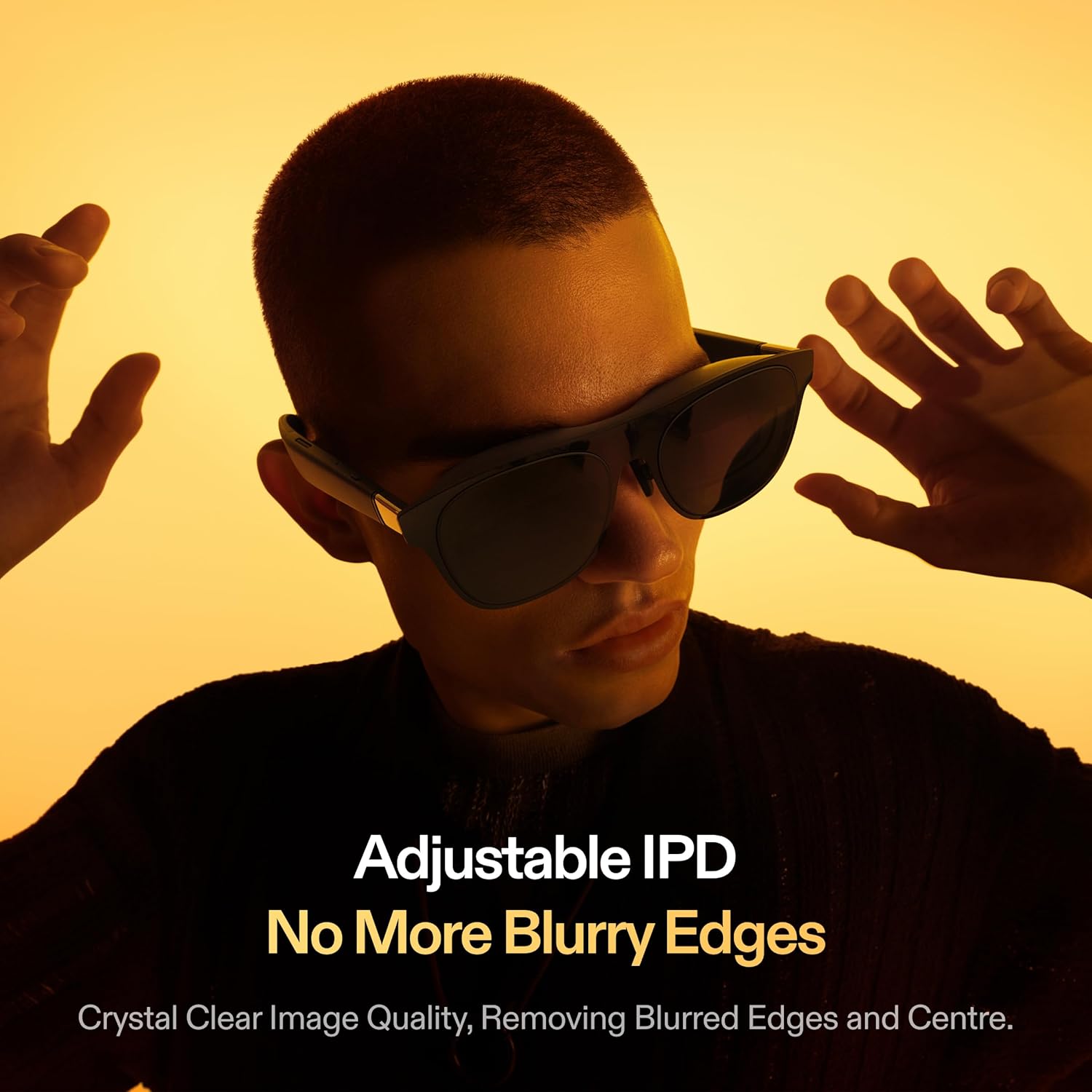
Image: A user adjusting the XREAL ONE AR Glasses, highlighting the adjustable IPD feature for clear visuals.
Иштөө нускамалары
Navigating the Spatial Interface
The XREAL Beam Pro provides an integrated spatial interface. Use the Beam Pro as a controller to interact with virtual elements, select applications, and navigate menus within the AR environment. The system supports smooth 3DoF/6DoF spatial display.
Using Android Apps in Spatial Display
With full Google Play support, you can download and run millions of Android applications. Each native Android app can be rendered as a spatial window, expanding beyond traditional flat screens into your AR environment.

Image: Various popular Android applications like Netflix, Prime Video, Gmail, and YouTube displayed as spatial windows within the XREAL AR environment.
Иммерсивдүү визуалдык тажрыйба
The XREAL ONE projects a virtual screen up to 171 inches, creating a deeply immersive experience. Enjoy stable visuals with the improved stabilization algorithm, ensuring a smooth viewing experience even with head movements.

Image: A comparison showing "Shake" versus "Shake-Free" visuals, demonstrating the improved stabilization algorithm of the XREAL ONE AR Glasses.

Image: A visual representation of the 1080P resolution and 90Hz refresh rate capabilities of the XREAL Glasses, with a smartphone in the foreground.
Аудио тажрыйба
The XREAL ONE AR Glasses feature custom audio tuned by Bose, delivering clear, balanced, and layered high-fidelity sound. Paired with Beam Pro's Wi-Fi low-latency streaming, this creates a captivating cinematic AR experience.

Image: Visuals highlighting the audio features: "Sound by Bose", "Spatial Sound Field 3.0", "Stereo Audio Recording", and "Reverse Sound Field Technology".
3D Camera Functionality
The XREAL ONE AR Glasses are equipped with dual 50MP 3D camera lenses, featuring autofocus and metering. This allows you to capture life-like 3D moments directly through your glasses.

Image: A user wearing the XREAL ONE AR Glasses, viewing a captured 3D scene of children playing, demonstrating the life-like 3D capture capability.

Image: A smartphone screen displaying the camera interface, highlighting the dual 50MP 3D camera lenses with autofocus and metering capabilities, focused on a chameleon.
Платформалар аралык шайкештик
The XREAL ONE AR Glasses and Beam Pro bundle offers broad compatibility with various devices, including iPhone, Android smartphones, Windows PCs, Mac computers, and Steam Deck, providing a versatile plug-and-play spatial computing ecosystem.
Техникалык тейлөө
- Тазалоочу линзалар: Use a soft, lint-free microfiber cloth specifically designed for optical lenses to clean the AR glasses. Do not use abrasive materials or harsh chemicals.
- Cleaning Devices: Wipe the surfaces of the AR glasses and Beam Pro with a dry, soft cloth. Avoid getting moisture into ports or openings.
- Сактагыч: When not in use, store the devices in the provided protective case to prevent scratches and damage. Keep them in a cool, dry place away from direct sunlight and extreme temperatures.
- Батареяга кам көрүү: Батареянын иштөө мөөнөтүн узартуу үчүн, түзмөктөрдү тез-тез толук зарядсыздандырбаңыз. Аларды үзгүлтүксүз кубаттап туруңуз, атүгүл дайыма колдонбосоңуз да.
Проблемаларды чечүү
| Көйгөй | Мүмкүн себеп | Чечим |
|---|---|---|
| No display in AR glasses | Not powered on; loose connection; low battery. | Ensure Beam Pro is powered on. Check cable connection between glasses and Beam Pro. Charge both devices. |
| Blurry or unclear visuals | Incorrect IPD setting; dirty lenses. | Adjust the IPD. Clean the lenses with a microfiber cloth. |
| Аудио жок | Volume too low; audio output settings; loose connection. | Increase volume on Beam Pro. Check audio output settings. Ensure glasses are securely connected. |
| Beam Pro not connecting to Wi-Fi | Туура эмес сырсөз; диапазондон тышкары; тармак маселеси. | Verify Wi-Fi password. Move closer to router. Restart Beam Pro and router. |
| Түзмөк жооп бербей жатат | Программанын катасы; аз батарея. | Perform a soft reset (refer to Beam Pro's specific reset procedure). Charge the device. |
Техникалык шарттар
| Өзгөчөлүк | Деталь |
|---|---|
| Модель номери | БИР |
| Бренд | XREAL |
| Дисплей технологиясы | Sony Micro-OLED (1920×1080 resolution, 120 Hz refresh rate, up to 700 nits brightness) |
| Spatial Computing Chip | XREAL proprietary X1 |
| Кечигип калуу | Ultra-low 3ms M2P latency |
| Spatial Display | Smooth, stable 3DoF/6DoF |
| Operating System (Beam Pro) | Android 14 with Google Play support |
| Виртуалдык экрандын өлчөмү | 171 дюймга чейин |
| талаасы View (FOV) | 57° |
| Линзалар | Electrochromic (automatic/manual light transmission adjustment) |
| Аудио | Custom audio tuned by Bose, Spatial Sound Field 3.0, Stereo Audio Recording, Reverse Sound Field Technology |
| Камералар | Dual 50MP 3D Camera Lenses with Autofocus and Metering |
| Байланыш | Wi-Fi |
| Шайкеш түзмөктөр | iPhone, Android, Windows, Mac, Steam Deck |
| Түс | Ак |
Кепилдик жана колдоо
For warranty information and detailed support, please refer to the official XREAL website or contact XREAL customer service directly. You can also visit the XREAL Store on Amazon кошумча ресурстар жана байланыш мүмкүнчүлүктөрү үчүн.
Keep your purchase receipt and product serial numbers for any warranty claims or technical assistance.


