1. Киришүү
This manual provides essential instructions for the installation, operation, and maintenance of your XFX Mercury AMD Radeon RX 9070XT OC Gaming White Edition RGB Graphics Card. Please read this guide thoroughly before proceeding with installation to ensure proper setup and optimal performance.
1.1 Кутуда эмне бар
- XFX Mercury AMD Radeon RX 9070XT OC Gaming White Edition RGB Graphics Card
- Ыкчам орнотуу көрсөтмөсү

Figure 1: XFX Mercury AMD Radeon RX 9070XT OC Gaming White Edition RGB Graphics Card and its retail packaging.
2. Орнотуу
2.1 Орнотууга чейинки текшерүү тизмеси
Before installing your new graphics card, ensure your system meets the following requirements:
- Энергия менен камсыздоо бирдиги (PSU): A minimum 750W power supply is recommended. Verify your PSU has the necessary 8-pin PCIe power connectors.
- Motherboard: A motherboard with an available PCIe x16 slot.
- Ишти тазалоо: Ensure your PC case has sufficient space for the graphics card (dimensions: 14.17 x 6.3 x 0.04 inches).
- Операция системасы: Windows 10/11 64-бит же Linux 64-бит.
2.2 Физикалык орнотуу
- Өчүрүү системасы: Компьютериңизди толугу менен өчүрүп, электр кабелин розеткадан ажыратыңыз.
- Ачык PC Case: Эне платага кирүү үчүн компьютериңиздин каптал панелин алып салыңыз.
- PCIe уячасын табыңыз: Identify an available PCIe x16 slot on your motherboard. If replacing an existing graphics card, carefully remove it.
- Slot капкактарын алып салуу: Remove the necessary expansion slot covers from the back of your PC case that align with the PCIe x16 slot.
- Графикалык картаны салыңыз: Align the graphics card with the PCIe x16 slot and press down firmly until it is securely seated. Ensure the retention clip on the PCIe slot locks into place.
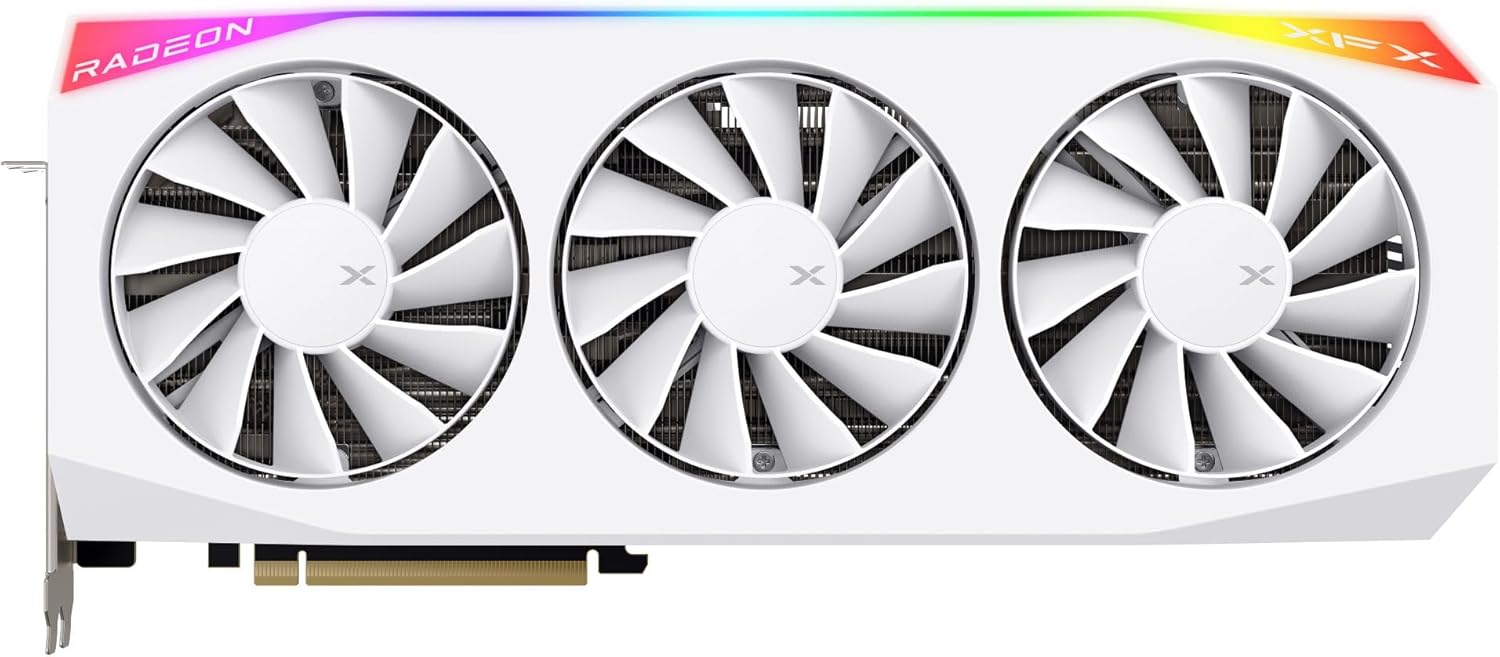
Сүрөт 2: Алдыңкы view of the graphics card, showing the triple fan cooling solution and RGB lighting.
- Коопсуз карта: Use screws or the case's locking mechanism to secure the graphics card to the PC case.
- Электр кабелдерин туташтыруу: Connect the required 8-pin PCIe power cables from your power supply to the corresponding ports on the graphics card. Ensure all connections are firm.

3-сүрөт: Каптал view illustrating the heatsink fins and backplate, where power connectors are typically located.
- Компьютердин корпусун жабуу: Компьютериңиздин каптал панелин алмаштырыңыз.
2.3 Драйверди орнотуу
- Дисплейди туташтыруу: Connect your monitor to one of the display outputs (HDMI or DisplayPort) on the graphics card.
- Күйгүзүү системасы: Кубат кабелин кайра туташтырып, компьютериңизди күйгүзүңүз.
- Драйверлерди жүктөп алыңыз: Расмий AMD веб-сайтына өтүңүз webсайт (www.amd.com/en/support) and download the latest drivers for the AMD Radeon RX 9070XT series.
- Драйверлерди орнотуу: Жүктөлүп алынган драйвер орнотуучусун иштетип, экрандагы көрсөтмөлөрдү аткарыңыз. Орноткондон кийин системаны кайра жүктөө талап кылынышы мүмкүн.
3. Графикалык картаны иштетүү
3.1 Display Connection
The graphics card supports multiple display outputs, including HDMI and DisplayPort. Connect your monitor(s) to the appropriate ports on the card. For optimal performance, use high-quality cables.
3.2 AMD Radeon Software Configuration
After driver installation, the AMD Radeon Software will be available. This software allows you to:
- GPU иштешин жана температурасын көзөмөлдөңүз.
- Дисплей жөндөөлөрүн жана чечилиштерин тууралаңыз.
- Оюнга тиешелүү адисти конфигурациялаңызfileоптималдаштырылган иштөө үчүн s.
- Control RGB lighting effects on the graphics card.

4-сүрөт: Үстүнкү бурч view of the graphics card, highlighting the RGB light strip and XFX branding.
4. Техникалык тейлөө
4.1 Тазалоо
Үзгүлтүксүз тазалоо оптималдуу иштешин жана узак өмүрүн сактоого жардам берет:
- Чаңды тазалоо: Periodically use compressed air to clear dust from the fans and heatsink fins. Ensure the system is powered off and unplugged before cleaning.
- Желдетүүчү тазалоо: Gently hold the fan blades to prevent them from spinning rapidly while using compressed air.
4.2 Программалык камсыздоо жаңыртуулары
Keep your graphics drivers updated to ensure compatibility with the latest games and applications, and to benefit from performance improvements and bug fixes. Check the AMD webжаңы драйверлердин чыгарылыштары үчүн сайтты үзгүлтүксүз карап туруңуз.
4.3 Температуранын мониторинги
Utilize the AMD Radeon Software or third-party tools to monitor your GPU's temperature during operation. Maintain good airflow within your PC case to prevent overheating.
5. Кыйынчылыктарды
Эгерде сизде көйгөйлөр пайда болсо, төмөнкүлөрдү карап көрүңүз:
- Дисплей жок: Ensure the graphics card is fully seated in the PCIe slot and all power cables are connected. Verify your monitor is connected to the graphics card, not the motherboard's integrated graphics port.
- Айдоочу маселелери: If experiencing display artifacts or crashes, try reinstalling the latest drivers. Use a driver uninstaller utility to completely remove old drivers before installing new ones.
- Аткаруу көйгөйлөрү: Check that your system meets the recommended specifications for the applications you are running. Ensure your drivers are up to date and that the graphics card is receiving adequate power.
- Ашыкча ысып кетүү: Verify that your PC case has proper airflow and that the graphics card fans are spinning. Clean any dust accumulation from the heatsink and fans.
For further assistance, refer to the AMD support website or contact XFX customer support.
6. Техникалык шарттар
| Өзгөчөлүк | Деталь |
|---|---|
| Бренд | XFX |
| Сериялар | RX 9070XT |
| Модель номери | RX-97TRGBBW9 |
| Графикалык сопроцессор | AMD RX 9070 XT |
| Chipset маркасы | AMD |
| Графикалык картанын RAM өлчөмү | 16 ГБ GDDR6 |
| Memory Speed | 20 ГГц |
| Max Screen Resolution | 3840x2160 |
| Видео чыгаруу интерфейси | HDMI / DisplayPort (3xDP) |
| Түс | Ак |
| Элемент Салмагы | 4.4 фунт |
| Продукциянын өлчөмдөрү (LxWxH) | 14.17 x 6.3 x 0.04 дюйм |
7. Кепилдик жана колдоо
For detailed warranty information, please refer to the warranty card included with your product or visit the official XFX website. XFX provides technical support for its products. For assistance, please visit the XFX support page or contact their customer service department.
XFX Official Webсайт: www.xfxforce.com


