1. Киришүү
This manual provides detailed instructions for the Vgate iCar3 ELM327 OBD2 Diagnostic Scanner. This device is designed to read diagnostic trouble codes (DTCs) and display real-time vehicle performance data when connected to a vehicle's On-Board Diagnostics II (OBD2) port. It supports both Bluetooth and WiFi connectivity for use with compatible Android applications.
2. Продукт бүтүп калдыview
The Vgate iCar3 is a compact OBD2 interface. It features a standard OBD2 connector for direct plug-in to your vehicle's diagnostic port and provides wireless communication capabilities.
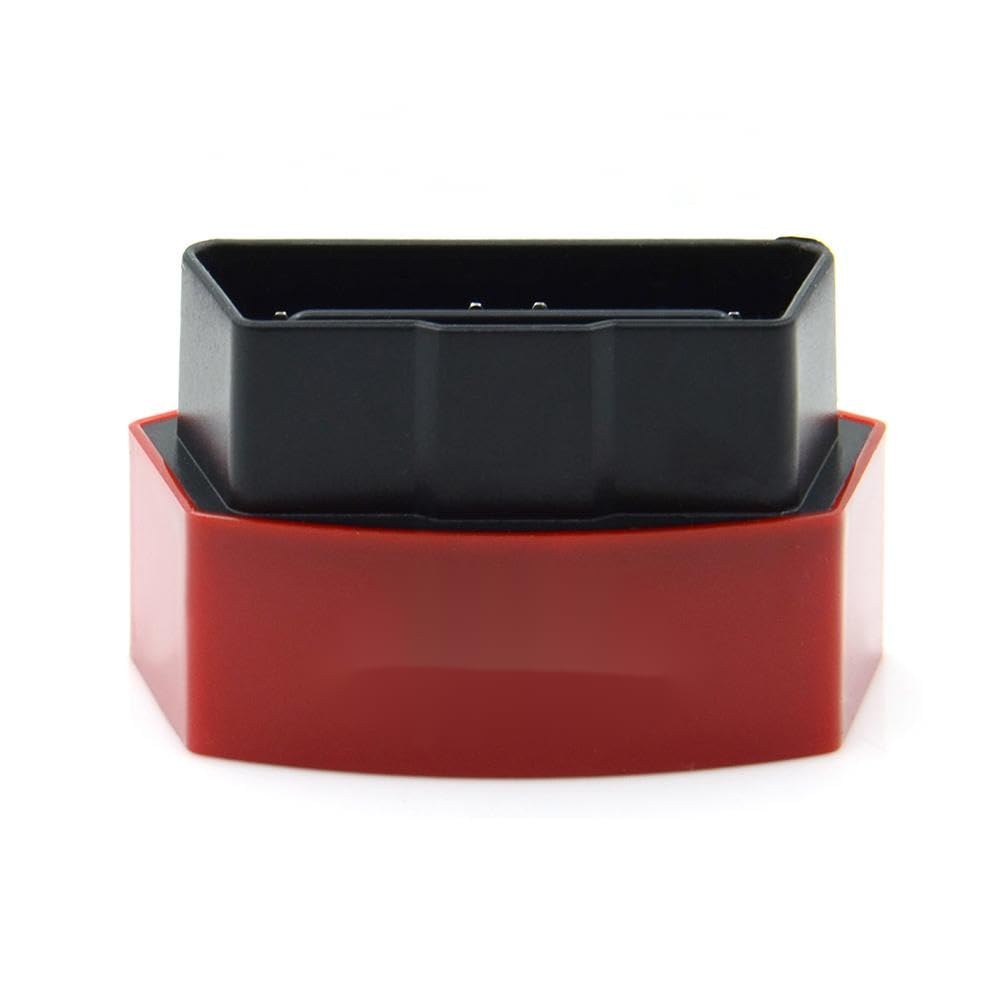
1-сүрөт: The Vgate iCar3 ELM327 OBD2 Diagnostic Scanner. This image shows the compact red and black device, with the black OBD2 connector visible on top of the red base.
3. Орнотуу нускамалары
3.1. Аппаратты орнотуу
- OBD2 портун табыңыз: The OBD2 port is typically located under the dashboard on the driver's side of the vehicle. Refer to your vehicle's owner's manual for the exact location.
- Түзмөктү туташтыруу: Firmly plug the Vgate iCar3 scanner into the vehicle's OBD2 port. Ensure a secure connection.
- От күйгүзүү: Turn the vehicle's ignition to the 'ON' position (do not start the engine unless required by your diagnostic application). The device's indicator lights should illuminate, indicating power.
3.2. Software Setup (Android)
The Vgate iCar3 requires a compatible OBD2 diagnostic application on your Android device. Popular applications include Torque Lite/Pro, OBD Fusion, Car Scanner ELM OBD2, etc. Download your preferred application from the Google Play Store.
3.3. Зымсыз туташуу
Depending on your iCar3 model (Bluetooth or WiFi), follow the respective connection steps:
For Bluetooth Models:
- Bluetooth иштетүү: Android түзмөгүңүздө Орнотуулар > Bluetooth бөлүмүнө өтүп, Bluetooth иштетилгенин текшериңиз.
- Түзмөктү жупташтыруу: Scan for available devices. The scanner should appear as 'Vgate' or 'OBDII'. Select it to pair. The default pairing code is usually '1234' or '0000'.
- Колдонмону конфигурациялоо: Open your chosen OBD2 application. Go to its settings and select 'Bluetooth' as the connection type, then choose the paired 'Vgate' or 'OBDII' device.
For WiFi Models:
- WiFi'ды иштетүү: On your Android device, go to Settings > Wi-Fi and ensure Wi-Fi is enabled.
- Тармакка туташуу: Scan for available Wi-Fi networks. The scanner will broadcast a network named 'V-LINK', 'OBDII', or similar. Connect to this network. No password is typically required.
- Колдонмону конфигурациялоо: Open your chosen OBD2 application. Go to its settings and select 'Wi-Fi' as the connection type. Ensure the correct IP address (usually 192.168.0.10 or 192.168.0.11) and port (usually 35000) are configured.
4. Иштөө нускамалары
Once the Vgate iCar3 is connected to your vehicle and paired with your Android device and OBD2 application, you can begin diagnostics.
- Start the Application: Launch your chosen OBD2 diagnostic application on your Android device.
- Байланыш түзүү: The application should automatically attempt to connect to the iCar3 scanner. Confirm that the connection status in the app indicates a successful link.
- Диагностикалык ката коддорун (DTCs) окуу: Navigate to the 'Read Codes' or 'DTCs' section of your application. This will display any active or pending fault codes stored in your vehicle's Engine Control Unit (ECU).
- DTCлерди тазалоо: If necessary, and after addressing the underlying issue, you can use the 'Clear Codes' function in the app to turn off the Check Engine Light (CEL). Эскертүү: Do not clear codes without understanding and fixing the problem, as this can mask serious issues.
- View Жандуу маалыматтар: Access the 'Live Data' or 'Dashboard' section to monitor various vehicle parameters in real-time, such as engine RPM, vehicle speed, coolant temperature, fuel system status, and more.
- Perform Sensor Tests: Some applications allow you to perform specific sensor tests or view freeze frame data, which captures vehicle conditions at the moment a DTC was set.
5. Техникалык тейлөө
The Vgate iCar3 scanner requires minimal maintenance to ensure longevity and proper function.
- Тазалоо: Түзмөктү жумшак, кургак чүпүрөк менен сүртүңүз. Катуу химиялык заттарды же абразивдүү тазалоочу каражаттарды колдонуудан алыс болуңуз.
- Сактагыч: Колдонулбаганда, аспапты түз күн нурунан жана өтө температурадан алыс салкын, кургак жерде сактаңыз.
- Программалык камсыздоонун жаңыртуулары: Check the Vgate official website or your diagnostic application's support page for any available firmware updates for the iCar3.
6. Кыйынчылыктарды
If you encounter issues with your Vgate iCar3 scanner, refer to the following common troubleshooting steps:
- Түзмөк күйбөй жатат:
- Ensure the device is securely plugged into the OBD2 port.
- Унаанын от алдыруу системасы "ON" абалында экенин текшериңиз.
- Check the vehicle's OBD2 port for any damage or blown fuses (refer to your vehicle's manual).
- Cannot Connect via Bluetooth/WiFi:
- Ensure Bluetooth/WiFi is enabled on your Android device.
- For Bluetooth: Unpair and re-pair the device. Try default codes '1234' or '0000'.
- For WiFi: Ensure you are connected to the 'V-LINK' or 'OBDII' network and not your home Wi-Fi. Verify app settings for IP and port.
- Close and restart the diagnostic application.
- Android түзмөгүңүздү өчүрүп күйгүзүңүз.
- Application Not Reading Data:
- Confirm the iCar3 is properly connected to the vehicle and your Android device.
- Ensure the correct connection type (Bluetooth/WiFi) and device are selected in the app settings.
- Try a different OBD2 diagnostic application to rule out app-specific issues.
- Verify your vehicle supports the ELM327 protocol (most vehicles manufactured after 1996 do).
7. Техникалык шарттар
| Өзгөчөлүк | Деталь |
|---|---|
| Модель аты | iCar3 |
| Өндүрүүчү бөлүгүнүн номери | lzqcsf-25215-469 |
| Байланыш | Bluetooth / WiFi (model dependent) |
| Колдоого алынган протоколдор | OBD2 (ISO15765-4 (CAN), ISO14230-4 (KWP2000), ISO9141-2, J1850 VPW, J1850 PWM) |
| Operating Voltage | 9V ~ 16V |
| Иштөө агымы | 45мА |
| Иштөө температурасы | -40°Cден 85°Cге чейин |
| Колдоого алынган түзмөктөр | Android смартфондору жана планшеттери |
8. Кепилдик жана колдоо
Specific warranty information for this product is not provided in the available data. For warranty claims or technical support, please refer to the retailer or manufacturer's official support channels where the product was purchased.


