1. Киришүү
This manual provides detailed instructions for the installation, operation, and maintenance of your Bisofice 80mm Thermal Receipt Printer, Model POS-8370. This high-speed direct thermal printer is designed for various business environments, offering reliable performance with an auto-cutter and versatile connectivity options.
2. Пакеттин мазмуну
Төмөндө тизмеленген нерселердин баары пакетиңизге камтылганын текшериңиз:
- 1 x Bisofice Thermal Receipt Printer (Model POS-8370)
- 1 x Кубат кабели
- 1 x USB кабели
- 1 x Paper Roll (80*30mm)
- 1 х Колдонуучунун колдонмосу (бул документ)
3. Продукт бүтүп калдыview
The Bisofice POS-8370 is an efficient thermal receipt printer featuring a compact design and robust functionality. It utilizes direct thermal printing technology, eliminating the need for ink cartridges or ribbons, which reduces operational costs.

Фронт view of the Bisofice Thermal Receipt Printer, showing the paper output slot and control panel.
Негизги өзгөчөлүктөрү:
- Жогорку ылдамдыктагы басып чыгаруу: Up to 220mm/s for efficient transaction processing.
- Автоматтык кескич: Partial auto-cutter for clean and precise receipt separation.
- Кош байланыш: USB and LAN interfaces for flexible integration with various systems.
- Кеңири шайкештик: Supports Win2003/XP/7/8/10, Linux, and MAC OS. Compatible with ESC/POS print commands.
- Large Paper Bin: Accommodates thermal paper rolls up to 83mm in diameter, reducing frequent paper changes.
- Дубалга илинүүчү дизайн: Features two hanging holes on the bottom for convenient wall mounting, saving counter space.
- Тунук басып чыгаруу: 203DPI resolution ensures crisp and readable receipts.

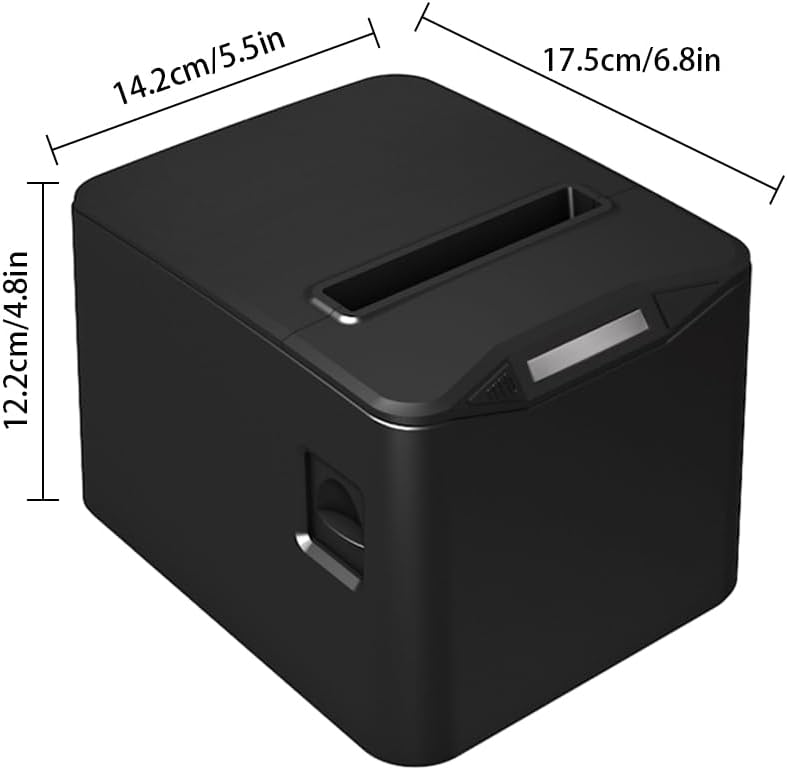
Diagram illustrating the dimensions of the printer: 17.5cm (6.8in) length, 14.2cm (5.5in) width, and 12.2cm (4.8in) height.

The printer operates without ribbons or ink, using only thermal paper rolls, shown alongside the device.

The printer features bottom holes for convenient wall mounting, demonstrated in a kitchen environment.

The printer's internal mechanism, showing its capacity for a large thermal paper roll with a maximum diameter of 83mm.
4. Орнотуу
4.1 Пакеттен чыгаруу
Принтерди жана бардык аксессуарларды таңгактан этияттык менен алып салыңыз. Таңгакты келечекте ташуу же сактоо үчүн сактаңыз.
4.2 Кубатты туташтыруу
- Принтердин кубат которгучу ӨЧҮРҮҮ абалында экенин текшериңиз.
- Кубат кабелин принтердин кубат киргизүү портуна туташтырыңыз.
- Электр кабелинин экинчи учун стандарттуу электр розеткасына сайыңыз.
4.3 Термикалык кагазды жүктөө
- Press the cover open button (if available) or gently lift the top cover of the printer.
- Insert the thermal paper roll into the paper bin, ensuring the printing side of the paper faces upwards and feeds out from the top.
- Кесүүчүнүн жанынан кичинекей кагазды тартып чыгарыңыз.
- Үстүнкү капкакты чыкылдагыча бекем жабыңыз.

The printer actively printing a receipt, demonstrating proper paper loading and output.
4.4 Компьютерге туташуу
The printer supports both USB and LAN connections.
- USB туташуу: Берилген USB кабелинин бир учун принтердин USB портуна, ал эми экинчи учун компьютериңиздеги жеткиликтүү USB портуна туташтырыңыз.
- LAN туташуу: Принтердин LAN портунан Ethernet кабелин тармак роутериңизге же коммутаторуңузга туташтырыңыз.
4.5 Драйверди орнотуу
Before using the printer, you must install the appropriate driver on your computer. The driver supports Windows, Linux, and MAC OS.
Расмийден акыркы драйверди жүктөп алыңыз webсайт: http://www.cnfujun.com/d/33. Follow the on-screen instructions for installation.
5. Операция
5.1 Күйгүзүү/өчүрүү
- To power on, flip the power switch to the 'ON' position. The indicator light will illuminate.
- Өчүрүү үчүн, кубат которгучун "OFF" абалына буруңуз.
5.2 Басып чыгаруу
Once the printer is connected and drivers are installed, you can send print jobs from your application. The printer supports ESC/POS commands and can print various content types, including multi-language text, images, logos, 1D barcodes (UPC-A, UPC-E, JAN13, JAN8, CODE39, ITF, CODABAR, CODE93, CODE128), and 2D barcodes (QR CODE, PDF417).
Мурункуample of a clearly printed receipt, highlighting the 203dpi resolution and 100KM print head life.
5.3 Накталай акча тартмасын туташтыруу
The printer supports cash drawer driving. Connect your cash drawer to the dedicated port on the printer. The cash drawer will open automatically upon receiving the appropriate print command.
6. Техникалык тейлөө
6.1 Принтерди тазалоо
Үзгүлтүксүз тазалоо басып чыгаруу сапатын сактоого жардам берет жана принтердин иштөө мөөнөтүн узартат.
- Тазалоодон мурун принтердин өчүрүлгөнүн жана розеткадан суурулганын текшериңиз.
- Жумшак, түксүз кездемени колдонуңуз dampened with isopropyl alcohol to gently wipe the thermal print head. Avoid touching the print head with bare hands.
- Clean the paper path and rollers to remove any paper dust or debris.
- Принтердин сыртын жумшак, кургак чүпүрөк менен сүртүңүз.
6.2 Кагаз түрмөгүн алмаштыруу
Replace the thermal paper roll when it runs out or when the red line appears, indicating low paper. Refer to section 4.3 for detailed instructions on loading thermal paper.
7. Кыйынчылыктарды
Эгерде принтериңизде көйгөйлөр пайда болсо, төмөнкү кеңири таралган көйгөйлөрдү жана чечимдерди караңыз:
- Принтер күйбөй жатат: Электр кабелинин туташуусун текшерип, розетканын иштеп турганын текшериңиз.
- No printing: Verify that the printer is powered on, connected correctly (USB/LAN), and the driver is installed. Check for paper jams or if the paper roll is empty.
- Начар басып чыгаруу сапаты: Ensure you are using thermal paper. Clean the thermal print head as described in section 6.1.
- Кагаз тыгылышы: Power off the printer, open the cover, carefully remove any jammed paper, and then close the cover and power on.
- Auto-cutter not working: Ensure no paper debris is obstructing the cutter. If the issue persists, contact support.
8. Техникалык шарттар
| Өзгөчөлүк | Спецификация |
|---|---|
| Модел | POS-8370 |
| Басып чыгаруу ыкмасы | Түз линия термикалык |
| Interfaces | USB + LAN |
| Басып чыгаруу буйругу | ESC / POS шайкеш келет |
| Басып чыгаруу ылдамдыгы | 220мм/сек |
| Резолюция | 203DPI (8 dots/mm) |
| TPH Reliability (Print Head Life) | 100 км |
| Авто кескич | Жарым-жартылай |
| Cutter Life | 1 миллион кыскартуу |
| Кагаз түрлөрү | Термикалык түрмөк кагаз |
| Paper Width | 79.5 ± 0.5 мм |
| Кагаз түрмөгүнүн диаметри | Max φ 83mm |
| Print Width | 72мм |
| Кагаз калыңдыгы | 0.06-0.08 мм |
| Киргизүү буфери | 96K байт |
| NV Flash | 256K байт |
| Supported OS Drivers | Win2003 / WinXP / Win7 / WIN8 / WIN10; Linux; MAC; |
| Power Input | AC 110V/220V, 50~60Hz |
| Power Output | DC 24V/2.5A |
| Продукт өлчөмү | 17.5 x 14.2 x 12.2 cm (6.8 x 5.5 x 4.8 in) |
| Продукт Салмагы | 0.84 кг (29.6 унция) |
| Колдоого алынган 1D коддору | UPC-A / UPC-E / JAN13 (EAN13) / JAN8 (EAN8) / CODE39 / ITF / CODABAR / CODE93 / CODE128 |
| Колдоого алынган 2D коддору | QR CODE, PDF417 |
9. Кепилдик жана колдоо
Bisofice products are manufactured to high-quality standards. For warranty information, technical support, or service inquiries, please refer to the contact information provided with your purchase or visit the official Bisofice website. Please have your product model (POS-8370) and purchase details ready when contacting support.


