1. Киришүү
This manual provides detailed instructions for the installation, operation, and maintenance of your WONLINK WL-NA1605 WiFi 6 USB Adapter. This device is designed to provide high-speed wireless connectivity and Bluetooth functionality to your desktop or laptop computer, supporting the latest WiFi 6 (802.11ax) standard and Bluetooth 5.3.

2. Пакеттин мазмуну
Сураныч, продуктуңуздун таңгагында бардык буюмдар бар экенин текшериңиз:
- 1 x WONLINK WL-NA1605 WiFi 6 USB Adapter
- 1 x Quick Installation Guide / User Manual
3. Продукциянын өзгөчөлүктөрү
The WONLINK WL-NA1605 WiFi 6 USB Adapter offers advanced features for enhanced wireless performance:
- WiFi 6 (802.11ax) колдоосу: Provides faster speeds, lower latency, and increased network capacity compared to previous WiFi standards.
- AX900Mbps Dual Band: Supports up to 600Mbps on the 5GHz band and 287Mbps on the 2.4GHz band for flexible and high-speed connections.
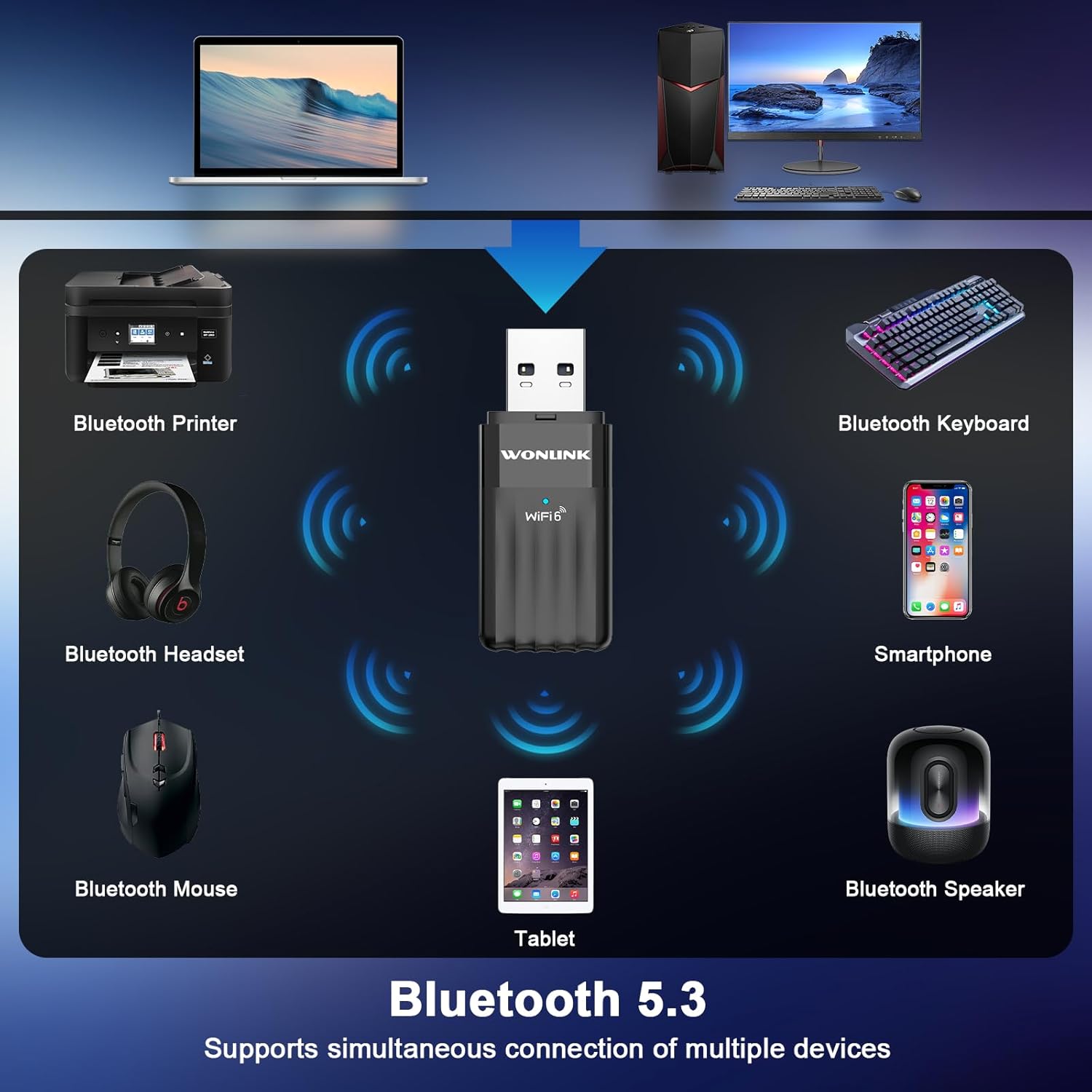
- Bluetooth 5.3: Enables stable and efficient connection to various Bluetooth devices such as headphones, speakers, keyboards, and mice.
- WPA3 Коопсуздук: Offers enhanced security protocols for a safer wireless network experience.
- Built-in Driver: Simplifies installation on compatible Windows systems, often requiring no manual driver download.
- Кеңири шайкештик: Fully supports Windows 10 and Windows 11 operating systems.


4. Техникалык шарттар
Technical specifications for the WONLINK WL-NA1605 WiFi 6 USB Adapter:
| Өзгөчөлүк | Спецификация |
|---|---|
| Модель номери | WL-NA1605 |
| Аппараттык интерфейс | USB |
| Зымсыз стандарт | WiFi 6 (802.11ax) |
| Маалыматтарды өткөрүү ылдамдыгы | 900 Мбит/сек чейин (5 ГГцде 600 Мбит/сек, 2.4 ГГцде 287 Мбит/сек) |
| Bluetooth версиясы | Bluetooth 5.3 |
| Шайкеш түзмөктөр | Иш такта, ноутбук |
| Операциялык системалар | Windows 10, Windows 11 |
| Коопсуздук протоколдору | WPA3 |
| Элемент Салмагы | 1.44 унция |
| Пакеттин өлчөмдөрү | 4.33 x 3.58 x 0.75 дюйм |
5. Орнотуу жана орнотуу
Follow these steps to install your WONLINK WiFi 6 USB Adapter:
- Адаптерди салыңыз: Plug the WONLINK WiFi 6 USB Adapter into an available USB port on your PC or laptop.
- Автоматтык драйверди орнотуу: For Windows 10/11, the system should automatically detect the adapter and install the necessary drivers. Wait for a notification indicating successful installation.
- Manual Driver Installation (if needed): If the driver does not install automatically, open "This PC" or "My Computer", locate the "CD Drive (F:) WifiAutoInstall" (or similar named USB drive), and double-click "WifiAutoInstall.exe" to run the installer. Follow the on-screen prompts to complete the installation.
- Компьютериңизди өчүрүп күйгүзүңүз: Драйверди орнотуу аяктагандан кийин, бардык өзгөртүүлөр күчүнө кириши үчүн компьютериңизди өчүрүп-күйгүзүңүз.

6. Иштөө нускамалары
6.1. WiFiга туташууда
After successful driver installation and computer restart:
- Click the network icon (usually a WiFi symbol) in the system tray on your Windows taskbar.
- A list of available WiFi networks will appear. Select your desired network.
- Click "Connect". If prompted, enter the network security key (password) and click "Next".
- Your computer should now be connected to the WiFi network.
6.2. Using Bluetooth Functionality
Bluetooth түзмөктөрүн туташтыруу үчүн:
- барыңыз Орнотуулар > Түзмөктөр > Bluetooth жана башка түзмөктөр on Windows 10, or Орнотуулар > Bluetooth жана түзмөктөр on Windows 11.
- Bluetooth күйгүзүлгөнүн текшериңиз On.
- Click Bluetooth же башка аспапты кошуңуз жана тандаңыз Bluetooth.
- Bluetooth түзмөгүңүздү жупташтыруу режимине коюңуз.
- Жупташтырууну аяктоо үчүн тизмеден түзмөгүңүздү тандап, экрандагы көрсөтмөлөрдү аткарыңыз.
6.3. AP Mode (Hotspot Function)
The adapter can also function as a WiFi hotspot, sharing your internet connection with other devices:
- Ensure your computer is connected to the internet via an Ethernet cable or another WiFi adapter.
- барыңыз Орнотуулар > Тармак жана Интернет > Мобилдик хотспот.
- Toggle the "Mobile hotspot" switch to On.
- You can customize the network name (SSID) and password by clicking Түзөтүү.
- Other devices can now connect to your computer's hotspot using the provided SSID and password.

7. Техникалык тейлөө
To ensure optimal performance and longevity of your WONLINK WiFi 6 USB Adapter:
- Адаптерди таза жана чаңдан алыс кармаңыз. Тазалоо үчүн жумшак, кургак чүпүрөктү колдонуңуз.
- Адаптерди экстремалдык температурага, нымдуулукка же тике күн нуруна тийгизүүдөн сактаңыз.
- Do not attempt to disassemble or repair the adapter yourself. This may void the warranty.
- Ensure your computer's operating system and drivers are kept up to date for the best performance and security.
8. Кыйынчылыктарды
If you encounter issues with your WONLINK WiFi 6 USB Adapter, refer to the following common problems and solutions:
- Көйгөй: Adapter not recognized or driver not installing.
Чечим: Try plugging the adapter into a different USB port. Ensure your Windows operating system is up to date. Manually run the driver installer from the adapter's virtual CD drive as described in Section 5. Temporarily disable antivirus software during installation if it interferes. - Көйгөй: Cannot connect to WiFi network.
Чечим: Verify that your WiFi router is powered on and broadcasting a signal. Double-check the WiFi password. Ensure the adapter's WiFi function is enabled in Windows settings. Try restarting your computer and router. - Көйгөй: Bluetooth devices not pairing or connecting.
Чечим: Ensure Bluetooth is enabled in Windows settings. Put your Bluetooth device into pairing mode. Make sure the device is within range and fully charged. Remove and re-add the Bluetooth device in Windows settings if it was previously paired. - Көйгөй: Slow WiFi speed.
Чечим: Ensure you are connected to the 5GHz band if your router supports it and you are close enough. Reduce interference by moving the adapter or router away from other electronic devices. Update your router's firmware. Check for other devices consuming bandwidth on your network. - Көйгөй: үзгүлтүктүү байланыш.
Чечим: Check for physical obstructions or sources of interference. Ensure the adapter is securely plugged into the USB port. Update the adapter's driver to the latest version.
9. Кепилдик жана колдоо
WONLINK products are designed for reliability and performance. This product comes with a standard manufacturer's warranty. For specific warranty terms and conditions, please refer to the documentation included with your purchase or visit the official WONLINK webсайт.
If you require technical assistance or have questions not covered in this manual, please contact WONLINK customer support through the official channels provided on the product packaging or website. When contacting support, please have your product model number (WL-NA1605) and purchase information ready.


