1. Киришүү
The Macally Wired Keyboard (Model UCACEKEYSG2) is designed for seamless connectivity and comfortable typing across various devices. This ultra-slim keyboard features a full-size 110-key layout, including a numeric keypad and 20 dedicated macOS shortcut keys, enhancing productivity for Mac, PC, iOS, and Android users. Its scissor-switch keys provide a quiet and responsive typing experience, while the integrated 2-in-1 USB-A and USB-C plug ensures broad compatibility.
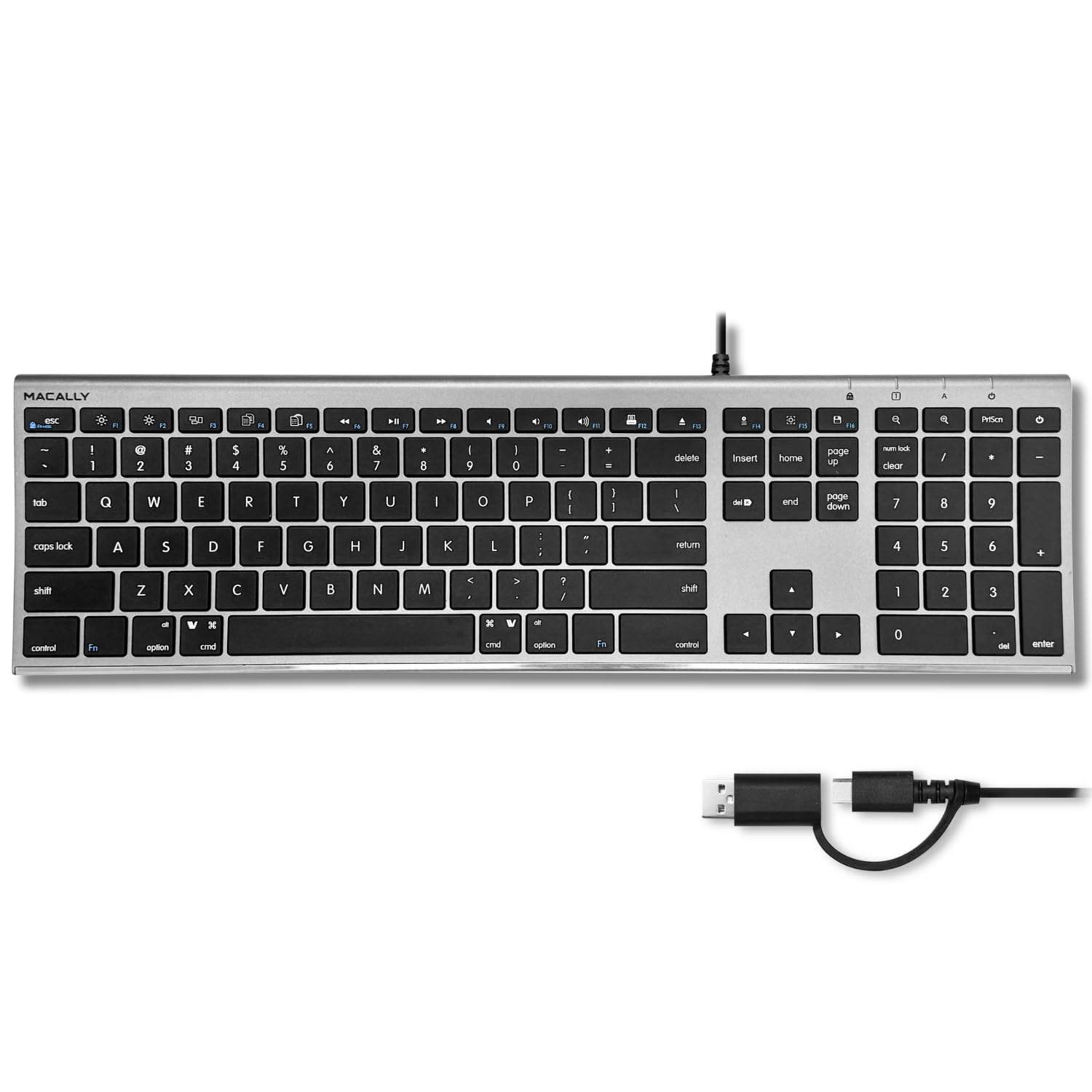
Image 1.1: The Macally Wired Keyboard, showcasing its full layout and dual USB connector.
2. Орнотуу
Setting up your Macally Wired Keyboard is a straightforward plug-and-play process. No additional drivers or software installations are required.
2.1 Баскычтопту туташтыруу
- Identify the appropriate USB port on your computer or device. The keyboard features a versatile 2-in-1 USB plug, allowing connection to either a standard USB-A port or a modern USB-C port.
- Plug the keyboard's USB connector into the chosen port.
- Your operating system should automatically detect the keyboard and make it ready for use within a few seconds.

Image 2.1: The keyboard's dual USB-A and USB-C plug for flexible connectivity.

Image 2.2: The keyboard connected to a device via its wired USB-C connection.
The wired connection ensures a stable and reliable input without the need for batteries or wireless pairing.
3. Баскычтопту иштетүү
The Macally Wired Keyboard offers a familiar layout with enhanced functionality for macOS users.
3.1 Стандарттык терүү
The 110-key layout includes all standard alphanumeric keys, function keys (F1-F12), navigation keys, and a dedicated numeric keypad. The scissor-switch mechanism provides a comfortable and quiet typing experience with tactile feedback.

Image 3.1: Demonstrating the smooth and tactile keystrokes of the keyboard.
3.2 macOS Shortcut Keys
The keyboard features 20 pre-programmed macOS shortcut keys located in the function row and other dedicated keys. These shortcuts allow for quick access to various system functions, such as brightness control, volume adjustment, media playback, Mission Control, and Launchpad.
- Жарыктыкты көзөмөлдөө: F1 (азайтуу), F2 (көбөйүү)
- Миссияны көзөмөлдөө: F3
- Ишке киргизүү тактасы: F4
- Медиа башкаруу элементтери: F7 (мурунку трек), F8 (ойнотуу/тындыруу), F9 (кийинки трек)
- Үндү көзөмөлдөө: F10 (үнсүз), F11 (азайтуу), F12 (көбөйтүү)
- Чыгаруу: Dedicated eject key

Image 3.2: Highlighting the 20 macOS shortcut keys for enhanced productivity.

Image 3.3: The 110-key layout, optimized for macOS but compatible with other operating systems.
3.3 LED көрсөткүчтөрү
The keyboard includes LED indicators for Caps Lock, Num Lock, and Scroll Lock, providing visual feedback on their activation status.
4. Техникалык тейлөө
Proper care and maintenance will ensure the longevity and optimal performance of your Macally Wired Keyboard.
4.1 Тазалоо
- Жалпы тазалоо: Бир аз жумшак, түксүз кездемени колдонуңуз dampКлавиатуранын бетин суу же жумшак, абразивдүү эмес тазалоочу эритме менен сүртүңүз. Ашыкча нымдуулуктан алыс болуңуз.
- Ачкычтардын ортосунда: Use compressed air to remove dust, crumbs, and debris from between the keys. Alternatively, a soft brush can be used.
- Качуу: Do not use harsh chemicals, solvents, or abrasive materials, as these can damage the keyboard's finish or key legends.
4.2 Кабельге кам көрүү
Avoid bending or twisting the USB cable sharply, especially near the connectors, to prevent internal wire damage. Store the cable neatly when not in use to prevent tangling.
5. Кыйынчылыктарды
If you encounter issues with your Macally Wired Keyboard, try the following troubleshooting steps:
- Баскычтоп жооп бербейт:
- Ensure the USB connector is fully and securely plugged into the computer's USB port.
- Баскычтопту компьютериңиздин башка USB портуна сайып көрүңүз.
- USB хабын колдонсоңуз, клавиатураны түздөн-түз компьютерге туташтырууга аракет кылыңыз.
- Компьютериңизди же түзмөгүңүздү өчүрүп күйгүзүңүз.
- Атайын ачкычтар иштебейт:
- Check for any physical obstructions or debris under the affected key. Use compressed air to clear it.
- Ensure the keyboard is connected directly to the computer and not through a faulty hub.
- Incorrect Key Output (e.g., @ instead of "):
- Verify that your operating system's keyboard layout settings match the physical layout of your keyboard (e.g., US English).
- Keyboard Not Detected on Mac:
- After plugging in, macOS might prompt you to identify the keyboard type. Follow the on-screen instructions to select the correct keyboard layout.
Эгерде бул кадамдар көйгөйдү чечпесе, 7-бөлүмдөгү колдоо маалыматын караңыз.
6. Техникалык шарттар
| Өзгөчөлүк | Деталь |
|---|---|
| Модель номери | UCACEKEYSG2 |
| Продукциянын өлчөмдөрү | 16.5"L x 4.5"W x 0.6"H (41.9 x 11.4 x 1.5 см) |
| Элемент Салмагы | 1.32 фунт (0.6 кг) |
| Байланыш технологиясы | Wired (USB-A, USB-C) |
| Keyboard Description | USB C Keyboard, Full-size 110-key layout |
| Өзгөчөлүктөр | 2-in-1 USB A + C Plug, 20 macOS Shortcuts, Scissor Keys |
| Шайкеш түзмөктөр | Laptop, PC, Tablet (Mac, PC, iOS, Android) |
| Түс | Space Gray |
| Материал | Plastic With Metallic Finish |
| Power Source | Зымдуу |

Image 6.1: Physical dimensions of the Macally Wired Keyboard.
7. Кепилдик жана колдоо
For warranty information and technical support, please refer to the documentation included with your product packaging or visit the official Macally webсайт. Кепилдиктин конкреттүү шарттары жана шарттары аймакка жана сатуучуга жараша өзгөрүшү мүмкүн.
Онлайн колдоо: www.macally.com/support
Өндүрүүчү: Mace Group Inc / Macally Перифериялык түзүлүштөрү


