1. Киришүү
The TMEZON H4 Trail Camera is designed for wildlife monitoring, security surveillance, and game tracking. It features 4K video recording, 48MP still image capture, integrated WiFi and Bluetooth connectivity, and a solar panel for extended operation. This manual provides detailed instructions for setting up, operating, and maintaining your camera to ensure optimal performance.
2. Пакеттин мазмуну
- TMEZON H4 Trail Camera
- Күн панели
- Монтаждоо боосу
- Монтаждоо бурамалар
- USB кабели
- 64 ГБ SD карта
- User Manual
3. Продукт бүтүп калдыview
Familiarize yourself with the main components of your TMEZON H4 Trail Camera.
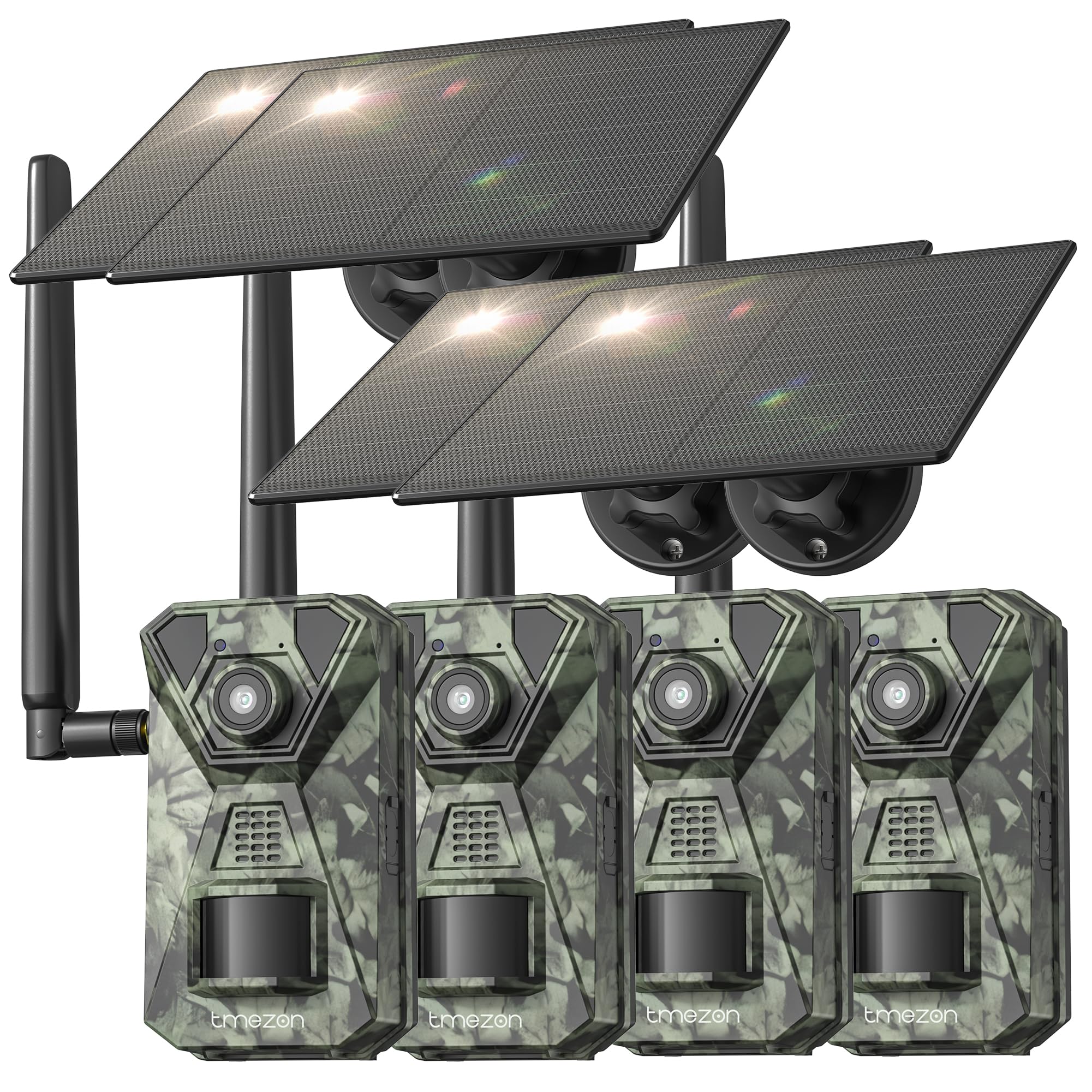
Сүрөт 1: Фронт view of the TMEZON H4 Trail Camera, showing the lens, PIR sensors, and integrated solar panel. This image illustrates the compact, camouflage design suitable for outdoor environments.
Камера компоненттери:
- Объектив: Сүрөттөрдү жана видеолорду тартат.
- PIR сенсорлору: Passive Infrared sensors detect motion.
- IR Диоддордон: Түнкү көрүнүш үчүн инфракызыл LED.
- LCD экран: Меню навигациясы үчүн жана viewing captured media.
- Башкаруу баскычтары: Менюларды жана орнотууларды чабыттоо.
- SD карта уячасы: Insert the provided 64GB SD card.
- USB порт: Компьютерге туташуу үчүн.
- Тышкы кубат порту: For connecting the solar panel or external power source.
- Батарея бөлүмү: Holds 8 AA batteries (not included) for backup power.
4. Орнотуу
4.1. Battery and Solar Panel Installation
- Камерадагы батарея бөлүкчөсүн ачыңыз.
- Insert 8 new AA batteries (alkaline or rechargeable NiMH recommended) according to the polarity indicators. These batteries serve as a backup to the solar panel.
- Connect the solar panel cable to the camera's external power port. Ensure the solar panel is positioned to receive maximum sunlight.
4.2. SD картаны киргизүү
- Камеранын капталындагы же астындагы SD картанын уячасын табыңыз.
- Insert the provided 64GB SD card with the metal contacts facing the correct direction until it clicks into place.
- Чыгаруу үчүн картаны сыртка чыкканга чейин акырын түртүңүз.
4.3. Камераны орнотуу
- Use the included mounting strap to secure the camera to a tree or pole. Thread the strap through the slots on the back of the camera and tighten.
- Alternatively, use the mounting screws to attach the camera to a wall or other flat surface.
- Position the camera at a height of 3-6 feet (1-2 meters) and aim it towards the desired monitoring area. Ensure no obstacles block the PIR sensors.
4.4. Колдонмону жүктөп алуу жана жупташтыруу
- Download the official TMEZON app from your smartphone's app store (iOS or Android). Издөө "TMEZON Trail Camera" or scan the QR code provided in the quick start guide.
- Смартфонуңузда Bluetooth'ду иштетиңиз.
- Камераны күйгүзүңүз.
- Open the TMEZON app, select "Add Device," and follow the on-screen instructions to connect via Bluetooth.
- Once connected via Bluetooth, the app will prompt you to connect to the camera's WiFi network for faster data transfer and live view.
5. Камераны иштетүү
5.1. Күйгүзүү/өчүрүү жана режимди тандоо
- ӨЧҮК: Камераны өчүрүңүз.
- ЖАЙГАШУУ: Enter setup mode to configure settings, view photos/videos, or connect to the app.
- КҮЙҮК: Activate the camera for monitoring. The camera will enter monitoring mode after a short countdown.
5.2. Меню багыттоо жана орнотуулар
In SETUP mode, use the control buttons to navigate the menu on the LCD screen. Press the 'MENU' button to access settings. Key settings include:
- Режим: Select Photo, Video, or Photo+Video (Hybrid).
- Сүрөттүн чечими: 48MP, 30MP, 20MP, etc.
- Видеонун чечилиши: 4K, 2.7K, 1080P, 720P.
- PIR сезгичтиги: High, Medium, Low. Adjust based on environment to avoid false triggers.
- PIR аралыгы: Аныктоолордун ортосундагы убакыт кечигүүсү.
- Убакыттын өтүшү: Capture images at set intervals regardless of motion.
- Дата жана убакыт: Учурдагы күн менен убакытты коюңуз.
- SD картасын форматтоо: SD картадагы бардык маалыматтарды өчүрүңүз. Caution: This will delete all files.
5.3. Remote Monitoring via App
Once connected to the TMEZON app:
- View жаша фооtage камерадан.
- Adjust camera settings remotely.
- Browse and download captured photos and videos to your smartphone.
- Receive notifications for detected motion (if 4G LTE cellular transmission is enabled and configured).
6. Техникалык тейлөө
6.1. Тазалоо
- Wipe the camera lens and PIR sensors with a soft, dry cloth to remove dust or smudges.
- Натыйжалуу кубаттоо үчүн күн панелинин таза экенин текшериңиз.
- Абразивдүү тазалагычтарды же эриткичтерди колдонбоңуз.
6.2. Сактоо
- If storing the camera for an extended period, remove the AA batteries.
- Камераны салкын, кургак жерде, күндүн нуру түз тийбеген жерде сактаңыз.
7. Кыйынчылыктарды
- Камера күйбөй жатат: Check battery installation and charge level. Ensure solar panel is connected and receiving sunlight.
- Сүрөт/видео сапаты начар: Clean the lens. Ensure sufficient lighting or proper night vision settings. Check resolution settings.
- Кыймылды аныктоо жок: Adjust PIR sensitivity (High for sparse areas, Low for busy areas). Ensure PIR sensors are not obstructed. Check PIR interval settings.
- SD карта катасы: Format the SD card in the camera's settings. If the issue persists, try a different compatible SD card.
- Колдонмого туташуу маселелери: Ensure Bluetooth and WiFi are enabled on your phone. Restart both the camera and the app. Ensure the camera is in SETUP mode for initial pairing.
- Күн панели заряддалбай жатат: Ensure the solar panel is clean and positioned to receive direct sunlight. Check the connection cable.
8. Техникалык шарттар
| Модель аты | H4 |
| Натыйжалуу дагы эле чечим | 48 депутат |
| Натыйжалуу Video Resolution | 4K |
| Байланыш технологиясы | Wireless (WiFi, Bluetooth, 4G LTE) |
| Power Source | Solar Powered, 8x AA Battery Backup |
| Flash эс тутум түрү | SD Card (64GB included, max 64GB supported) |
| Түнкү көрүү диапазону | 65 Фут |
| Триггер ылдамдыгы | 0.2с |
| PIR аныктоо бурчу | 120° |
| Суу өткөрбөйт рейтинги | IP66 |
| Элементтин өлчөмдөрү | 4 x 3.5 x 6 дюйм |
| Материал | Металл, пластик |
9. Кепилдик жана колдоо
TMEZON products come with a standard manufacturer's warranty. For detailed warranty information, technical support, or service inquiries, please refer to the warranty card included in your package or visit the official TMEZON website. You can also contact customer support through the TMEZON app or the contact information provided on the product packaging.


