Introduction
This manual provides detailed instructions for the setup, operation, and maintenance of your PRITOM TAB7 PRO Kids Tablet. Please read this guide thoroughly to ensure proper use and to maximize your tablet's features. The PRITOM TAB7 PRO is designed to offer a safe and engaging digital experience for children, featuring a durable design and comprehensive parental controls.
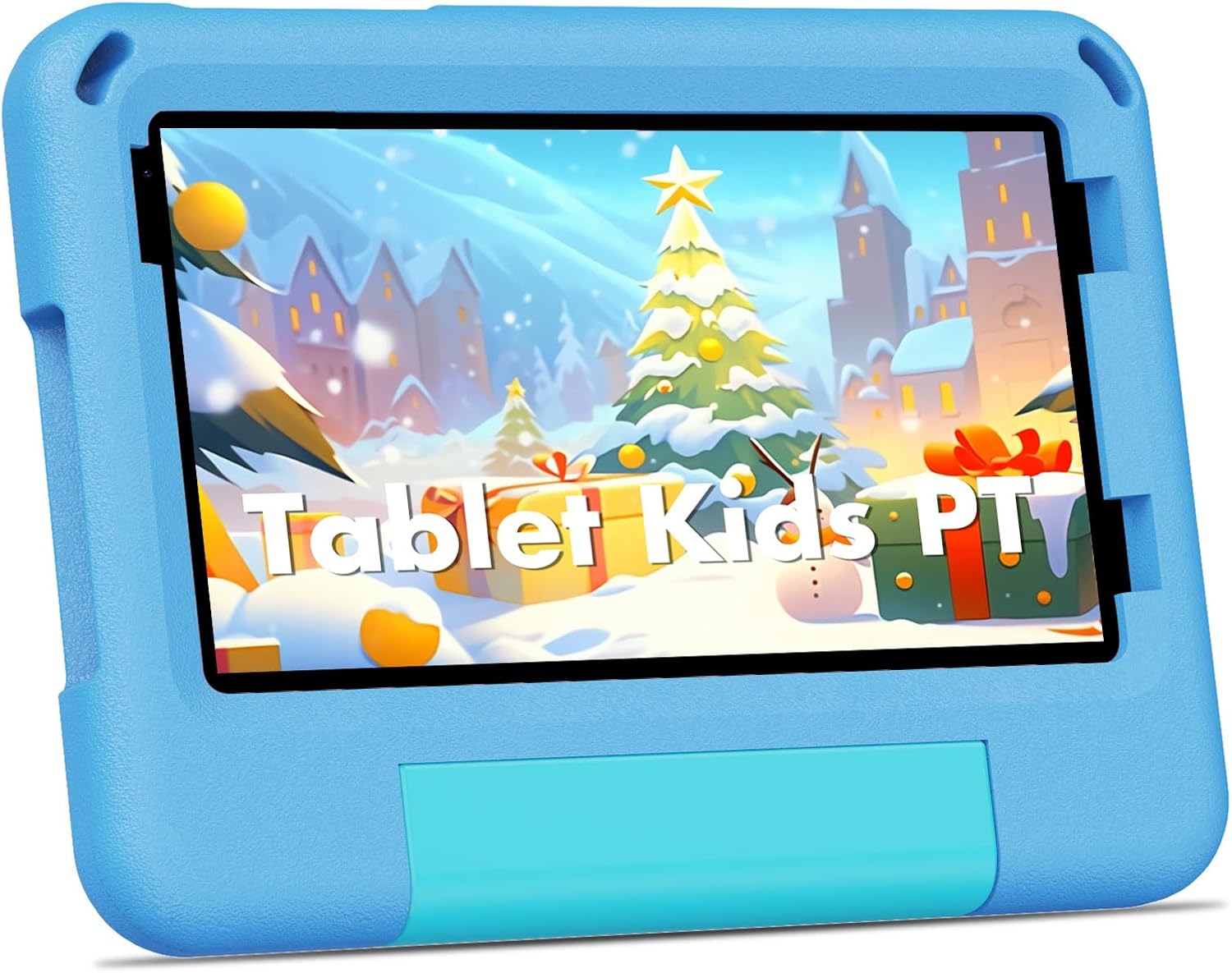
Image: The PRITOM TAB7 PRO Kids Tablet, showcasing its protective blue casing and a vibrant display.
Пакеттин мазмуну
Upon opening your PRITOM TAB7 PRO Kids Tablet package, verify that all items listed below are present:
- PRITOM TAB7 PRO Kids Tablet
- Заряддагыч
- Protective Cover Case
- Колдонуучунун колдонмосу (бул колдонмо)
Баштапкы орнотуу
1. Планшетти заряддоо
Before first use, fully charge the tablet. Connect the provided charger to the tablet's Type-C port and plug it into a power outlet. The charging indicator will illuminate. A full charge typically takes several hours.
2. Күйгүзүү / Өчүрүү
- Күйгүзүү үчүн: Press and hold the Power button located on the side of the tablet until the PRITOM logo appears.
- Өчүрүү үчүн: Press and hold the Power button, then select "Power Off" from the options that appear on the screen.
- Кайра баштоо үчүн: Кубат баскычын басып, кармап туруңуз, андан кийин параметрлерден "Кайра баштоо" тандаңыз.
3. Баштапкы конфигурация
Upon first startup, follow the on-screen prompts to configure basic settings:
- Тил тандоо: Өзүңүзгө жаккан тилди тандаңыз.
- Wi-Fi туташуусу: Wi-Fi тармагыңызды тандап, интернетке туташуу үчүн сырсөзүңүздү киргизиңиз.
- Дата жана убакыт: Set the correct date and time, or allow the tablet to synchronize automatically via network.
- Google аккаунту: Sign in with an existing Google account or create a new one. This is necessary for accessing the Google Play Store and other Google services.
4. Installing a Micro SD Card (Optional)
The tablet supports storage expansion up to 1 TB using a Micro SD card. Locate the Micro SD card slot on the side of the tablet. Gently insert the card until it clicks into place. Ensure the tablet is powered off before inserting or removing the card.

Image: The tablet's durable EVA case provides protection, as demonstrated by a child using the device.
Планшетиңизди иштетүү
1. Интерфейсте навигация
The PRITOM TAB7 PRO uses a touch-based interface. Common gestures include:
- таптаңыз: Бир нерсени тандоо же тиркемени ачуу.
- Таптап кармаңыз: Контексттик менюларга же сүрөтчөлөрдү жылдыруу үчүн.
- Серпүү: Экрандарды же тизмелерди сыдыруу үчүн.
- Чымчуу: Сүрөттөрдү чоңойтуу же кичирейтүү үчүн жана web барактар.
2. Kids Mode (iWawa) and Adult Mode
The tablet features a dedicated Kids Mode (iWawa) for a child-friendly environment and a standard Adult Mode for full Android functionality.

Image: The iWawa Kids Software interface, showing a selection of pre-installed educational applications and games designed for children.
- Entering Kids Mode: The tablet typically boots into Kids Mode by default. If not, locate the iWawa app icon and tap it.
- Exiting Kids Mode: To switch to Adult Mode, locate the "Exit" or "Parental Control" icon within iWawa, enter your parental password, and confirm to exit.
- Using Adult Mode: In Adult Mode, the tablet functions as a standard Android 14 device, allowing access to all installed applications and settings.

Image: The tablet operating in Adult Mode, showcasing common Android applications such as web browsers, app stores, and media players.
3. Ата-энелик көзөмөл функциялары
The iWawa software includes robust parental control options to manage your child's tablet usage.
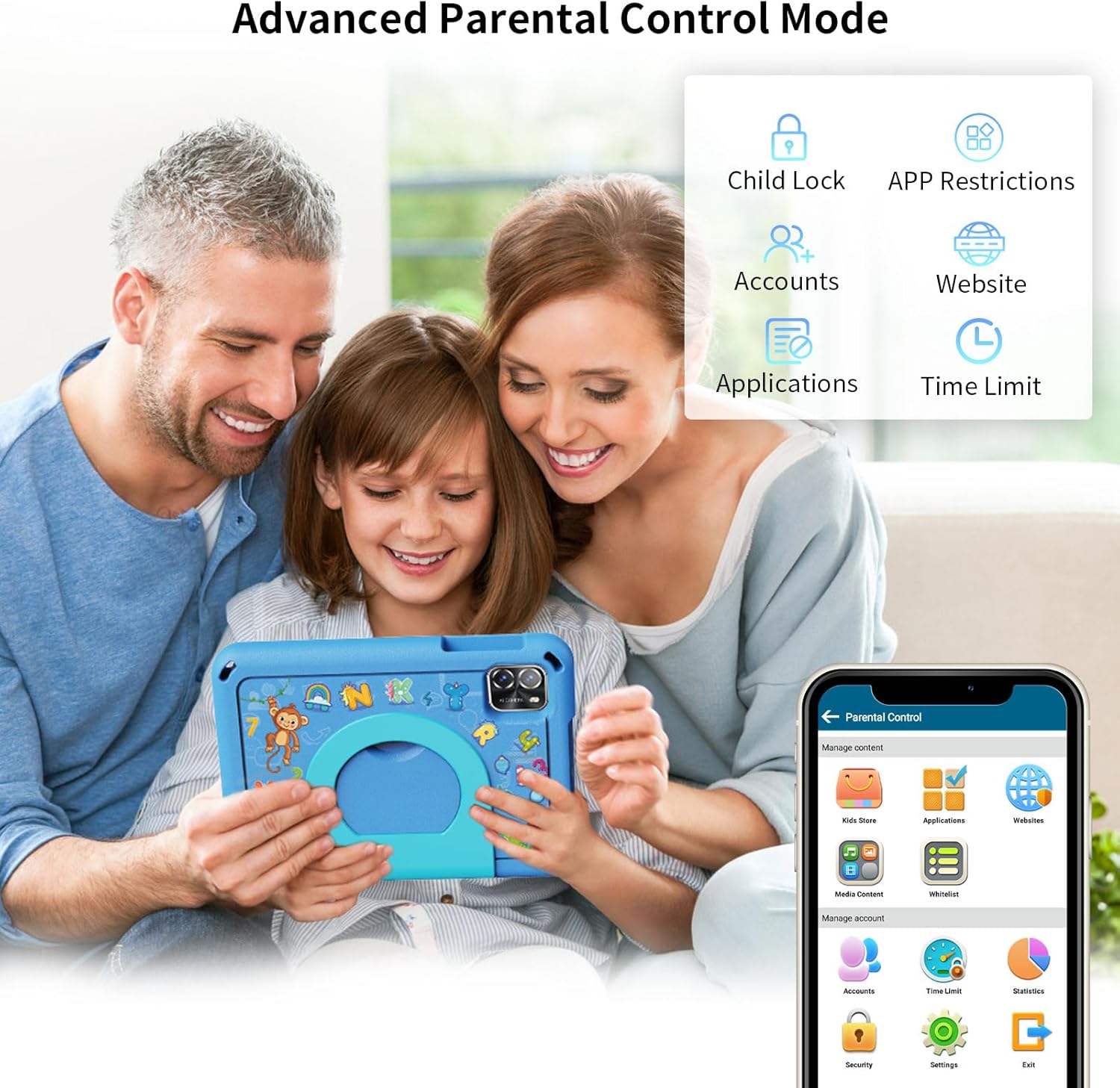
Image: The Parental Control interface, illustrating various settings such as app restrictions, time limits, and content filtering.
- APP Restrictions: Select which applications your child can access.
- Убакыт чектөөлөрү: Set daily usage limits or specific time blocks for tablet use.
- Мазмунду башкаруу: Фильтр websites and recommend age-appropriate content.
- Child Locks: Prevent children from accessing unauthorized settings or exiting Kids Mode without permission.
- Multiple Accounts: Өзүнчө адис түзүүfiles for different children with individualized settings.
4. Downloading Applications
- iWawa Kids Store: Access a curated selection of free educational and entertainment apps within Kids Mode.
- Google Play дүкөнү: In Adult Mode, you can download a wider range of applications from the Google Play Store. A Google account is required.
5. Камераны колдонуу
The tablet is equipped with dual cameras. Open the Camera application to take photos or record videos. Tap the screen to focus and press the shutter button to capture.
Техникалык тейлөө жана кам көрүү
1. Планшетти тазалоо
Планшеттин экранын жана корпусун тазалоо үчүн жумшак, түксүз чүпүрөктү колдонуңуз. өжөр тактар үчүн, бир аз гampчүпүрөккө суу же экран тазалоочу каражат. Катуу химиялык заттарды же абразивдик материалдарды колдонуудан алыс болуңуз.
2. Батареяга кам көрүү
- Батареяны бат-баттан толук кубаттап калуудан алыс болуңуз.
- Планшетти экстремалдык температурага тийгизбеңиз.
- Берилген кубаттагычты же сертификатталган шайкеш кубаттагычты гана колдонуңуз.
3. Сактагычты башкаруу
Regularly check the tablet's storage space. Delete unnecessary files, apps, or clear app caches to maintain optimal performance. Utilize the Micro SD card for additional storage of media files.
4. Программалык камсыздоону жаңыртуу
Periodically check for system updates in the tablet's settings. Software updates can improve performance, add new features, and enhance security.
Проблемаларды чечүү
Жалпы маселелер жана чечимдер:
- Планшет күйбөйт: Батарея заряддалганын текшериңиз. Заряддагычты туташтырыңыз жана кайра күйгүзүү аракетинен мурун бир нече мүнөт күтүңүз.
- Планшет жооп бербей жатат: Өчүрүп-күйгүзүү үчүн "Кубат" баскычын болжол менен 10-15 секунд басып туруңуз.
- Wi-Fi туташуу көйгөйлөрү: Verify your Wi-Fi password. Restart your router and the tablet. Ensure the tablet is within range of the Wi-Fi signal.
- Apps are crashing or running slowly: Close background applications. Clear app caches in settings. Ensure sufficient storage space is available. Restart the tablet.
- Батарея бат эле түгөнөт: Reduce screen brightness. Close unused apps. Disable Wi-Fi or Bluetooth when not in use. Check for apps consuming excessive power in battery settings.
- Parental control password forgotten: Refer to the iWawa application's support or reset options, which may require a linked email for recovery.
Заводдук баштапкы абалга кайтаруу (Акыркы чара)
Эгерде туруктуу көйгөйлөр пайда болсо, аларды баштапкы абалга кайтаруу чечиши мүмкүн. Эскертүү: This will erase all data on the tablet. Back up important files before proceeding. Navigate to Орнотуулар > Система > Параметрлерди баштапкы абалга келтирүү > Бардык дайындарды тазалоо (деск. баштапкы абалга келтирүү) жана көрсөтмөлөрдү аткарыңыз.
Продукт спецификациялары

Image: Key specifications of the PRITOM TAB7 PRO, including operating system, memory, storage, and display features.
| Өзгөчөлүк | Деталь |
|---|---|
| Модель аты | TAB7 PRO |
| Операция системасы | Android 14 |
| Screen Size | 7 дюйм |
| Screen Resolution | 1024 x 600 IPS HD |
| Процессор | Төрт ядролуу, 1.8 ГГц |
| RAM | 3 GB (+5GB Virtual) |
| Ички сактагыч | 64 ГБ |
| Кеңейтүүчү сактагыч | Up to 1 TB via Micro SD card |
| Зымсыз байланыш | Wi-Fi (802.11ac, 802.11ax, 802.11b, 802.11g, 802.11n), Bluetooth |
| Камералар | Dual Cameras (2.0MP Front, 8.0MP Rear) |
| Батареянын орточо иштөө мөөнөтү | 6 саат |
| Өлчөмдөрү (LxWxH) | 8.2 x 6 x 1 дюйм |
| Салмагы | 14.8 унция |
Кепилдик жана колдоо
Your PRITOM TAB7 PRO Kids Tablet is covered by a manufacturer's warranty. Please refer to the warranty card included in your package for specific terms and conditions. For technical support, product inquiries, or warranty claims, please contact PRITOM customer service through their official webсайт же сатып алуу менен камсыз болгон байланыш маалыматы.
For additional resources and frequently asked questions, visit the official PRITOM store on Amazon: PRITOM Official Store.


