1. Киришүү
This manual provides detailed instructions for the setup, operation, maintenance, and troubleshooting of your SGIN 17.3 Inch Laptop Computer (Model M17S). Please read this manual thoroughly before using your laptop to ensure proper functionality and to maximize its lifespan. Keep this manual for future reference.

Figure 1.1: SGIN 17.3 Inch Laptop Computer Overview
The SGIN M17S laptop is designed for a wide range of applications, including study, work, entertainment, and internet browsing, offering a balance of performance and portability.
2. Пакеттин мазмуну
Verify that all items listed below are included in your package. If any items are missing or damaged, please contact SGIN customer support.
- SGIN 17.3 Inch Laptop Computer (M17S) x 1
- Power Adapter/Charger x 1
- Колдонуучунун колдонмосу x 1
3. Продукт өзгөчөлүктөрү бүттүview
3.1 Дисплей
The laptop features a 17.3-inch Full HD (1920x1080) IPS screen. This display technology provides sharp, clear text and vivid colors, along with wide viewбурчтар.

Figure 3.1: High-Definition IPS Display
3.2 Процессор
Equipped with an Intel Core i3-5005U processor, operating at 2.4GHz Turbo Boost. This dual-core, four-thread processor is designed for efficient multitasking and handling various workloads.

Figure 3.2: Intel Core i3-5005U Processor
3.3 Эстутум жана сактоо
The laptop comes with 4GB DDR4 RAM and a 128GB SSD for fast boot times and application loading. Storage can be expanded with an additional SSD (up to 1TB) and a MicroSD card (up to 512GB).

Figure 3.3: Memory and Storage Configuration
3.4 Батарея
A 8000 mWh (60Wh) lithium-ion battery provides extended usage time, with an estimated 8 hours of typical use on a single charge.

Figure 3.4: Long-Lasting Battery
3.5 Порттар жана туташуу
The laptop offers a variety of ports for versatile connectivity:
- USB 3.2 порттору (x2)
- HDMI Port (for external monitors/projectors)
- Type-C порту
- 3.5 мм гарнитура уясы
- MicroSD карта слоту
- DC Power Input
Wireless connectivity includes 5G Wi-Fi (802.11ac) and Bluetooth 4.2.

3.5-сүрөт: Жеткиликтүү порттор
3.6 Аудио жана Webcam
The laptop includes stereo speakers and a digital microphone for audio input and output. A 0.3MP webcam is integrated for video calls and conferencing.

3.6-сүрөт: Аудио жана Webкамера өзгөчөлүктөрү
4. Getting Started (Setup Guide)
4.1 Пакеттен чыгаруу
Carefully remove the laptop and all accessories from the packaging. Retain the packaging materials for future transport or storage.
4.2 Батареяны заряддоо
Before first use, fully charge the laptop battery. Connect the power adapter to the DC-in port on the laptop and then plug the adapter into a power outlet. The charging indicator light will illuminate.
4.3 First Power On and Initial Setup
Press the power button to turn on the laptop. The system will guide you through the initial Windows 11 setup process. This includes selecting your region, language, connecting to a Wi-Fi network, and setting up your user account.
5. Негизги операция
5.1 Power On/Off/Sleep
- Күйгүзүү: Баскычтоптун палубасында жайгашкан кубат баскычын басыңыз.
- Өчүрүү: Баштоо баскычын чыкылдатып, андан кийин Күчтү басып, "Өчүрүү" дегенди тандаңыз.
- Уйку режими: Click the Start button, then Power, and select 'Sleep', or close the laptop lid.
5.2 Баскычтопту жана сенсордук тактаны колдонуу
The laptop features a full-size keyboard with a numeric keypad and a multi-touch touchpad. Refer to Windows 11 settings for customizing touchpad gestures and keyboard shortcuts.
5.3 Wi-Fiга туташуу
Зымсыз тармакка туташуу үчүн:
- Системалык лотоктогу Wi-Fi сөлөкөтүн чыкылдатыңыз (экрандын төмөнкү оң бурчунда).
- Тизмеден каалаган тармакты тандаңыз.
- Enter the network password if prompted, then click 'Connect'.
5.4 Bluetooth түзмөктөрүн туташтыруу
Bluetooth түзмөгүн жупташтыруу үчүн:
- "Орнотуулар" > "Bluetooth жана түзмөктөр" бөлүмүнө өтүңүз.
- Bluetooth күйгүзүлгөнүн текшериңиз.
- "Түзмөк кошуу" баскычын чыкылдатып, "Bluetooth" тандаңыз.
- Choose your device from the list and follow the on-screen pairing instructions.
5.5 Тышкы дисплейлерди колдонуу (HDMI)
Connect an external monitor or projector to the laptop's HDMI port. Press Windows баскычы + P to select display mode (e.g., Duplicate, Extend, Second screen only).
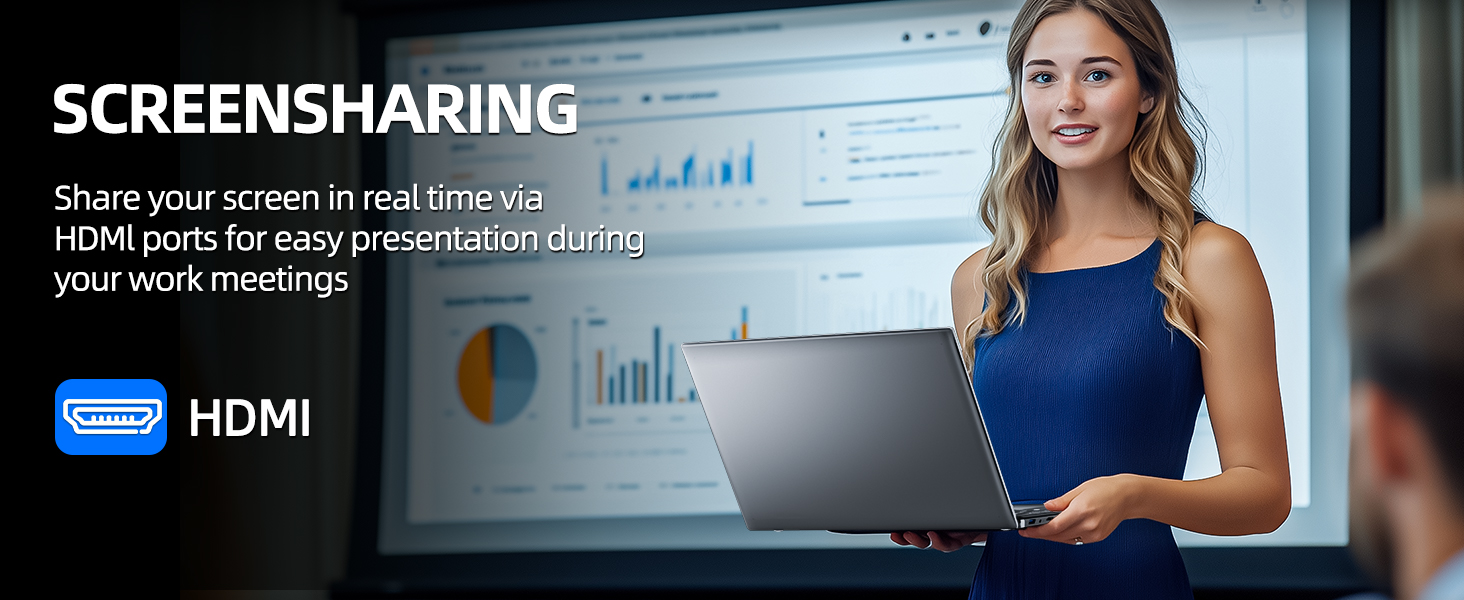
Figure 5.1: Screen Sharing via HDMI
5.6 USB түзмөктөрүн колдонуу
Connect USB devices such as external hard drives, keyboards, or mice to the available USB 3.2 ports. The laptop will automatically detect and install necessary drivers.
6. Storage and Memory Management
6.1 Сактагычты кеңейтүү
Your SGIN laptop supports storage expansion:
- Additional SSD: An extra slot is available for installing an M.2 SSD, supporting up to 1TB. Consult a qualified technician for installation.
- MicroSD картасы: Insert a MicroSD card into the dedicated slot for up to 512GB of additional storage.
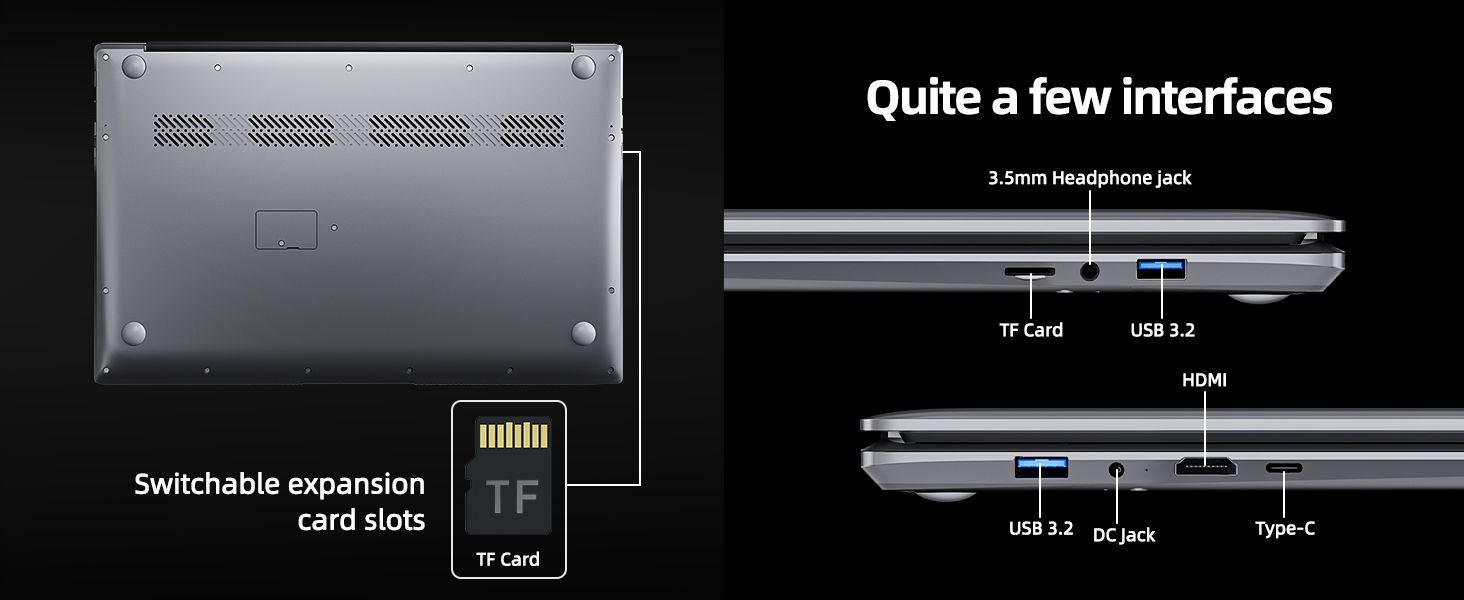
Figure 6.1: Expansion Card Slots
7. Батареяга кам көрүү
7.1 Заряддоо боюнча көрсөтмөлөр
Always use the original SGIN power adapter provided with your laptop. Avoid using third-party chargers that may not meet the required specifications.
7.2 Батареянын иштөө мөөнөтүн оптималдаштыруу
Батареянын иштөө мөөнөтүн узартуу үчүн:
- Экран жарыктыгын ыңгайлуу, бирок төмөнкү деңгээлге тууралаңыз.
- Close unused applications and browser tabs.
- Колдонулбаган учурда тышкы перифериялык түзүлүштөрдү ажыратыңыз.
- Enable Windows Battery Saver mode.
- Ашыкча температурадан сактаныңыз.
8. Техникалык тейлөө жана кам көрүү
8.1 Ноутбукту тазалоо
Бир аз жумшак, түксүз кездемени колдонуңуз dampдисплейди тазалоо үчүн суу же экран тазалагыч менен иштетиңиз. Баскычтоп жана шасси үчүн жумшак, кургак чүпүрөктү колдонуңуз. Катуу химиялык заттардан же абразивдүү материалдардан алыс болуңуз.
8.2 Программалык камсыздоо жаңыртуулары
Regularly check for and install Windows updates to ensure system stability, security, and optimal performance. Go to 'Settings' > 'Windows Update'.
8.3 Жалпы иштетүү
Handle your laptop with care. Avoid dropping it or exposing it to liquids, extreme temperatures, or direct sunlight. Do not place heavy objects on the laptop.
9. Кыйынчылыктарды
This section addresses common issues you might encounter with your SGIN laptop.
| Көйгөй | Мүмкүн себеп | Чечим |
|---|---|---|
| Laptop won't turn on | Батареянын аздыгы; Кубат адаптериндеги көйгөй; Аппараттык камсыздоонун иштебей калышы | Ensure battery is charged. Check power adapter connection. Try a different outlet. If problem persists, contact support. |
| Wi-Fi туташпай жатат | Wi-Fi disabled; Incorrect password; Router issue | Ensure Wi-Fi is enabled in settings. Verify password. Restart router and laptop. |
| Жай аткаруу | Too many applications running; Low storage space; Malware | Close unnecessary programs. Free up disk space. Run a virus scan. Consider adding more RAM or upgrading SSD if frequently slow. |
| Үн жок | Volume muted; Incorrect audio output; Driver issue | Check volume levels and mute status. Ensure correct output device is selected. Update audio drivers. |
| Webкамера иштебейт | Privacy settings; Driver issue; Application access | Check Windows privacy settings for camera access. Update webcam drivers. Ensure the application has permission to use the camera. |
10. Техникалык шарттар
Detailed specifications for the SGIN M17S Laptop Computer:
| Өзгөчөлүк | Спецификация |
|---|---|
| Модель аты | M17S |
| Туруктуу экран дисплей өлчөмү | 17.3 дюйм |
| Screen Resolution | 1920 x 1080 пиксел (Full HD IPS) |
| Процессор | Intel Core i3-5005U (2.4 GHz, 2 Cores, 4 Threads) |
| RAM | 4 ГБ DDR4 |
| Катуу диск | 128 ГБ SSD |
| Графикалык сопроцессор | Интеграцияланган |
| Зымсыз түрү | 802.11ac (5G WiFi) |
| Bluetooth | Bluetooth 4.2 |
| Операция системасы | Windows 11 Home |
| Элемент Салмагы | 5.89 фунт |
| Продукциянын өлчөмдөрү | 17.3 x 10 x 0.6 дюйм |
| Батарея | 8000 mWh Lithium Ion (60Wh) |
| Түс | Кара |
| Өзгөчө өзгөчөлүк | Memory Card Slot (MicroSD) |
11. Кепилдик жана колдоо
Your SGIN laptop includes a 1-year comprehensive after-sales warranty covering essential components. For technical assistance, warranty claims, or any product-related inquiries, please contact SGIN customer service. Our professional customer service team aims to respond within 12 hours.
For more information and support, please visit the official SGIN webсайтына кириңиз же продуктуңуздун таңгагында берилген байланыш маалыматтарын караңыз.


