Introduction
This manual provides essential instructions for setting up, operating, and maintaining your Epson EcoTank L1270 WiFi printer. Please read this guide thoroughly to ensure proper use and to maximize the performance and longevity of your device. The Epson EcoTank L1270 is an inkjet printer designed for efficient printing with a rechargeable ink tank system and Wi-Fi connectivity.
1. Орнотуу
1.1 Принтерди таңгактан чыгаруу
Carefully remove the printer from its packaging. Ensure all protective tapes and materials are removed from the exterior and interior of the printer. Keep the packaging materials for future transport or storage.
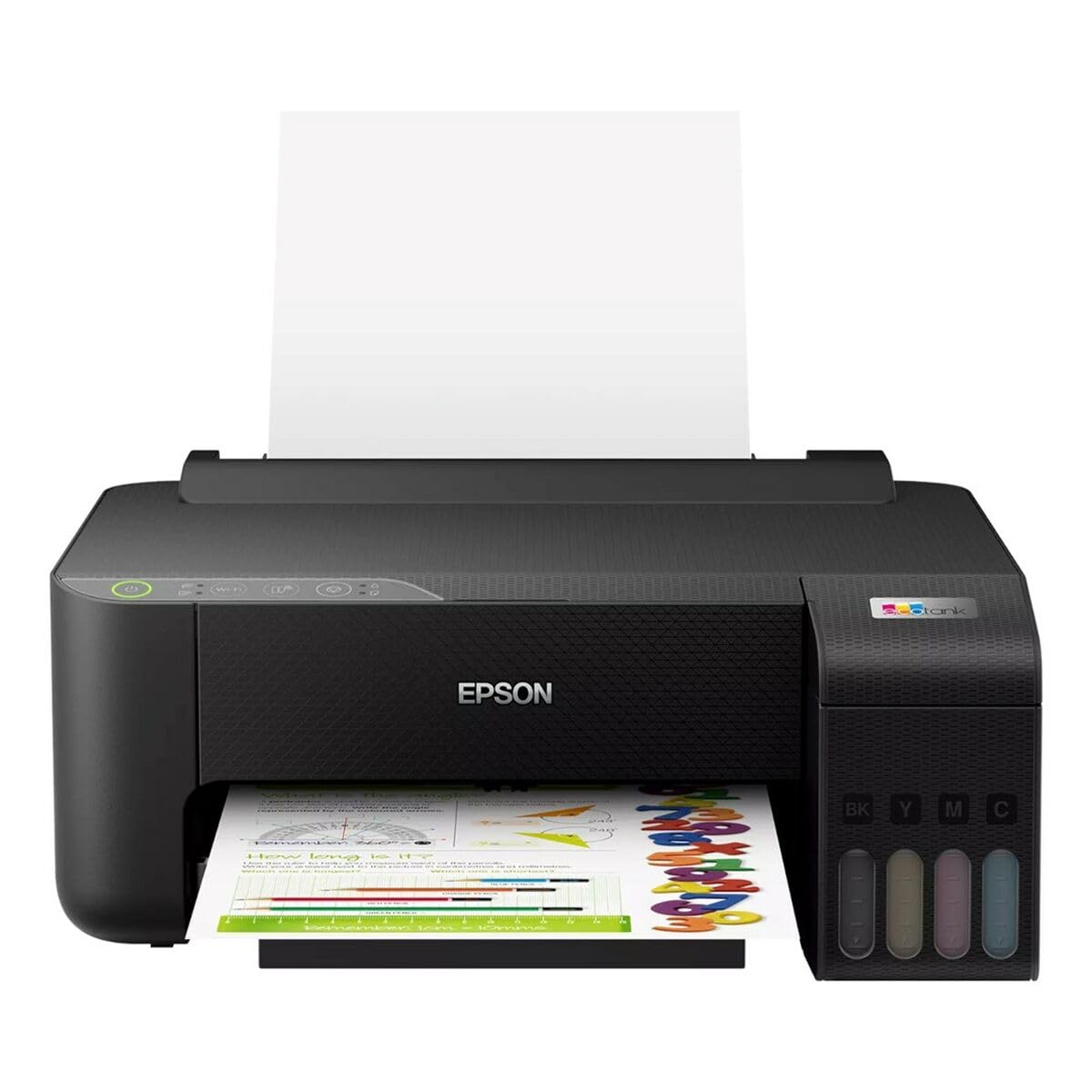
Image 1.1: Epson EcoTank L1270 WiFi Printer. This image shows the printer ready for initial setup after unpacking.
1.2 Сыя цистерналарын толтуруу
The EcoTank L1270 uses a refillable ink tank system. Follow these steps to fill the ink tanks:
- Open the ink tank unit cover on the printer.
- Uncap the ink bottle for the corresponding color. Each bottle is keyed to fit only the correct tank.
- Сыя бөтөлкөсүн толтуруу тешигине салыңыз. Сыя автоматтык түрдө бакты толтура баштайт. Бөтөлкөнү кыспаңыз.
- Once the tank is full, remove the bottle and recap it. Close the ink tank unit cover.
- Бардык түстөр үчүн кайталаңыз.
Эскертүү: Use only genuine Epson ink bottles to prevent damage and ensure optimal print quality.
1.3 Кубат туташтыруу
Connect the power cord to the printer and then to a wall outlet. Press the power button to turn on the printer. The printer will perform an initial setup process, which may take a few minutes.
1.4 Программалык камсыздоону жана драйверди орнотуу
To use your printer, you need to install the necessary drivers and software on your computer. Visit the official Epson support website for the EcoTank L1270 model to download the latest drivers and utilities. Follow the on-screen instructions provided by the installer.
- барыңыз Epson колдоо.
- Издөө "EcoTank L1270".
- Download and run the recommended driver package.
1.5 Wi-Fi орнотуу
The Epson EcoTank L1270 supports Wi-Fi connectivity. You can connect the printer to your wireless network using one of the following methods:
- Using the Printer's Control Panel: Navigate to the Wi-Fi settings on the printer's control panel, select your network, and enter the password.
- Using EpsonNet Setup: If installed, use the EpsonNet Setup utility on your computer to configure the wireless connection.
- WPS (Wi-Fi менен корголгон орнотуу): If your router supports WPS, press the WPS button on your router, then follow the instructions on the printer's control panel to establish a connection.
2. Принтерди иштетүү
2.1 Кагазды жүктөө
Load paper into the rear paper feeder. Ensure the paper guides are adjusted to the width of the paper. The printer supports various paper types and sizes, up to A4.
- Fan the paper stack before loading to prevent misfeeds.
- Do not overload the paper feeder; refer to the maximum capacity (100 sheets for plain paper).
2.2 Документтерди басып чыгаруу
Компьютериңизден документти басып чыгаруу үчүн:
- Басып чыгарууну каалаган документти ачыңыз.
- Колдонмонун менюсунан "Басып чыгарууну" тандаңыз (мисалы, File > Басып чыгаруу).
- Choose "Epson EcoTank L1270" as your printer.
- Кагаз өлчөмү, басып чыгаруу сапаты жана нускалардын саны сыяктуу басып чыгаруу жөндөөлөрүн тууралаңыз.
- "Басып чыгаруу" баскычын чыкылдатыңыз.
2.3 Duplex Printing (Two-Sided Printing)
The EcoTank L1270 supports manual duplex printing. To print on both sides of the paper:
- In your print settings, select the option for "Manual Duplex Printing" or "Print on Both Sides".
- Алгач так сандагы барактарды басып чыгарыңыз.
- When prompted, reload the printed pages into the paper feeder according to the on-screen instructions to print the even-numbered pages on the reverse side.
3. Техникалык тейлөө
3.1 Сыя деңгээлин текшерүү
Visually inspect the ink tanks on the front of the printer to check current ink levels. The tanks are transparent, allowing for easy monitoring. Refill ink when levels are low to avoid running out during a print job.
3.2 Сыя цистерналарын кайра толтуруу
When an ink tank is low, purchase genuine Epson replacement ink bottles. Follow the same procedure as described in Section 1.2 "Filling the Ink Tanks".
3.3 Басып чыгаруу башын тазалоо
If print quality declines (e.g., missing lines, faded colors), perform a print head cleaning. This can be done through the printer's utility software on your computer or via the printer's control panel. Refer to the software's help guide for detailed steps.
3.4 Кагаз жолун тазалоо
If you experience paper jams or streaks on prints, the paper path may need cleaning. Consult the printer's software utility or the online manual for instructions on how to perform a paper path cleaning.
4. Кыйынчылыктарды
Бул бөлүмдө Epson EcoTank L1270 принтериңиз менен кездешиши мүмкүн болгон жалпы көйгөйлөр каралат.
4.1 Printer Not Printing / Blank Pages
- Сыянын деңгээлин текшерүү: Ensure all ink tanks have sufficient ink.
- Print Head Clogged: Perform a print head cleaning (see Section 3.3).
- Paper Loaded Correctly: Verify paper is loaded properly and not jammed.
- Драйверди орнотуу: Ensure printer drivers are correctly installed and up to date. Reinstall if necessary.
4.2 Wi-Fi туташуу маселелери
- Router Range: Принтер Wi-Fi роутериңиздин чегинде экенин текшериңиз.
- Тармак сырсөзү: Double-check that the correct Wi-Fi password has been entered.
- Түзмөктөрдү кайра иштетүү: Try restarting your printer, computer, and Wi-Fi router.
- Reconfigure Wi-Fi: Attempt to set up the Wi-Fi connection again (see Section 1.5).
4.3 Басып чыгаруу сапатынын начардыгы
- Басып чыгаруу башын тазалоо: Басып чыгаруу башын тазалап, форсунканы текшериңиз.
- Кагаз түрү: Басып чыгаруу орнотууларыңыз үчүн туура кагаз түрүн колдонуп жатканыңызды текшериңиз.
- Ink Quality: Use genuine Epson inks for best results.
For more complex issues, refer to the comprehensive online manual on the Epson support webсайтына кириңиз же Epson кардарларды колдоо кызматына кайрылыңыз.
5. Техникалык шарттар
| Өзгөчөлүк | Деталь |
|---|---|
| Бренд | Epson |
| Модель аты | EcoTank L1270 WiFi |
| Басма технологиясы | Inkjet |
| Байланыш | Wi-Fi |
| Макс басып чыгаруу резолюциясы (түстүү) | 5760 x 1440 dpi |
| Макс басып чыгаруу дааналыгы (ак жана кара) | 5760 dpi |
| Макс басып чыгаруу ылдамдыгы (монохромдуу) | Мүнөтүнө 15 бет |
| Max Paper Capacity | 100 sheets (plain paper) |
| Дуплекстүү басып чыгаруу | Ооба (Кол менен) |
| Өзгөчө өзгөчөлүк | Rechargeable Ink Tank |
| Өлчөмдөрү (L x W x Y) | 26P x 42,5l x 46H cm (approx.) |
6. Кепилдик маалыматы
The Epson EcoTank L1270 WiFi printer comes with a limited warranty. For specific terms, conditions, and duration of your warranty, please refer to the warranty documentation included with your product or visit the official Epson support webсайт. Кепилдик дооматтар үчүн сатып алганыңыздын далилин сактаңыз.
7. Колдоо
Көбүрөөк жардам, техникалык колдоо же эң акыркы драйверлерди жана колдонмолорду жүктөп алуу үчүн, Epsonдун расмий колдоо кызматына баш багыңыз. webсайт:
Epson Official Support Webсайт
Ошондой эле алардан пайдалуу ресурстарды жана көп берилүүчү суроолорду таба аласыз webсайт.