Introduction
This manual provides detailed instructions for setting up and using your Rapoo 9360M Wireless Keyboard and Mouse Combo. This combo offers versatile connectivity, supporting up to four devices across multiple operating systems, enhancing your productivity and workspace efficiency.

Image: The Rapoo 9360M wireless keyboard and mouse combo, featuring a sleek black design.
Пакеттин мазмуну
- Rapoo 9360M Wireless Keyboard
- Rapoo M300G Silent Wireless Mouse
- USB 2.4 ГГц кабыл алгыч
- 2 x AAA батарейкалары (клавиатура үчүн)
- 1 x AA батареясы (чычкан үчүн)
- Ыкчам баштоо колдонмосу (бул колдонмо)
Орнотуу нускамалары
1. Батареяны орнотуу
- Баскычтоп: Клавиатуранын астыңкы жагындагы батарея бөлүмүн ачыңыз. Полярдуулукту туура текшерип, эки AAA батарейкасын салыңыз (+/-). Бөлүмдү жабыңыз.
- Чычкан: Open the battery compartment on the underside of the mouse. Insert one AA battery, ensuring correct polarity (+/-). Close the compartment. The USB 2.4GHz receiver is typically stored inside the mouse's battery compartment for convenience.
2. Байланыш параметрлери
The Rapoo 9360M combo supports connection via a 2.4GHz USB receiver or Bluetooth 5.0/4.0, allowing connection to up to four devices simultaneously.
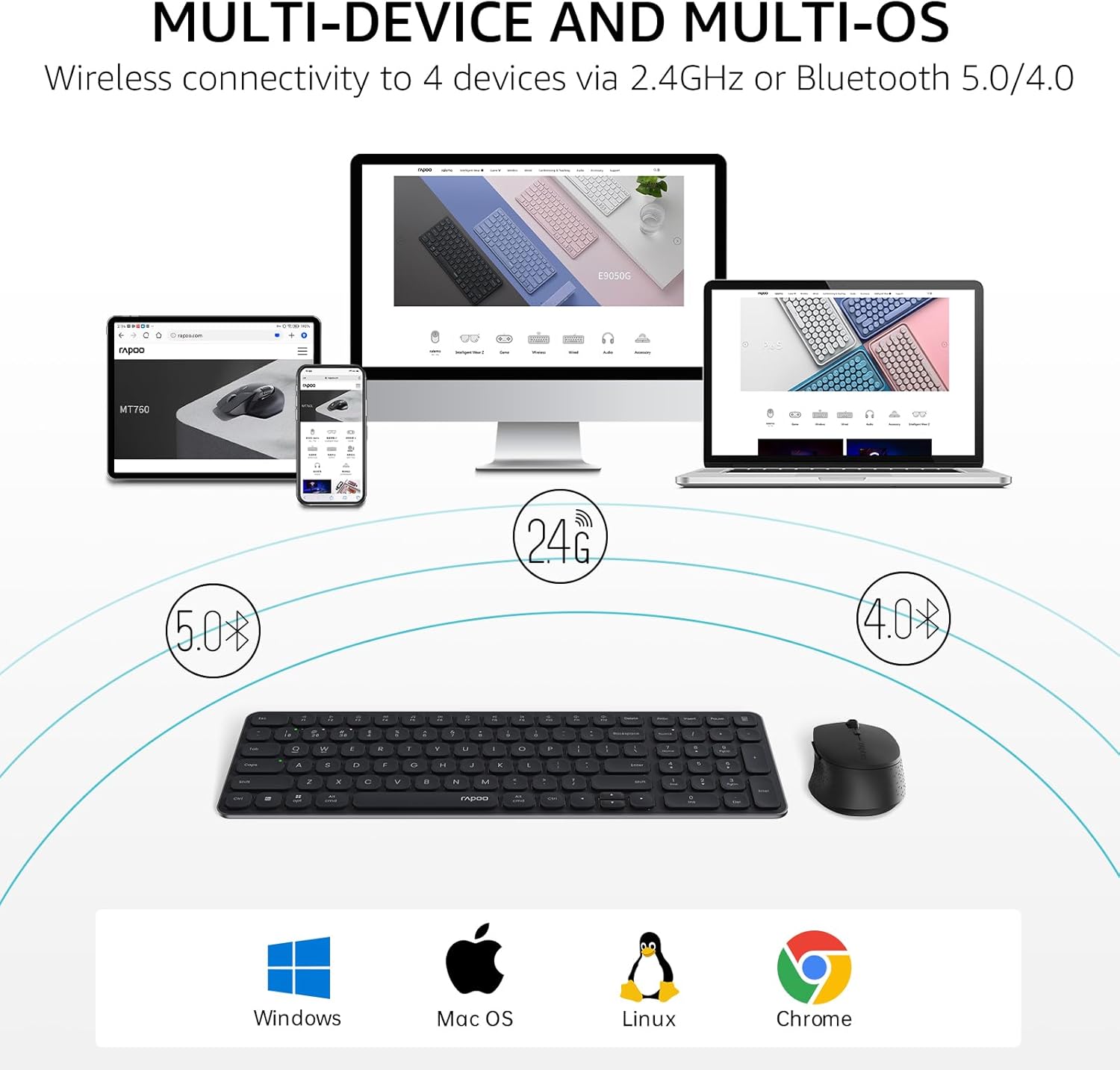
Image: Multi-device and multi-OS connectivity diagram for the Rapoo 9360M combo.
2.1. 2.4GHz USB Receiver Connection
- Remove the USB 2.4GHz receiver from the mouse's battery compartment.
- Ресиверди компьютериңиздеги жеткиликтүү USB портуна сайыңыз.
- The keyboard and mouse should automatically connect to your device.
2.2. Bluetooth Жупташтыруу
The keyboard and mouse can each pair with up to three Bluetooth devices (BT1, BT2, BT3).
Keyboard Bluetooth Pairing:
- басып, кармап туруңуз fn+1, fn+2, же fn+3 key combination for 3 seconds to select a Bluetooth channel. The indicator light above the '1', '2', or '3' key will flash slowly.
- Ошол эле басып, кармап туруңуз Fn + 1/2/3 key combination again for 3 seconds until the indicator light flashes rapidly. This indicates the keyboard is in pairing mode.
- Түзмөгүңүздө (компьютер, планшет, телефон) Bluetooth жөндөөлөрүнө өтүп, жаңы түзмөктөрдү издеңиз.
- Select "Rapoo BT3.0 Keyboard" or "Rapoo BT5.0 Keyboard" from the list and follow the on-screen prompts to complete pairing.
Mouse Bluetooth Pairing:
- Press the Bluetooth button on the underside of the mouse to switch between BT1, BT2, or BT3 channels. The indicator light will flash slowly.
- Press and hold the Bluetooth button for 3 seconds until the indicator light flashes rapidly. This indicates the mouse is in pairing mode.
- Түзмөгүңүздө Bluetooth жөндөөлөрүнө өтүп, жаңы түзмөктөрдү издеңиз.
- Select "Rapoo BT3.0 Mouse" or "Rapoo BT5.0 Mouse" from the list and follow the on-screen prompts to complete pairing.
Иштөө нускамалары
1. Multi-Device Switching
The keyboard and mouse allow seamless switching between connected devices.
- Баскычтоп: Басыңыз fn+1, fn+2, fn+3 to switch between Bluetooth devices, or fn+4 to switch to the 2.4GHz USB receiver connection. The corresponding indicator light will illuminate.
- Чычкан: Press the Bluetooth button on the underside of the mouse to cycle through BT1, BT2, BT3, and 2.4GHz connections. The indicator light will show the active channel.
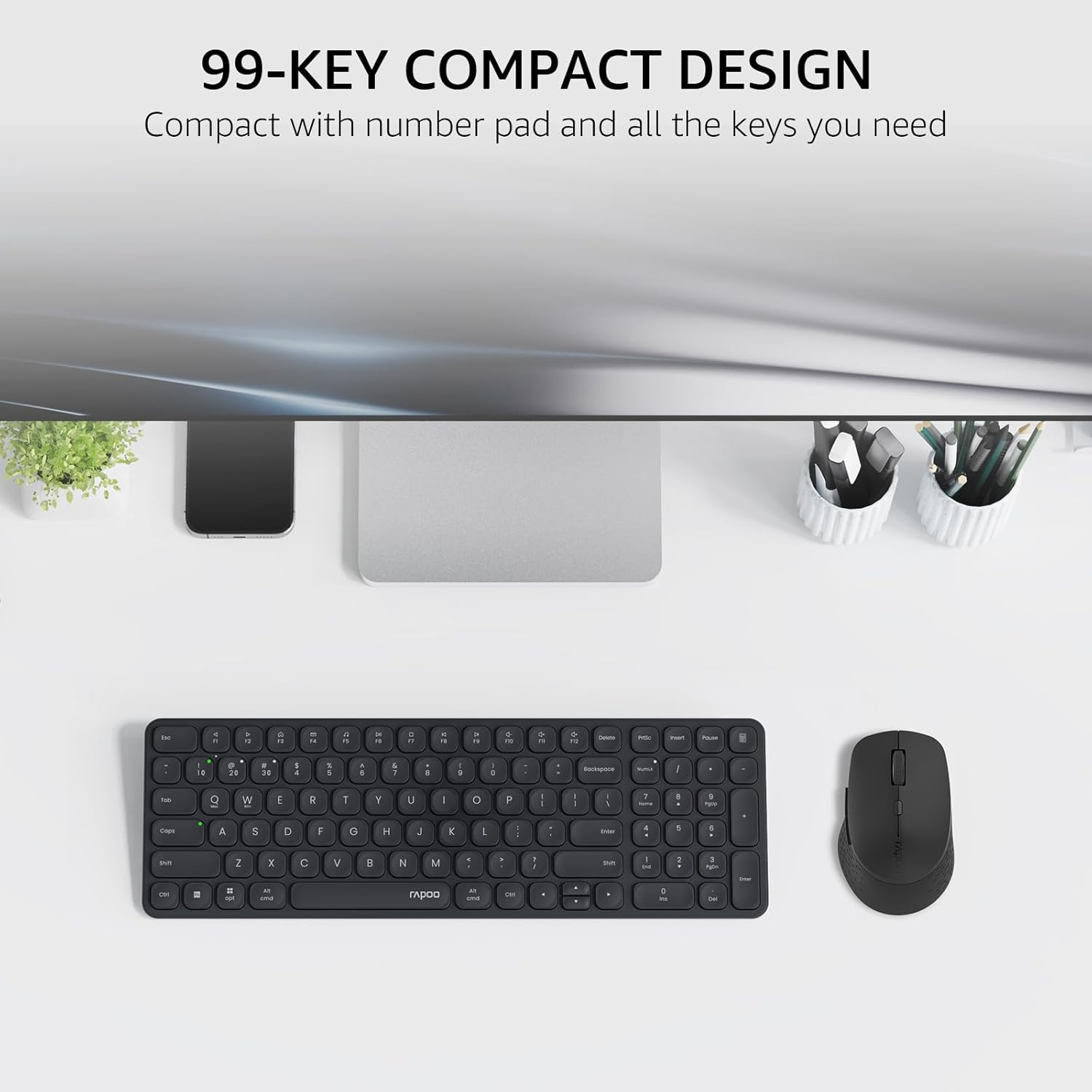
Image: The compact 99-key design of the Rapoo 9360M keyboard and mouse.
2. Мультимедиа ачкычтары
The keyboard features dual-system multimedia keys for quick access to common functions.
- To use multimedia functions (e.g., play/pause, volume control), press the Fn key simultaneously with the desired F-key (F1-F12).
- The keyboard supports both Windows and Mac OS shortcuts.
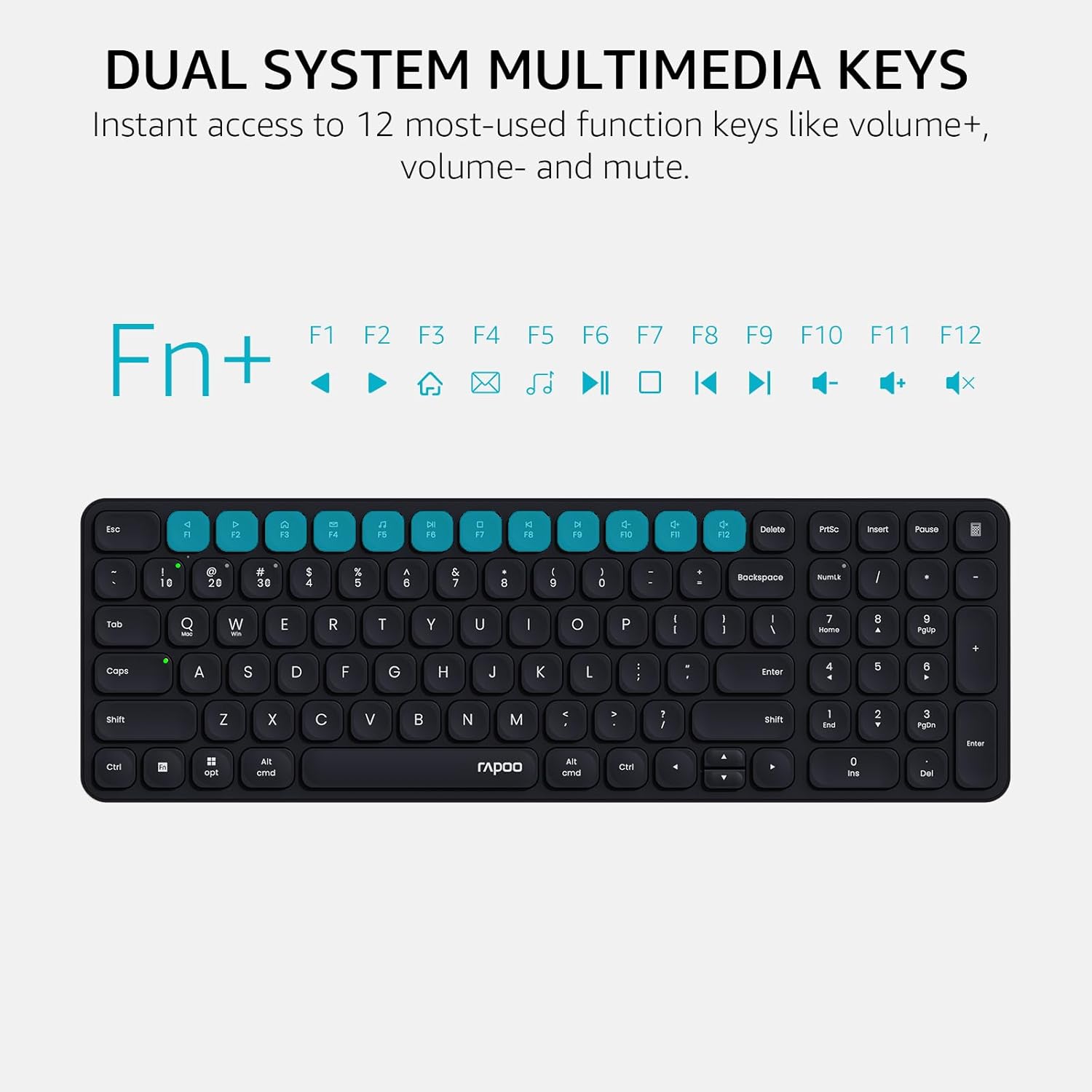
Image: Dual system multimedia keys on the Rapoo 9360M keyboard.
3. Mouse DPI Adjustment
The M300G mouse offers 5 adjustable DPI settings for precise cursor control.
- Press the DPI button located on the top of the mouse (usually behind the scroll wheel) to cycle through the preset DPI values: 800, 1000, 1200, 1600, and 2400.
- Select the DPI setting that best suits your preference and screen resolution.
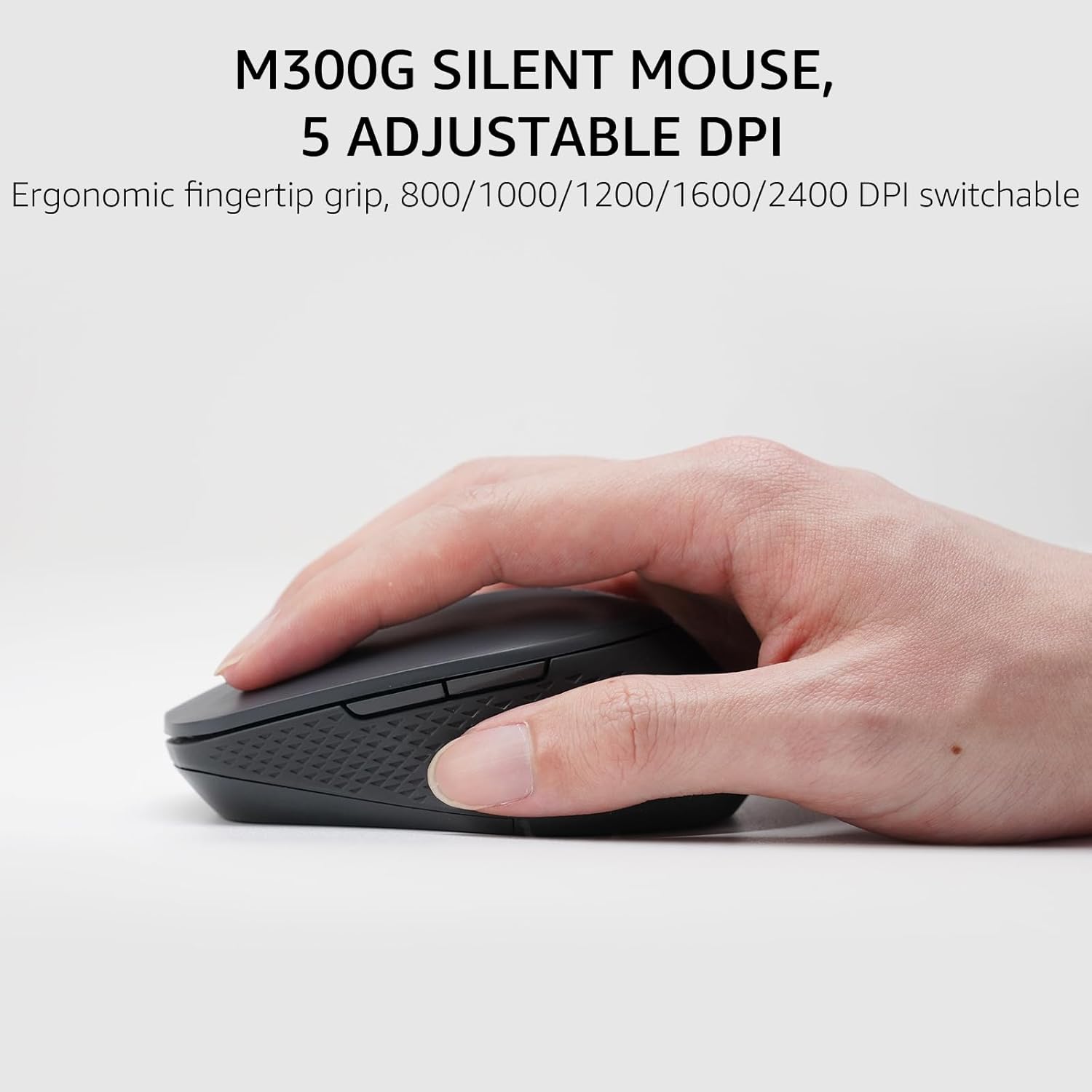
Image: The M300G Silent Mouse with 5 adjustable DPI settings.
4. Индикатор жарыктары
The keyboard includes indicator lights for device connection and capitalization status.
- Түзмөк көрсөткүчү: Located above the '1', '2', '3', and '4' keys, these lights indicate which device channel is currently active.
- Caps Lock көрсөткүчү: A dedicated light indicates when Caps Lock is active.
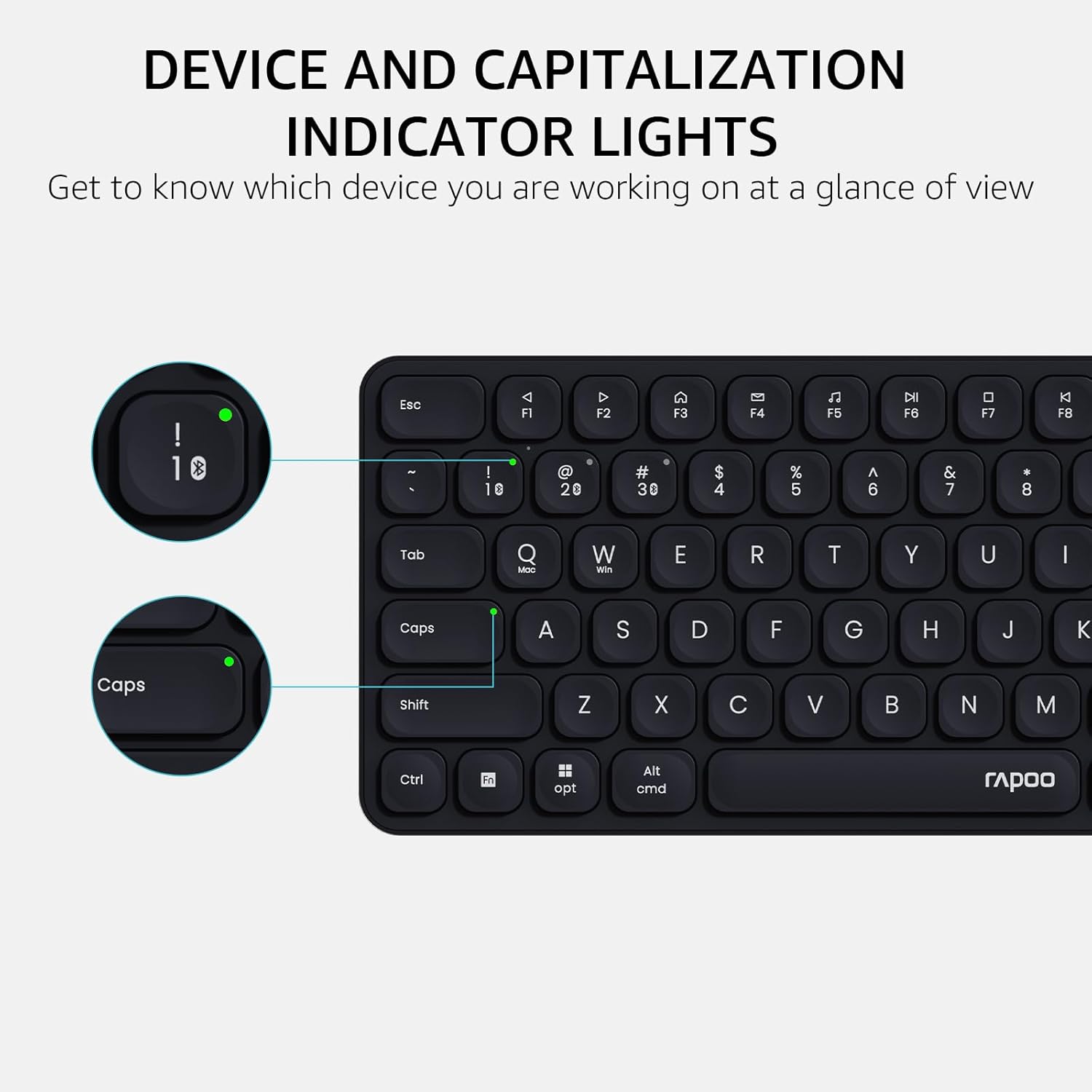
Image: Device and capitalization indicator lights on the keyboard.
Техникалык тейлөө
- Тазалоо: Use a soft, dry cloth to clean the keyboard and mouse. For stubborn dirt, a slightly damp жумшак самын менен кездеме колдонсо болот, бул аппараттарга суюктук кирбесин.
- Батареяны алмаштыруу: Replace batteries when the low battery indicator appears or when performance degrades. Ensure to use the correct battery types (AAA for keyboard, AA for mouse) and dispose of old batteries responsibly.
- Сактагыч: When not in use for extended periods, remove batteries to prevent leakage. Store in a cool, dry place.
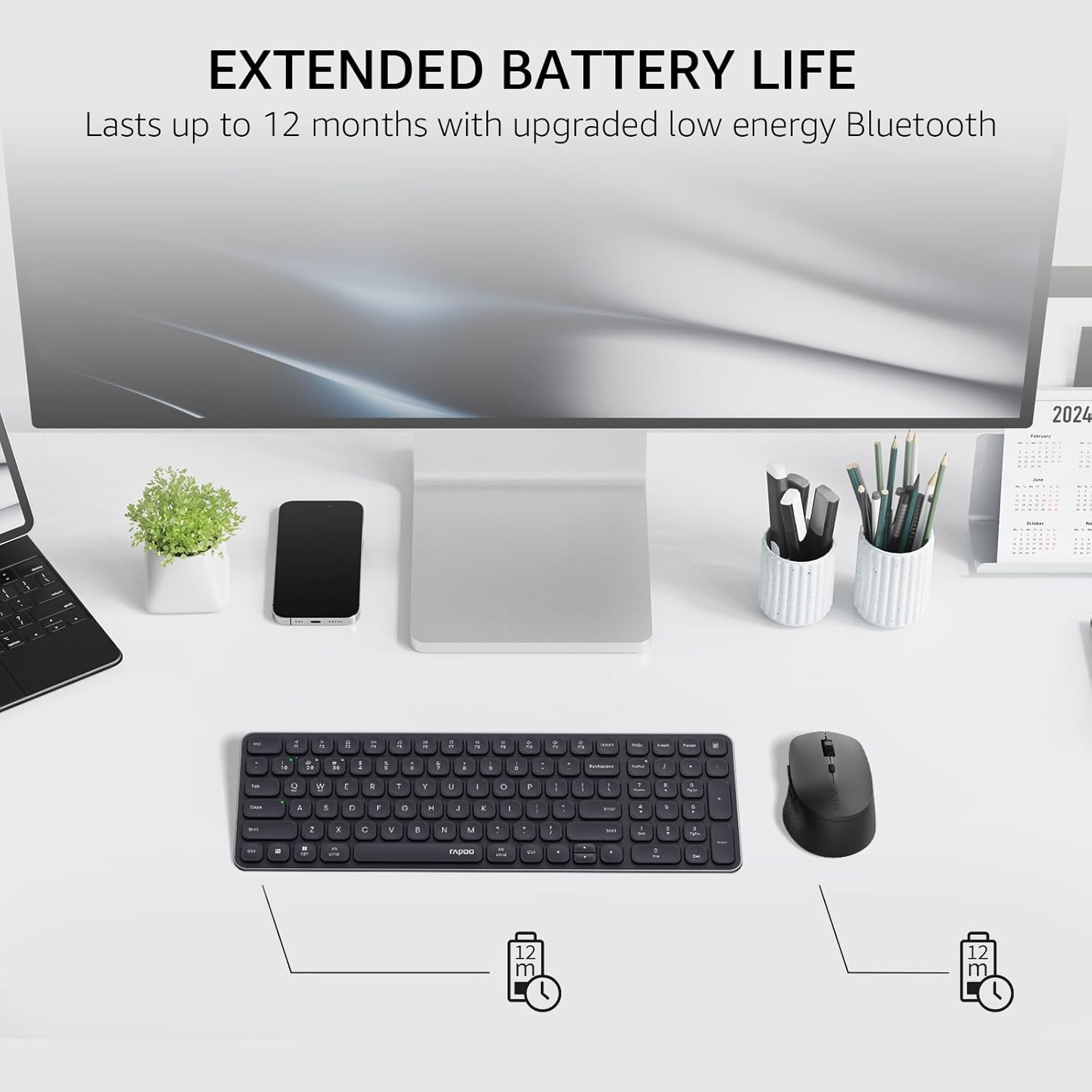
Image: Illustration of extended battery life for the keyboard and mouse.
Проблемаларды чечүү
- Түзмөк туташпай жатат:
- Батареялардын туура орнотулганын жана жетиштүү заряды бар экенин текшериңиз.
- For 2.4GHz connection, ensure the USB receiver is securely plugged into a working USB port.
- For Bluetooth connection, ensure Bluetooth is enabled on your device and the keyboard/mouse are in pairing mode. Try re-pairing the devices.
- Switch to a different channel (Fn + 1/2/3/4 for keyboard, button on mouse) to ensure you are on the correct connection mode.
- Кечигип же үзгүлтүктүү байланыш:
- Move the keyboard/mouse closer to the receiver or Bluetooth device.
- Түзмөктөрдү күчтүү тоскоолдук булактарынын жанында (мисалы, Wi-Fi роутерлери, башка зымсыз түзмөктөр) колдонуудан алыс болуңуз.
- Батареялар азайып калса, алмаштырыңыз.
- Keys or mouse buttons unresponsive:
- Батареянын деңгээлин текшериңиз.
- Ensure the device is connected to the correct channel.
- Компьютериңизди же түзмөгүңүздү өчүрүп күйгүзүңүз.
Техникалык шарттар
| Өзгөчөлүк | Деталь |
|---|---|
| Модель номери | 9360M |
| Баскычтоптун жайгашуусу | 99-key with number pad and arrow keys |
| Чычкан модели | M300G Silent Mouse |
| Байланыш | Bluetooth 5.0/4.0, 2.4GHz Radio Frequency |
| Көп түзмөктү колдоо | Up to 4 devices (1 x 2.4GHz, 3 x Bluetooth) |
| Шайкеш операциялык системалар | Windows, Mac OS, Linux, Chrome |
| Баскычтоптун батареясы | 2 x AAA батарейкалар (киргизилген) |
| Чычкан батареясы | 1 x AA батарейка (кошулган) |
| Чычкандын DPI жөндөөлөрү | 800/1000/1200/1600/2400 (adjustable) |
| Баскычтоптун өлчөмдөрү | 14.29 x 4.69 x 0.79 дюйм (36.3 x 11.9 x 2 см) |
| Чычкандын өлчөмдөрү | 4.09 x 2.57 x 1.47 дюйм (10.39 x 6.54 x 3.73 см) |
| Элемент Салмагы | 13.9 ounces (keyboard and mouse combined) |
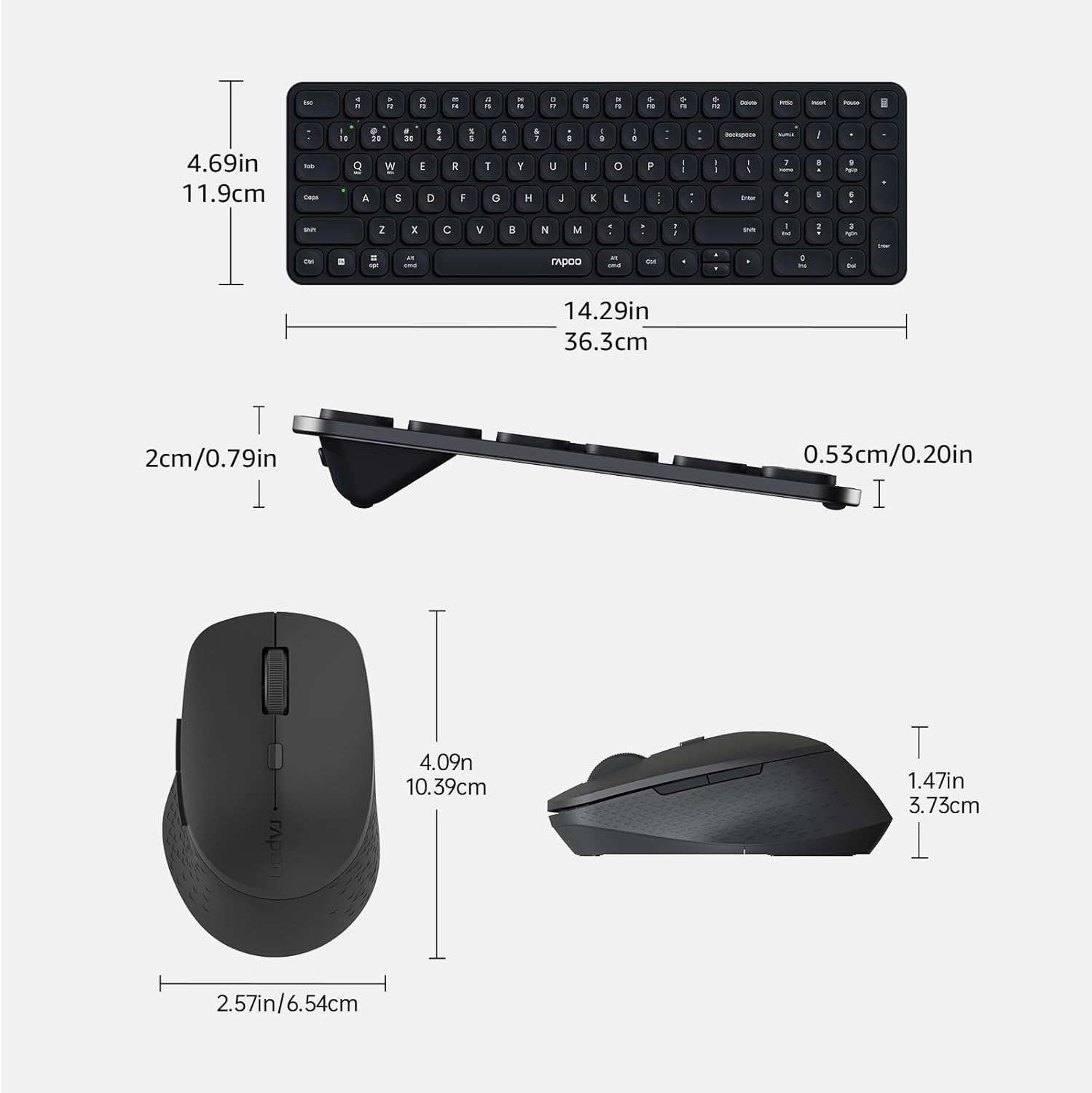
Image: Dimensions of the Rapoo 9360M keyboard and M300G mouse.
Кепилдик жана колдоо
Кепилдик жөнүндө маалымат жана техникалык колдоо алуу үчүн, расмий Rapoo компаниясына кайрылыңыз website or contact your local retailer. Keep your purchase receipt for warranty claims.


