1. Киришүү
Thank you for choosing the ATTACK SHARK×Magic-Refiner G6 Wireless Gaming Mouse. This manual provides detailed instructions on how to set up, operate, and maintain your new gaming mouse. The G6 mouse features tri-mode connectivity, a high-precision PixArt PAW3311 sensor, and a lightweight ergonomic design, making it ideal for various computing tasks and gaming scenarios.
2. Пакеттин мазмуну
Сураныч, төмөнкү нерселер үчүн кутучаны белгилеңиз:
- ATTACK SHARK×Magic-Refiner G6 Wireless Gaming Mouse
- 2.4G USB кабыл алгыч
- USB-C заряддоо кабели
- Anti-Slip Grip Tape Set

Image: The ATTACK SHARK G6 Wireless Gaming Mouse in white, shown with its accompanying USB receiver.
3. Продукт бүтүп калдыview
The G6 gaming mouse is designed for versatility and performance. Familiarize yourself with its key components and features.

Image: Detailed diagram of the G6 mouse, highlighting its buttons and features including the Left Button, Scroll Wheel + Middle Button, Right Button, Back Button, Forward Button, Power Toggle Switch (2.4G-OFF-Bluetooth), DPI Cycle Button, Atmosphere Light Switch & Wireless Mode Frequency Binding Button, Battery & DPI Indicator Light, Atmosphere Light, and USB Receiver storage.
3.1. Негизги өзгөчөлүктөрү
- Tri-Mode туташуу: Seamlessly switch between USB-C wired, 2.4GHz wireless, and Bluetooth 5.0 connections. The 2.4GHz mode offers a polling rate of 125-1000Hz, while Bluetooth operates at 125Hz. This allows for flexible use across various devices and scenarios.
- Жогорку тактык сенсор: Equipped with the PixArt PAW3311 optical sensor, offering six adjustable DPI levels from 800 to 24000. Features a 1000Hz polling rate, 1ms response time, 300 IPS tracking, and 35G acceleration for precise control.
- Lightweight Design & Long Battery Life: Weighs approximately 72±3g, minimizing hand fatigue during extended use. The built-in 750mAh battery provides over 150 hours of wireless usage on a single charge.
- Durable Switches & Customization: Features 10M micro switches with a 10 million click lifespan. Includes a 1.5m braided USB-C cable. Customize rear RGB lighting via a bottom button for various effects.
- Anti-Slip Grips: Comes with a set of 6 DIY anti-slip grip tapes for enhanced control and sweat resistance.

Image: The G6 mouse illustrating its 2.4GHz Wireless, USB-C Wired, and Bluetooth connection modes.
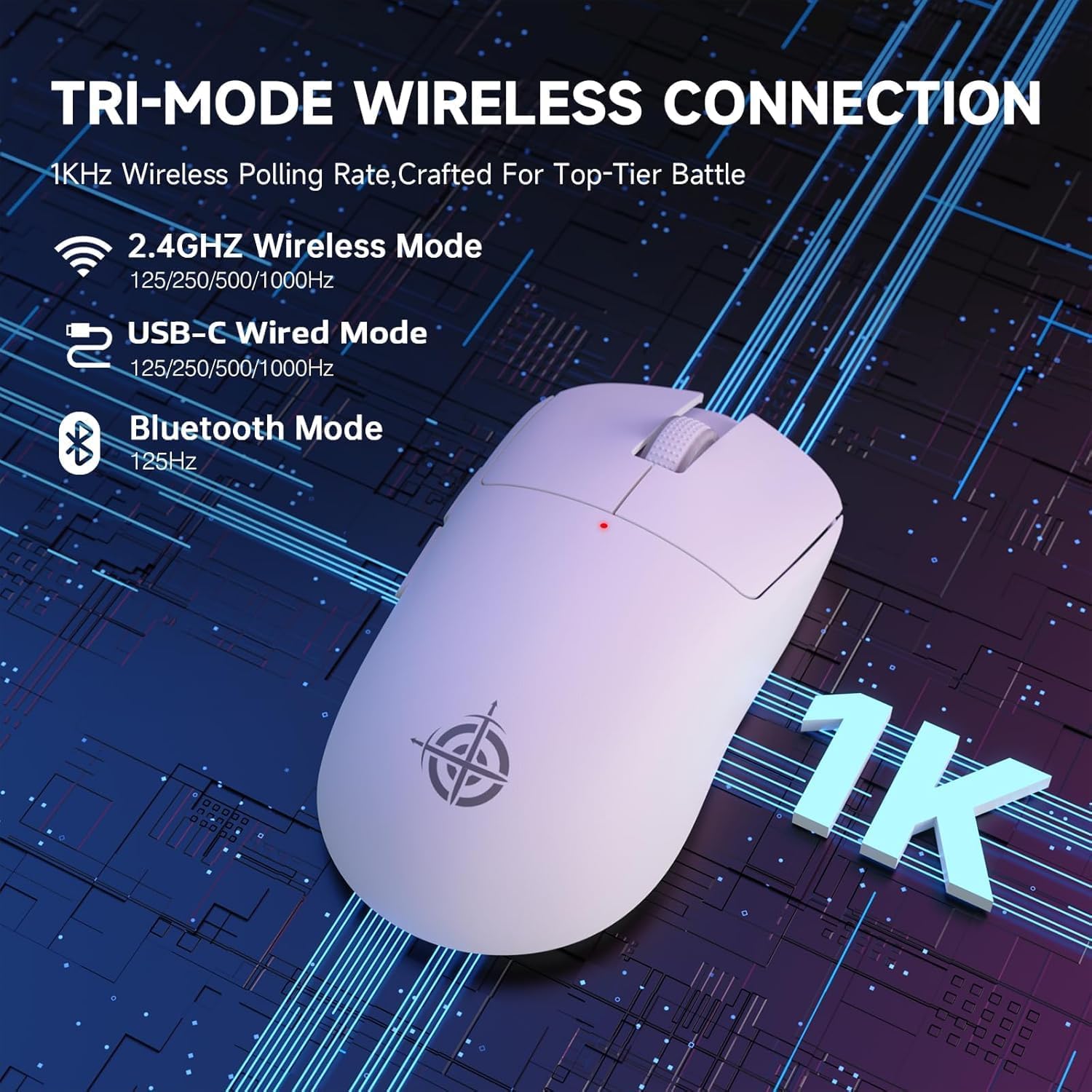
Image: The G6 mouse with an overlay indicating DPI levels (800-24000) and their associated indicator light colors (Red, Green, Blue, Yellow, Cyan, Purple).

Image: The G6 mouse displaying its customizable RGB lighting effects, including rainbow and single color options.

Image: The G6 mouse with its practical non-slip stickers applied, showing the textured surface for improved grip.
4. Орнотуу колдонмосу
The G6 mouse offers three connection methods. Choose the one that best suits your needs.
4.1. 2.4 ГГц зымсыз режим
- Locate the 2.4G USB receiver stored in the compartment on the bottom of the mouse.
- USB ресиверди компьютериңиздеги жеткиликтүү USB портуна сайыңыз.
- Slide the power toggle switch on the bottom of the mouse to the '2.4G' position.
- The mouse should automatically connect. If not, press the 'Atmosphere light switch & wireless mode frequency binding button' on the bottom of the mouse to initiate pairing.
4.2. Bluetooth режими
- Slide the power toggle switch on the bottom of the mouse to the 'Bluetooth' position.
- The mouse's indicator light will start blinking, indicating it's in pairing mode.
- Компьютериңизден же түзмөгүңүздөн Bluetooth жөндөөлөрүнө өтүп, жаңы түзмөктөрдү издеңиз.
- Select 'ATTACK SHARK G6' (or similar name) from the list of available devices to pair.
4.3. USB-C зымдуу режими
- Берилген USB-C кабелин чычкандын алдыңкы портуна туташтырыңыз.
- USB-C кабелинин экинчи учун компьютериңиздеги жеткиликтүү USB портуна туташтырыңыз.
- Чычкан автоматтык түрдө зымдуу режимге өтүп, заряддоону баштайт.
5. Иштөө нускамалары
5.1. DPI тууралоо
The G6 mouse has a dedicated DPI cycle button on the bottom. Press this button to cycle through the preset DPI levels (800, 1600, 2400, 3200, 6400, 24000). The indicator light will change color to reflect the current DPI setting (Red, Green, Blue, Yellow, Cyan, Purple respectively).
5.2. Баскыч функциялары
The G6 mouse features 5 programmable buttons:
- Сол баскыч: Standard left click.
- Оң баскыч: Standard right click.
- Scroll Wheel + Middle Button: Өйдө/төмөн сыдырыңыз, ортоңку чыкылдатыңыз.
- Алга баскычы: Алга карай жылдырат web браузерлер же file изилдөөчүлөр.
- Артка баскычы: Артка карай багыт алат web браузерлер же file изилдөөчүлөр.
For advanced customization of button functions and macros, please download the official driver software from the ATTACK SHARK webсайт.
5.3. RGB жарыкты башкаруу
The G6 mouse features customizable RGB lighting. Use the 'Atmosphere light switch' button on the bottom of the mouse to cycle through different lighting effects (e.g., Rainbow Lighting, Single Lighting) or to turn the lighting off.
6. Техникалык тейлөө
To ensure the longevity and optimal performance of your G6 gaming mouse, follow these maintenance guidelines:
- Тазалоо: Чычкандын бетин сүртүү үчүн жумшак, кургак чүпүрөктү колдонуңуз. өжөр кир үчүн, бир аз гampчүпүрөктү суу же жумшак тазалоо эритмеси менен жууп салыңыз. Катуу химиялык заттардан же абразивдүү материалдардан алыс болуңуз.
- Сенсорго кам көрүү: Чычкандын түбүндөгү оптикалык сенсорду таза жана чаңдан же таштандылардан таза кармаңыз. Зарыл болсо, пахта таякчасын же кысылган абаны колдонуңуз.
- Сактагыч: Узак мөөнөткө колдонулбаганда, чычканды күн нурунан жана экстремалдык температурадан алыс салкын, кургак жерде сактаңыз.
- Батарея: Батареянын тез-тез толук зарядын жоготуп алуудан алыс болуңуз. Батареянын иштөө мөөнөтүн сактоо үчүн чычканды үзгүлтүксүз кубаттап туруңуз.
7. Кыйынчылыктарды
If you encounter any issues with your G6 gaming mouse, please refer to the following common solutions:
- Чычкан жооп бербей жатат:
- Ensure the mouse is charged. Connect it via USB-C cable to charge.
- Check the power toggle switch on the bottom of the mouse is in the correct position (2.4G, BT, or OFF for wired).
- 2.4 ГГц режими үчүн USB ресивери иштеген USB портуна бекем сайылганын текшериңиз. Башка USB портун колдонуп көрүңүз.
- For Bluetooth mode, ensure Bluetooth is enabled on your device and the mouse is paired. Try unpairing and re-pairing.
- Курсордун кыймылы туруксуз же так эмес:
- Чычкандын түбүндөгү оптикалык сенсорду тазалаңыз.
- Ensure you are using the mouse on a suitable surface. Some surfaces (e.g., plain black neoprene pads, highly reflective surfaces) may interfere with optical tracking. Try a different mouse pad or surface.
- DPI цикли баскычын колдонуп, DPI жөндөөсүн тууралаңыз.
- 2.4GHz dongle not working:
- Ensure the mouse is switched to 2.4G mode.
- Try plugging the dongle into a different USB port on your computer.
- If issues persist, try re-pairing the mouse with the dongle by pressing the binding button on the mouse while the dongle is connected.
- Bluetooth байланышы көйгөйлөрү:
- Ensure the mouse is in Bluetooth pairing mode (indicator light blinking).
- Remove the mouse from your device's Bluetooth list and attempt to pair again.
- Түзмөгүңүздүн Bluetooth драйверлери жаңыртылганын текшериңиз.
8. Техникалык шарттар
| Өзгөчөлүк | Спецификация |
|---|---|
| Модель номери | G6 |
| Байланыш технологиясы | 2.4Ghz / Bluetooth / USB-C Wired |
| Кыймылды аныктоо технологиясы | Optical (PixArt PAW3311) |
| DPI деңгээли | 800-24000 (6 adjustable levels) |
| Добуш берүү көрсөткүчү | 125-1000Hz (2.4Ghz), 125Hz (Bluetooth) |
| Батарея сыйымдуулугу | 750mAh |
| Элемент Салмагы | 72±3g (2.54 ounces) |
| Өлчөмдөр | 116.2 x 62.2 x 37.3 мм (болжол менен) |
| Жашоо мөөнөтүн которуу | 10 миллион чыкылдатуу |
| Кабелдин узундугу | 1.5m (Braided USB-C) |
| Шайкештик | Windows, macOS, Linux, Chrome OS, Consoles, Tablets, Smartphones |
9. Кепилдик жана колдоо
The ATTACK SHARK×Magic-Refiner G6 Wireless Gaming Mouse comes with a standard manufacturer's warranty. Please refer to the product packaging or the official ATTACK SHARK webатайын кепилдик шарттары жана шарттары үчүн сайт.
For technical support, troubleshooting assistance, or warranty claims, please contact ATTACK SHARK customer service through their official webсайтка же продуктуну сатып алган сатуучуга.
Эскертүү: Бул колдонмого киргизүү үчүн сатуучунун эч кандай расмий продукт видеолору жеткиликтүү эмес.


