1. Киришүү
This manual provides essential information for the safe and efficient use of your UMIDIGI G1 Tab Tablet. Please read this manual thoroughly before using your device to ensure proper operation and to familiarize yourself with its features.
2. Пакеттин мазмуну
Продукцияңыздын таңгагында бардык элементтер бар экенин текшериңиз:
- UMIDIGI G1 Tab Tablet (x1)
- Protective Film (pre-applied) (x1)
- Кубат адаптери (x1)
- USB Type-C Cable (x1)
- Ыкчам баштоо боюнча колдонмо (x1)
3. Түзмөк бүттүview
The UMIDIGI G1 Tab Tablet features a 10.1-inch HD display, dual cameras, and various connectivity options. Familiarize yourself with the physical components and key features.

Сүрөт: алдыңкы жана арткы view of the UMIDIGI G1 Tab Tablet, highlighting its sleek design and dual camera module.
3.1 Негизги өзгөчөлүктөрү
- Дисплей: 10.1-inch HD (1280x800 pixels) screen for clear visuals.
- Процессор: Up to 2.0 GHz for smooth performance.
- Эстутум жана сактоо: 8GB (4GB physical + 4GB virtual) RAM and 64GB internal storage, expandable up to 1TB via microSD card.
- Батарея: 6000mAh high-capacity battery for extended usage.
- Камералар: Dual cameras (front and rear) for photos and video calls.
- Байланыш: Supports 2.4G/5G Wi-Fi 6 and Bluetooth 5.0 for fast and stable connections.
- Аудио: Stereo dual speakers and a 3.5mm headphone jack.
- Операция системасы: Android 13.

Image: The 10.1-inch HD display of the UMIDIGI G1 Tab, showcasing its resolution and visual clarity.

Image: Visual representation of the 6000mAh high-capacity battery and its charging status.
4. Орнотуу
4.1 Баштапкы күйгүзүү
- Press and hold the Power button located on the side of the tablet until the UMIDIGI logo appears.
- Тилди, аймакты тандап, шарттарды жана эрежелерди кабыл алуу үчүн экрандагы көрсөтмөлөрдү аткарыңыз.
4.2 Wi-Fi туташуусу
- During initial setup or via Орнотуулар > Тармак жана интернет > Интернет, select your desired Wi-Fi network.
- Суралган болсо, Wi-Fi сырсөзүн киргизип, таптаңыз Туташуу.
4.3 Google Каттоо эсебин орнотуу
- Sign in with your existing Google account or create a new one. This is necessary to download apps from the Google Play Store and access Google services.
- Follow the prompts to configure Google services, backup options, and security settings.
5. Планшетти иштетүү
5.1 Негизги навигация
- Башкы экран: Ар кандай үй экрандарына кирүү үчүн солго же оңго сүрүңүз.
- Колдонмо тартмасы: Экранды ылдый жагынан өйдө сүрүңүз view бардык орнотулган колдонмолор.
- Эскертмелер жана Ыкчам жөндөөлөр: Swipe down from the top of the screen to access notifications and quick settings toggles (Wi-Fi, Bluetooth, brightness, etc.).
5.2 Virtual Memory Expansion
The UMIDIGI G1 Tab supports virtual RAM expansion. To enable or adjust this feature:
- барыңыз Settings > Memory & Expansion.
- Follow the on-screen instructions to allocate virtual memory, which can enhance multitasking performance.
5.3 Split-Screen Function
Эки тиркемени бир убакта колдонуу үчүн:
- Биринчи тиркемени ачыңыз.
- Tap the recent apps button (usually a square icon) to view колдонмолорду ачуу.
- Tap and hold the icon of the first app at the top of its card, then select Бөлүнгөн экран.
- Choose the second application from the recent apps list or app drawer to occupy the other half of the screen.

Image: The split-screen function on the UMIDIGI G1 Tab, demonstrating how two applications can be used side-by-side for enhanced productivity.
5.4 Kids Space and Family Link
The tablet supports Google Kids Space and Family Link for parental controls and a child-friendly environment.
- Kids Space: Provides a curated selection of apps, books, and videos for children.
- Family Link: Allows parents to manage app usage, screen time, and device location from their own device.
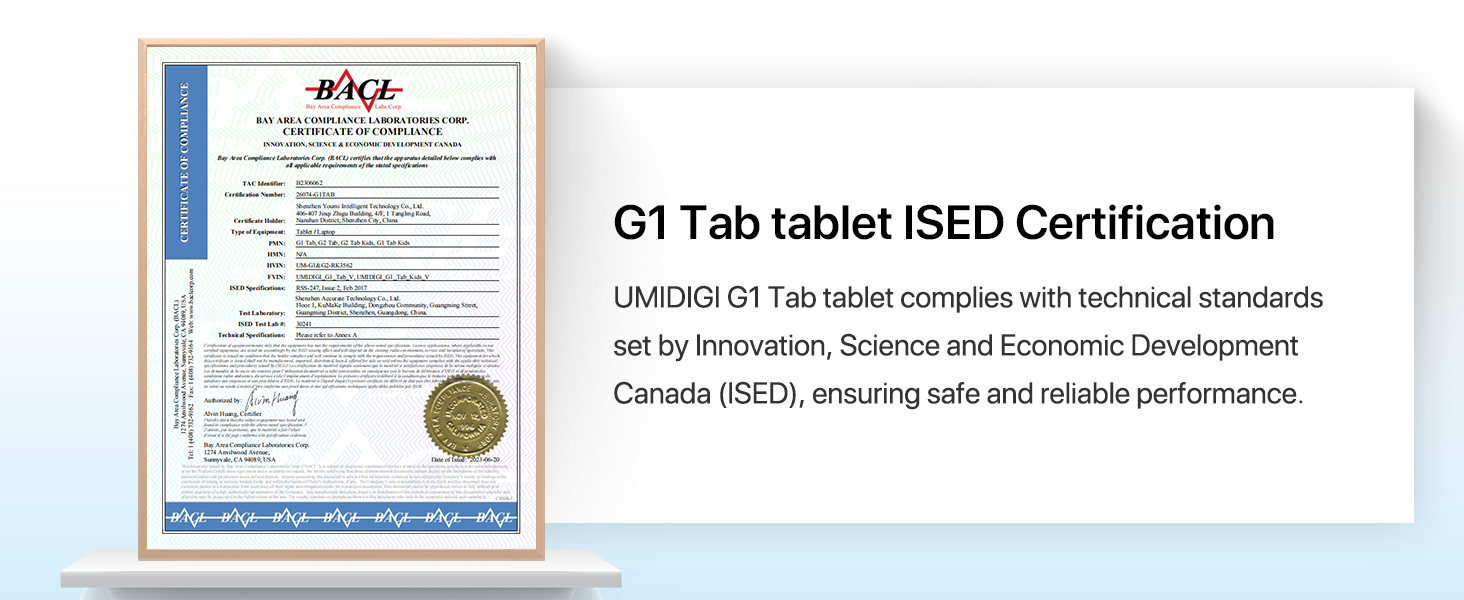
Image: Illustration of Google Kids Space and Family Link interfaces on the UMIDIGI G1 Tab, showing parental control options and child-friendly content.
6. Техникалык тейлөө
6.1 Батареяга кам көрүү
- Планшетти экстремалдык температурага тийгизүүдөн сактаңыз.
- Берилген заряддагычты жана USB Type-C кабелин гана колдонуңуз.
- Батареянын бат-баттан толук зарядсызданышына жол бербеңиз.
6.2 Программалык камсыздоо жаңыртуулары
Оптималдуу аткарууну жана коопсуздукту камсыз кылуу үчүн программалык камсыздоо жаңыртууларын дайыма текшерип, орнотуп алыңыз.
- барыңыз Орнотуулар > Система > Системаны жаңыртуу.
- таптаңыз Жаңыртууну текшериңиз жана жаңыртуу жеткиликтүү болсо, көрсөтмөлөрдү аткарыңыз.
6.3 Тазалоо
- Планшеттин экранын жана корпусун тазалоо үчүн жумшак, түксүз чүпүрөктү колдонуңуз.
- Катуу химиялык заттарды же абразивдүү материалдарды колдонуудан алыс болуңуз.
7. Кыйынчылыктарды
7.1 Планшет күйбөйт
- Ensure the battery is charged. Connect the tablet to the charger for at least 30 minutes.
- Мажбурлап өчүрүп күйгүзүү үчүн кубат баскычын 10-15 секунд басып туруңуз.
7.2 Жай аткаруу
- Керексиз фон колдонмолорун жабуу.
- Көбүнчө колдонулган колдонмолор үчүн кэш дайындарын тазалоо (Орнотуулар > Колдонмолор > [Колдонмонун аты] > Сактагыч жана кэш > Кэшти тазалоо).
- Consider enabling virtual memory expansion (see Section 5.2).
- Жеткиликтүү сактоо мейкиндигин камсыз кылыңыз.
7.3 Wi-Fi туташуу маселелери
- Wi-Fi роутериңизди жана планшетиңизди өчүрүп күйгүзүңүз.
- Forget the network and reconnect (Settings > Network & internet > Internet > [Network Name] > Forget).
- Wi-Fi сигналынын чегинде экениңизди текшериңиз.
8. Техникалык шарттар
| Өзгөчөлүк | Спецификация |
|---|---|
| Модел | G1 Tab |
| Операция системасы | Android 13 |
| Screen Size | 10.1 дюйм |
| Screen Resolution | 1280 x 800 пиксель |
| Процессор | 2.0 ГГц чейин |
| RAM | 8 ГБ (4 ГБ физикалык + 4 ГБ виртуалдык) |
| Ички сактагыч | 64 ГБ |
| Кеңейтүүчү сактагыч | microSD карта аркылуу 1 ТБ чейин |
| Батарея сыйымдуулугу | 6000mAh |
| Зымсыз түрү | 802.11ax (Wi-Fi 6), 2.4G/5G Dual Band |
| Bluetooth | Bluetooth 5.0 |
| Элемент Салмагы | 7 унция |
| Продукциянын өлчөмдөрү | 9.6 x 0.3 x 6.3 дюйм |
9. Кепилдик жана колдоо
9.1 Кепилдик маалыматы
UMIDIGI offers a one-year warranty for the G1 Tab Tablet. For warranty claims or detailed terms, please refer to the official UMIDIGI webсайтка же кардарларды колдоо менен байланышыңыз.

Image: Certified battery report for the UMIDIGI G1 Tab, indicating compliance with international safety standards.

Image: ISED Certification for the UMIDIGI G1 Tab, confirming compliance with Canadian technical standards for safe and reliable performance.
9.2 Кардарларды колдоо
If you encounter any issues or have questions regarding your UMIDIGI G1 Tab Tablet, please contact UMIDIGI customer support through their official webсайтты же Ыкчам баштоо колдонмоңузда берилген байланыш маалыматын.


