1. Киришүү
Thank you for choosing the EWEADN S9 Pro Wireless Gaming Mouse. This manual provides essential information for setting up, operating, and maintaining your new gaming mouse. The S9 Pro features triple connection modes, a high-precision PAW3395 optical sensor, customizable DPI settings, and a lightweight ergonomic design for optimal performance.
2. Пакеттин мазмуну
Пакетиңизде бардык буюмдар бар экенин текшериңиз:
- EWEADN S9 Pro Wireless Gaming Mouse
- Көрсөтмө (бул документ)
- 8K Custom Receiver (USB dongle)
- 1.5M Parachute Cord (USB-C to USB-A cable)
- PE Bag Foot Pad
- Anti-slip Protection Sticker

Image: All items included in the EWEADN S9 Pro Wireless Gaming Mouse package, including the mouse, USB-C cable, receiver, and accessories.
3. Продукт бүтүп калдыview
Familiarize yourself with the buttons and ports of your EWEADN S9 Pro mouse:
Image: A detailed diagram illustrating the various buttons and ports on the EWEADN S9 Pro mouse, including Left Button, Right Button, Middle Button (scroll wheel), DPI Switch, Forward Button, Backward Button, Type-C Port, and the 2.4G-OFF-BT mode switch on the underside.
- Сол баскыч: Стандарттык сол чыкылдатуу функциясы.
- Оң баскыч: Стандарттык оң баскычты чыкылдатуу функциясы.
- Middle Button (Scroll Wheel): Scroll up/down, middle-click.
- DPI которуу: Алдын ала коюлган DPI деңгээлдери аркылуу айлануу.
- Алга баскычы: Алга карай жылдырат web браузерлер же тиркемелер.
- Артка баскычы: Артка карай багыт алат web браузерлер же тиркемелер.
- Тип-C Port: Зымдуу туташуу жана кубаттоо үчүн.
- 2.4G-OFF-BT Switch: Located on the underside, used to select connection mode or power off.
4. Орнотуу
4.1. Чычканды заряддоо
Before first use, it is recommended to fully charge the mouse. Connect the supplied USB-C cable to the mouse's Type-C port and the other end to a USB power source (e.g., computer USB port, USB wall adapter).

Image: The EWEADN S9 Pro mouse connected via its USB-C port to a charging cable, indicating the charging process.
4.2. Туташуу режимдери
The S9 Pro mouse supports three connection modes: 2.4G Wireless, Bluetooth 5.0, and USB-C Wired. Use the switch on the underside of the mouse to select your desired mode.
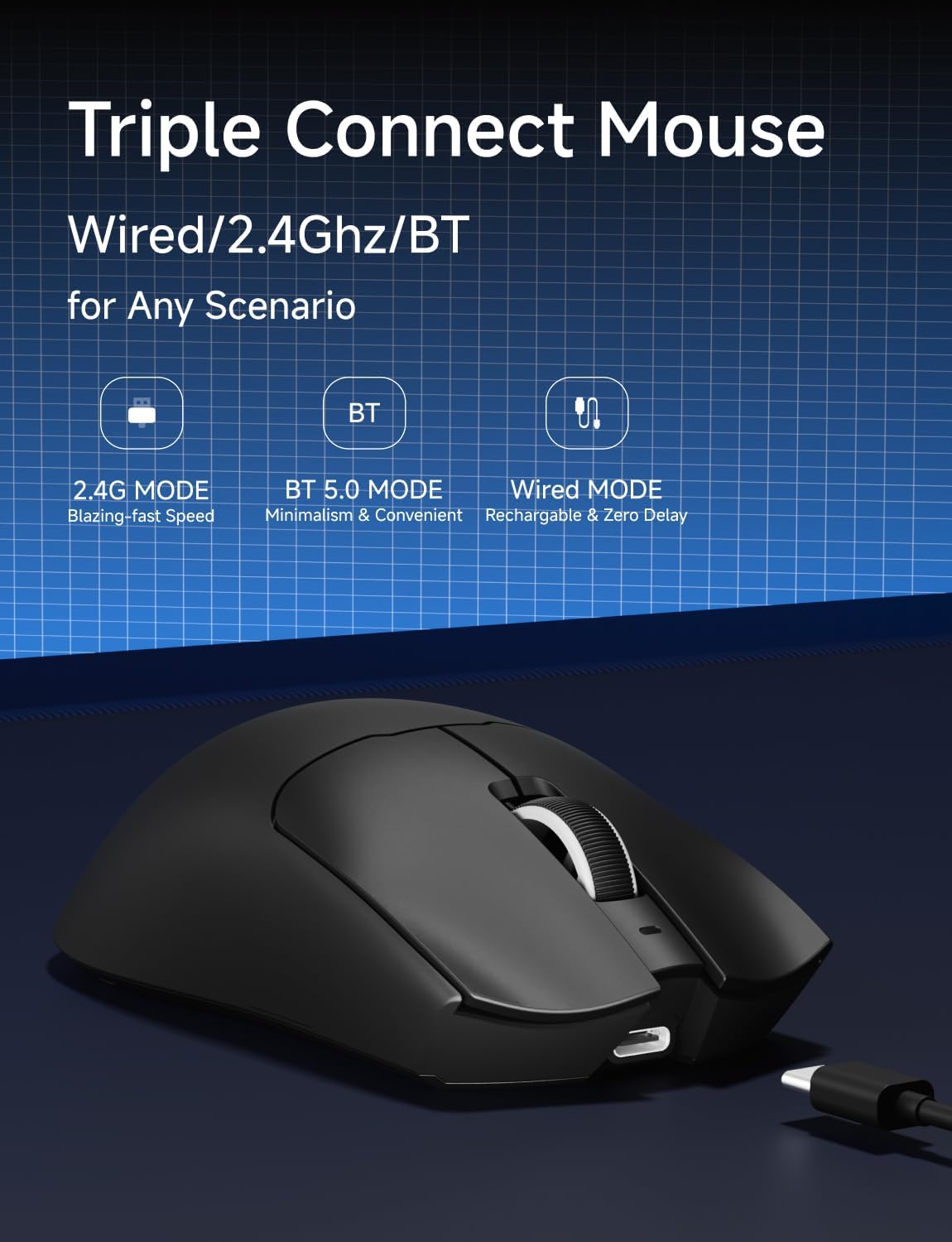
Image: An illustration highlighting the three connection modes: 2.4G Wireless for blazing-fast speed, Bluetooth 5.0 for convenience, and USB-C Wired for zero delay and recharging.
2.4G зымсыз туташуу
- Locate the 8K Custom Receiver (USB dongle) in the package.
- USB ресиверди компьютериңиздеги жеткиликтүү USB портуна сайыңыз.
- Slide the mode switch on the underside of the mouse to the "2.4G" position.
- Чычкан компьютериңизге автоматтык түрдө туташуу керек.
Bluetooth 5.0 туташуу
- Slide the mode switch on the underside of the mouse to the "BT" position.
- Компьютериңизде же түзмөгүңүздө Bluetooth жөндөөлөрүн ачып, жаңы түзмөктөрдү издеңиз.
- Select "EWEADN S9 Pro" from the list of available devices to pair.
USB-C зымдуу туташуу
- Connect the supplied USB-C cable to the mouse's Type-C port.
- Кабелдин USB-A учунун компьютериңиздеги жеткиликтүү USB портуна туташтырыңыз.
- Чычкан зымдуу режимде иштейт жана бир эле учурда кубатталат.
5. Иштөө нускамалары
5.1. DPI тууралоо
The EWEADN S9 Pro mouse features customizable DPI settings. You can cycle through preset DPI levels using the dedicated DPI switch button on the top of the mouse. For fine-tuning and additional customization, please use the official EWEADN software.

Image: The EWEADN S9 Pro mouse with an overlay indicating 6 customizable DPI settings, ranging from 800 to 26000 DPI.
5.2. Добуш берүү көрсөткүчү
The mouse supports an 8K polling rate in wireless mode (with the 8K receiver) and 1K in wired mode. The polling rate can be configured through the EWEADN software to match your preferences and system capabilities.
5.3. Программалануучу баскычтар
The S9 Pro mouse is equipped with programmable buttons. To customize button functions, DPI/IPS settings, lift-off distance, and create macros, download and install the official EWEADN software from the manufacturer's website. This software allows for advanced personalization of your mouse settings.
5.4. Эргономикалык дизайн
The mouse is designed for right-handed users with medium to large hands, weighing only 59 grams. Its ergonomic shape aims to reduce fatigue during extended use. It supports various grip styles including palm, claw, and fingertip grips.

Image: An illustration demonstrating the EWEADN S9 Pro mouse's compatibility with palm grip, claw grip, and fingertip grip styles, designed for medium-large handed players.
6. Техникалык тейлөө
6.1. Тазалоо
To clean your mouse, use a soft, dry, lint-free cloth. Avoid using harsh chemicals, solvents, or abrasive materials, as these can damage the surface and internal components. For stubborn dirt, a slightly damp cloth can be used, ensuring no moisture enters the mouse.
6.2. Батареяга кам көрүү
The S9 Pro features a 500mAh rechargeable battery. To maximize battery life:
- Чычканды экстремалдык температурага тийгизүүдөн сактаңыз.
- Чычканды үзгүлтүксүз кубаттап туруңуз, айрыкча батареянын индикатору кубаттуулуктун аздыгын көрсөткөндө.
- If storing the mouse for an extended period, charge it to approximately 50% before storage.
7. Кыйынчылыктарды
7.1. Чычкан жооп бербейт
- Батареяны текшерүү: Ensure the mouse is charged. Connect the USB-C cable to charge.
- Туташуу режимин текшерүү: Verify the mode switch on the underside is set correctly (2.4G, BT, or OFF).
- 2.4G зымсыз: USB кабыл алгыч иштеп жаткан USB портуна бекем сайылып турганын текшериңиз. Башка USB портун колдонуп көрүңүз.
- Bluetooth: Re-pair the mouse with your device in Bluetooth settings. Ensure your device's Bluetooth is enabled.
- текст: Ensure the USB-C cable is firmly connected to both the mouse and the computer.
7.2. DPI өзгөрбөйт
- Туура DPI которгуч баскычын басып жатканыңызды текшериңиз.
- If using custom DPI settings, check the EWEADN software to ensure settings are applied correctly.
7.3. Lag or Stuttering
- Зымсыз кийлигишүү: Move the mouse closer to the receiver or your Bluetooth device. Avoid placing the receiver near other wireless devices or large metal objects.
- Добуш берүү көрсөткүчү: While 8K polling rate offers high performance, some systems may experience issues. Try reducing the polling rate via the EWEADN software if you encounter instability.
- Батарея деңгээли: Low battery can sometimes affect wireless performance. Charge the mouse fully.
8. Техникалык шарттар
| Өзгөчөлүк | Деталь |
|---|---|
| Бренд | EWEADN |
| Модель номери | S9 Pro |
| Байланыш технологиясы | 2.4Ghz Wireless, Bluetooth 5.0, USB-C Wired |
| Кыймылды аныктоо технологиясы | Оптикалык (PAW3395 сенсор) |
| DPI диапазону | 26000 XNUMX DPI чейин |
| IPS Tracking | 650IPS |
| Добуш берүү көрсөткүчү | 8K Wireless, 1K Wired |
| Которгучтар | Kailh Micro Switch (100 Million Clicks) |
| Батарея сыйымдуулугу | 500mAh |
| Батареянын иштөө мөөнөтү | 250 саатка чейин |
| Салмагы | 59 грамм (болжол менен 2.08 унция) |
| Шайкештик | Windows 7/8/10/XP/Vista, Mac OS, Linux, Android |
| Кабелдин узундугу | 1.5M Parachute Cord |
| Пакеттин өлчөмдөрү | 7.32 x 5.75 x 2.32 дюйм |
9. Кепилдик жана колдоо
EWEADN provides manufacturer support for its products. If you encounter any issues or have questions regarding your S9 Pro Wireless Gaming Mouse, please contact EWEADN customer support. The manufacturer aims to provide a response within 24 hours and offers 360 days of brand support.

Image: An illustration indicating EWEADN's commitment to customer support, including 24-hour reply times and 360 days of manufacturer brand support.
For the most up-to-date support information and software downloads, please visit the official EWEADN webсайт.


