1. Киришүү
This manual provides essential information for the safe and efficient use of your KOORUI G2711P 27-inch IPS Full HD Gaming Monitor. Please read it thoroughly before operating the device and retain it for future reference.
The KOORUI G2711P monitor features a 27-inch IPS non-glare panel with Full HD (1920x1080) resolution, a 200Hz refresh rate, and a 1ms MPRT response time, designed for an immersive gaming and viewing experience. It includes multiple connectivity options and eye-care features.

Сүрөт 1.1: Алдыңкы view of the KOORUI G2711P 27-inch IPS Full HD Gaming Monitor.
2. Коопсуздук маалыматы
- Өрткө же электр тогуна урунбоо үчүн мониторду жамгырдын же нымдуулуктун таасирине дуушар кылбаңыз.
- Мониторду ачпаңыз casinг. Ичинде колдонуучу тейлей турган бөлүктөр жок. Бардык тейлөөлөрдү квалификациялуу тейлөө кызматкерлерине тапшырыңыз.
- Монитор кулап калбаш үчүн аны туруктуу, тегиз бетке коюңуз.
- Монитордун айланасында туура желдетүүнү камсыз кылыңыз. Вентиляция тешиктерин жаап албаңыз.
- Монитор менен кошо берилген кубат адаптерин гана колдонуңуз.
- Чагылганда же узак убакыт бою колдонбогондо мониторду розеткадан сууруп алыңыз.
3. Орнотуу
3.1 Пакеттен чыгаруу
Carefully remove all components from the packaging. Ensure all parts listed in the packing list are present and undamaged. Keep packaging materials for future transport or return.
3.2 Стендди чогултуу
- Стенд негизин стенд мойнуна бекитиңиз.
- Secure the assembled stand to the back of the monitor panel. Refer to the product images for visual guidance on the attachment method.

Image 3.1: Monitor dimensions and side view, illustrating the stand attachment area.
3.3 Түзмөккө туташуу
The monitor supports various input options:
- HDMI: Connect an HDMI cable from your computer or other device to one of the two HDMI 2.0 ports on the monitor.
- DisplayPort (DP): Connect a DisplayPort cable from your computer to the DP 1.4 port on the monitor.
- Audio Out (A/O): Connect external speakers or headphones to the audio output port if desired, as the monitor does not have built-in speakers.

Сүрөт 3.2: Арткы view of the monitor showing HDMI, DisplayPort, and Audio Out connections, along with the 75x75mm VESA mount.
3.4 Кубат туташтыруу
Connect the power adapter to the monitor's power input, then plug the power cable into a wall outlet. The monitor is designed for 110V power input.
4. Иштөө нускамалары
4.1 Күйгүзүү/өчүрүү
Press the power button, typically located on the back or bottom of the monitor, to turn the monitor on or off. An indicator light will show the power status.
4.2 Экрандагы дисплей (OSD) менюсунун навигациясы
The monitor features a 5-way joystick for intuitive OSD menu navigation. This joystick allows you to access and adjust various display settings.
- Джойстикти басыңыз: Тандоону ырастоо.
- Move joystick up/down: Adjust or select options.
- Move joystick left/right: Adjust or select options.
- Move joystick back (usually left): Exit menu or go back.

Image 4.1: Illustration of the 5-way joystick control for OSD menu navigation.
4.3 Дисплей орнотуулары
- Чечим: The native resolution is 1920x1080 Full HD. Ensure your device is set to this resolution for optimal display quality.
- Жаңыртуу ылдамдыгы: The monitor supports up to 200Hz. Adjust your graphics card settings to utilize the higher refresh rate for smoother visuals.
- Жооп убактысы (MPRT): The monitor features 1ms MPRT (Moving Picture Response Time) for reduced motion blur. This setting can usually be enabled or adjusted in the OSD menu.
- Адаптивдүү синхрондоштуруу: This technology synchronizes the monitor's refresh rate with your graphics card's frame rate to eliminate screen tearing and stuttering. Enable it in the OSD menu and your graphics card control panel.
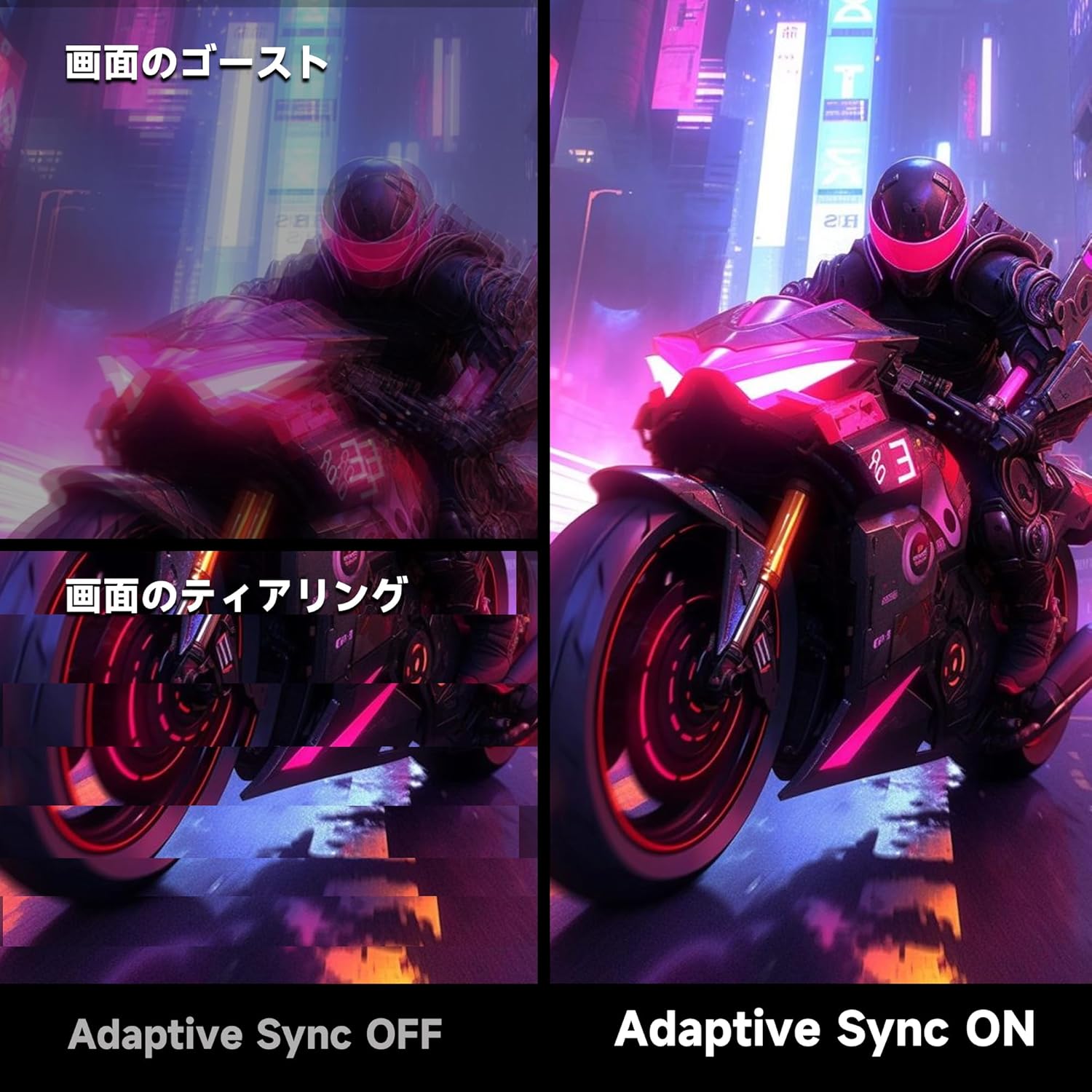
Image 4.2: Visual comparison demonstrating the effect of Adaptive Sync being OFF (showing ghosting and tearing) versus ON (smooth image).

Image 4.3: Comparison illustrating the difference in motion clarity between 200Hz 1ms MPRT and 75Hz 5ms settings.
- HDR 400: The monitor supports HDR 400 for enhanced contrast and color depth. Enable HDR in your operating system settings for compatible content.

Image 4.4: Visual representation of HDR 400 providing more impressive and vibrant images compared to standard HDR 10.
- Түс жөндөөлөрү: The monitor offers 93% DCI-P3 color gamut for accurate and vibrant color reproduction. Adjust brightness, contrast, and color temperature via the OSD menu.

Image 4.5: Display showing a wide range of colors, indicating 93% DCI-P3 color gamut coverage for accurate and vivid visuals.
- Eye Care Features: The monitor incorporates 'Blue Light Reduction' and 'Flicker-Free' technologies to minimize eye strain during prolonged use. These settings can be adjusted in the OSD menu.
- Crosshair Function: For shooting games, a built-in crosshair overlay can be enabled via the OSD menu to assist with aiming.

Image 4.6: A gaming scene demonstrating the monitor's crosshair function, which can be toggled ON or OFF to assist players in shooting games.
5. Техникалык тейлөө
5.1 Экранды тазалоо
Экранды жумшак, түксүз чүпүрөк менен акырын сүртүңүз. өжөр белгилер үчүн, гampen the cloth with a small amount of screen cleaner specifically designed for monitors. Do not spray cleaner directly onto the screen.
5.2 C. тазалооasing
Мониторду сүртүү үчүн жумшак, кургак чүпүрөктү колдонуңуз casing. Avoid using abrasive cleaners or solvents that may damage the surface.
6. Кыйынчылыктарды
- Кубат жок: Кубат кабели мониторго да, розеткага да бекем туташтырылганын текшериңиз. Электр розеткасынын иштеп жатканын текшериңиз.
- Сигнал жок: Verify that the video cable (HDMI or DisplayPort) is correctly connected to both the monitor and your computer. Ensure the correct input source is selected in the monitor's OSD menu.
- Жаркылдаган экран: Check the video cable connection. Try a different cable or port. Ensure your graphics card drivers are up to date.
- Image Distortion/Tearing: Ensure Adaptive Sync is enabled in both the monitor's OSD and your graphics card settings. Check for correct resolution and refresh rate settings.
- Түстүн сапаты начар: Adjust color settings (brightness, contrast, color temperature) in the OSD menu. Ensure HDR is enabled for HDR content.
7. Техникалык шарттар
| Өзгөчөлүк | Спецификация |
|---|---|
| Бренд | KOORUI |
| Модел | G2711P |
| Screen Size | 27 дюйм |
| Панел түрү | IPS, Non-Glare |
| Резолюция | 1920 x 1080 (Full HD) |
| Аспект катышы | 16:9 |
| Жаңыртуу ылдамдыгы | 200Hz |
| Жооп убактысы | 1ms MPRT (GTG) |
| Жарыктык | 300 кд/м² |
| Контраст катышы | 1000:1 |
| Viewбурч | 178° (горизонталдуу/вертикалдуу) |
| Түс гаммасы | 93% DCI-P3 |
| HDR колдоо | HDR 400 |
| Байланыш | 2x HDMI 2.0, 1x DisplayPort 1.4, 1x Audio Out |
| Баяндамачылар | камтылган эмес |
| VESA тоосунун шайкештиги | 75x75мм |
| Өлчөмдөрү (W x Y x D) | 61.34 x 47.23 x 21.49 см (стенд менен) |
| Салмагы | 5.8 кг |
| Power Input | 110V |
8. Кепилдик
The KOORUI G2711P monitor screen is covered by a 1 жылдык кепилдик from the date of purchase. All other included accessories are covered by a 3 жылдык кепилдик. Кепилдик дооматтары үчүн сатып алганыңыздын далилин сактап коюңуз. Кепилдик нормалдуу пайдалануу шарттарында өндүрүштүк кемчиликтерди жана бузулууларды камтыйт.
9. Колдоо
For technical assistance, troubleshooting, or warranty inquiries, please contact KOORUI customer support through the retailer where you purchased the product or visit the official KOORUI website for contact information. When contacting support, please have your monitor model number (G2711P) and proof of purchase readily available.


