Introduction
This manual provides detailed instructions for the safe and efficient operation of your SUPVAN E11 Bluetooth Label Maker Machine. Please read this manual thoroughly before using the device to ensure proper functionality and to prevent damage. Keep this manual for future reference.
Коопсуздук маалыматы
- Use only a single power socket. Avoid plugging into multiple devices to prevent fire or electric shock.
- Do not allow metal or liquid to enter the device. This may cause fire, electric shock, or internal damage.
- 100-240V ашкан өзгөрмө токтун күчүн колдонбоңуз.
- It is strictly forbidden to disassemble or modify the label machine without authorization. This may cause fire or electric shock due to high voltage бөлүктөрү.
- Keep the label printer away from alcohol, gasoline, and other flammable solvents to avoid fire hazards.
- Use a wrung-out wet gauze to clean the device. Do not use flammable organic solvents.
- Use the label printer in a clean place. Do not use it on carpets or blankets, as a large amount of dust can quickly cause a short circuit.
- The thermal-sensitive tablet will be permanently damaged and irreparable if scratched or damaged.
- Тазалоодон кийин, бет толугу менен кургаганда өзүн-өзү сыноо үчүн кубат баскычын эки жолу чыкылдатыңыз.
Пакеттин мазмуну
Пакетте бардык буюмдар бар экенин текшериңиз:
- SUPVAN E11 этикетка жасоочу машина
- USB-C заряддоо кабели
- User Manual
- White Continuous Label Tape (15mm x 6m) x 4 rolls

Image: The SUPVAN E11 Label Maker, USB-C charging cable, user manual, and four rolls of white label tape are shown as included package contents.
Жайгашуу
1. Аппаратты заряддоо
Before initial use, ensure the label maker is fully charged. Connect the provided USB-C cable to the charging port on the device and to a power source. The indicator light will turn green when fully charged.
Video: This video demonstrates how to charge the label maker and the indicator light behavior during charging.
2. Loading Label Tape
- Locate the tape compartment on the side of the device.
- Press the release button or slide the cover to open the compartment.
- Insert a roll of label tape, ensuring the label side faces down and the tape feeds correctly into the printer mechanism.
- Бөлүмдүн капкагын бекем жабыңыз.
- Press the 'Esc' button twice to retract the label tape to the correct printing position.
Video: This video illustrates the process of installing label tape into the SUPVAN E11 label maker, showing how to open the compartment, insert the roll, and close it.
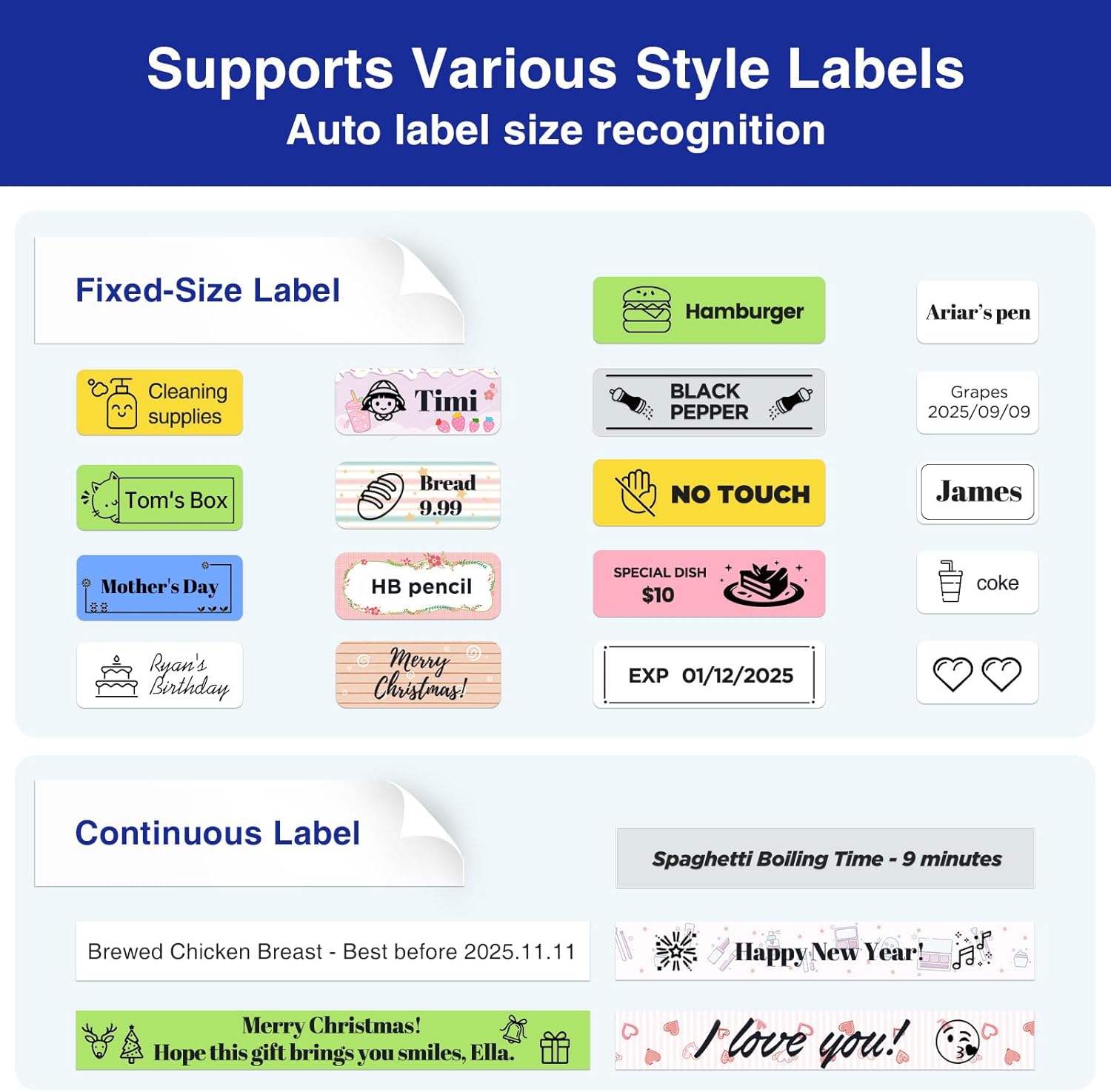
Image: The label maker's side compartment is open, revealing the mechanism for inserting the label tape roll. The tape should be placed with the label side facing downwards.
3. Connecting to the App (Bluetooth)
- Download the "KATASYMBOL" app from your smartphone's app store (iOS App Store or Google Play Store).
- Turn on the label maker by holding the power button for 2 seconds.
- Смартфонуңузда Bluetooth'ду иштетиңиз.
- Open the "KATASYMBOL" app. The app will automatically search for and connect to the label maker. If prompted, allow location permissions.
- Once connected, the app will display the device status.
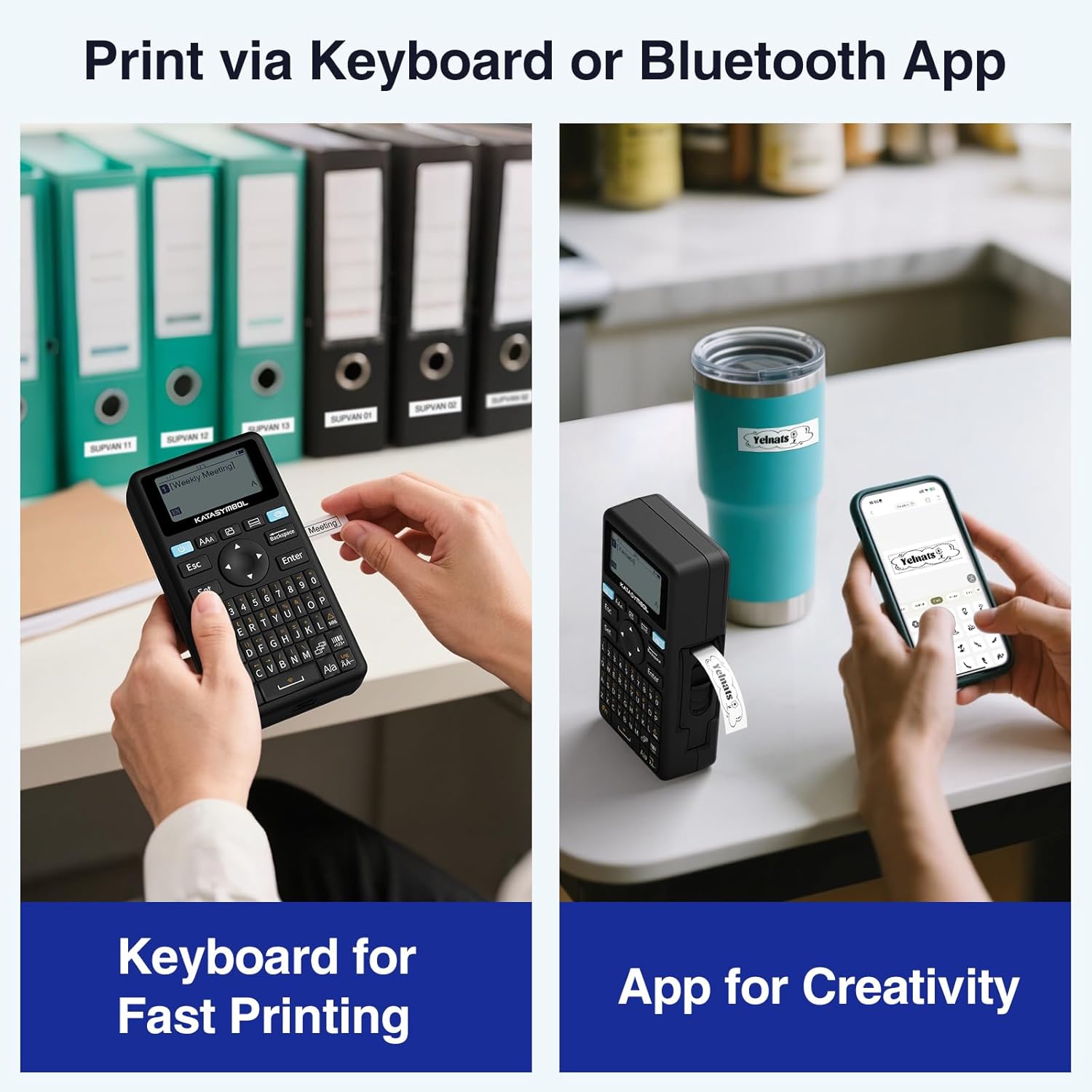
Image: A user is shown operating the SUPVAN E11 label maker, with one hand typing on the physical keyboard and the other interacting with the companion smartphone app for advanced label customization.
Иштөө нускамалары
1. Күйгүзүү / Өчүрүү
- To power on: Press and hold the power button (usually marked with a power symbol) for approximately 2 seconds.
- Өчүрүү үчүн: Түзмөк өчкөнгө чейин кубат баскычын кайра басып, кармап туруңуз.
2. Creating and Printing Labels
The SUPVAN E11 offers two primary methods for creating and printing labels: using the integrated keyboard or the smartphone app.
Баскычтопту колдонуу:
- Энбелги жасоочуну күйгүзүңүз.
- QWERTY клавиатурасын колдонуп, каалаган текстти териңиз.
- Use the arrow keys to navigate and the 'Set' button for basic formatting options.
- Press the 'Print' button (usually marked with a printer icon) to print the label.
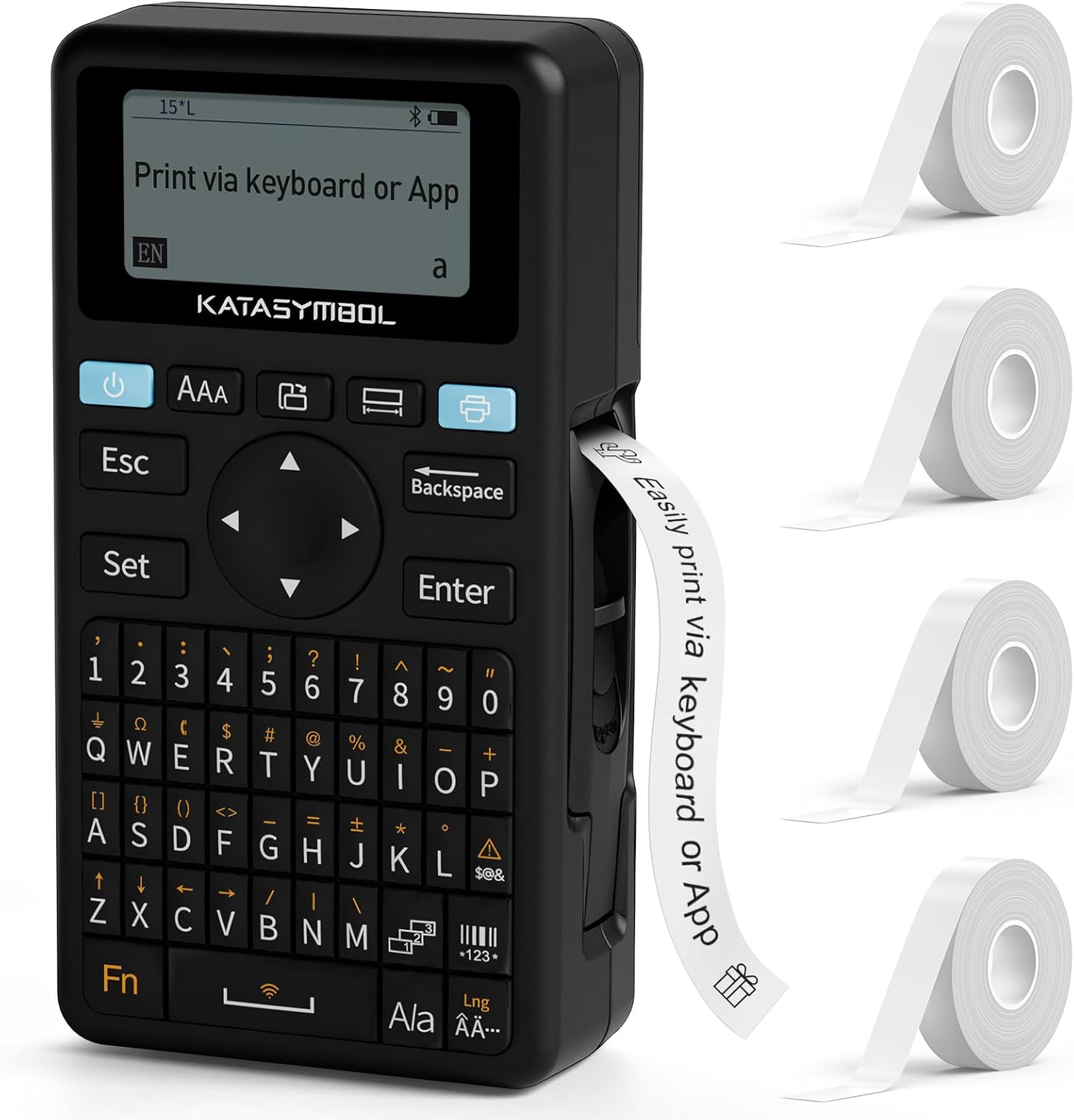
Image: The SUPVAN E11 label maker is displayed with its full QWERTY keyboard, directional pad, and LCD screen, illustrating its direct input capability for quick label creation.
Using the Smartphone App:
- Ensure the label maker is connected to the "KATASYMBOL" app via Bluetooth.
- In the app, select "New Label" or choose from existing templates.
- Enter your text and customize it using the app's features (fonts, icons, frames, etc.). The app supports 40+ fonts, 50+ frames, and 450+ icons.
- Preview your label design.
- Tap the 'Print' button in the app to send the design to the label maker.

Image: A smartphone screen displays the KATASYMBOL app, highlighting its extensive editing functions with options for over 40 fonts, 450 icons, and 50 frames to personalize labels.
3. Cutting Labels
After printing, the label maker features a minimal margin design (5mm) to reduce waste. To cut the label, use the integrated cutter on the side of the device. Pull the label gently and press the cutter lever.
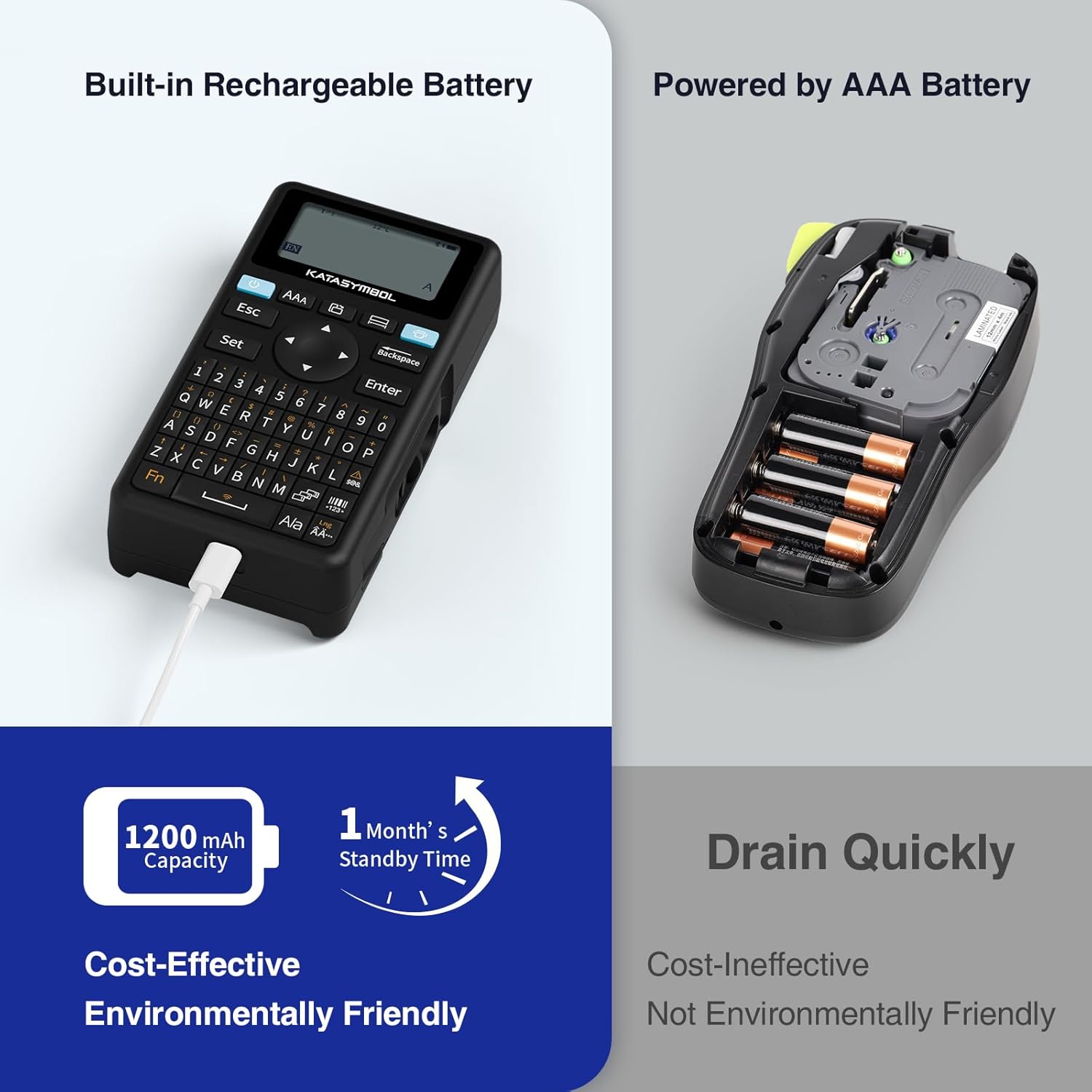
Image: A visual comparison between the SUPVAN E11's minimal 5mm label margin and a 10mm margin from other devices, emphasizing material saving.
4. Batch Printing
For multiple copies of the same label, the app supports batch printing. Specify the number of copies needed in the print settings before initiating the print job.
Video: This video demonstrates the batch printing feature, showing how to set the number of copies and print multiple labels efficiently.
Техникалык тейлөө
1. Батареяны заряддоо
The SUPVAN E11 features a 1200 mAh rechargeable battery, providing up to 1 month of standby use per charge. Recharge the device using the provided USB-C cable when the battery indicator is low.

Image: A visual comparison between the SUPVAN E11's built-in 1200 mAh rechargeable battery and a device requiring AAA batteries, emphasizing the former's efficiency and eco-friendliness.
2. Басып чыгаруу башын тазалоо
To ensure clear print quality, regularly clean the print head:
- Принтерди өчүрүп, аны бир нече секундага муздатыңыз.
- Take the paper roll out and pull it aside.
- Use a clean small cotton swab dipped in a little ethanol to wipe the dirt on the surface of the print head. Gently wipe; do not scrape the print head with hard objects.
Көйгөйлөрдү чечүү (Көп берилүүчү суроолор)
1. Принтер туташпай жатабы?
- Ensure the printer is turned on and Bluetooth is enabled on your smartphone.
- Check if location function is enabled for the "SUPRINT" app in your Android settings.
- Launch the Bluetooth connection within the app. Click the printer icon in the upper right corner to search for the device.
- Ensure the printer is not connected to other devices. It can only be linked to one smartphone at a time.
2. Эмне үчүн басып чыгаруу бүдөмүк?
- Make sure the battery is sufficient. If the printer's power light is low, charge the printer for at least half an hour.
- The print head may be dirty or sticky. Refer to the cleaning instructions.
- Increase the printing concentration in the app settings.
3. Эмне үчүн принтер этикетка кагазын кесип албайт?
- Кескичте топурак бар-жогун караңыз.
- If the cutter is sticky, use cotton swabs to clean any excessive glue.
4. Басма беттеги тексттер эмне үчүн мынчалык кичинекей?
The app automatically adjusts the font size according to the size of the label paper, which can be adjusted by using continuous labels or line breaks.
Техникалык шарттар
| Модел | E11 |
| Бренд | СУПВАН |
| Басма технологиясы | Термикалык |
| Байланыш | Bluetooth |
| Максималдуу медиа өлчөмү | 15 мм x 6 м |
| Print Resolution | 300 чекит_пер_дюйм |
| Макс басып чыгаруу ылдамдыгы (монохромдуу) | 45 мм/с |
| Батарея сыйымдуулугу | 1200 мАч |
| Элемент Салмагы | 0.23 килограмм |
| Продукциянын өлчөмдөрү | 14.5D x 7.4W x 3.3H Сантиметр |
Кепилдик жана колдоо
For warranty information or technical support, please contact SUPVAN customer service. You can find contact details on the official SUPVAN website or through the "Support" section of the KATASYMBOL app.
Manufacturer: SUPVAN
Иштеген жери: support@supvan.com


