1. Киришүү
Thank you for choosing the VENTION 15-in-1 Laptop Docking Station. This device is designed to expand the connectivity of your laptop, providing a comprehensive solution for multiple peripherals, external displays, network access, and power delivery through a single USB-C connection. Please read this manual carefully to ensure proper installation and operation.
2. Продукт бүтүп калдыview
The VENTION 15-in-1 Docking Station offers a wide array of ports to enhance your workstation. Its rotatable design allows for flexible placement on your desk.
2.1. Docking Station Features
- 15-ин-1 туташуусу: Comprehensive port selection for various devices.
- Dual/Triple Display Output: Supports up to three external monitors via 2 HDMI and 1 DisplayPort.
- Power Delivery (PD 100W): Charges your laptop while connected.
- Жогорку ылдамдыктагы маалыматтарды өткөрүп берүү: USB 3.2 Gen 2 ports offer up to 10Gbps.
- Гигабит Ethernet: Provides stable and fast wired network connection.
- Картаны окугуч: Integrated SD/TF card slots for quick data access.
- Аудио Jack: 3.5mm TRRS port for headphones or microphones.
- Айлануучу дизайн: Allows for optimal positioning and cable management.
- Туруктуу курулуш: Aluminum alloy shell for optimal heat dissipation.
2.2. Port Layout
Familiarize yourself with the ports on the docking station:

Сүрөт: алдыңкы жана арткы view of the VENTION 15-in-1 Docking Station, showcasing its compact design and port arrangement.

Image: A detailed diagram illustrating all 15 ports on the docking station, including their types and functions.
- Алдыңкы порттор: SD/TF Card Slot, USB 3.0 (5Gbps), 2x USB 3.2 Gen 2 Type-A (10Gbps), USB 3.2 Gen 2 Type-C (10Gbps), USB 3.2 Gen 1 Type-C (5Gbps), 3.5mm TRRS Audio Jack.
- Арткы порттор: PD (Power Delivery 100W Max Input), PC HOST (USB-C connection to laptop), 2x USB 2.0 Type-A (480Mbps), 2x HDMI (4K@60Hz), 1x DisplayPort (4K@60Hz), RJ45 Gigabit Ethernet.
3. Орнотуу колдонмосу
Док станцияңызды орнотуу үчүн төмөнкү кадамдарды аткарыңыз:
- Аппаратты таңгактан чыгаруу: Carefully remove the docking station and included accessories from the packaging.
- Стендди жайгаштырыңыз: The docking station features a detachable and rotatable U-shaped stand. Attach the stand to the base of the docking station for vertical placement, ensuring stability. The anti-slip pads on the stand provide protection and grip.
- Кубатты туташтыруу (милдеттүү эмес, бирок сунушталат): For optimal performance and laptop charging, connect a USB-C power adapter (not included) to the PD (Power Delivery) port on the rear of the docking station. The docking station supports up to 100W power input.
- Ноутбукка туташуу: Use the provided USB-C to USB-C cable to connect your laptop to the PC HOST port on the rear of the docking station. Ensure your laptop's USB-C port is a full-featured port or Thunderbolt 3/4 compatible for full functionality.

Image: Visual guide to identify compatible Thunderbolt or full-featured USB-C ports on your laptop, essential for the docking station's functionality.
Once connected, your laptop should automatically detect the docking station and its connected peripherals. Drivers are typically installed automatically by your operating system.
4. Иштөө нускамалары
4.1. Дисплейдин туташуусу
The docking station supports single, dual, or triple external displays. Connect your monitors to the HDMI and DisplayPort outputs on the rear of the docking station.

Image: A laptop connected to a single external 4K monitor through the docking station, demonstrating high-resolution display capabilities.
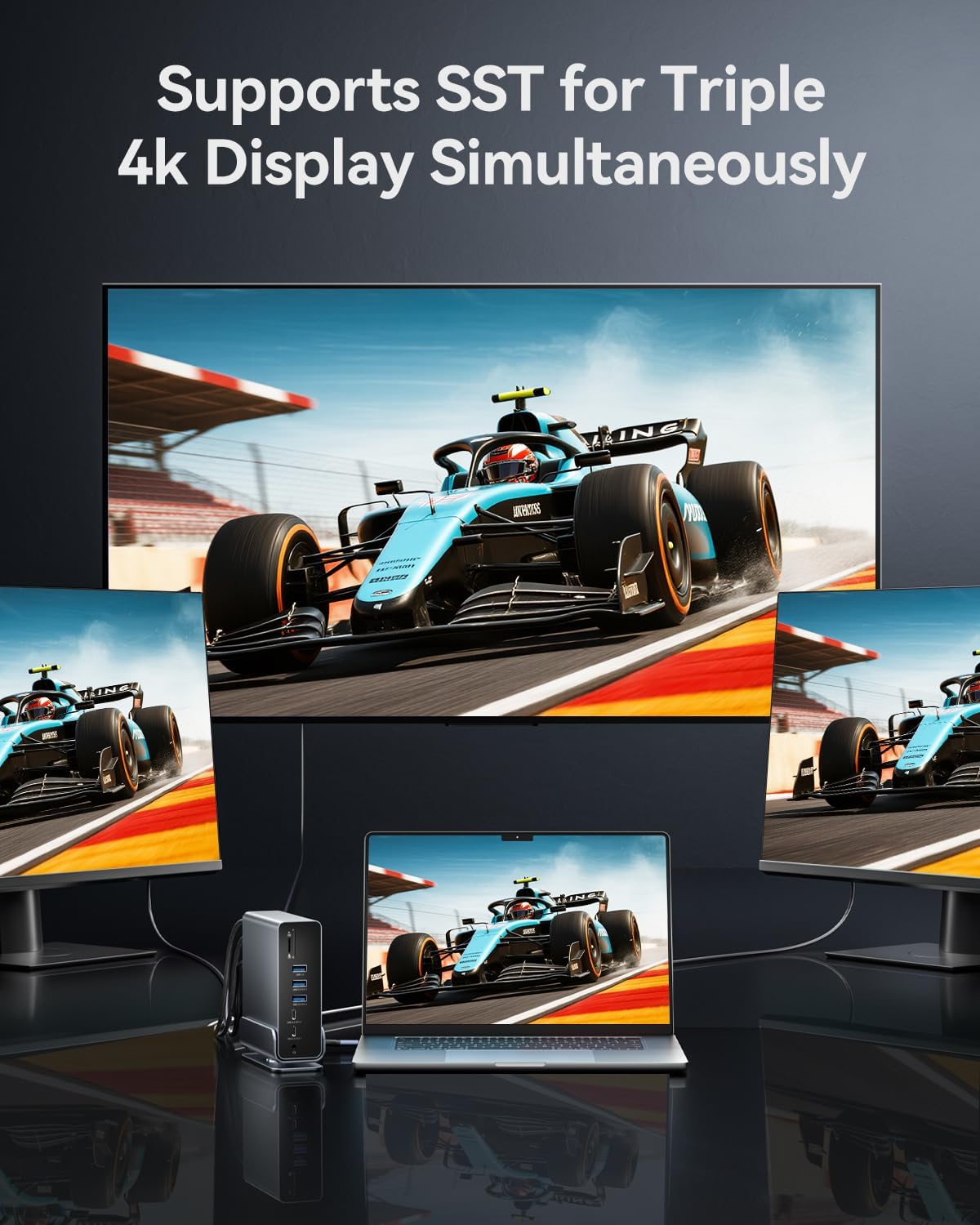
Image: A laptop connected to three external 4K monitors simultaneously, showcasing the triple display support of the docking station.
Көрсөтүү режимдери:
- MirrorMode: Duplicates your laptop's screen on external monitors.
- Узартуу режими: Extends your desktop across multiple screens, allowing for increased workspace.
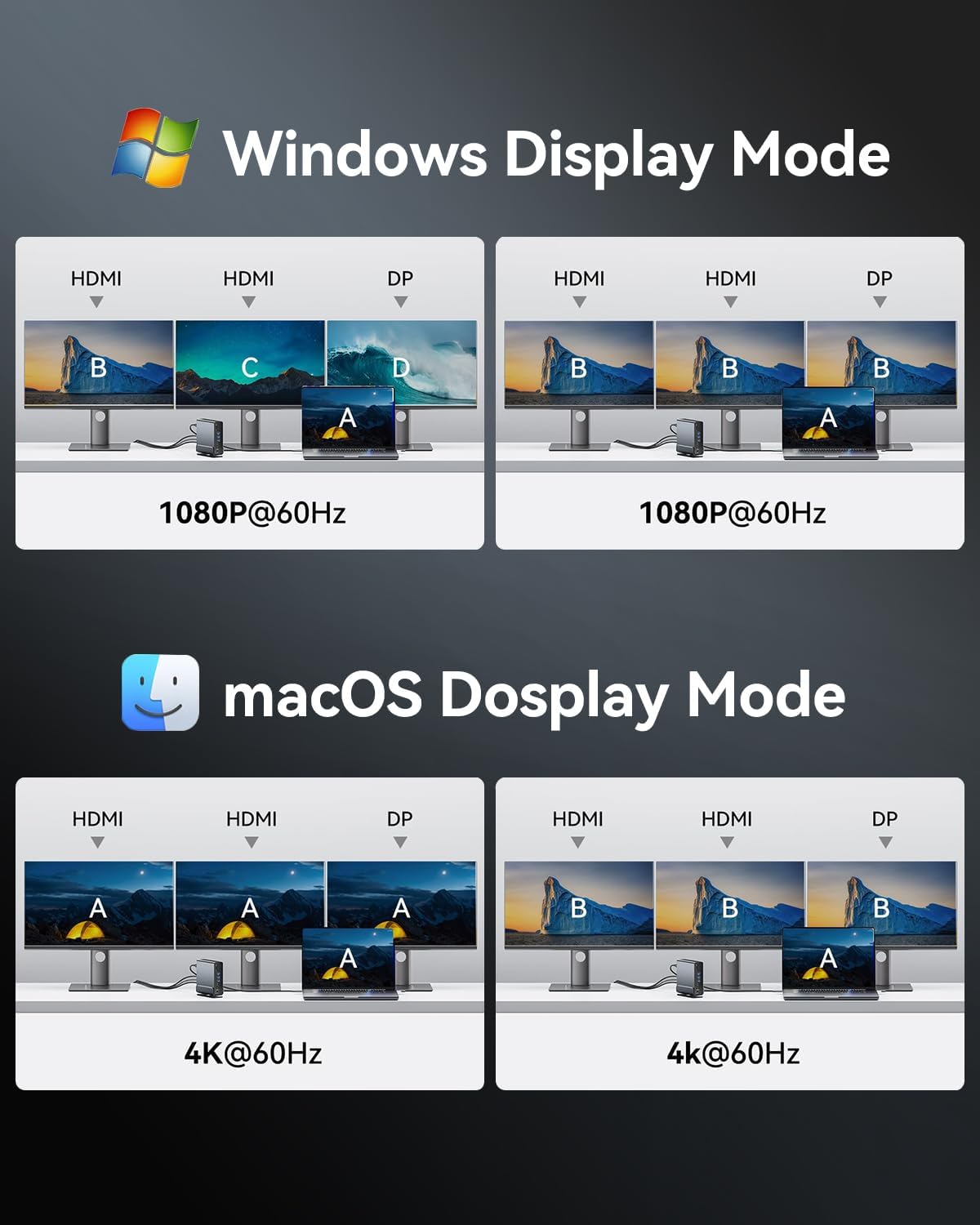
Image: Visual representations of various display configurations for Windows and macOS, including mirror and extend modes across multiple screens.

Image: A table detailing the highest supported resolutions and display modes for single, dual, and triple monitor setups on both Windows and macOS.
4.2. Электр энергиясын жеткирүү
Connect your laptop's power adapter to the PD port on the docking station to charge your laptop while using the dock. The docking station supports up to 100W power input, delivering up to 85W to your laptop.

Image: A laptop receiving power through the docking station's 100W Power Delivery port, illustrating the charging function.
4.3. Маалыматтарды өткөрүү
Connect your USB devices (external hard drives, flash drives, keyboards, mice, etc.) to the available USB ports. The docking station features a mix of USB 3.2 Gen 2 (10Gbps), USB 3.0 (5Gbps), and USB 2.0 (480Mbps) ports.

Image: An illustration detailing the data transfer speeds of different USB ports (Type-A and Type-C) and SD/TF card slots on the docking station.
Insert SD or TF cards into the dedicated slots on the front of the docking station for quick access to photos and fileс. Эки уячаны бир убакта колдонсо болот.

Image: A laptop connected to the docking station, demonstrating easy access to SD and TF memory cards for data transfer and backup.
4.4. Тармакка кошулуу
For a stable and fast internet connection, connect an Ethernet cable from your router or modem to the RJ45 Gigabit Ethernet port on the rear of the docking station.

Image: A laptop connected to the docking station, which is then connected to a network via the Gigabit Ethernet port, ensuring a fast and stable internet connection.
4.5. Аудио туташуу
Connect your headphones, speakers, or microphone to the 3.5mm TRRS audio jack on the front of the docking station.

Image: A laptop connected to the docking station, with headphones plugged into the 3.5mm audio and microphone jack, facilitating audio input and output.
5. Шайкештик
The VENTION 15-in-1 Docking Station is compatible with a wide range of devices and operating systems, provided your laptop has a full-featured USB-C port or Thunderbolt 3/4 interface.
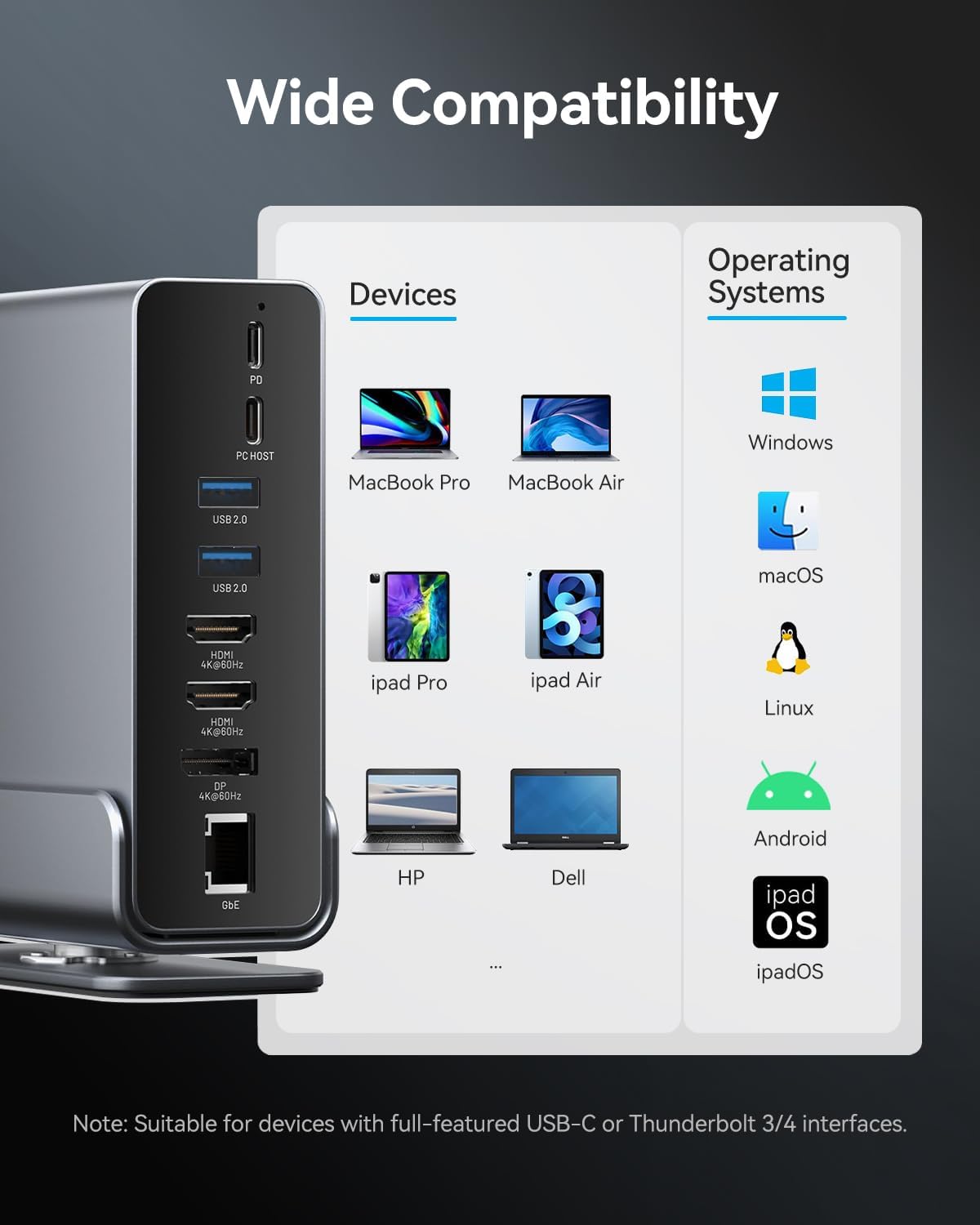
Image: A chart illustrating the wide compatibility of the docking station with various devices such as MacBook Pro/Air, iPad Pro/Air, HP, Dell, Surface, and operating systems including Windows, macOS, Linux, Android, and iPadOS.
Колдоого алынган операциялык системалар:
- Windows
- macOS
- Linux
- Android
- iPadOS
Эскертүү: Full functionality, especially for multiple displays and power delivery, requires a USB-C port that supports DisplayPort Alternate Mode (Alt Mode) and Power Delivery. Thunderbolt 3/4 ports are fully compatible.
6. Техникалык тейлөө
Док станцияңыздын узак иштөөсүн жана оптималдуу иштешин камсыз кылуу үчүн, төмөнкү тейлөө көрсөтмөлөрүн аткарыңыз:
- Тазалоо: Use a soft, dry cloth to wipe the exterior of the docking station. Avoid using liquid cleaners or abrasive materials.
- Сактагыч: Док-станцияны салкын, кургак жерде, күндүн түз тийген нурларынан жана өтө жогорку температурадан алыс сактаңыз.
- Колдонуу: Аппаратты түшүрүүдөн же катуу таасирлерден сактаныңыз.
- Вентиляция: Ensure the docking station has adequate ventilation to prevent overheating. The aluminum alloy shell is designed for optimal heat dissipation.
7. Кыйынчылыктарды
Док станцияңызда көйгөйлөргө туш болсоңуз, төмөнкү жалпы чечимдерди караңыз:
- Дисплей чыгышы жок:
- Ноутбугуңуздун USB-C порту DisplayPort Alt режимин колдой турганын текшериңиз.
- Бардык кабелдик туташууларды текшериңиз (ноутбукка USB-C, мониторлорго HDMI/DP).
- Verify monitor input settings are correct.
- Ноутбугуңуздун графикалык драйверлерин жаңыртып көрүңүз.
- Ноутбугуңузду өчүрүп-күйгүзүп, док станциясын кайра туташтырыңыз.
- Ноутбук заряддалбай жатат:
- Ensure a compatible USB-C power adapter is connected to the PD port.
- Кубат адаптери жетиштүү кубат менен камсыз кылып жатканын текшериңизtage (up to 100W recommended).
- Check the connection between the power adapter and the docking station.
- USB түзмөктөрү таанылбайт:
- Ensure the USB device is properly inserted into the port.
- Try connecting the device to a different USB port on the docking station or directly to your laptop.
- Ноутбугуңузду өчүрүп күйгүзүңүз.
- Үзгүлтүктүү байланыштар:
- Бардык кабелдер коопсуз туташтырылганын текшериңиз.
- Avoid excessive bending or strain on the USB-C cable connecting to your laptop.
- Ensure the docking station is placed on a stable surface and not subject to movement.
- Ethernet иштебейт:
- Ethernet кабелинин док станциясына жана роутерге/модемге туташуусун текшериңиз.
- Ноутбугуңуздагы тармак жөндөөлөрүн текшериңиз.
- Роутериңизди/модемиңизди өчүрүп күйгүзүңүз.
If the issue persists, please contact VENTION customer support for further assistance.
8. Техникалык шарттар
| Өзгөчөлүк | Спецификация |
|---|---|
| Модел | B0F5PTZTCP |
| Порттар | 15 (2x HDMI, 1x DP, 1x RJ45, 1x PD, 1x PC Host, 2x USB 3.2 Gen 2 Type-A, 1x USB 3.0 Type-A, 2x USB 2.0 Type-A, 1x USB 3.2 Gen 2 Type-C, 1x USB 3.2 Gen 1 Type-C, 1x SD, 1x TF, 1x 3.5mm Audio) |
| Video Output | 2x HDMI (4K@60Hz), 1x DisplayPort (4K@60Hz) |
| Power Delivery | PD 100W Input (Max), 85W Output to Host (Max) |
| USB берилиштерин өткөрүү | USB 3.2 Gen 2: 10Gbps, USB 3.0: 5Gbps, USB 2.0: 480Mbps |
| Ethernet | Гигабит Ethernet (10/100/1000 Мбит/сек) |
| Card Reader | SD/TF (Read & Write 2 cards simultaneously) |
| Аудио | 3.5mm TRRS Audio/Microphone Jack |
| Материал | Алюминий эритмеси |
| Өлчөмдөр | 7.9 x 6.7 x 2.34 дюйм |
| Салмагы | 1.76 фунт (0.8 кг) |
9. Кутуда эмне бар
Пакет төмөнкү нерселерди камтыйт:
- VENTION 15-in-1 Laptop Docking Station
- 1.5 фут USB-Cден USB-Cге кабелдик
- Колдонуучунун Колдонмосу (бул документ)

Image: An illustration showing the contents included in the product package: the docking station, a USB-C cable, and the user manual.
10. Кепилдик жана колдоо
VENTION products are designed for reliability and performance. For warranty information or technical support, please refer to the contact details provided on the product packaging or visit the official VENTION webсайт. Сатып алуу квитанциясын кепилдик дооматтары үчүн сатып алуунун далили катары сактаңыз.


