1. Киришүү
The IPTV H96 Max TV Stick transforms any compatible television into a smart entertainment hub. Featuring Android 14, 4K UHD streaming, Chromecast Built-in, and Google Voice Assistant compatibility, this device offers a comprehensive media experience. This manual provides essential information for setup, operation, and maintenance.

Image 1: IPTV H96 Max TV Stick and its remote control.
2. Кутуда эмне бар
- IPTV H96 Max TV Stick
- Remote Control with Google Assistant
- Кубат кабели (USB)
- Кубаттуу адаптер
- HDMI узартуу кабели
- User Manual

Image 2: The complete package contents, including the TV stick, remote, cables, and manual.
3. Орнотуу колдонмосу
Follow these steps to set up your IPTV H96 Max TV Stick:
- Телевизорду туташтырыңыз: Plug the H96 Max TV Stick directly into an available HDMI port on your television. If space is limited, use the provided HDMI extension cable.
- Туташуу кубаты: Connect the power cable to the TV Stick and then to the power adapter. Plug the adapter into a power outlet.
- HDMI киргизүүнү тандоо: Turn on your television and select the correct HDMI input source using your TV remote.
- Алыстан башкарууну жупташтыруу: Follow the on-screen instructions to pair your remote control. Typically, this involves pressing and holding specific buttons (e.g., 'OK' and 'Volume Down') simultaneously until the indicator light flashes.
- Wi-Fi'га туташуу: Once the remote is paired, navigate through the on-screen setup to connect your TV Stick to your home Wi-Fi network. Enter your Wi-Fi password when prompted.
- Google аккаунтуна кирүү: Sign in with your Google account to access the Google Play Store and personalize your experience.
Video 1: This video demonstrates the physical installation process of a TV stick, including connecting it to the TV and power.
Video 2: This video provides an unboxing and initial setup guide for a TV stick, showing the components and basic connection steps.
4. Иштөө нускамалары
The H96 Max TV Stick runs on Android 14, offering a user-friendly interface.
4.1 Навигация
Use the directional pad and 'OK' button on your remote to navigate through menus and select items. The 'Home' button returns you to the main Android TV interface.
4.2 Voice Control (Google Assistant)
Press the dedicated Google Assistant button on your remote to activate voice commands. You can search for content, open applications, control playback, and get information by speaking into the remote.

Image 3: A hand holding the remote control, demonstrating the use of Google Assistant for voice commands.
4.3 Агымдуу тиркемелер
Access a wide range of pre-installed and downloadable streaming applications such as Netflix, YouTube, Prime Video, Disney+, and more. Simply select the app icon from the home screen or app drawer.

Image 4: The Android TV home screen displaying popular streaming services like Netflix, YouTube, Disney+, and Prime Video.
4.4 Chromecast камтылган
The device includes Chromecast Built-in, allowing you to cast content (videos, photos, music) from your smartphone, tablet, or computer directly to your television screen.

Image 5: A visual representation of the Chromecast Built-in feature, showing content being cast from a mobile device to the TV.
5. Өзгөчөлүктөрү жана мүнөздөмөлөрү
5.1 Негизги өзгөчөлүктөрү
- Операция системасы: Android 14 (latest version for enhanced privacy management).
- Чечим: Supports 4K Ultra HD streaming for crystal-clear visuals.
- Үн менен башкаруу: Integrated Google Assistant for easy content search and device control.
- Кастинг: Chromecast Built-in for seamless content sharing from mobile devices.
- Эстутум: 2GB RAM + 16GB ROM for smooth operation and ample app storage.
- Байланыш: Wi-Fi 6 for faster speeds and reduced network congestion.

Image 6: An illustration highlighting the Android 14.0 operating system and its advantages over previous versions.
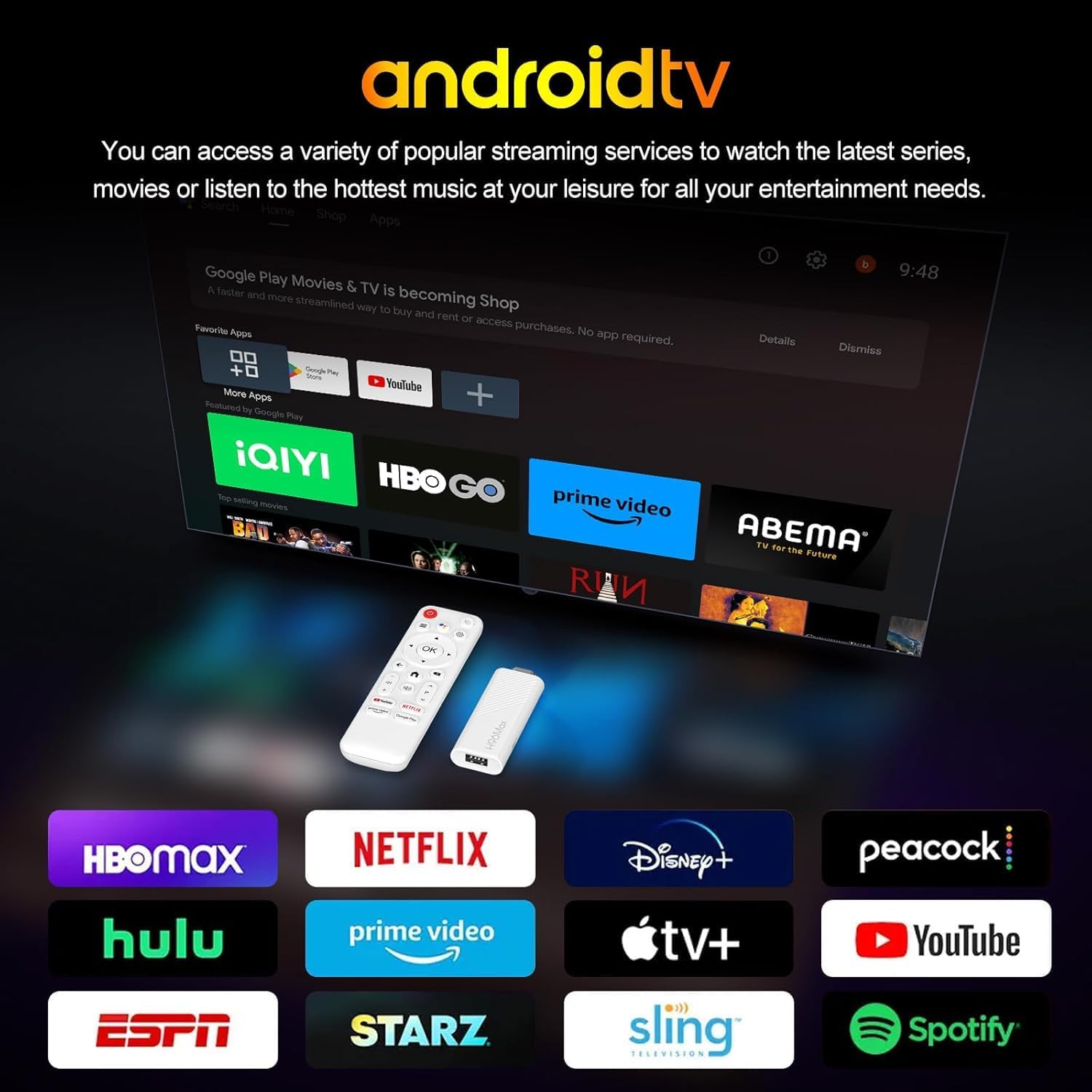
Image 7: A television screen displaying vibrant 4K Ultra HD content, emphasizing the visual quality.

Image 8: A comparison graphic illustrating the faster speeds and improved performance of Wi-Fi 6 compared to Wi-Fi 5.
5.2 Техникалык мүнөздөмөлөр
| Атрибут | Нарк |
|---|---|
| Бренд | IPTV |
| Модель аты | H96 MAX |
| Продукт түрү | TV Decoder / Media Streamer |
| Операция системасы | Android 14 |
| Резолюция | 3840 x 2160 пиксел (4K UHD) |
| RAM | 2 ГБ |
| ROM | 16 ГБ |
| Байланыш технологиясы | HDMI, Wi-Fi (Wi-Fi 6) |
| Өзгөчөлүктөр | Android 14, Chromecast Built-in, Netflix, Google Voice Assistant |
| Шайкеш түзмөктөр | Smart Television |
| Controller Type | Алыстан башкаруу |
| Салмагы | 1 грамм |
6. Техникалык тейлөө
To ensure optimal performance and longevity of your H96 Max TV Stick, consider the following maintenance tips:
- Тазалыкты сактоо: Gently wipe the device and remote with a soft, dry cloth. Avoid liquid cleaners.
- Тоскоолдуктарды болтурбоо: Ensure the TV Stick has adequate ventilation and is not covered, to prevent overheating.
- Программалык камсыздоо жаңыртуулары: Regularly check for and install system updates to benefit from new features, performance improvements, and security patches. You can usually find this option in the 'Settings' menu under 'Device Preferences' or 'About'.
- Power Cycle: If the device becomes unresponsive, disconnect it from the power source for a few seconds, then plug it back in.
7. Кыйынчылыктарды
If you encounter issues with your H96 Max TV Stick, refer to the following common solutions:
- Кубат жок/дисплей жок:
- Ensure the power cable is securely connected to both the TV Stick and the power adapter, and the adapter is plugged into a working outlet.
- Verify that the TV Stick is fully inserted into the HDMI port on your television.
- Сыналгыңыз туура HDMI киргизүү булагына коюлганын текшериңиз.
- Алыстан башкаруу жооп бербейт:
- Ensure the batteries in the remote are correctly inserted and have sufficient charge.
- Try re-pairing the remote control by following the setup instructions (Section 3.4).
- Wi-Fi туташуу маселелери:
- Wi-Fi роутериңизди жана модемиңизди өчүрүп күйгүзүңүз.
- Go to 'Settings' > 'Network & Internet' on the TV Stick to check available networks and reconnect.
- TV Stick Wi-Fi роутериңиздин диапазонунда экенин текшериңиз.
- App Freezing or Slow Performance:
- Тиркемени жаап, кайра ачыңыз.
- Clear the cache of the problematic app via 'Settings' > 'Apps'.
- TV Stickти өчүрүп-күйгүзүңүз.
8. Кепилдик жана колдоо
The IPTV H96 Max TV Stick comes with a 2 жылдык өндүрүүчүнүн кепилдиги. For any technical assistance, product inquiries, or warranty claims, please contact our customer service. Our support team is available жумасына 7 күн сага жардам берүү үчүн.
Please refer to your purchase documentation for specific contact details or visit the official IPTV support webсайт.


