1. Киришүү
This user manual provides essential information for the safe and efficient operation of your Gawfolk 27-Inch 4K IPS Gaming Monitor, Model GF270G. Please read this manual thoroughly before using the product and retain it for future reference.
2. Коопсуздук маалыматы
- Кубат булагы: Use only the power adapter supplied with the monitor. Ensure the power outlet meets the specified voltagд талаптар.
- Вентиляция: Do not block ventilation openings. Allow adequate space around the monitor for proper airflow to prevent overheating.
- Суюктук таасири: Мониторду суудан же башка суюктуктардан алыс кармаңыз. Жогорку нымдуу чөйрөдө иштебеңиз.
- Тазалоо: Disconnect the power cable before cleaning. Use a soft, dry cloth. Avoid using liquid or aerosol cleaners.
- Жайгашкан жери: Place the monitor on a stable, flat surface. Avoid direct sunlight, heat sources, or excessive dust.
- Тейлөө: Мониторду өзүңүз тейлөөгө аракет кылбаңыз. Бардык тейлөөлөрдү квалификациялуу тейлөө кызматкерлерине тапшырыңыз.
3. Пакеттин мазмуну
Пакетиңизде бардык буюмдар бар экенин текшериңиз:
- Gawfolk 27-Inch Monitor
- Монитор стенд (негизги жана моюн)
- Кубаттуу адаптер
- DisplayPort кабели
- HDMI кабели
- User Manual
- Mounting Screws (for stand assembly)
Video Description: This video demonstrates the unboxing process and shows all included accessories for the Gawfolk monitor, including the power adapter, stand components, DisplayPort cable, HDMI cable, and user manual.
4. Орнотуу
4.1 Стендди чогултуу
- Carefully remove the monitor from its packaging, keeping it protected.
- Attach the stand neck to the monitor's rear panel using the provided screws.
- Стенд негизин стенд мойнуна бекитиңиз.
- Place the assembled monitor on a stable surface.

Сүрөттүн сүрөттөлүшү: A diagram illustrating the multi-directional angle adjustment capabilities of the monitor stand, including tilt (-5° to 15°), swivel (±15°), pivot (90°), and height adjustment (0-120mm).
4.2 Байланыш
The Gawfolk GF270G monitor offers multiple connectivity options:
- HDMI (2.1): One port, supporting up to 120Hz.
- DisplayPort (1.4): One port, supporting up to 144Hz.
- Аудио чыгышы: One port for external audio devices.
To achieve 4K (3840x2160) resolution and the monitor's maximum refresh rate (144Hz), your PC must be equipped with a dedicated GPU. We recommend using HDMI 2.0 or later and DisplayPort 1.4 or later ports. Lower versions may limit performance (e.g., HDMI 1.4 supports only 4K@30Hz, while DP 1.2 enables 4K@60Hz with Display Stream Compression on compatible GPUs).

Сүрөттүн сүрөттөлүшү: A detailed diagram of the monitor's rear panel, highlighting the DC power input, HDMI 2.1 ports, DisplayPort 1.4 ports, and Audio Out port. It also indicates VESA 75x75mm mounting compatibility and a cable organizer feature.
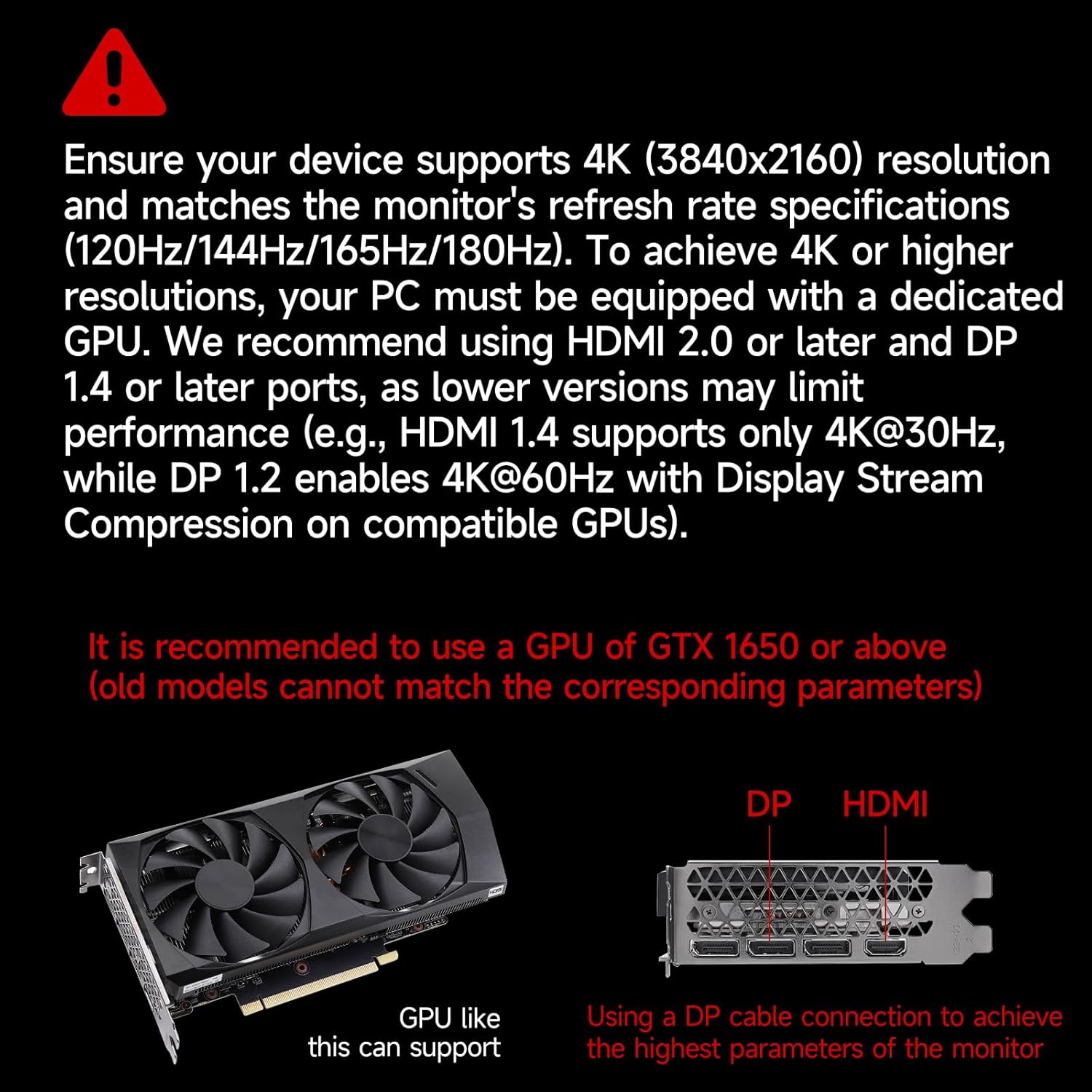
Сүрөттүн сүрөттөлүшү: An illustration showing a graphics processing unit (GPU) and the monitor's DisplayPort and HDMI connections, with a note recommending a GPU like GTX 1650 or above for full monitor parameter support.
4.3 Баштапкы күйгүзүү
- Connect the power adapter to the monitor and a power outlet.
- Connect your PC or other video source to the monitor using an HDMI or DisplayPort cable.
- Монитордогу кубат баскычын басыңыз.
- If no image appears, ensure the video source is powered on and correctly configured to output to the monitor.
5. Иштөө нускамалары
5.1 Негизги башкаруу каражаттары
The monitor features intuitive controls, typically located on the rear or bottom edge, to navigate the On-Screen Display (OSD) menu. Use these buttons to adjust settings such as brightness, contrast, input source, and more.
5.2 Дисплей орнотуулары
- Чечим: The monitor supports UHD 3840 x 2160p resolution. Ensure your operating system display settings are configured to this resolution for optimal clarity.
- Жаңыртуу ылдамдыгы: The monitor supports up to 144Hz refresh rate via DisplayPort 1.4. Configure your graphics card settings to utilize the highest available refresh rate for smoother visuals.
- Түс тактыгы: The IPS panel provides a wide color gamut (128% sRGB) and 10-bit color depth for vibrant and accurate colors. Adjust color settings in the OSD menu or your graphics card control panel as needed.
- Flicker-Free технологиясы: This technology reduces screen flickering, minimizing eye strain during extended use.
- Төмөн көк жарык: Activate the Low Blue Light mode via the OSD menu to reduce blue light emissions, which can help alleviate eye fatigue.

Сүрөттүн сүрөттөлүшү: A visual comparison demonstrating the superior detail of 4K UHD (3840x2160) resolution compared to standard HD (1920x1080) on the monitor screen.
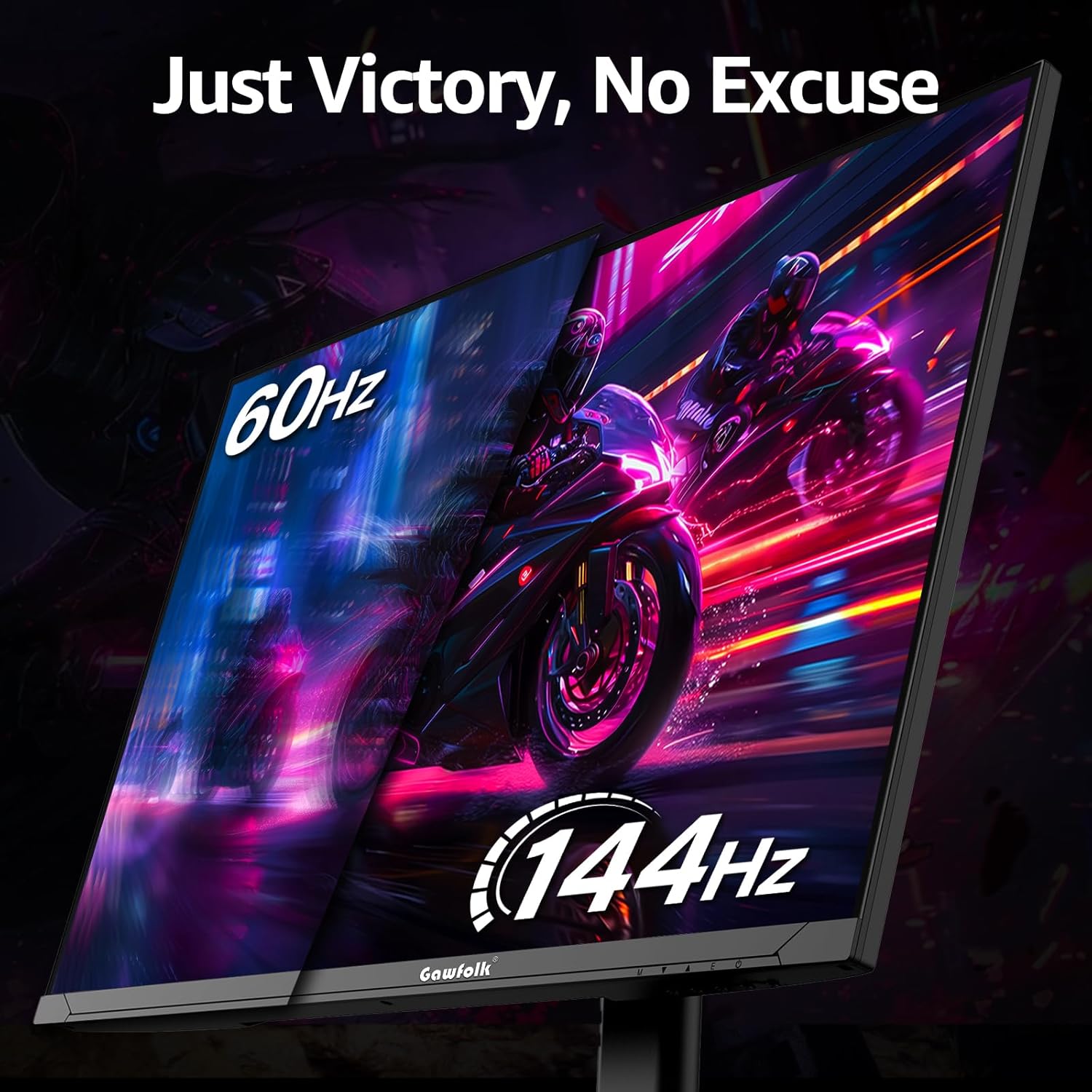
Сүрөттүн сүрөттөлүшү: A side-by-side comparison on the monitor screen, illustrating the difference between 60Hz and 144Hz refresh rates in a dynamic gaming scene, highlighting the smoother motion at 144Hz.

Сүрөттүн сүрөттөлүшү: A visual comparison showing a screen with noticeable flicker (labeled 'Other') versus a clear, flicker-free screen (labeled 'Gawfolk'), demonstrating the benefit of flicker-free technology.
5.3 Picture-by-Picture (PBP) Mode
The monitor supports Picture-by-Picture (PBP) mode, allowing you to display content from two different input sources simultaneously on the screen. This feature is useful for multitasking or comparing content side-by-side.
- Connect two separate video sources to the monitor (e.g., one via HDMI, one via DisplayPort).
- Access the OSD menu and navigate to the PBP settings.
- Select the desired PBP layout and input sources.
Video Description: This video showcases various features of the Gawfolk 27-inch 4K Gaming Monitor, including its smooth visuals, 4K resolution capabilities, Picture-by-Picture (PBP) mode for displaying multiple sources, and a comparison of 144Hz versus 60Hz refresh rates.
5.4 Эргономикалык жөндөөлөр
Монитор стендиңизди оптималдаштыруу үчүн ар кандай тууралоолорду жүргүзүүгө мүмкүндүк берет viewсооронуч:
- Россия: Adjust the screen angle from -5° to 15° forward or backward.
- Айлануучу: Rotate the screen horizontally up to ±15°.
- Бийиктигин тууралоо: Raise or lower the screen by up to 120mm.
- Пивот: Rotate the screen 90° for portrait orientation.

Сүрөттүн сүрөттөлүшү: A visual guide detailing the ergonomic features of the monitor stand, showing how to adjust tilt, swivel, pivot, and height for personalized viewбурчтар.
6. Техникалык тейлөө
- Экранды тазалоо: Экранды жумшак, түксүз чүпүрөк менен акырын сүртүңүз. өжөр белгилери үчүн, жеңил гampчүпүрөккө суу же атайын экран тазалоочу каражат. Суюктукту экранга түз чачпаңыз.
- Casing Тазалоо: Мониторду тазалоо үчүн жумшак, кургак чүпүрөктү колдонуңуз casing. Avoid abrasive materials or strong chemical cleaners.
- Чаңды тазалоо: Regularly dust the ventilation openings to prevent dust buildup, which can affect performance and lifespan.
- Сактагыч: Мониторду узак убакытка сактасаңыз, аны кубаттан ажыратып, чаңдан коргоо үчүн жаап, салкын, кургак жерде сактаңыз.
7. Кыйынчылыктарды
- Кубат жок:
- Кубат кабели мониторго да, розеткага да бекем туташтырылганын текшериңиз.
- Кубат адаптери туура иштеп жатканын текшериңиз.
- Check if the power outlet is active.
- Сүрөт/сигнал жок:
- Confirm the video cable (HDMI/DisplayPort) is properly connected to both the monitor and the video source.
- Монитордун OSD менюсу аркылуу туура киргизүү булагын тандаңыз.
- Ensure your computer or video source is powered on and outputting a signal.
- If using DisplayPort and experiencing lag or stuttering, try a different DisplayPort cable or ensure your GPU drivers are up to date. Some older GPUs or cables may not fully support the monitor's specifications.
- Туура эмес чечим/жаңылоо ылдамдыгы:
- Adjust the display settings in your operating system to 3840 x 2160 resolution.
- Set the refresh rate to 144Hz (or the maximum supported by your connection/GPU) in your graphics card control panel.
- Ensure your GPU and cable support the desired resolution and refresh rate.
- Image Quality Issues (e.g., lines, distorted colors):
- Видео кабелдик туташуулардын боштугун же бузулгандыгын текшериңиз.
- Test with a different video cable.
- Reset monitor settings to factory defaults via the OSD menu.
- Графикалык карта драйверлерин жаңыртыңыз.
8. Техникалык шарттар
| Өзгөчөлүк | Спецификация |
|---|---|
| Screen Size | 27 дюйм |
| Screen Resolution | 3840 x 2160 пиксель (4K UHD 2160p) |
| Панел түрү | IPS |
| Жаңыртуу ылдамдыгы | 144Hz |
| Аспект катышы | 16:9 |
| Динамикалык контраст катышы | 4000:1 |
| Түс тереңдиги | 10-бит |
| Түс гаммасы | 128% sRGB |
| Screen Surface | Мт |
| Байланыш | 1x HDMI 2.1, 1x DisplayPort 1.4, 1x Audio Out |
| VESA тоосуна шайкеш келет | Ооба (75x75мм) |
| Эргономика | Эңкейүү, айлануу, бийиктикти жөндөө, айлануу |
| Элемент моделинин номери | GF270G |
| Элемент Салмагы | 7.28 фунт |
| Продукциянын өлчөмдөрү (LxWxH) | 8.26 x 24.17 x 21.65 дюйм |
| Тtage | 12 вольт |
9. Кепилдик жана колдоо
The Gawfolk 27-Inch 4K IPS Gaming Monitor comes with a standard manufacturer's warranty. For specific warranty terms and conditions, please refer to the warranty card included in your product packaging or contact Gawfolk customer support.
If you encounter any damage, malfunction, or missing accessories, please contact Gawfolk customer support for assistance. Our support team is available to help you with any product-related inquiries.
Байланыш маалыматы: Please refer to the contact details provided in your product packaging or visit the official Gawfolk webколдоо үчүн сайт.


