1. Киришүү
The Olympia TS10 is a modern, touchscreen Point-of-Sale (POS) system designed for efficient operation in catering and retail environments. This manual provides essential information for setting up, operating, maintaining, and troubleshooting your TS10 POS system to ensure optimal performance and a seamless checkout experience.
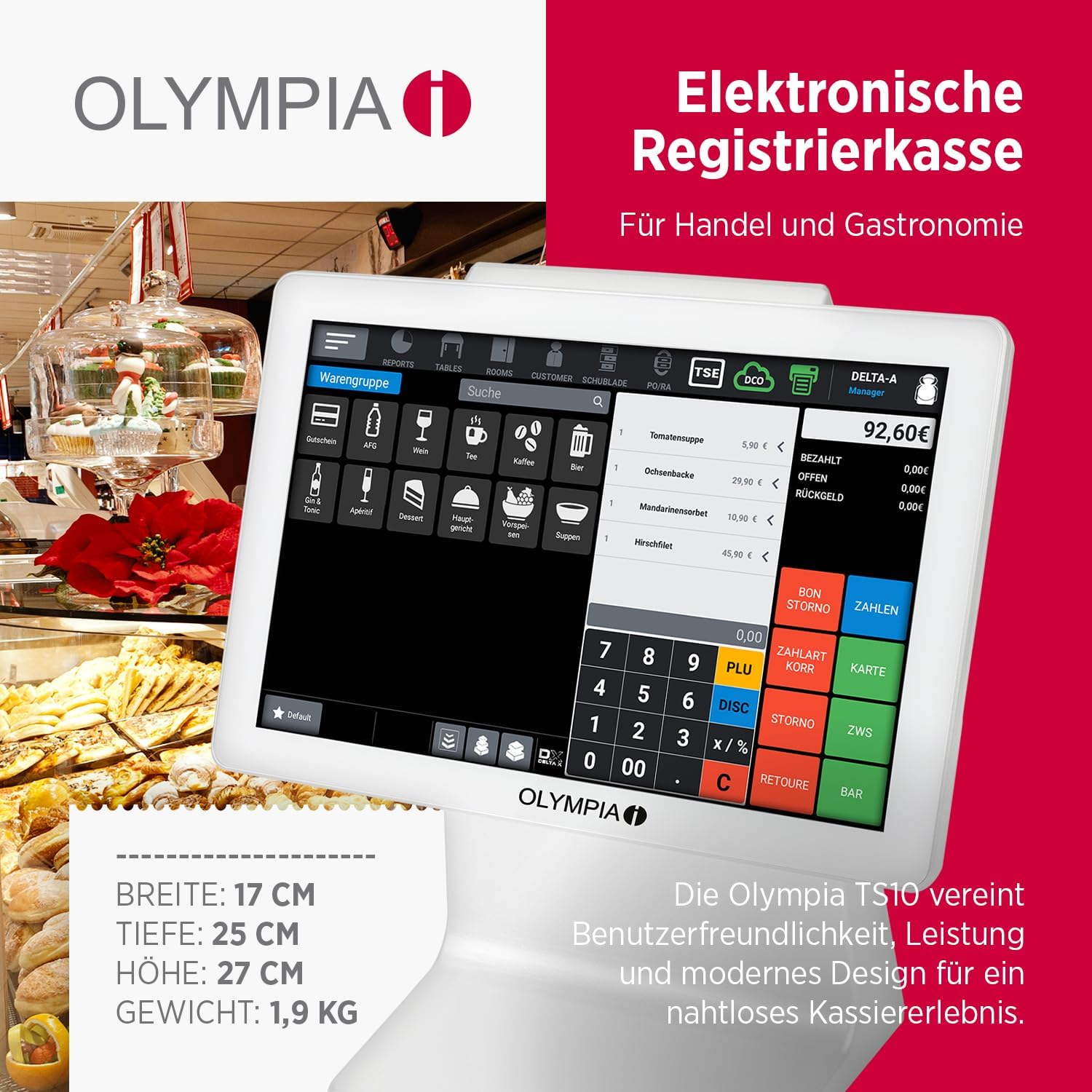
Figure 1: Olympia TS10 POS System with its 10.1-inch touchscreen display, showing a typical transaction interface. The system is designed for trade and gastronomy, combining user-friendliness, performance, and modern design.
2. Продукт бүтүп калдыview жана өзгөчөлүктөрү
The Olympia TS10 POS system integrates advanced technology with user-friendly design to streamline your business operations. Key features include:
- 10.1 дюймдук сенсордук экран: Intuitive and precise touch operation for efficient order processing.
- Android 11 операциялык системасы: Powerful and reliable for smooth performance.
- Интегралдык сканер: For quick and accurate item capture.
- Customer Display: Clear LED display on the rear for transparent customer information.
- TSE USB Compatibility: Ensures legally compliant data storage via USB connection.
- Extensive Management Capabilities: Supports up to 100 product groups, 100,000 PLUs, 5,000 tables, 5,000 customers, and 100 operators.
- Бир нече интерфейстер: Includes 1x LAN, 4x USB A, 1x serial port, and 1x cash drawer port.
- Graphical Receipt Logo: Customization options for professional printouts.
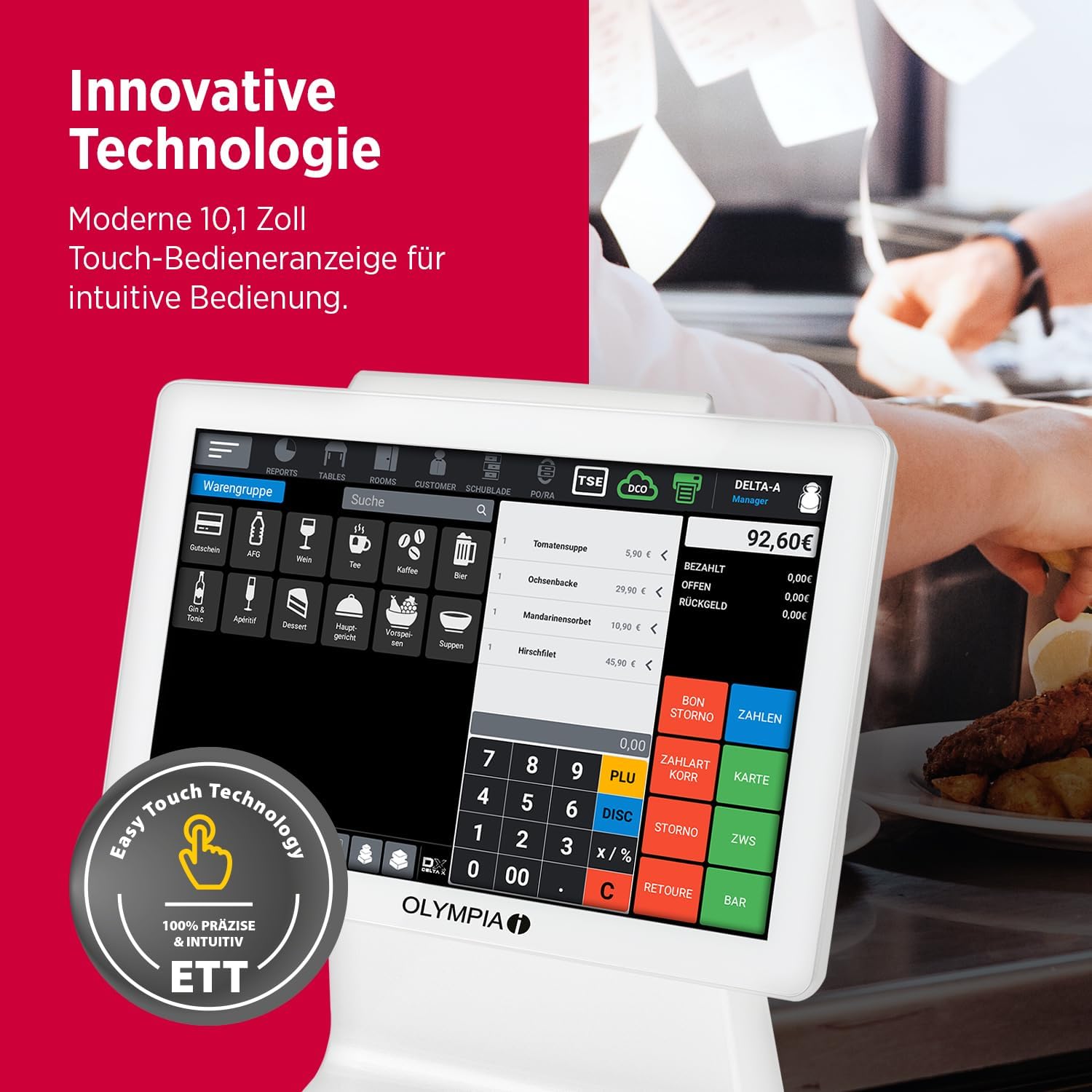
Figure 2: Close-up of the Olympia TS10's 10.1-inch touch operator display, highlighting its innovative technology and 'Easy Touch Technology' for precise and intuitive operation.

Figure 3: The Olympia TS10 showcasing its built-in scanner for direct item capture and the customer-facing LED display on the rear, providing clear transaction details.
3. Орнотуу нускамалары
Follow these steps to set up your Olympia TS10 POS system:
- Пакеттен чыгаруу: Таңгактан бардык компоненттерди этияттык менен алып салыңыз. Таңгактоо тизмесинде көрсөтүлгөн бардык нерселердин бар экенин текшериңиз.
- Жайгашкан жери: Place the TS10 on a stable, flat surface in a location with adequate ventilation and away from direct sunlight or heat sources.
- Туташуу кубаты: Connect the power adapter to the power input port on the TS10 and then plug the adapter into a suitable electrical outlet.
- Перифериялык түзүлүштөрдү туташтыруу:
- Cash Drawer: Connect the cash drawer cable to the cash drawer port on the TS10.
- LAN: Тармакка туташуу үчүн Ethernet кабелин LAN портуна туташтырыңыз.
- USB түзмөктөрү: Connect any additional USB peripherals (e.g., external printer, barcode scanner if not using integrated) to the available USB A ports.
- TSE USB: Insert the TSE USB module into a dedicated USB port for legally compliant data storage.
- Баштапкы жүктөө: Press the power button to turn on the device. The system will boot up, displaying the Android operating system.
- Негизги конфигурация: Follow the on-screen prompts to complete the initial setup, including language selection, date and time settings, and network configuration.
4. Иштөө нускамалары
This section outlines the basic operation of your Olympia TS10 POS system.
4.1 Күйгүзүү/өчүрүү
- Күйгүзүү үчүн: Экран жарык кылганга чейин кубат баскычын басып, кармап туруңуз.
- Өчүрүү үчүн: Press and hold the power button, then select 'Power Off' from the options displayed on the screen.
4.2 Сенсордук экранда навигация
The 10.1-inch touchscreen is the primary interface. Use your finger to tap, swipe, and drag elements on the screen. The Android 11 operating system provides a familiar and intuitive user experience.
4.3 Basic Transaction Process
- Кирүү: Enter your operator ID and password to log into the system.
- Item Entry:
- Скандоо: Use the integrated scanner to scan product barcodes.
- Кол менен киргизүү: Tap on product categories or use the search function to find items. Enter quantities as required.
- PLU Entry: Input Product Look-Up (PLU) codes for items without barcodes.
- Review Заказ: Verify the items and total amount on the screen.
- Төлөм: Select the appropriate payment method (e.g., cash, card). Follow on-screen instructions for processing payment.
- Дүмүрчөк: The system will automatically print a receipt upon successful transaction completion.

Figure 4: The Olympia TS10 interface displaying product groups (WarenGruppen) and options for user management (Benutzerverwaltung), highlighting its flexibility for various business needs.
4.4 Колдонуучуну башкаруу
The system supports up to 100 operators. Each operator can have personalized settings and access controls. Refer to the software's user manual for detailed instructions on adding, editing, and managing operator accounts.
4.5 Table and Customer Management
For catering businesses, the TS10 allows management of up to 5,000 tables. For retail, it can store up to 5,000 customer profiles. These features help in tracking orders, managing loyalty programs, and providing personalized service.
5. Техникалык тейлөө
Regular maintenance ensures the longevity and optimal performance of your Olympia TS10 POS system.
- Тазалоо:
- Сенсордук экран: Бир аз жумшак, түксүз кездемени колдонуңуз dampened with a screen cleaner or water. Avoid abrasive cleaners or excessive moisture.
- Сырткы: Сырткы беттерди жумшак, кургак чүпүрөк менен сүртүңүз.
- Программалык камсыздоо жаңыртуулары: Periodically check for and install software updates for the Android 11 operating system and the POS application to ensure security and access to new features.
- Маалыматтын камдык көчүрмөсү: Regularly back up your transaction data to the TSE USB module or other designated storage solutions as per local regulations and business practices.
- Peripheral Check: Ensure all connected peripherals (cash drawer, external printer, etc.) are clean and functioning correctly.
6. Кыйынчылыктарды
Бул бөлүмдө кеңири таралган көйгөйлөр жана алардын мүмкүн болгон чечимдери каралат.
- Система күйбөй жатат:
- Check if the power adapter is securely connected to both the TS10 and the electrical outlet.
- Электр розеткасынын иштешин текшериңиз.
- Сенсордук экран жооп бербейт:
- Системаны кайра иштетиңиз.
- Экран таза жана таштандылардан таза экенин текшериңиз.
- Сканер штрихкоддорду окубай жатат:
- Ensure the barcode is clean and not damaged.
- Check the scanner's settings within the POS application.
- Receipt Printer Errors:
- Check for paper jams or if the paper roll needs replacement.
- Ensure the printer is properly connected and powered on.
- TSE Data Storage Issues:
- Verify the TSE USB module is correctly inserted.
- Consult the POS software documentation for specific TSE error codes.
Эгер көйгөйлөр чечилбесе, кошумча жардам алуу үчүн кардарларды колдоо бөлүмүнө кайрылыңыз.
7. Техникалык шарттар
Detailed technical specifications for the Olympia TS10 POS system:
- Модел: TS10
- Бренд: ОЛИМПИЯ
- Дисплей: 10.1 дюймдук сенсордук экран
- Операция системасы: Android 11
- Өлчөмдөрү (W x D x H): 17 см x 25 см x 27 см (болжол менен 6.7 дюйм x 9.8 дюйм x 10.6 дюйм)
- Салмагы: 1.9 кг (болжол менен 4.2 фунт)
- Интерфейстер: 1x LAN, 4x USB A, 1x Serial, 1x Cash Drawer Port
- Маалыматтарды сактоо: TSE USB compatible for legally compliant storage
- Сыйымдуулугу: Up to 100 Product Groups, 100,000 PLUs, 5,000 Tables, 5,000 Customers, 100 Operators
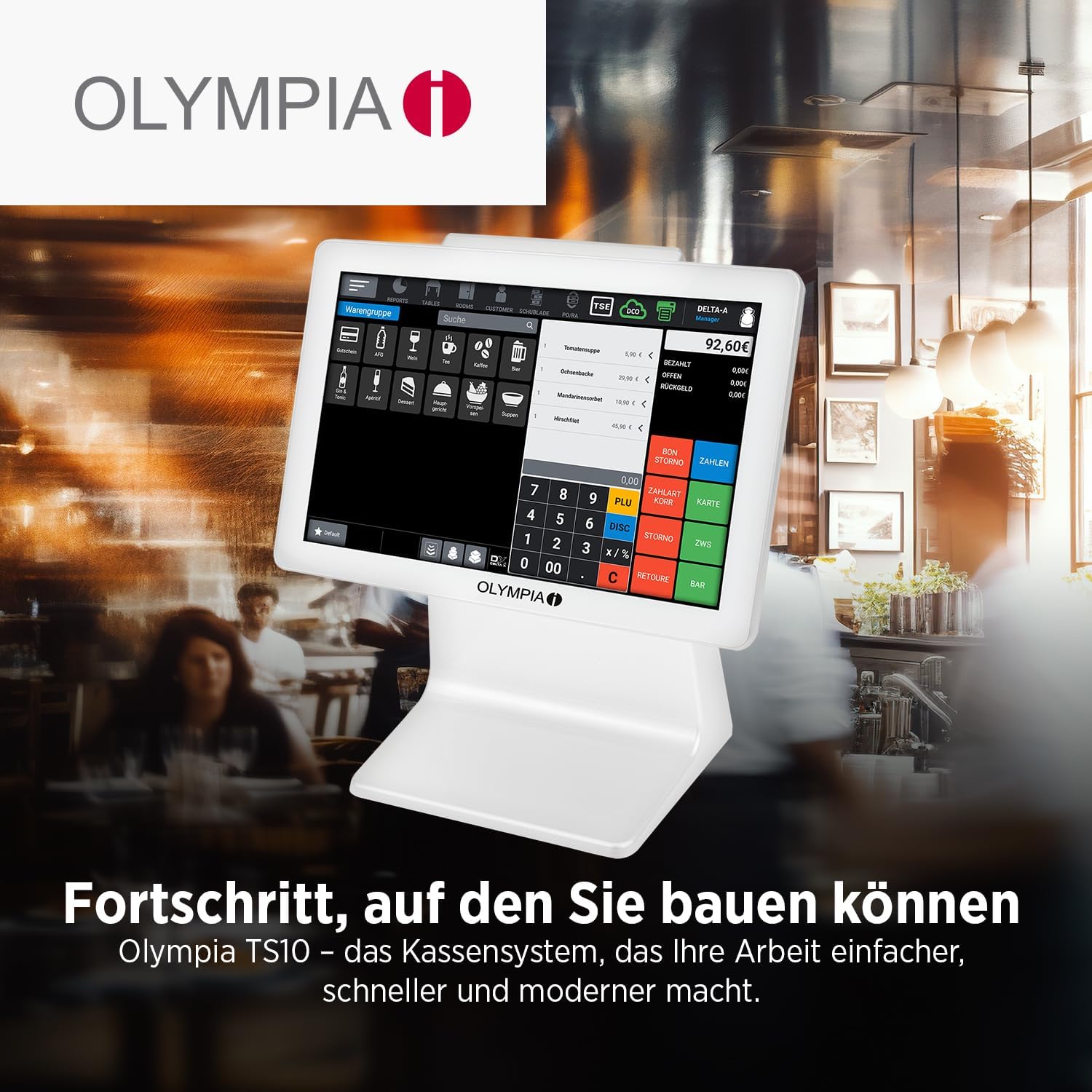
Figure 5: The Olympia TS10 system, illustrating its compact dimensions and highlighting key features such as large storage capacity, TSE compatibility, Android 11 OS, graphical receipt logo, and various interfaces.
8. Кепилдик жана колдоо
Your Olympia TS10 POS system comes with a standard manufacturer's warranty. Please refer to the warranty card included with your product for specific terms and conditions, including warranty period and coverage details.
8.1 Кардарларды колдоо
For technical assistance, troubleshooting, or warranty claims, please contact Olympia customer support. Contact information can typically be found on the manufacturer's official webсайтында же продуктуңуз менен бирге берилген документтерде.
Онлайн ресурстар: Visit the official Olympia webКөп берилүүчү суроолор, программалык камсыздоону жүктөп алуу жана кошумча колдоо материалдары үчүн сайт.


