1. Киришүү
This manual provides detailed instructions for setting up, operating, and maintaining your Totolink X18 AX1800 Wi-Fi 6 Mesh Router System. This 3-pack system is designed to deliver extensive and reliable Wi-Fi coverage throughout your home, utilizing advanced Wi-Fi 6 technology for high-speed and efficient network performance.
The Totolink X18 system supports dual-band operation (2.4GHz and 5GHz), MU-MIMO, WPA3 security, and EasyMesh technology, ensuring a secure and seamless internet experience for multiple devices.
2. Пакеттин мазмуну
- 3 x Totolink X18 Mesh Routers
- 3 х Power адаптерлери
- 1 х Ethernet кабели
- 1 x Quick Installation Guide (this manual serves as a comprehensive guide)
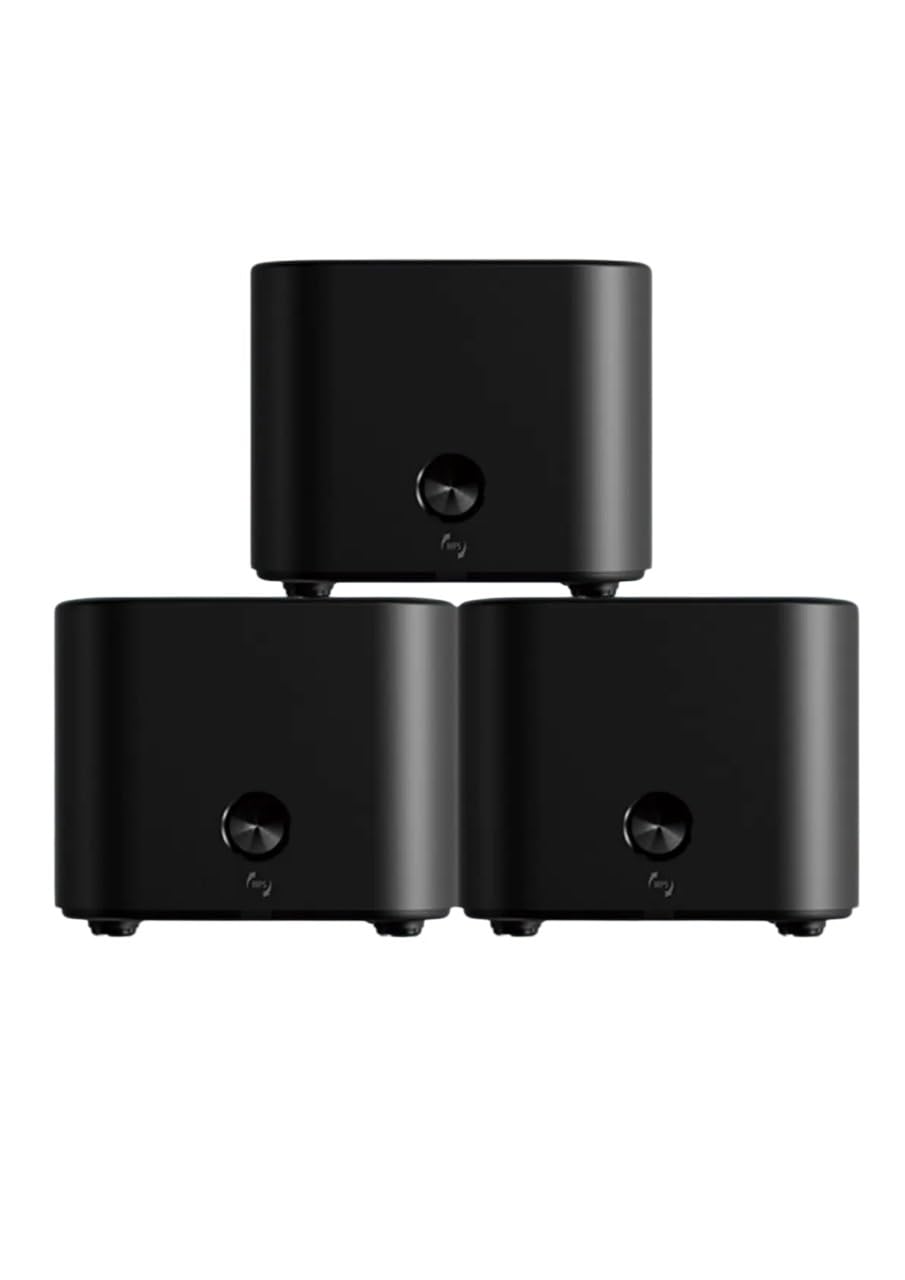
Image: The Totolink X18 Mesh Router system, showing three units and their compact design. This image represents the typical components included in the package.
3. Продукт бүтүп калдыview
Each Totolink X18 mesh router unit features a compact design with essential ports and indicators for easy management.
3.1 алдыңкы панели
- LED көрсөткүчү: Displays the status of the router (e.g., power, internet connection, mesh status).
- Туташуу баскычы: Used for WPS or EasyMesh pairing.
3.2 Арткы панель
- WAN порту (сары): Модемиңизге же интернет кызматын көрсөтүүчүңүздүн (ISP) жабдууларына туташат.
- LAN порттору (кызгылт сары): Connects to wired devices such as computers, smart TVs, or gaming consoles. (Typically 2 LAN ports per unit).
- Туруктуу кубат киргизүү: Камтылган кубат адаптерине туташат.
- Калыбына келтирүү баскычы: Заводдун демейки жөндөөлөрүн калыбына келтирүү үчүн колдонулат (көбүнчө кичинекей тешик баскычы).

Сүрөт: Арткы view of a Totolink X18 mesh router unit, highlighting the WAN (yellow), LAN (orange), and DC power input ports. This illustrates the connectivity options available on each unit.
4. Орнотуу колдонмосу
Follow these steps to set up your Totolink X18 Mesh Router System.
4.1 Initial Router Setup (Main Unit)
- Таңылганын ачуу: Remove all three X18 units and power adapters from the packaging.
- Кызмат орду: Place one X18 unit near your modem or internet service entry point. This will be your main router.
- Модемге туташуу: Connect one end of the provided Ethernet cable to the WAN port (yellow) of the main X18 unit and the other end to your modem's LAN port.
- Күйгүзүү: Connect the power adapter to the DC power input of the main X18 unit and plug it into a power outlet. The LED indicator will light up.
- Wait for Boot: Wait for the LED indicator to turn solid blue (or green, depending on model) which indicates a successful internet connection. This may take a few minutes.
4.2 Connecting Satellite Units (Mesh Pairing)
After setting up the main unit, you can add the other two units to create your mesh network.
- Position Satellite Units: Place the other two X18 units in locations where you need extended Wi-Fi coverage, ensuring they are within range of the main unit or another satellite unit.
- Күйгүзүү: Connect the power adapters to the satellite X18 units and plug them into power outlets.
- Автоматтык жупташтыруу: The satellite units are designed to automatically detect and pair with the main unit. The LED indicator on the satellite units will change color (e.g., from blinking to solid blue/green) once successfully connected to the mesh network. This process may take a few minutes.
- Кол менен жупташтыруу (зарыл болсо): If automatic pairing fails, press the "Connect" button on the main unit, then within two minutes, press the "Connect" button on the satellite unit. The LEDs will flash during pairing and turn solid upon successful connection.
4.3 Initial Wi-Fi Connection
- Тармактын атын табуу (SSID): On your computer or smartphone, search for available Wi-Fi networks. The default SSID and password are usually printed on a label on the bottom of each X18 unit.
- Туташуу: Select your network name and enter the default password.
- Мүмкүнчүлүк Web Интерфейс: ачуу а web браузер жана түрү
http://itotolink.netor192.168.0.1into the address bar. Log in with the default username and password (usuallyadminэкөө үчүн тең). - Орнотууларды ыңгайлаштыруу: Follow the on-screen wizard to change your Wi-Fi name (SSID) and password for better security. It is highly recommended to change the default login credentials for the router's web interface as well.
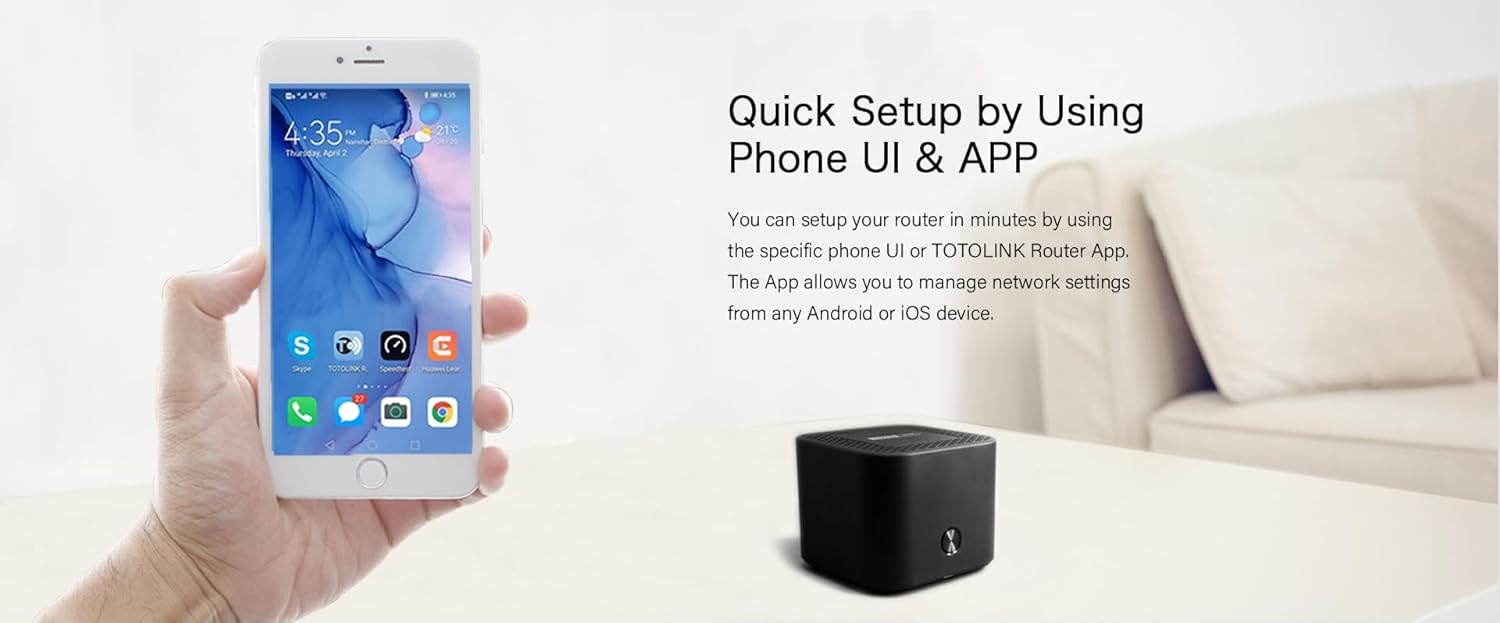
Image: A smartphone screen showing the Totolink router application, illustrating the quick setup process via a mobile app. This app allows for convenient network management from Android or iOS devices.
5. Иштөө нускамалары
Once your mesh network is set up, you can manage and optimize it using the web интерфейс же атайын мобилдик тиркеме.
5.1 Web Interface Management
кирүү web interface by opening a browser and navigating to http://itotolink.net or 192.168.0.1. Log in with your administrator credentials.
- Тармак орнотуулары: Configure WAN connection type (DHCP, Static IP, PPPoE), LAN settings, and DHCP server.
- Зымсыз орнотуулар: Change Wi-Fi name (SSID), password, security type (WPA2/WPA3), and channel settings.
- Коноктор тармагы: Create a separate Wi-Fi network for guests with isolated access.
- Ата-энелик көзөмөл: Интернетке кирүү убакыттарын башкаруу жана белгилүү бир бөгөт коюу webтуташкан түзмөктөр үчүн сайттар.
- QoS (Кызматтын сапаты): Белгилүү колдонмолор же түзмөктөр үчүн тармак трафигине артыкчылык бериңиз.
- Системалык куралдар: Update firmware, backup/restore configuration, change login password, and view система журналдары.
5.2 Mobile App Management
Download the "TOTOLINK Router App" from your device's app store (Android or iOS). The app provides a user-friendly interface for common network management tasks.
- Куралдар тактасы: View network status, connected devices, and internet speed.
- Wi-Fi жөндөөлөрү: Easily modify Wi-Fi name and password.
- Түзмөктү башкаруу: See connected devices, block unwanted devices, and set parental controls.
- Mesh Status: Monitor the connection status of your mesh units.
6. Өркүндөтүлгөн функциялар
The Totolink X18 system incorporates several advanced technologies to enhance your network experience.
- Wi-Fi 6 (802.11ax): Provides faster speeds (up to 1800Mbps), increased capacity, and improved efficiency, especially in device-dense environments.
- Кош тилкелүү аткаруу: Operates on both 2.4GHz (for wider coverage) and 5GHz (for higher speeds) frequencies, automatically steering devices to the optimal band.
- MU-MIMO: Multi-User, Multiple-Input, Multiple-Output technology allows the router to communicate with multiple devices simultaneously, reducing latency and improving overall network efficiency.
- WPA3 Коопсуздук: The latest Wi-Fi security protocol offering enhanced encryption and protection against brute-force attacks, ensuring a more secure network.
- IPv6 колдоосу: Supports the latest internet protocol, providing a larger address space and improved security features.
- EasyMesh Technology: Ensures seamless roaming and simplified network management across all mesh units, compatible with other EasyMesh certified devices.
- Максаттуу ойгонуу убактысы (TWT): An energy-saving feature of Wi-Fi 6 that allows devices to negotiate when and how often they will wake up to send or receive data, prolonging battery life for connected devices.

Image: A visual representation comparing the speed capabilities of AX1800 Wi-Fi 6 (up to 1775Mbps) against AC1200, demonstrating the significant performance improvement offered by Wi-Fi 6 technology for activities like 4K streaming and online gaming.

Image: A Totolink X18 unit accompanied by text explaining the energy-efficient aspects of Wi-Fi 6, specifically mentioning Target Wake Time (TWT) which helps devices conserve power and extend battery life.
7. Техникалык тейлөө
Regular maintenance ensures optimal performance and security for your mesh network.
7.1 Микропрограмма жаңыртуулары
Firmware updates often include performance improvements, new features, and security patches. It is recommended to keep your router's firmware up to date.
- Жаңыртууларды текшерүү: кирүү web интерфейс (
http://itotolink.net) and navigate to "System Tools" > "Firmware Upgrade". - Орнотулган программаны жүктөп алыңыз: If a new version is available, download it from the official Totolink webсайтты компьютериңизге.
- Upload and Upgrade: Жүктөлүп алынган микропрограмманы жүктөө file аркылуу web interface and follow the on-screen instructions. Do not power off the router during the upgrade process.
7.2 Заводдук абалга кайтаруу
A factory reset will erase all custom settings and restore the router to its default configuration. This can be useful for troubleshooting or when reconfiguring your network.
- Method 1 (Button): With the router powered on, use a paperclip or pin to press and hold the "Reset" button (usually a small pinhole on the rear panel) for approximately 5-10 seconds until the LED indicator flashes rapidly. Release the button and wait for the router to restart.
- 2-ыкма (Web Интерфейс): кирүү web interface and navigate to "System Tools" > "Factory Defaults" or "Backup & Restore". Select the option to restore factory settings.
8. Кыйынчылыктарды
This section addresses common issues you might encounter with your Totolink X18 Mesh Router System.
8.1 Интернетке кирүү жок
- Кабелдерди текшерүү: Ensure the Ethernet cable from your modem is securely connected to the WAN port (yellow) of the main X18 unit.
- Модем абалы: Модемиңиз туура иштеп жатканын жана активдүү интернет байланышы бар экенин текшериңиз. Керек болсо модемди өчүрүп күйгүзүңүз.
- LED роутери: Check the LED indicator on the main X18 unit. If it's not solid blue/green, there might be an issue with the internet connection or router configuration.
- ISP Орнотуулары: Confirm your WAN connection type (DHCP, Static IP, PPPoE) in the router's web interface matches your ISP's requirements.
8.2 Wi-Fi сигналы начар же өлүк аймактар
- Бирдиктин жайгашуусу: Adjust the placement of your satellite X18 units. Ensure they are not too far from the main unit or other satellite units. Avoid placing them near large metal objects, concrete walls, or interference sources (e.g., microwaves, cordless phones).
- Интерференция: Change the Wi-Fi channel in the router's wireless settings to avoid interference from neighboring networks.
- Mesh Status: Check the mesh status in the mobile app or web interface to ensure all units are properly connected.
8.3 Кирүү мүмкүн эмес Web Интерфейс
- IP дареги: Ensure your device is connected to the X18's Wi-Fi network or via an Ethernet cable to a LAN port. Try accessing
http://itotolink.netor192.168.0.1. - Браузер кэши: Браузериңиздин кэшин жана cookie файлдарын тазалаңыз же башка браузерди колдонуп көрүңүз.
- Firewall/Антивирус: Компьютериңиздеги кирүүгө бөгөт коюп жаткан брандмауэрди же антивирустук программаны убактылуу өчүрүңүз.
- Заводдун баштапкы абалга келтирүү: If all else fails, perform a factory reset (see Section 7.2) and try accessing the interface with default credentials.
9. Техникалык шарттар
| Өзгөчөлүк | Спецификация |
|---|---|
| Модель аты | X18 |
| Wi-Fi стандарты | IEEE 802.11ax (Wi-Fi 6) |
| Wi-Fi ылдамдыгы | AX1800 (1201Mbps on 5GHz, 573.5Mbps on 2.4GHz) |
| Frequency Band | Кош тилкелүү (2.4 ГГц жана 5 ГГц) |
| Ethernet порттору | 1 x WAN, 2 x LAN (per unit) |
| Коопсуздук | WPA2/WPA3 |
| Өзгөчөлүктөр | Dual Band, EasyMesh, MU-MIMO, Wi-Fi 6, WPA3, IPv6, TWT |
| Камтуу | Up to 600 square meters (with 3 units) |
| Өлчөмдөр | 12 x 12 x 15 cm (per unit) |
| Түс | Кара |
| Шайкеш түзмөктөр | All Networks, Laptops, Smart Home Devices, Smartphones |
10. Коопсуздук маалыматы
- Аппарат менен кошо берилген кубат адаптерин гана колдонуңуз.
- Түзмөктү сууга, отко, нымдуулукка же ысык чөйрөгө тийгизбеңиз.
- Аппаратты ажыратууга, оңдоого же өзгөртүүгө аракет кылбаңыз.
- Аппаратты күчтүү электромагниттик талаалардан алыс кармаңыз.
- Ашыкча ысып кетүүнүн алдын алуу үчүн аппараттын айланасында туура желдетүүнү камсыз кылыңыз.
- Балдар жетпеген жерде сактаңыз.
11. Кепилдик жана колдоо
For warranty information and technical support, please refer to the official Totolink webсайтына кириңиз же жергиликтүү сатуучуңузга кайрылыңыз. Кепилдик боюнча дооматтар үчүн сатып алуу дүмүрчөгүңүздү сактап коюңуз.
Онлайн ресурстар:
- Official Totolink Webсайт: www.totolink.net (Please verify the actual official website for support)
- Support Email/Phone: Refer to the webаймактык байланыш маалыматы үчүн сайт.


