1. Продукт бүтүп калдыview
The Xprinter XP-420B is a high-speed direct thermal label printer designed for various applications, including shipping labels. It offers a maximum print speed of 152 mm/s (6 inches/second) and a resolution of 203 DPI, ensuring clear and precise prints. Its robust double-walled clamshell design enhances durability, and the intelligent print head temperature control system ensures stable output. This printer is compatible with both Windows and Mac operating systems, making it a versatile solution for your labeling needs.
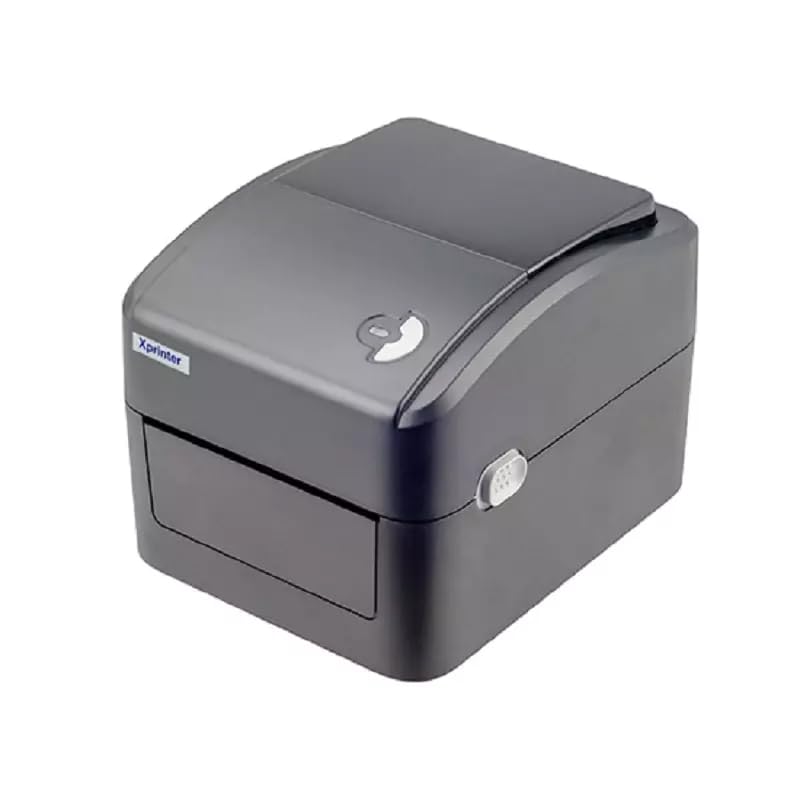
Сүрөт 1: Алдыңкы view of the Xprinter XP-420B thermal label printer.
2. Орнотуу колдонмосу
2.1 Таңгактан чыгаруу жана алгачкы текшерүү
- Принтерди жана бардык аксессуарларды таңгактан этияттык менен алып чыгыңыз.
- Verify that all components are present: printer unit, power adapter, USB cable, and user manual.
- Inspect the printer for any visible damage that may have occurred during transit.
2.2 Принтерди туташтыруу
- Кубат адаптерин принтердин кубат портуна туташтырып, андан кийин аны розеткага сайыңыз.
- Connect one end of the provided USB cable to the printer's USB port and the other end to an available USB port on your computer.
- Power on the printer using the power switch, usually located on the side or rear.

Figure 2: Xprinter XP-420B showing USB connectivity.
2.3 этикеткаларды жүктөө
- Принтердин үстүнкү капкагын эки жагынан бошотуучу кулпуларды басып ачыңыз.
- Place the roll of thermal labels onto the label spindle, ensuring the labels feed from the bottom of the roll.
- Feed the leading edge of the labels through the label guide until it extends slightly past the print head.
- Adjust the movable label guides to fit the width of your labels snugly, without pinching them.
- Close the top cover firmly until it latches securely.
- The printer will automatically calibrate and detect the label size.
2.4 Драйверди орнотуу
Before printing, you must install the appropriate printer drivers on your computer. Drivers are typically provided on a CD included with the printer or can be downloaded from the official Xprinter website. The XP-420B supports both Windows and Mac operating systems.
- Windows үчүн: Run the setup executable from the driver CD or downloaded file жана экрандагы нускамаларды аткарыңыз.
- Mac үчүн: Download the Mac driver from the Xprinter website and follow the installation prompts.
3. Иштөө нускамалары
3.1 Негизги басып чыгаруу
- Принтер күйгүзүлүп, компьютериңизге туташып турганын текшериңиз.
- Open the document or application from which you wish to print (e.g., shipping software, word processor).
- Колдонмонун менюсунан "Басып чыгарууну" тандаңыз.
- Choose "Xprinter XP-420B" as your printer.
- In the printer settings or preferences, ensure the correct label size is selected. The printer supports adjustable label sizes.
- Тапшырманы принтерге жөнөтүү үчүн "Басып чыгаруу" баскычын чыкылдатыңыз.
3.2 Adjusting Label Size
The XP-420B allows for adjustable label sizes. This adjustment is primarily done through the printer driver settings on your computer and by physically adjusting the label guides within the printer.
- Software Adjustment: In your printing application or printer driver settings, navigate to the "Page Setup" or "Paper Size" options. Select or define the custom dimensions for your labels (e.g., 4x6 inches for shipping labels).
- Физикалык тууралоо: As described in Section 2.3, ensure the internal label guides are set correctly to the width of your loaded labels.
4. Техникалык тейлөө
4.1 Басып чыгаруу башын тазалоо
Regular cleaning of the print head is crucial for maintaining print quality and extending the printer's lifespan. It is recommended to clean the print head after every roll of labels or if print quality degrades.
- Принтерди өчүрүп, кубат сымын сууруп алыңыз.
- Принтердин үстүнкү капкагын ачыңыз.
- Эгерде принтер жакында эле колдонулган болсо, басып чыгаруучу баш муздаганча бир нече мүнөт күтө туруңуз.
- Басып чыгаруучу баштын бетин спирттүү тампон же түксүз чүпүрөк менен акырын сүртүңүзampизопропил спирти менен жасалган.
- Капкакты жаап, кубатту кайра туташтырардан мурун басып чыгаруу башынын толук кургашына жол бериңиз.
4.2 Жалпы тазалоо
- Принтердин сыртын сүртүү үчүн жумшак, кургак чүпүрөктү колдонуңуз.
- Remove any dust or label debris from the inside of the printer using a soft brush or compressed air.
- Абразивдүү тазалагычтарды же эриткичтерди колдонбоңуз.
5. Кыйынчылыктарды
| Көйгөй | Мүмкүн себеп | Чечим |
|---|---|---|
| Принтер жооп бербей жатат | Power off; USB cable disconnected; Driver issue. | Ensure power is on and connected. Check USB cable. Reinstall printer driver. |
| Басып чыгаруунун сапаты начар (өчүп кеткен, сызыктар) | Басып чыгаруу башы кир; Туура эмес этикетка түрү; Басып чыгаруу тыгыздыгынын төмөн жөндөөсү. | Clean the print head (Section 4.1). Ensure you are using direct thermal labels. Adjust print density in driver settings. |
| Энбелгилер туура эмес азыктандырылган | Labels improperly loaded; Label guides not adjusted; Sensor obstruction. | Reload labels correctly. Adjust label guides. Clean any dust or debris from sensors. |
| Принтер бош этикеткаларды басып чыгарат | Labels loaded upside down; Not a direct thermal label. | Ensure labels are loaded with the printable side facing up. Verify labels are direct thermal. |
6. Продукттун спецификациялары
| Өзгөчөлүк | Деталь |
|---|---|
| Бренд | Xprinter |
| Модель аты | XP-420B |
| Байланыш технологиясы | USB |
| Басма технологиясы | Түз жылуулук |
| Резолюция | 203 DPI |
| Макс басып чыгаруу ылдамдыгы | 152 mm/s (6 inches/second) |
| Эс | 8 МБ SDRAM, 8 МБ Flash |
| Принтердин чыгышы | Монохромдуу |
| Элемент Салмагы | 3 килограмм |
| Продукциянын өлчөмдөрү | 20D x 6W x 10H Сантиметр |
| Шайкештик | Windows, Mac |
7. Кепилдик жана колдоо
7.1 Кепилдик маалыматы
Xprinter XP-420B төмөнкүлөр менен келет: 1 жылдык кепилдик сатып алынган күндөн тартып. Бул кепилдик өндүрүштүк кемчиликтерди жана нормалдуу колдонуудагы бузулууларды камтыйт. Кепилдик дооматтары үчүн сатып алганыңыздын далилин сактап коюңуз.
7.2 Кардарларды колдоо
For technical assistance, troubleshooting beyond this manual, or warranty service, please contact Xprinter customer support. Refer to the contact information provided with your product packaging or visit the official Xprinter webакыркы колдоо маалымат үчүн сайт.


