Introduction
The Tongtion Wireless Display Dongle Adapter is a portable device designed for seamless 1080p HDMI streaming. It supports AirPlay, Miracast, and Cast protocols, enabling wireless display from smartphones, PCs, TVs, and projectors. Featuring 5GHz WiFi for stable and low-latency transmission, this plug-and-play adapter simplifies content sharing without requiring apps, Bluetooth, or complex Wi-Fi setups. It supports 4K decoding for crisp 1080P Full HD output and offers mirror and off-screen modes for flexible viewing.

Image: The Tongtion Wireless Display Dongle Adapter, a compact black device with an HDMI connector.
Кутуда эмне бар
- Tongtion Wireless HDMI Display Adapter
- USB Power Cable (USB-A to USB-C)
- HDMI Extension Cable (for convenient connection in tight spaces)
- User Manual
Жайгашуу
The Tongtion Wireless Display Dongle Adapter is designed for plug-and-play functionality, requiring no additional apps or complex configurations for basic use. Simply connect the adapter to your display and power source.
Баштапкы туташуу кадамдары:
- Connect the HDMI end of the adapter to an available HDMI port on your TV, monitor, or projector.
- Connect the USB power cable to the adapter's USB-C port and plug the other end into a USB power source (e.g., TV's USB port, USB wall adapter). Ensure the adapter receives stable power.
- Switch your display's input source to the corresponding HDMI port. The adapter's setup screen will appear.

Image: Visual representation of the plug-and-play setup, showing the dongle connected to a TV and powered via a wall adapter.
Screen Mirroring Steps:
iPhone/iPad (iOS) үчүн:

Image: Step-by-step guide for connecting iOS devices via AirPlay.
- Use your Apple device, swipe down from the top of the screen to open the Control Center, then tap the screen mirroring icon.
- Select the target device (e.g., "UniMirrorLite-XXXX") from the list of available devices and click to confirm the screen projection.
- For the first connection of an Apple device, you may need to enter the SSID password. The screen mirroring interface will display the password for the corresponding SSID; just enter it.
- After a successful projection, the corresponding device code will be checked, and the screen will be mirrored to the designated display device.
For Android/Harmony Phone:

Image: Step-by-step guide for connecting Android/Harmony phones via Miracast/Cast.
- Find "Settings" on your phone and enter the settings interface.
- Find "More Connections" in the device interface, click on it, then find "Screen Mirroring" and enter the screen mirroring interface.
- Turn on the projection switch in the projection interface, then select the target device from the list of available devices and click to confirm the projection.
- After the screen casting is successful, the screen casting switch button lights up.
For Android/Harmony Tablet:

Image: Step-by-step guide for connecting Android/Harmony tablets via Miracast/Cast.
- Find "Settings" on your tablet and enter the settings interface.
- Find "More Connections" in the device interface, click on it, then find "Screen Mirroring" and enter the screen mirroring interface.
- Turn on the projection switch in the projection interface, then select the target device from the list of available devices and click to confirm the projection.
- After the screen casting is successful, the screen casting switch button lights up.
Windows PC үчүн:

Image: Step-by-step guide for connecting Windows PCs via Wireless Display.
- Click the right mouse button, find the "Display Settings" option and click to enter the screen interface.
- Find "Multiple Displays" on the screen interface, click the drop-down arrow, find the "Connect to Wireless Display" option, then click Connect.
- After clicking the link, a list of available displays will pop up in the lower right corner of your laptop. Find the device you want to project to and connect it. After a successful connection, the display will show its projection status, and options such as copy, extend, etc. will be available.
Иштөө нускамалары
Көрсөтүү режимдери:
The Wireless HDMI Display Adapter supports both mirror mode and extended mode for versatile usage.

Image: Illustration of Mirror Mode (mirroring phone to larger screen) and Extended Mode (extending laptop screen).
- MirrorMode: Duplicate your device's screen onto the connected display. Ideal for presentations, sharing photos, or watching videos on a larger screen.
- Кеңейтилген режим: Extend your desktop or device screen to the connected display, allowing for multitasking.
Screen Rotation and Zoom:
The adapter features a button in the middle that allows you to easily zoom in and out of the screen or rotate the display to enhance your viewтажрыйбасы.

Image: The adapter showing the button for screen rotation and zoom.
5GHz Stable Transmission:
The adapter utilizes 5GHz wireless transmission for fast, stable, and low-latency connections, ensuring smooth streaming and minimal interference.

Image: Diagram illustrating the 2.4G/5G dual-band transmission for stable video.
Шайкештик
The Tongtion Wireless Display Dongle Adapter offers broad compatibility with various operating systems and devices, supporting multiple wireless protocols.
Supported Devices & Protocols:
- Операциялык системалар: iOS, Android, Windows, macOS
- Зымсыз протоколдор: AirPlay, DLNA, Miracast, Cast
Колдоого алынган колдонмолор:
The adapter supports mirroring content from a wide range of applications, including:
- YouTube, Twitch, Reddit, Facebook, Dailymotion
- Safari, Microsoft Office, TikTok, Meta, Twitter
Unsupported Applications & Devices:
Due to HDCP (High-bandwidth Digital Content Protection) video copyright protection, the adapter is NOT compatible with certain paid streaming apps. Additionally, some Google-based devices are not supported.
- Paid Streaming Apps: Netflix, Amazon Prime Videos, Hulu, Comcast TV, Xfinity, Vudu, Sky Go, BT Sport, etc.
- Google Devices: Google Pixel series, Google Mobile Services, Chromecast TV.
- Башка: Not recommended for gaming due to potential latency.
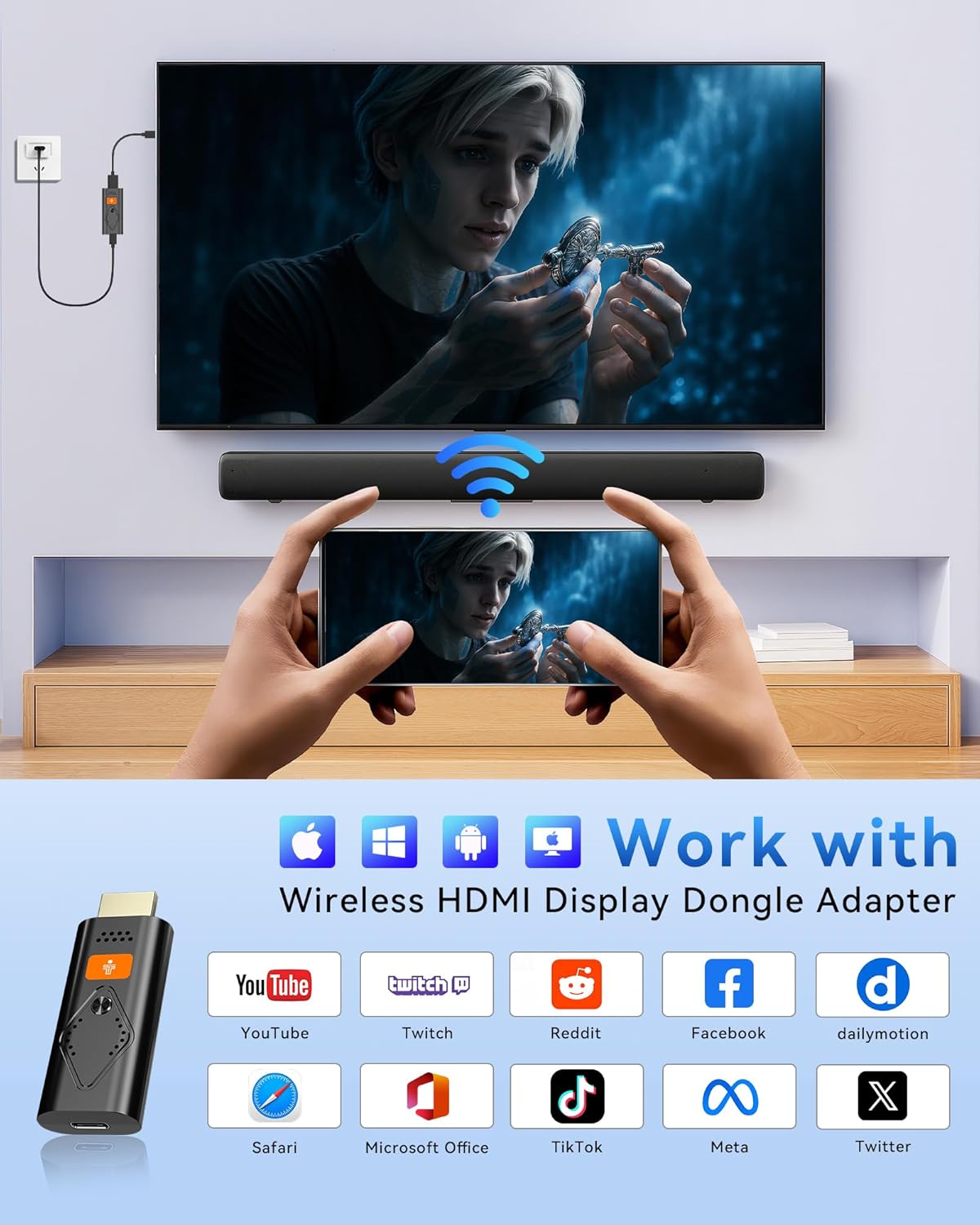
Image: A visual chart detailing compatible operating systems and applications.
Техникалык тейлөө
To ensure the longevity and optimal performance of your Tongtion Wireless Display Dongle Adapter, follow these maintenance guidelines:
- Тазалоо: Use a soft, dry cloth to wipe the device. Avoid liquid cleaners or abrasive materials.
- Сактагыч: Адаптерди салкын, кургак жерде күндүн тике тийген нурунан жана экстремалдык температурадан алыс сактаңыз.
- Колдонуу: Аппаратты этияттык менен колдонуңуз. Аны түшүрүүдөн же катуу таасирлерден сактаныңыз.
- Демонтаж: Түзмөктү өз алдынча бөлүктөргө бөлүүгө же оңдоого аракет кылбаңыз, анткени бул кепилдикти жокко чыгарып, зыян келтириши мүмкүн.
Проблемаларды чечүү
If you encounter issues with your Wireless Display Dongle Adapter, please refer to the following common problems and solutions:
- Дисплей жок/Кара экран:
- Ensure the adapter is securely connected to the HDMI port on your display.
- Verify that the USB power cable is properly connected and the adapter is receiving sufficient power.
- Check that your TV/monitor input source is set to the correct HDMI port.
- Unstable Connection/Lag:
- Ensure your device is within the recommended 30ft range of the adapter.
- Minimize physical obstructions between your device and the adapter.
- Confirm that your device's Wi-Fi is set to 5GHz for optimal performance, if applicable.
- Аудио жок:
- Check your source device's audio output settings and ensure it is directed to the connected display.
- Verify that the display's volume is turned up and not muted.
- Ашыкча ысып кетүү:
- It is normal for the dongle to generate some heat during operation. If it becomes excessively hot, disconnect it and allow it to cool down before resuming use.
- Аппараттын айланасында жетиштүү желдетүүнү камсыз кылыңыз.
- Incompatibility with Certain Apps (e.g., Netflix, Hulu):
- This is due to HDCP (High-bandwidth Digital Content Protection) video copyright protection. The adapter is not designed to bypass these restrictions.
- Incompatibility with Google Pixel/Mobile Services:
- The adapter is not compatible with all Google protocol devices, including Google Pixel series and Google Mobile Services.
Техникалык шарттар
| Өзгөчөлүк | Деталь |
|---|---|
| Бренд | Tongtion |
| Модель аты | Зымсыз HDMI дисплей адаптери |
| Элемент моделинин номери | Adaptateur d'affichage sans fil HDMI |
| Байланыш технологиясы | HDMI |
| Туташтыргыч түрү | HDMI |
| Резолюция | 1080p (Supports 4K decoding for 1080P Full HD output) |
| Өзгөчө өзгөчөлүк | Miracast, AirPlay, DLNA, Cast |
| Зымсыз берүү | 5 ГГц WiFi |
| Элемент Салмагы | 3.2 унция |
| Продукциянын өлчөмдөрү | 0.7 x 4.3 x 5.9 дюйм |
| Түс | Кара |
| Биринчи жеткиликтүү күн | 15-май, 2025-жыл |
Кепилдик жана колдоо
For support or warranty inquiries regarding your Tongtion Wireless Display Dongle Adapter, please contact Tongtion customer service through the retailer's platform where you purchased the product. Keep your purchase receipt or order details handy for faster service.


