1. Киришүү
Thank you for choosing the AULA F99 Pro Wireless Mechanical Keyboard. This manual provides essential information for setting up, operating, and maintaining your keyboard. Please read it thoroughly to ensure optimal performance and longevity of your device.

Image: The AULA F99 Pro Wireless Mechanical Keyboard, showcasing анын толук схемасы жана жандуу RGB арткы жарыгы.
2. Пакеттин мазмуну
Пакетиңизде бардык буюмдар бар экенин текшериңиз:
- AULA F99 Pro зымсыз механикалык баскычтобу
- Keycap/Switches Puller x1
- USB кабели (Type-C)
- Чаң капкагы x1
- Extra Replacement Switches x 2
- Колдонуучунун Колдонмосу (бул документ)
3. Негизги өзгөчөлүктөрү
The AULA F99 Pro keyboard is designed with advanced features for enhanced user experience:

Image: A visual summary of the AULA F99 Pro's main features.
3.1 Көп түзмөктү туташтыруу
Supports three connection modes: Bluetooth 5.0, 2.4GHz wireless, and USB Type-C wired. Easily switch between up to five connected devices (PC, laptop, tablet, gaming console, mobile phone) using FN + key combinations and the side button.
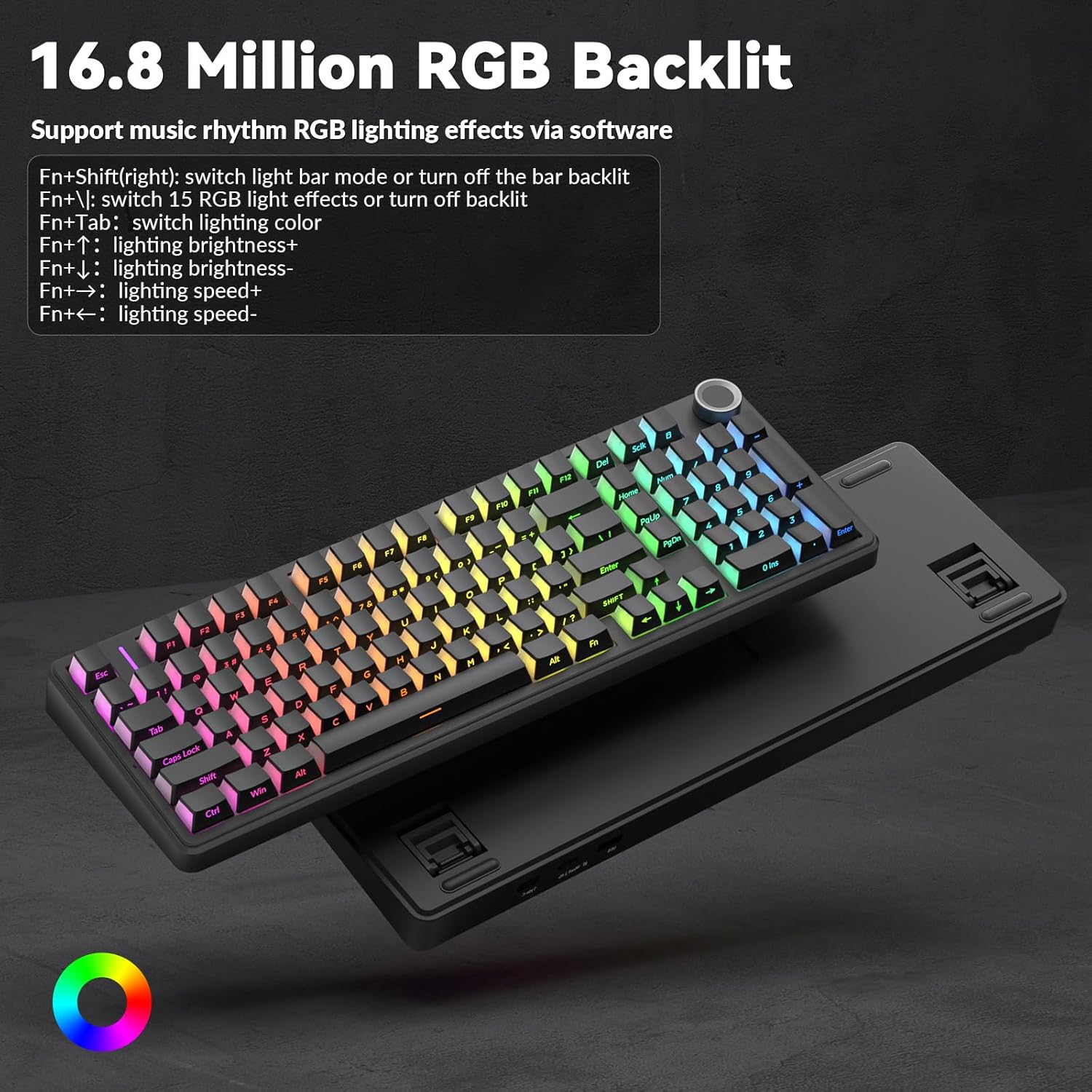
Image: Illustration of the keyboard's versatile triple-mode connectivity.
3.2 Ысытма менен алмаштырылуучу дизайн
The PCB supports 3-pin and 5-pin switches, allowing for easy replacement of switches without soldering. Keycaps are also replaceable. This feature enables customization of typing feel and sound.

Image: Close-up of the hot-swappable sockets, silent switches, and PBT keycaps.
3.3 Gasket Structure & Silent Operation
Features an advanced gasket-mounted design with an integrated silicone pad and PCB single key slotting. This structure, combined with five layers of sound-dampening materials (PORON cotton, IXPE shaft underpad, PET voice actor pad, PORON base cotton, silicone base pad), optimizes resilience, stability, and reduces cavity noise for a soft, elastic, and quiet typing experience.
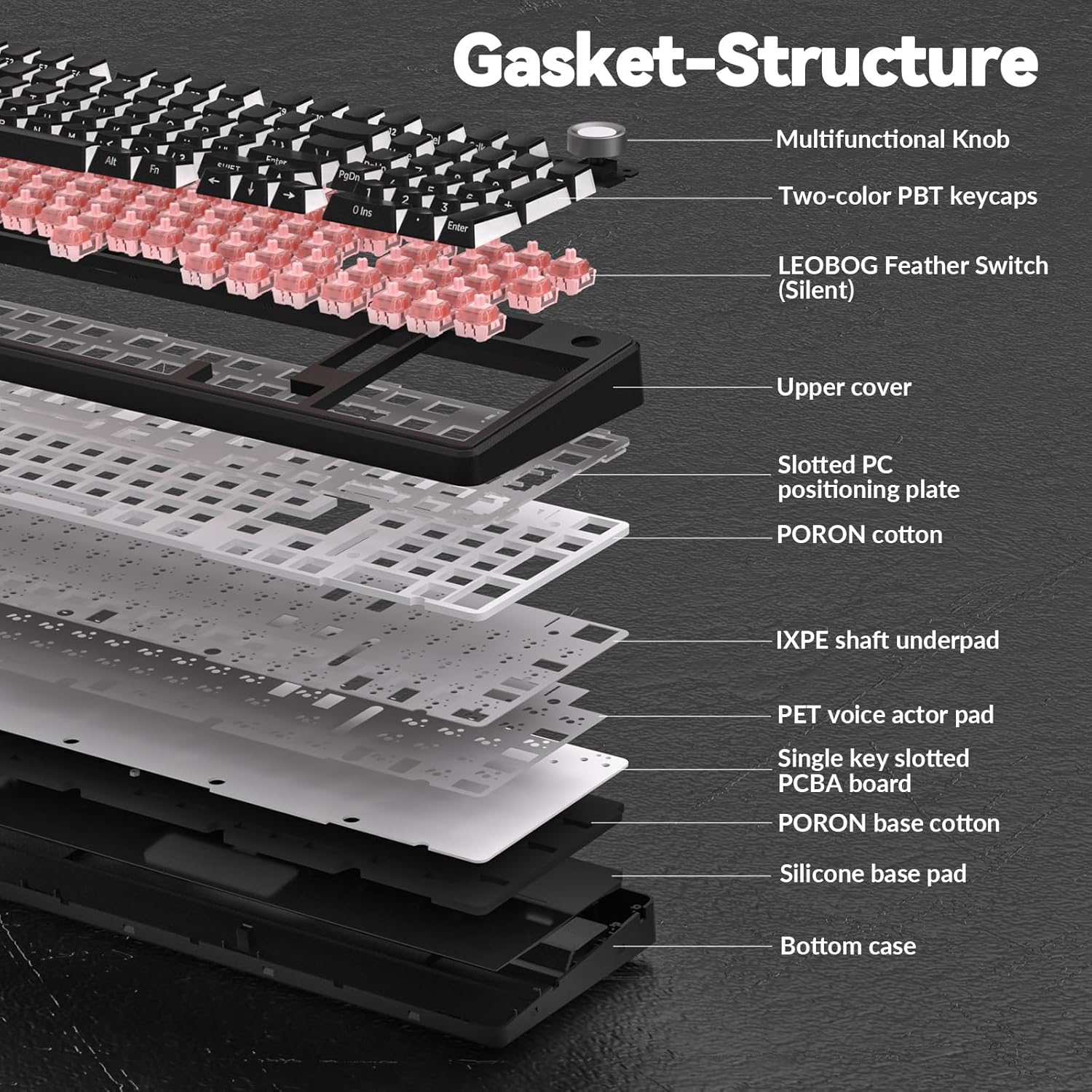
Image: Exploded diagram showing the internal gasket structure and sound-dampжылмалоочу катмарлар.
3.4 RGB Backlighting & Customization
Offers 16 RGB lighting effects and supports 16.8 million colors. Lighting effects can be customized via driver software, which also allows for macro recording, editing, and custom shortcut keys. Features cool music rhythm lighting effects.

Image: Keyboard with RGB backlighting and key combinations for lighting control.
3.5 Multi-Function Control Knob
A dedicated knob allows switching between backlit mode and multimedia mode. In backlit mode, rotate to adjust brightness and click to switch lighting effects. In multimedia mode, rotate to adjust volume and click to play/pause. Long press the knob for approximately 5 seconds to switch modes.

Image: Detailed explanation of the control knob's functions.
3.6 High-Capacity Battery
Equipped with an 8000mAh battery for extended wireless use. Battery life is approximately 53 hours with backlighting on and up to 400 hours with backlighting off.

Image: Visual representation of the keyboard's 8000mAh battery capacity.
4. Орнотуу
4.1 Баскычтопту заряддоо
Before first use, fully charge the keyboard using the provided USB Type-C cable. Connect the cable to the keyboard's Type-C port and a power source (e.g., computer USB port, USB wall adapter). The charging indicator will show status.
4.2 Туташуу режимдери
The AULA F99 Pro supports three connection methods:
- USB зымдуу режими: Connect the keyboard directly to your device using the USB Type-C cable. The keyboard will be recognized automatically.
- 2.4 ГГц зымсыз режими:
- Locate the 2.4GHz USB receiver (usually stored in a compartment on the keyboard).
- Ресиверди компьютериңиздеги жеткиликтүү USB портуна сайыңыз.
- Switch the keyboard to 2.4GHz mode (refer to keyboard's physical switch or FN key combination). The keyboard should connect automatically.
- Bluetooth 5.0 режими:
- Switch the keyboard to Bluetooth mode (refer to keyboard's physical switch or FN key combination).
- On your device (PC, tablet, phone), enable Bluetooth and search for new devices.
- Select "AULA F99 Pro" from the list of available devices to pair.
- The keyboard can store up to three Bluetooth profiles. Use FN + 1/2/3 to switch between paired Bluetooth devices.
5. Операция
5.1 Multi-Function Knob Usage
The knob has two primary modes:
- Lighting Control Mode:
- Rotate the knob to adjust backlight brightness.
- Click the knob to cycle through different lighting effects.
- Мультимедиа режими:
- Системанын үнүн тууралоо үчүн баскычты буруңуз.
- Click the knob to play or pause media.
To switch between Lighting Control Mode and Multimedia Mode, press and hold the knob for approximately 5 seconds.
5.2 RGB Backlight Control (FN Key Combinations)
In addition to the knob, use the following FN key combinations for lighting control:
- FN + Right Shift: Switch light bar mode or turn off the light bar backlight.
- FN + \: Switch between 15 RGB light effects or turn off the main backlight.
- FN + Tab: Switch lighting color.
- FN + өйдө жебе: Жарыктын жарыктыгын жогорулатыңыз.
- FN + Төмөн жебе: Жарыктын жарыктыгын азайтыңыз.
- FN + Оңго жебе: Жарыктын ылдамдыгын жогорулатыңыз.
- FN + Солго жебе: Жарыктын ылдамдыгын азайтыңыз.
5.3 Macro Customization & Driver Software
For advanced customization, including macro recording, editing, custom key functions, and 16.8 million light colors, download the official AULA driver software. The driver is available at bit.ly/m/AULA. Please note that the driver currently supports Windows systems and functions only in wired mode.

Image: Driver software interface for macro and RGB customization.
6. Техникалык тейлөө
6.1 Баскычтопту тазалоо
Клавиатураңызды тазалоо үчүн, алгач аны бардык кубат булактарынан ажыратыңыз. Жумшак, түксүз чүпүрөктү бир аз сүртүңүз.ampened with water or a mild cleaning solution. For dust and debris between keycaps, use compressed air or a small brush. Avoid harsh chemicals or abrasive materials.
6.2 Баскыч капкактарын жана которгучтарды алмаштыруу
The AULA F99 Pro is hot-swappable, allowing for easy replacement of keycaps and switches. Use the included keycap/switch puller tool:
- Клавиатураны алып салуу: Gently attach the keycap puller to the sides of the keycap and pull upwards evenly.
- Которуштурууну алып салуу: Use the switch puller to grip the top and bottom clips of the switch. Apply gentle pressure and pull the switch straight up.
- Орнотуу: Align the new switch's pins with the PCB sockets and press down firmly until it clicks into place. Ensure pins are not bent. Place the new keycap onto the switch stem and press down.
7. Техникалык шарттар
| Өзгөчөлүк | Деталь |
|---|---|
| Модель номери | F99 Pro |
| Байланыш технологиясы | 2.4GHz Wireless, BT5.0, USB Wired (Type-C) |
| Keyboard Description | Механикалык |
| Өзгөчөлүктөр | Backlit, Hot-Swappable, Programmable Keys, Rechargeable, Silent |
| Арткы жарыктандыруу | RGB (16.8 миллион түстөр) |
| Батарея сыйымдуулугу | 8000mAh |
| Болжолдуу батареянын иштөө мөөнөтү | ~53 hours (backlight ON), ~400 hours (backlight OFF) |
| Клавиатура материалы | PBT (Side-printed) |
| Которуу түрү | Pre-lubed Linear Switches (LEOBOG Feather Switch) |
| Шайкеш түзмөктөр | Оюн консолу, ноутбук, компьютер, смартфон, планшет |
| Элемент Салмагы | 3.39 фунт |
| Пакеттин өлчөмдөрү | 17.04 x 6.77 x 2.05 дюйм |
8. Кыйынчылыктарды
8.1 Баскычтоп жооп бербейт
- Ensure the keyboard is charged. Connect it via USB-C cable to check if it powers on.
- Туташуу режиминин которуштуруусу (зымдуу, 2.4 ГГц, Bluetooth) туура коюлганын текшериңиз.
- For 2.4GHz, ensure the USB receiver is securely plugged in and the keyboard is in 2.4GHz mode.
- Bluetooth үчүн түзмөгүңүздө Bluetooth иштетилгенин жана баскычтоп жупташканын текшериңиз. Зарыл болсо, кайра жупташтырып көрүңүз.
- Try connecting the keyboard to a different USB port or computer to rule out port/device issues.
8.2 RGB Backlight Not Working/Incorrect
- Check brightness settings using the control knob or FN + Up/Down Arrow keys.
- Cycle through lighting effects using the control knob or FN + \ key.
- Ensure the keyboard is sufficiently charged, as low battery can affect lighting.
- If using driver software, ensure it is running and settings are applied correctly.
8.3 Connectivity Issues (Lag/Disconnections)
- Ensure the keyboard is within range of the receiver/Bluetooth device.
- Башка зымсыз түзмөктөрдөн (мисалы, Wi-Fi роутерлери, башка 2.4 ГГц түзмөктөр) тоскоолдуктарды азайтыңыз.
- Баскычтоптун батареясы аз эмес экенин текшериңиз.
- For 2.4GHz, try plugging the receiver into a different USB port, preferably a USB 2.0 port if available.
- For Bluetooth, try removing and re-pairing the device.
9. Кепилдик жана колдоо
AULA products are manufactured to high quality standards. For specific warranty information, please refer to the warranty card included with your product or contact AULA customer support. Keep your purchase receipt as proof of purchase.
For technical assistance or further inquiries, please visit the official AULA webсайтка же кардарларды тейлөө каналдарына кайрылыңыз.


