1. Киришүү
The Broadlink RM MAX is a next-generation smart Wi-Fi hub designed to unify control of your IR and RF devices. It features enhanced BLE for faster device discovery and local control, ensuring your smart home operates smoothly even without an internet connection. This manual provides comprehensive instructions for setting up, operating, and maintaining your RM MAX device.

Figure 1: Broadlink RM MAX Smart Home Hub with its mobile application interface.
2. Негизги өзгөчөлүктөрү
- Next-Gen Smart Hub with BLE Quick Setup: Enhanced with BLE for faster device discovery and local control, optimizing setup and performance.
- IR & RF Universal Control: Supports a wide range of IR 38KHz and RF 433MHz-controlled devices, including TVs, air conditioners, audio systems, RF fans, roller blinds, and switches.
- Local Control, Even Without Wi-Fi: Maintains control of smart home devices via BLE during network outages, requiring no internet connection once configured.
- Upgraded App with FastCon Integration: The new Broadlink Magic Home app offers a refined interface and integrates FastCon-enabled smart bulbs (LB4E26, GU10) and sensors (motion, door, temperature/humidity). RM MAX acts as the central hub for managing this ecosystem.
- Hands-Free Voice & Remote Access: After connecting to a 2.4GHz Wi-Fi network, the RM MAX enables remote control and supports voice assistants like Alexa and Google Home.
- Create Local Scenes & Smart Routines: Customize one-tap scenes and automation schedules stored locally on the device, ensuring reliable offline control for routines like "Good Morning" or "Bedtime."

Figure 2: ашыкview of Broadlink RM MAX features and compatible device types.
3. Орнотуу колдонмосу
Follow these steps to set up your Broadlink RM MAX Smart Home Hub:
3.1 Баштапкы түзмөктү туташтыруу
- Күйгүзүү: Connect the RM MAX to a power source using the provided cable. Observe the LED indicator for its flashing status.
- Колдонмону жүктөп алуу: Download the "Broadlink Magic Home" app from your device's app store (iOS or Android).
- Тармакка туташуу: Open the app and follow the on-screen instructions to connect the RM MAX to your 2.4GHz Wi-Fi network or via BLE (Bluetooth Low Energy) for quick pairing. Ensure your Wi-Fi network name and password do not contain special characters.
- Authorize Device: Within the app, tap "Authorize Device" to enable Wi-Fi control and remote access. This step is crucial for full functionality.
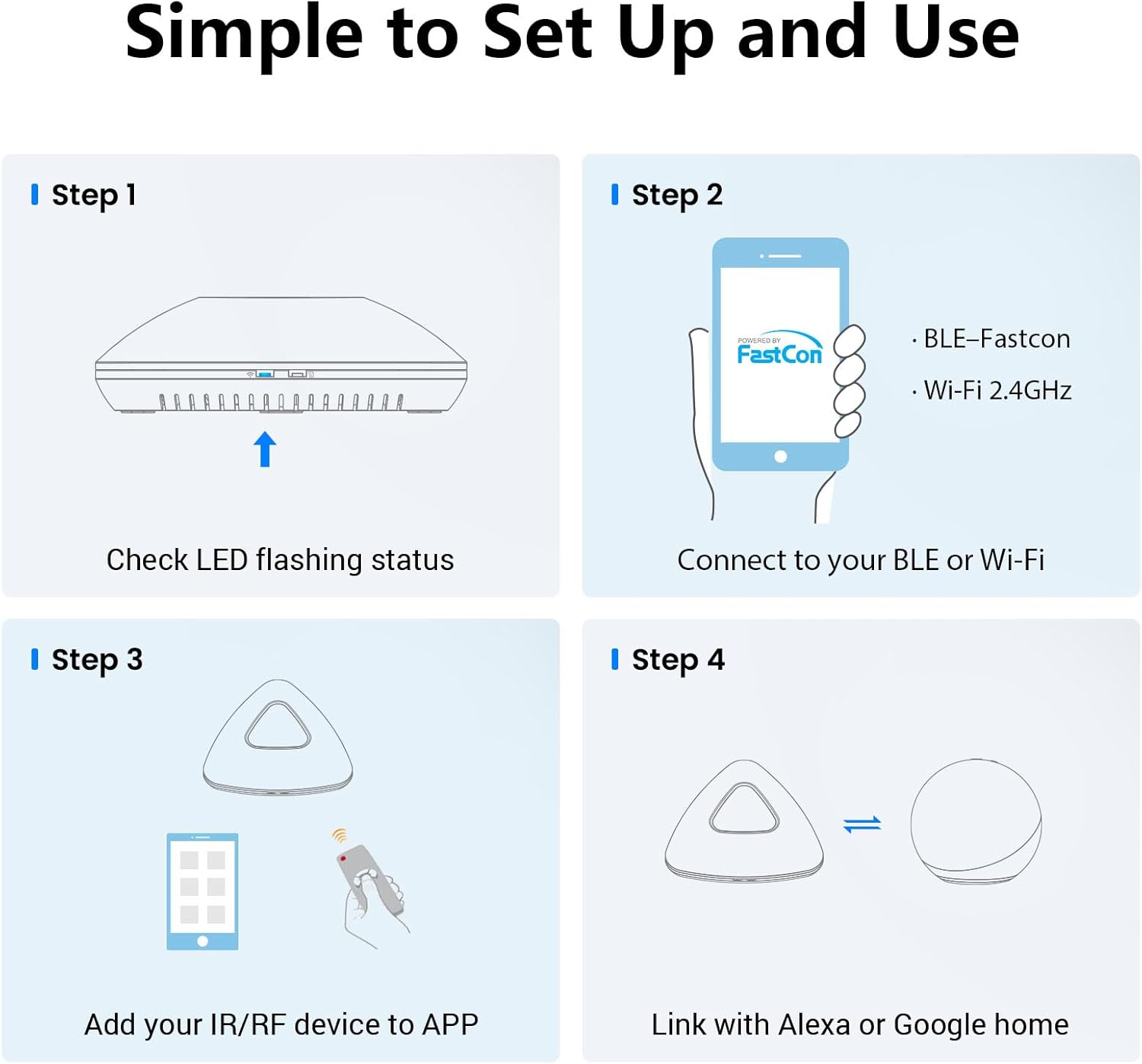
Figure 3: Simplified setup steps for the Broadlink RM MAX.

Figure 4: Detailed steps for authorizing the device and connecting to Wi-Fi.
3.2 Adding IR/RF Devices
- Түзмөктүн түрүн тандоо: In the Broadlink Magic Home app, navigate to the "Add Device" section. Choose the type of device you wish to add (e.g., TV, AC, Fan, Blinds).
- Learn Remote: For IR/RF devices, the app will guide you through a learning process. Point your original remote control at the RM MAX and press the corresponding buttons as prompted by the app. The RM MAX will learn and replicate these signals.
- Сыноону башкаруу: After learning, test the controls within the app to ensure the RM MAX can successfully operate your device.
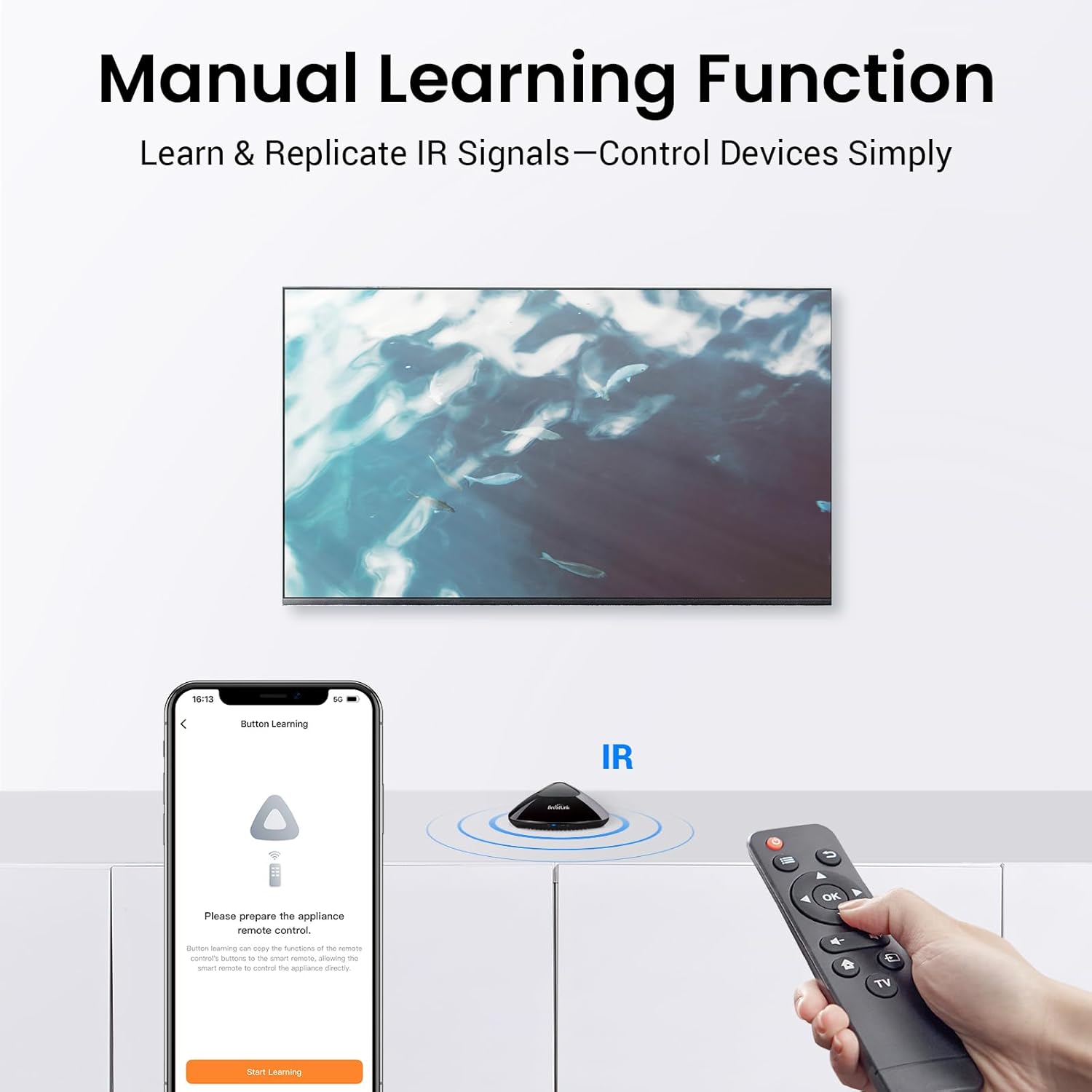
Figure 5: Manual learning function for IR/RF devices.
4. Иштөө нускамалары
4.1 Колдонмо аркылуу алыстан башкаруу
Once your devices are added to the Broadlink Magic Home app, you can control them from anywhere with an internet connection. Simply open the app and select the device you wish to control.

Figure 6: Remote control functionality of the Broadlink RM MAX.
4.2 Үн менен башкаруунун интеграциясы
The RM MAX is compatible with popular voice assistants like Amazon Alexa and Google Home. After connecting to your 2.4GHz Wi-Fi network and authorizing the device in the Broadlink app, link your Broadlink account with your voice assistant app. You can then use voice commands to control your connected devices.

Figure 7: Voice control setup with the Broadlink RM MAX.
4.3 Local Control (Offline Functionality)
The RM MAX supports local control via BLE. This means that once your devices are configured, you can still control them through the Broadlink app even if your Wi-Fi network is down or there is no internet connection. This ensures continuous operation of your smart home.
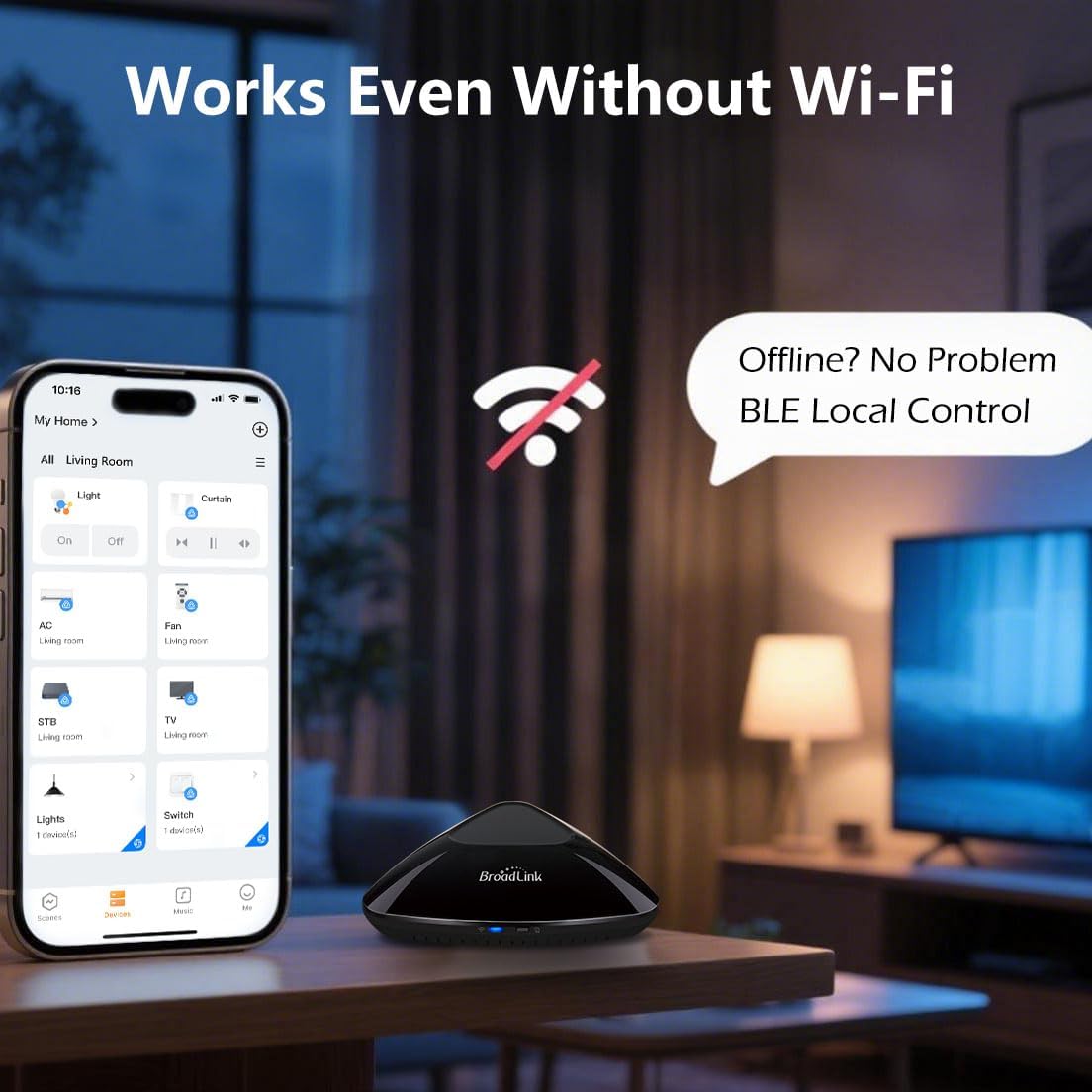
Figure 8: Local control capability of the RM MAX without Wi-Fi.
4.4 Creating Scenes and Routines
The Broadlink Magic Home app allows you to create custom scenes and automation schedules. These routines are stored locally on the RM MAX device, ensuring they run reliably even without internet access.
- Сахналар: Combine multiple actions into a single tap. For example, a "Movie Night" scene could dim lights, turn on the TV, and adjust the AC.
- Графиктер: Automate device actions based on time. Set your AC to turn on before you wake up or turn off after you fall asleep.

9-сүрөт: Мисamples of timer and schedule functions for automated routines.

10-сүрөт: Мисample of scheduled AC operation for comfort and energy efficiency.
5. Техникалык тейлөө
To ensure the longevity and optimal performance of your Broadlink RM MAX, consider the following maintenance tips:
- Тазалоо: Gently wipe the device with a soft, dry cloth. Avoid using liquid cleaners or abrasive materials.
- Жайгашкан жери: Place the RM MAX in a central location within your home, free from obstructions, to ensure optimal IR/RF signal transmission. Avoid placing it near heat sources or in direct sunlight.
- Программалык камсыздоонун жаңыртуулары: Regularly check the Broadlink Magic Home app for available firmware updates. These updates often include performance improvements and new features.
6. Кыйынчылыктарды
If you encounter issues with your Broadlink RM MAX, refer to the following common troubleshooting steps:
| Көйгөй | Чечим |
|---|---|
| Түзмөк Wi-Fi'га туташпай жатат. |
|
| IR/RF device not responding. |
|
| Үн башкаруу иштебейт. |
|
| Local control (BLE) not functioning. |
|
7. Техникалык шарттар
| Атрибут | Деталь |
|---|---|
| Модель номери | RM MAX |
| Өндүрүүчү | Hangzhou BroadLink Technology Co., Ltd. |
| Элемент Салмагы | 7.4 унция |
| Продукциянын өлчөмдөрү | 4.28 x 4.28 x 1.44 дюйм |
| Түс | Кара |
| Камтылган компоненттер | RF Hub |
| Батареялар керекпи? | Жок |
| IR жыштыгы | 38KHz |
| RF жыштыгы | 433 МГц |
| Зымсыз байланыш | Wi-Fi 2.4GHz, BLE |
8. Кепилдик жана колдоо
For warranty information and technical support, please refer to the official Broadlink website or contact Broadlink customer service directly. Details regarding product registration and support channels can typically be found on the manufacturer's packaging or their official online resources.
Broadlink Official Store: Дүкөнгө кириңиз


